> ## Documentation Index
> Fetch the complete documentation index at: https://julius.ai/docs/llms.txt
> Use this file to discover all available pages before exploring further.
# Create AI presentations with Julius
> Learn how to create AI presentations in Julius from prompts, documents, research, or data, then refine, publish, or export them to PowerPoint, PDF, HTML, or Google Slides.
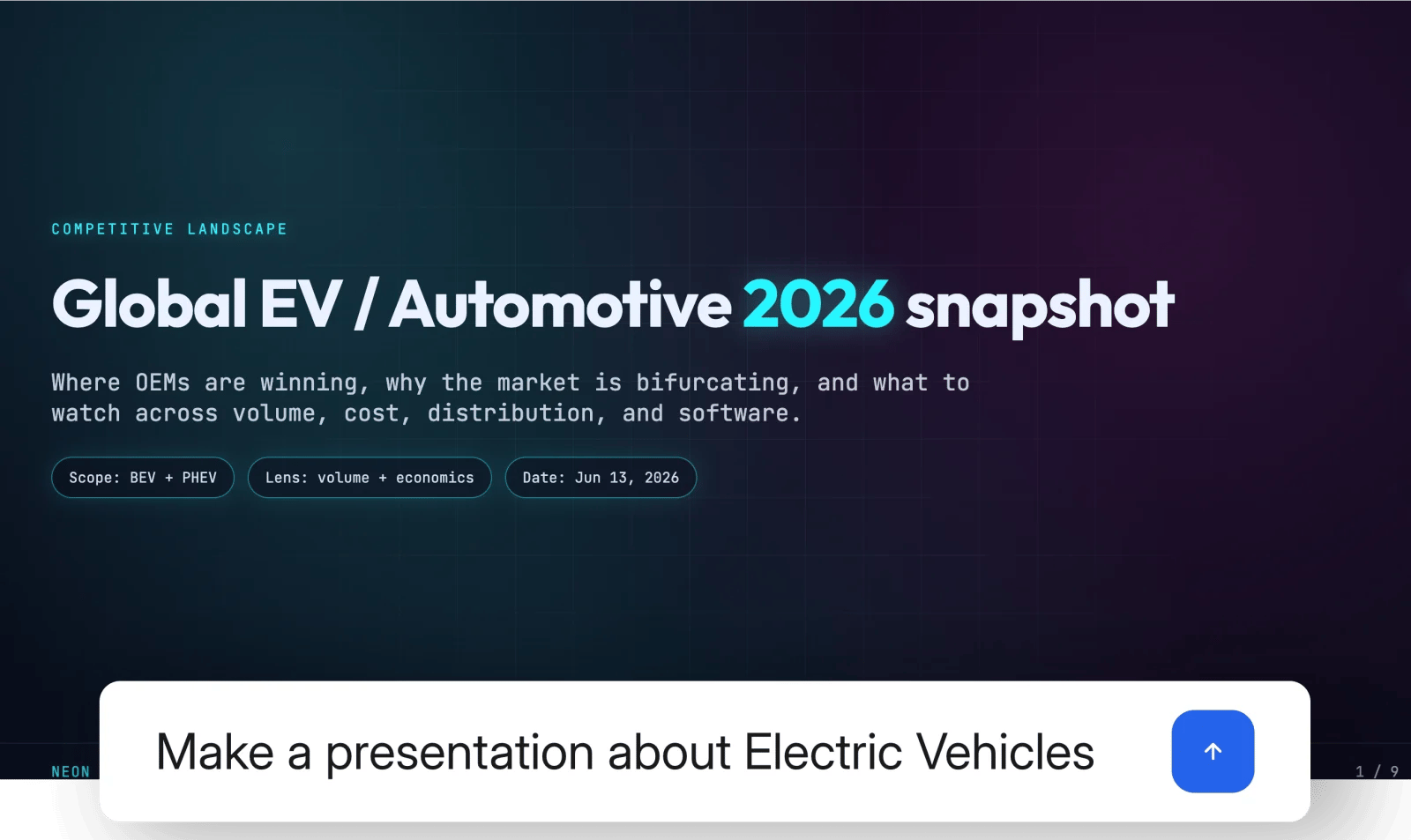
The **AI Presentation Maker** turns your ideas and source material into a complete presentation. Start with a prompt, document, spreadsheet, research question, or analysis, and Julius can develop the narrative, create charts and visuals, and design the slides in the same conversation.
Tell Julius how you plan to use the presentation. It can build a browser-based HTML deck or deliver it in formats such as PowerPoint (`.pptx`), PDF, PNG, or Google Slides.
 ***
## How to create a presentation with Julius
Open the **Slides** tab in the chat bar or ask Julius for a presentation in any conversation:
> Create a 10-slide investor update from this revenue data
> Turn the attached report into a concise presentation for a non-technical audience
> Research the market for home battery storage and present the findings as an HTML deck
> Build a PDF presentation for a workshop on customer discovery
Julius shows the presentation in the chat as it works. Open it in the side panel to review, present, refine, publish, or export it.
***
## How does the AI Presentation Maker work?
Name the topic, audience, purpose, approximate length, and output format. Attach any files or point Julius to analysis already completed in the conversation.
Julius reviews the source material, identifies the important points, and creates the narrative, layouts, charts, and visuals.
Ask for targeted changes to the structure, copy, design, data, or individual slides without starting over.
Use the browser-based presentation, publish a shareable link, or export the presentation in the format that fits your workflow.
***
## How to create a presentation from Excel or other data
Julius can analyze the information behind a presentation before it builds the slides. Upload a spreadsheet, PDF, report, or other source; connect live data; or use research and analysis from earlier in the conversation. Julius can then create charts from the results and place them into a clear narrative.
This keeps the analysis and presentation in one workflow and makes it easier to inspect the source, verify important figures, and revise the story before sharing it.
***
## How to create a presentation with Julius
Open the **Slides** tab in the chat bar or ask Julius for a presentation in any conversation:
> Create a 10-slide investor update from this revenue data
> Turn the attached report into a concise presentation for a non-technical audience
> Research the market for home battery storage and present the findings as an HTML deck
> Build a PDF presentation for a workshop on customer discovery
Julius shows the presentation in the chat as it works. Open it in the side panel to review, present, refine, publish, or export it.
***
## How does the AI Presentation Maker work?
Name the topic, audience, purpose, approximate length, and output format. Attach any files or point Julius to analysis already completed in the conversation.
Julius reviews the source material, identifies the important points, and creates the narrative, layouts, charts, and visuals.
Ask for targeted changes to the structure, copy, design, data, or individual slides without starting over.
Use the browser-based presentation, publish a shareable link, or export the presentation in the format that fits your workflow.
***
## How to create a presentation from Excel or other data
Julius can analyze the information behind a presentation before it builds the slides. Upload a spreadsheet, PDF, report, or other source; connect live data; or use research and analysis from earlier in the conversation. Julius can then create charts from the results and place them into a clear narrative.
This keeps the analysis and presentation in one workflow and makes it easier to inspect the source, verify important figures, and revise the story before sharing it.
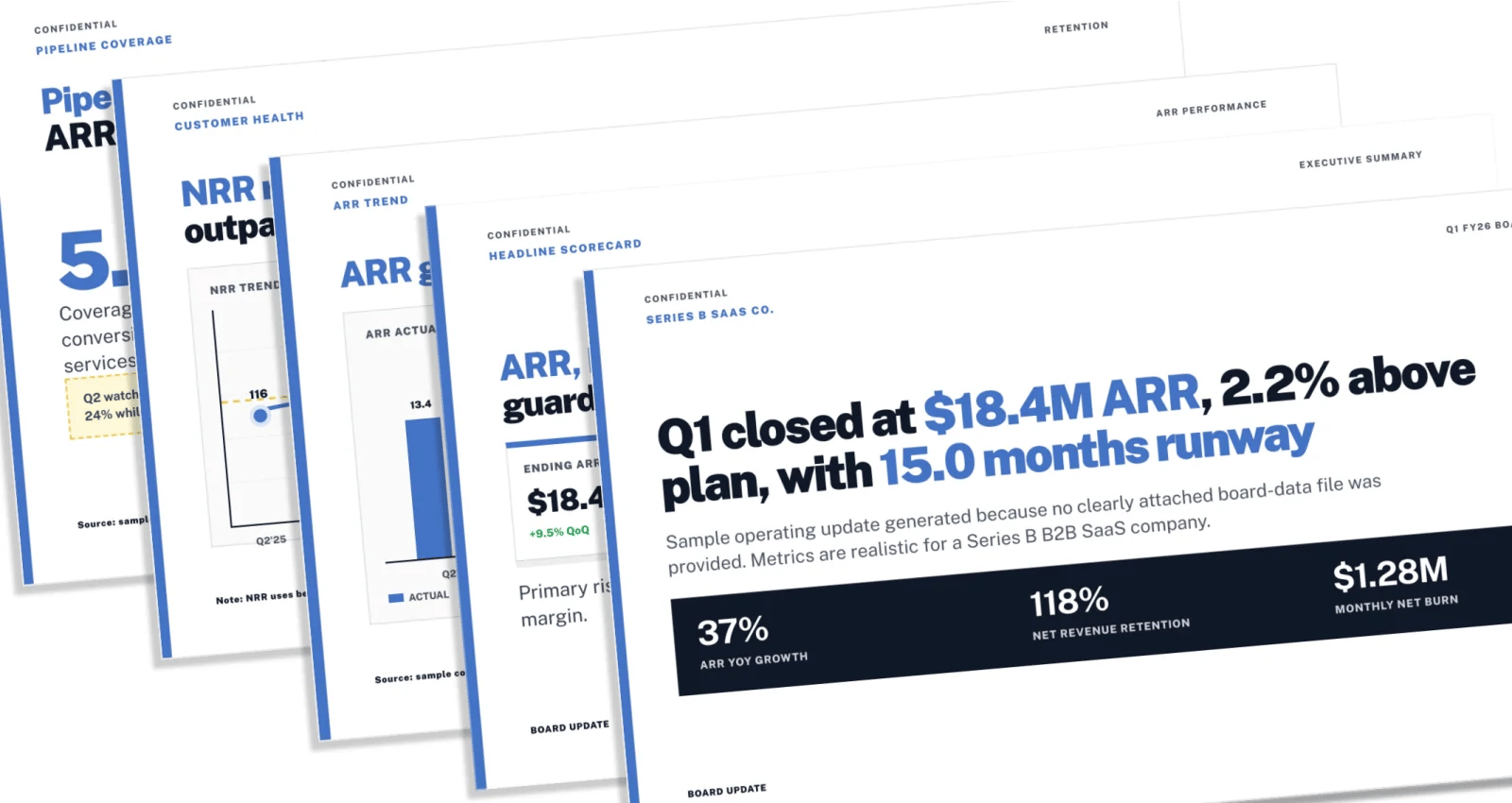 Upload an Excel or CSV file, ask Julius to find the important trends, and turn the analysis into charts and a finished presentation.
***
## How to choose a presentation template
Choose from presentation templates, describe a visual direction, or provide brand guidance. Tell Julius about any colors, fonts, logos, image treatments, or layout rules it should use across the deck.
Upload an Excel or CSV file, ask Julius to find the important trends, and turn the analysis into charts and a finished presentation.
***
## How to choose a presentation template
Choose from presentation templates, describe a visual direction, or provide brand guidance. Tell Julius about any colors, fonts, logos, image treatments, or layout rules it should use across the deck.
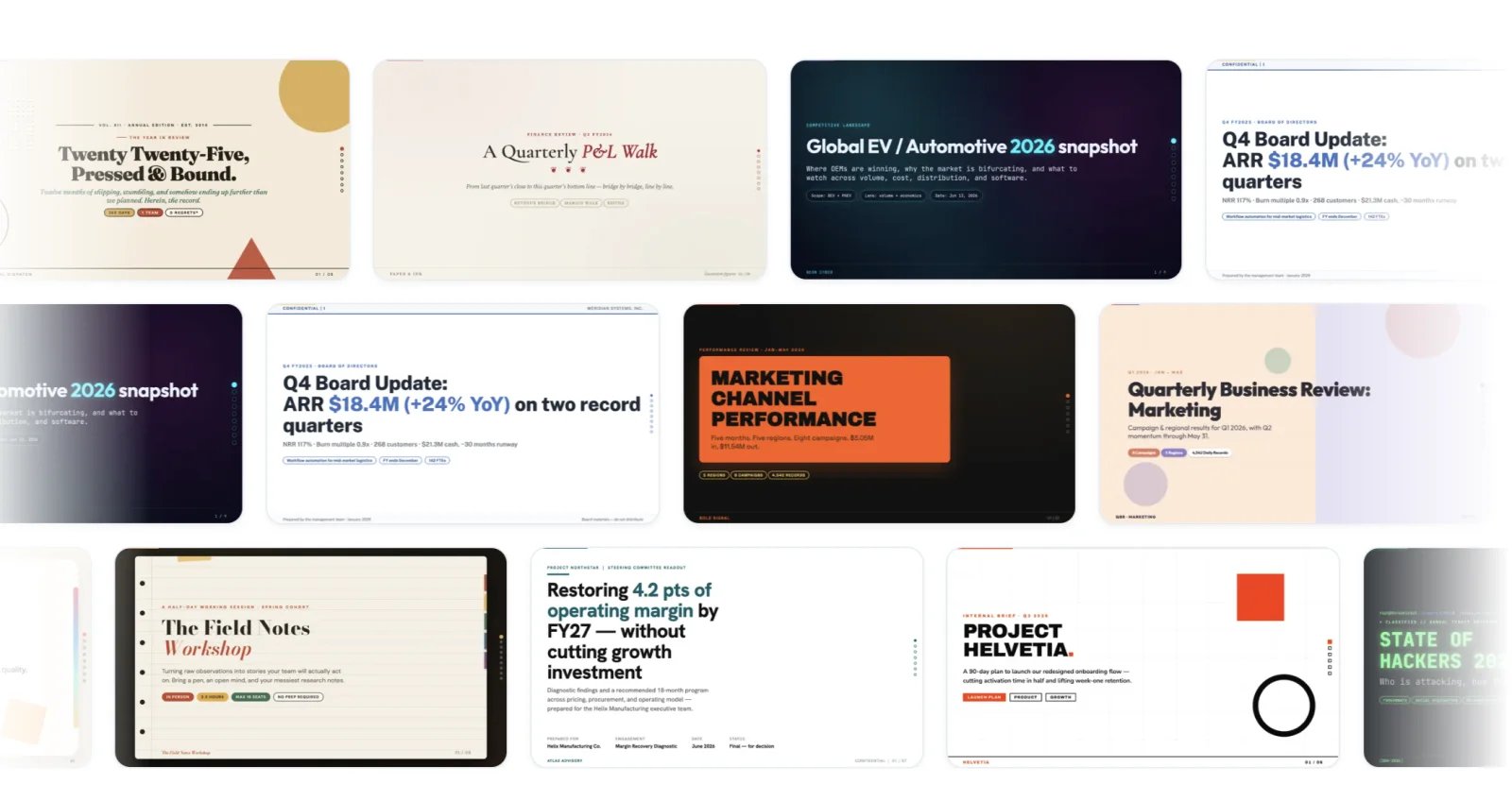 [Browse slide templates](https://julius.ai/home/slides-templates) to preview designs for board updates, business reviews, pitch decks, marketing reports, workshops, and more. Choose one as a starting point, then customize its content and visual direction with Julius.
> Use a clean consulting-style template with our brand blue and plenty of whitespace
> Make the deck dark and editorial, with full-width photography
> Apply the colors and typography from the attached brand guide
You can change direction later without rebuilding the content from scratch.
***
## How to edit AI-generated slides
Continue editing in plain language. You can revise the entire deck or target individual slides:
> Make slide 4 a bar chart instead of a table
> Shorten the copy on slides 2 and 3
> Add a recommendation slide after the findings
> Rework the presentation for a board audience and keep it under eight slides
***
## How to export to PowerPoint, PDF, or Google Slides
Tell Julius where the presentation will be viewed or edited, and it can choose an appropriate format. Common options include:
* **HTML** for browser-based presentations, animation, and publishing as a live link
* **PowerPoint (`.pptx`)** for continued editing in PowerPoint or compatible presentation tools
* **PDF** for a portable, fixed-layout version
* **PNG** for individual slide images
* **Google Slides** for continued editing and collaboration in Google Slides
Click **Publish** on a browser-based presentation to create a public link. Anyone with the link can view the latest published version, while the underlying conversation and source files remain private. See [Publishing and sharing](/docs/artifacts/overview#publishing-and-sharing) for the complete flow.
***
## AI presentation prompt examples
Explain who will see the presentation and what they should understand or decide:
> Create a decision-ready update for executives who need to approve next quarter's budget
Provide an outline or describe the narrative you want:
> 6 slides: context, problem, evidence, options, recommendation, and next steps
Reference the files, research, tables, or results Julius should use:
> Use the attached customer survey and the segment analysis from earlier in this chat
Choose a presentation template or describe the design, brand, and tone:
> Use a minimal template, our brand colors, and one clear chart per findings slide
Say how you plan to present, share, or continue editing the work:
> Build this as an animated HTML presentation and also give me a PDF copy
***
## Presentation ideas and use cases
* **Pitch decks**: explain the problem, solution, market, traction, and ask
* **Board and investor updates**: turn company metrics into a decision-ready narrative
* **Quarterly business reviews**: present performance, changes, and next-quarter priorities
* **Sales presentations**: combine customer context, proof, pricing, and a clear next step
* **Research presentations**: turn documents, sources, and analysis into an understandable briefing
* **Proposals and project plans**: present scope, approach, timeline, budget, and recommendations
* **Educational presentations**: structure a lesson, workshop, or lecture for a specific audience
***
## Related resources
* [Explore the Julius AI Presentation Maker](https://julius.ai/home/ai-presentation-maker): see examples and presentation templates
* [Turn Excel data into PowerPoint](https://julius.ai/home/excel-to-powerpoint): analyze a spreadsheet and build the finished presentation
* [Explore slide templates](https://julius.ai/home/slides-templates): browse presentation designs and choose a starting point for your deck
* [AI Website Builder](/docs/create-websites)
* [Artifacts overview](/docs/artifacts/overview)
* [Reports](/docs/artifacts/reports)
* [Tools & capabilities](/docs/get-started/tools)
The best first prompt names the audience, purpose, source material, visual direction, and preferred output format.
[Browse slide templates](https://julius.ai/home/slides-templates) to preview designs for board updates, business reviews, pitch decks, marketing reports, workshops, and more. Choose one as a starting point, then customize its content and visual direction with Julius.
> Use a clean consulting-style template with our brand blue and plenty of whitespace
> Make the deck dark and editorial, with full-width photography
> Apply the colors and typography from the attached brand guide
You can change direction later without rebuilding the content from scratch.
***
## How to edit AI-generated slides
Continue editing in plain language. You can revise the entire deck or target individual slides:
> Make slide 4 a bar chart instead of a table
> Shorten the copy on slides 2 and 3
> Add a recommendation slide after the findings
> Rework the presentation for a board audience and keep it under eight slides
***
## How to export to PowerPoint, PDF, or Google Slides
Tell Julius where the presentation will be viewed or edited, and it can choose an appropriate format. Common options include:
* **HTML** for browser-based presentations, animation, and publishing as a live link
* **PowerPoint (`.pptx`)** for continued editing in PowerPoint or compatible presentation tools
* **PDF** for a portable, fixed-layout version
* **PNG** for individual slide images
* **Google Slides** for continued editing and collaboration in Google Slides
Click **Publish** on a browser-based presentation to create a public link. Anyone with the link can view the latest published version, while the underlying conversation and source files remain private. See [Publishing and sharing](/docs/artifacts/overview#publishing-and-sharing) for the complete flow.
***
## AI presentation prompt examples
Explain who will see the presentation and what they should understand or decide:
> Create a decision-ready update for executives who need to approve next quarter's budget
Provide an outline or describe the narrative you want:
> 6 slides: context, problem, evidence, options, recommendation, and next steps
Reference the files, research, tables, or results Julius should use:
> Use the attached customer survey and the segment analysis from earlier in this chat
Choose a presentation template or describe the design, brand, and tone:
> Use a minimal template, our brand colors, and one clear chart per findings slide
Say how you plan to present, share, or continue editing the work:
> Build this as an animated HTML presentation and also give me a PDF copy
***
## Presentation ideas and use cases
* **Pitch decks**: explain the problem, solution, market, traction, and ask
* **Board and investor updates**: turn company metrics into a decision-ready narrative
* **Quarterly business reviews**: present performance, changes, and next-quarter priorities
* **Sales presentations**: combine customer context, proof, pricing, and a clear next step
* **Research presentations**: turn documents, sources, and analysis into an understandable briefing
* **Proposals and project plans**: present scope, approach, timeline, budget, and recommendations
* **Educational presentations**: structure a lesson, workshop, or lecture for a specific audience
***
## Related resources
* [Explore the Julius AI Presentation Maker](https://julius.ai/home/ai-presentation-maker): see examples and presentation templates
* [Turn Excel data into PowerPoint](https://julius.ai/home/excel-to-powerpoint): analyze a spreadsheet and build the finished presentation
* [Explore slide templates](https://julius.ai/home/slides-templates): browse presentation designs and choose a starting point for your deck
* [AI Website Builder](/docs/create-websites)
* [Artifacts overview](/docs/artifacts/overview)
* [Reports](/docs/artifacts/reports)
* [Tools & capabilities](/docs/get-started/tools)
The best first prompt names the audience, purpose, source material, visual direction, and preferred output format.