> ## Documentation Index
> Fetch the complete documentation index at: https://julius.ai/docs/llms.txt
> Use this file to discover all available pages before exploring further.
# Cancel your subscription
> How to cancel your Julius subscription on web, iOS, or Android
## Cancel on web
1. Go to your [Subscription settings](https://julius.ai/settings/subscription).
2. Click **Invoices and Payment Methods** to open your billing portal.
3. Click **Cancel plan**.
4. Your access continues until the end of your current billing period.
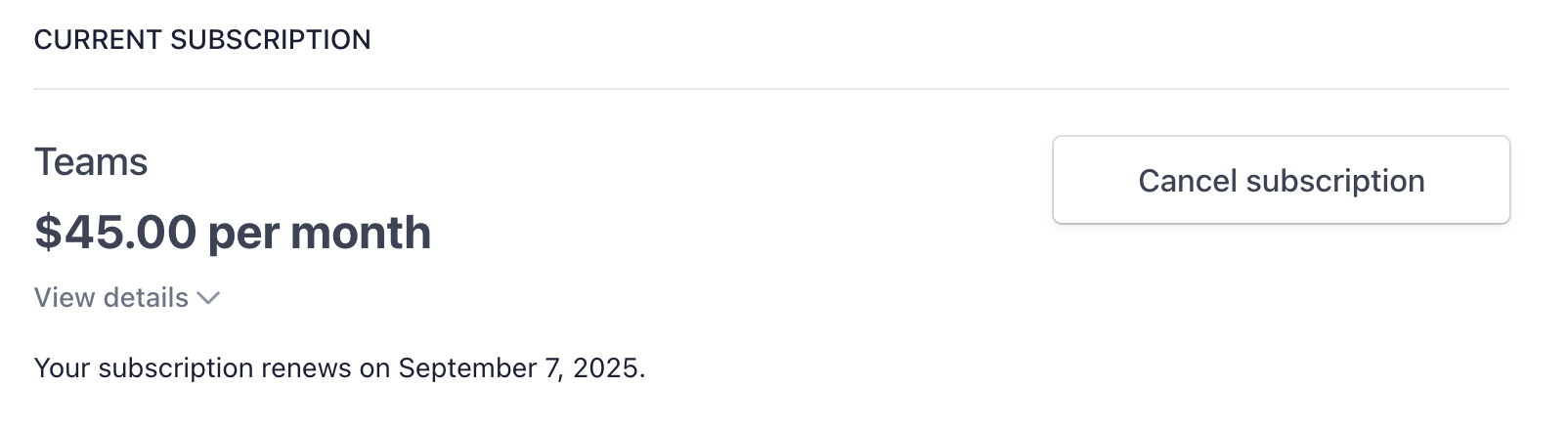 After canceling, you keep full access to your plan until the end of your current billing period. You won't be charged again.
## Cancel on iPhone or iPad
If you subscribed through the App Store, you must cancel through Apple:
1. Open **Settings** on your device.
2. Tap your name at the top, then tap **Subscriptions**.
3. Find **Julius AI** and tap it.
4. Tap **Cancel Subscription**.
You can also manage your subscription at [apps.apple.com/account/subscriptions](https://apps.apple.com/account/subscriptions).
Canceling inside the Julius app or website will not cancel an App Store subscription. You must cancel through Apple directly.
## Cancel on Android
If you subscribed through Google Play, you must cancel through Google:
1. Open the **Google Play Store** app.
2. Tap your profile icon, then tap **Payments & subscriptions** → **Subscriptions**.
3. Find **Julius AI** and tap it.
4. Tap **Cancel subscription**.
You can also manage your subscription at [play.google.com/store/account/subscriptions](https://play.google.com/store/account/subscriptions).
Canceling inside the Julius app or website will not cancel a Google Play subscription. You must cancel through Google directly.
## Not sure how you subscribed?
* Check your email for a receipt from **Julius**, **Apple**, or **Google Play**.
* If your receipt is from Julius or Stripe, cancel on web (step 1 above).
* If your receipt is from Apple or Google, follow the mobile steps above.
## After canceling
* Your plan stays active until the end of your current billing period.
* Unused credits expire at the end of that period.
* Your data and files are preserved. You can still log in on the Free plan.
* Changed your mind? You can resubscribe anytime from your [Subscription settings](https://julius.ai/settings/subscription).
## Need a refund?
Refunds are reviewed on a case-by-case basis. See our [Refund Policy](/account/refund-policy) for details. To request a refund, contact us at [team@julius.ai](mailto:team@julius.ai) with your full name, purchase email, receipt number, and reason for the request.
***
Still having trouble? Reach out to [team@julius.ai](mailto:team@julius.ai) and we'll help you out.
After canceling, you keep full access to your plan until the end of your current billing period. You won't be charged again.
## Cancel on iPhone or iPad
If you subscribed through the App Store, you must cancel through Apple:
1. Open **Settings** on your device.
2. Tap your name at the top, then tap **Subscriptions**.
3. Find **Julius AI** and tap it.
4. Tap **Cancel Subscription**.
You can also manage your subscription at [apps.apple.com/account/subscriptions](https://apps.apple.com/account/subscriptions).
Canceling inside the Julius app or website will not cancel an App Store subscription. You must cancel through Apple directly.
## Cancel on Android
If you subscribed through Google Play, you must cancel through Google:
1. Open the **Google Play Store** app.
2. Tap your profile icon, then tap **Payments & subscriptions** → **Subscriptions**.
3. Find **Julius AI** and tap it.
4. Tap **Cancel subscription**.
You can also manage your subscription at [play.google.com/store/account/subscriptions](https://play.google.com/store/account/subscriptions).
Canceling inside the Julius app or website will not cancel a Google Play subscription. You must cancel through Google directly.
## Not sure how you subscribed?
* Check your email for a receipt from **Julius**, **Apple**, or **Google Play**.
* If your receipt is from Julius or Stripe, cancel on web (step 1 above).
* If your receipt is from Apple or Google, follow the mobile steps above.
## After canceling
* Your plan stays active until the end of your current billing period.
* Unused credits expire at the end of that period.
* Your data and files are preserved. You can still log in on the Free plan.
* Changed your mind? You can resubscribe anytime from your [Subscription settings](https://julius.ai/settings/subscription).
## Need a refund?
Refunds are reviewed on a case-by-case basis. See our [Refund Policy](/account/refund-policy) for details. To request a refund, contact us at [team@julius.ai](mailto:team@julius.ai) with your full name, purchase email, receipt number, and reason for the request.
***
Still having trouble? Reach out to [team@julius.ai](mailto:team@julius.ai) and we'll help you out.