> ## Documentation Index
> Fetch the complete documentation index at: https://julius.ai/docs/llms.txt
> Use this file to discover all available pages before exploring further.
# Teams Billing
> Learn how billing works for Julius Teams workspaces and how to manage invoices, seats, and payment details.
## How Teams billing works
Teams billing is tied to your **team workspace**, not to individual user accounts.
* The team **owner** (and any teammates with billing access) is responsible for managing the subscription.
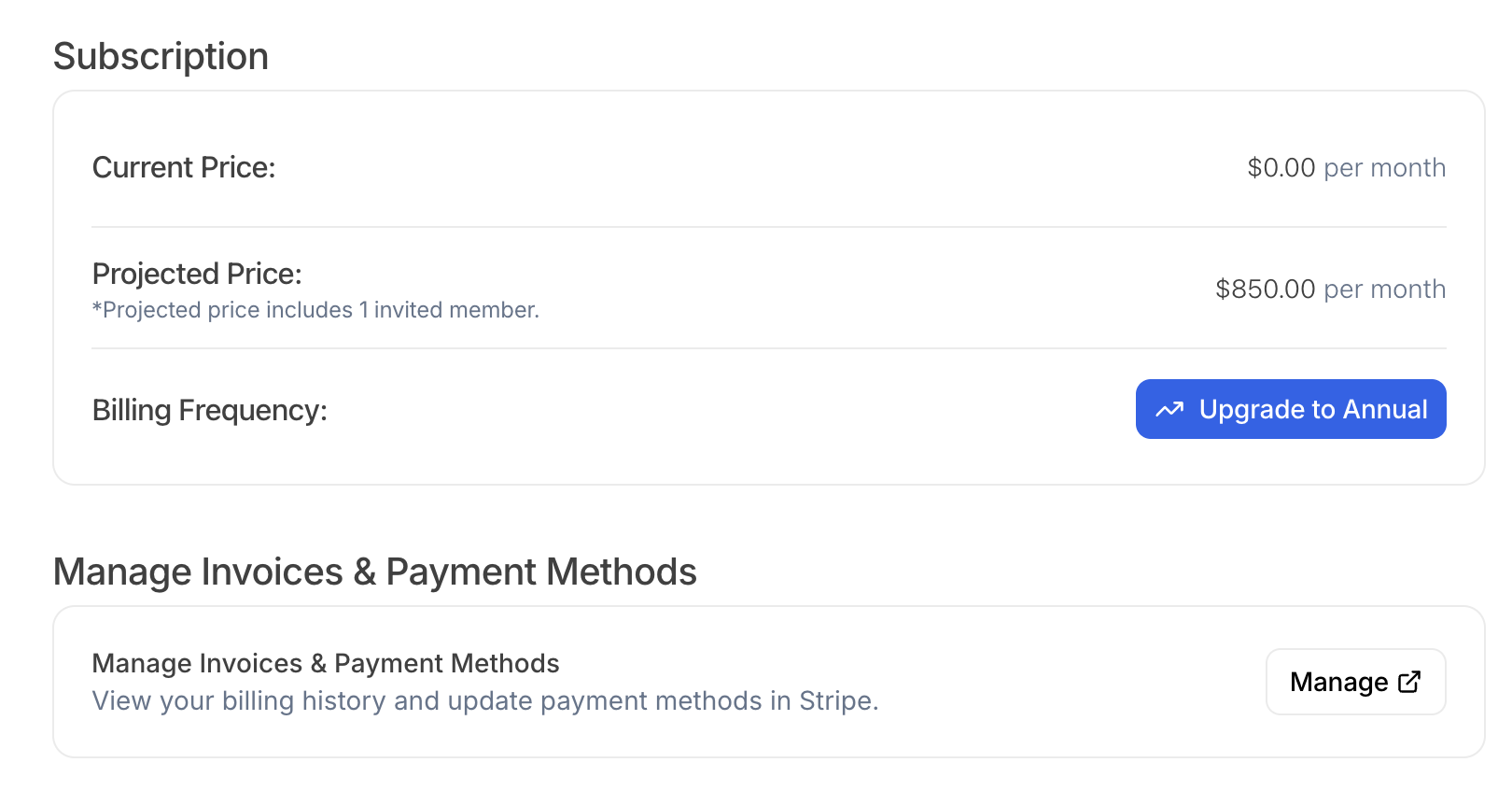
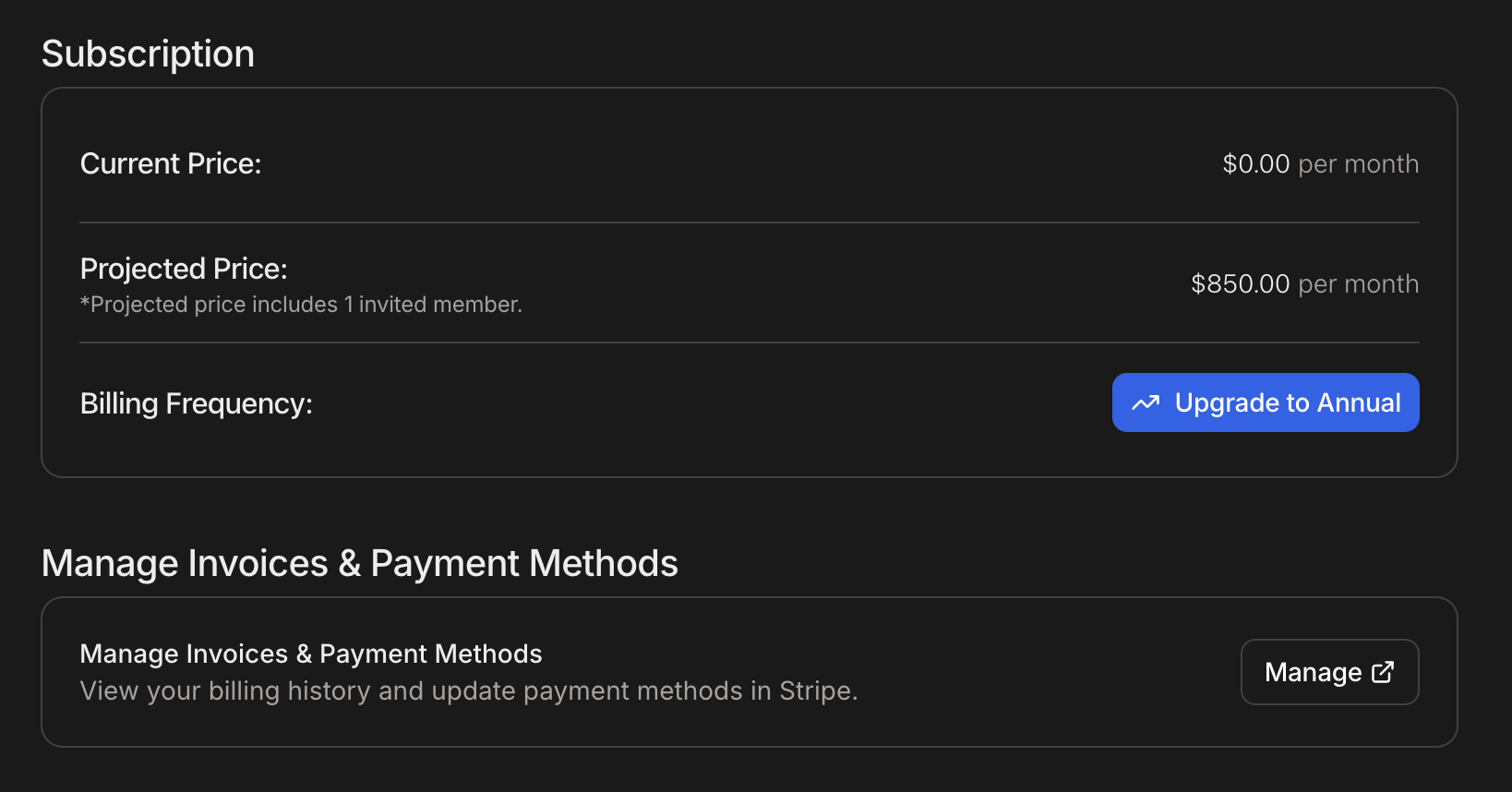
* Invoices, payment methods, and billing details are managed in the Teams -> Billing tab
If you are looking for more general billing details (payment methods, invoices, renewals), see:
* [Managing Your Plan](/account/managing-subscriptions)
* [Billing Cycles & Payment Methods](/billing/billing-cycles-and-payment-methods)
* [Invoices and Receipts](/billing/invoices-and-receipts)
## Accessing Teams billing settings
1. Go to the **Teams** workspace you want to manage.
2. Navigate to the [Teams Settings page](https://julius.ai/settings/teams/)
3. Click on the "Billing" tab
4. Under `Manage Invoices & Payment Methods`, click on the "Manage" button
5. Make any changes to Billing Information, like address, email, VAT number, and payment method.