
Upgrading Your Subscription
Upgrading Your Subscription
- Navigate to the Subscription page
- Click Upgrade under the plan you wish to upgrade to
- Complete your purchase on the Stripe checkout screen
If you have credits remaining from your previous plan, they stack with your new plan’s credits. Existing credits keep their original expiration date — the end of the billing period in which they were granted.
Downgrading Your Subscription
Downgrading Your Subscription
- Navigate to the Subscription page
- Click Downgrade under the plan you wish to switch to
- Confirm the change
Switching Between Monthly and Annual Billing
Switching Between Monthly and Annual Billing
You can switch your billing cadence from the Subscription page.
- Monthly → Annual: Takes effect immediately. Your billing cycle resets to the switch date.
- Annual → Monthly: Takes effect at the end of your current annual billing period.
If you want to change your plan and billing frequency together, or need help moving from annual to monthly billing, contact support. A human teammate will check your current plan, intended plan, purchase provider and the supported options before confirming timing or charges. A request does not guarantee an immediate change. Changing billing frequency is separate from early renewal, which is not available.
Canceling Your Subscription
Canceling Your Subscription
- Navigate to the Subscription page
- Click Invoices and Payment Methods to open your billing portal
- Click Cancel plan
- Follow the confirmation shown in the portal.
For information on refunds, see our Refund Policy.
Canceling a Team Subscription
Canceling a Team Subscription
Contact support to review the team subscription and intended cancellation. Canceling billing and deleting the team workspace are separate actions; do not delete the workspace as a workaround for billing or credit problems.
Managing Payment Methods and Billing Information
Managing Payment Methods and Billing Information
- Navigate to the Subscription page
- Click Invoices & Payment Methods
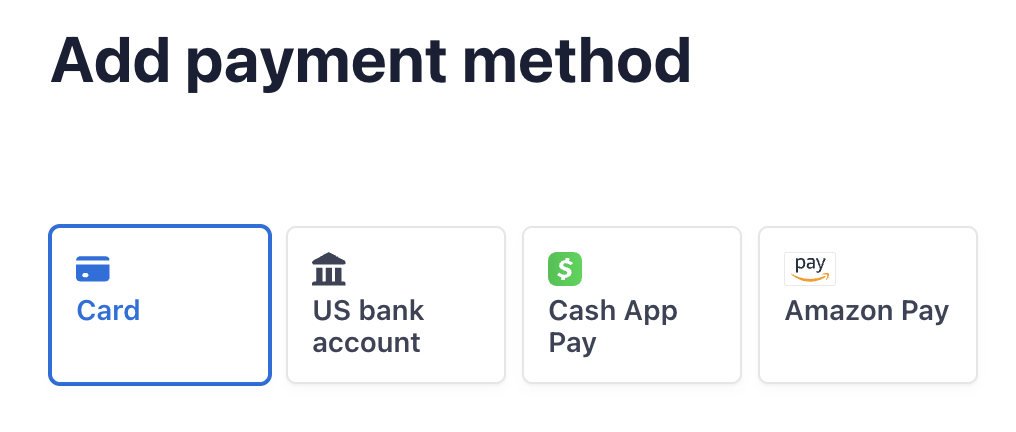
- Click Add payment method to change your current payment method


-
Click Update information to update your billing information (e.g. name, address, company, VAT info)

Subscription Renewals
Subscription Renewals
Your subscription will auto-renew monthly or annually, depending on the type of subscription you’ve purchased.Canceling the subscription yourself will keep the subscription active until the end of your billing period.
Reach out to team@julius.ai for support or to ask questions not answered in our documentation.