

I opened Canva to knock out a client deck last week and caught myself wondering if Prezi would've made the presentation land harder. Canva and Prezi solve different problems: one's a design tool that happens to build slides, the other's built around movement and zoom during the presentation itself.
This Canva vs Prezi comparison covers where each tool wins, falls short, and fits best. I'll walk through features, pricing, and user feedback in 2026 so you can pick with confidence.
Canva vs Prezi: what's the difference?
Canva is a drag-and-drop design tool that lets you build presentations alongside social posts, documents, and marketing graphics.
Prezi is a presentation platform built around a zooming canvas, where your content sits on one large map (though you can also present it as separate slides).
Choose Canva if you want one tool for decks, social graphics, and documents, and you'd rather work from a huge template library than build a layout from scratch.
Choose Prezi if you present live often and want your audience to feel the connections between ideas through movement.
Meet Canva: features & highlights
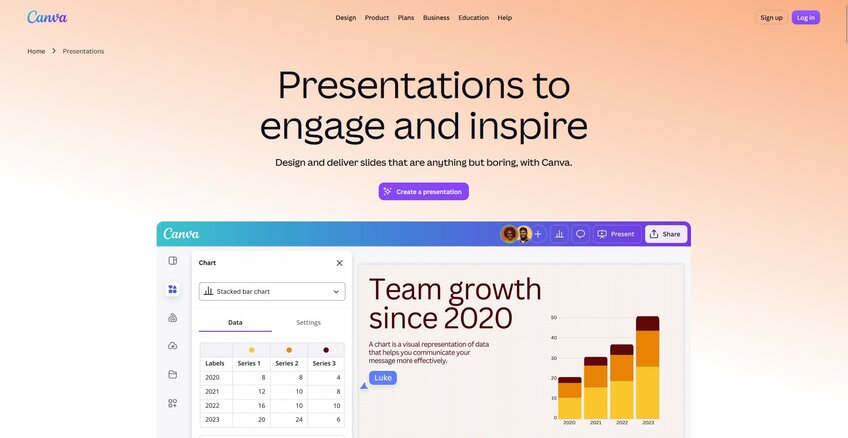
💡 Note: Canva covers dozens of design formats, so for this comparison, I'm focusing on Canva Presentations specifically.
Canva's presentation page leads with templates and a massive media library, and that's still where most of my decks start. I pick a layout, swap in brand colors, and I'm editing content within a minute or two.
Beyond the template library, a few features from that page cover most of what I actually use:
Canva AI for Presentations: Type a short prompt describing your topic, and Magic Design generates a full draft deck with an outline and content on each slide in seconds.
One-click transitions and animations: Add motion between slides and elements without touching a timeline or keyframes.
Magic Switch: Resize or reformat a presentation into other Canva formats, like a document or social post, without rebuilding the design from scratch.
Canva Sheets integration: Pull data visualizations straight from Canva Sheets into your slides.
Presenter tools: Presenter View gives you notes, a timer, and slide previews. Canva Live lets your audience send questions and reactions during the talk, and Remote Control lets multiple presenters advance slides together.
Export flexibility: Download as PowerPoint, PDF, or a video slideshow, or share the deck as a live Canva link.
Meet Prezi: features & highlights
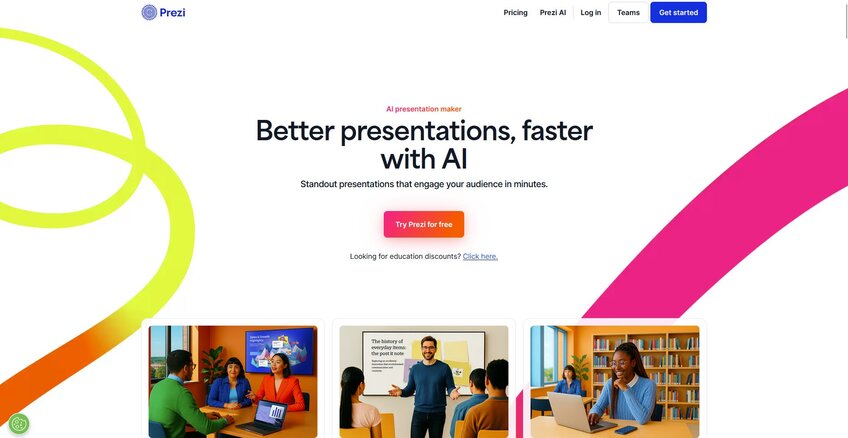
Prezi skips the slide-by-slide format most tools use. You build on a large canvas, then zoom and pan between sections while you present, so the audience sees how ideas connect throughout the presentation.
I've used Prezi for talks where I wanted the audience to feel the bigger picture as a whole. The zoom effect takes some getting used to on the editing side, but it lands well in the live show once you've built the flow.
A few features that stand out on Prezi's product pages:
Zooming Canvas (ZUI): Your entire presentation sits on a single spatial map, and you navigate by zooming in on details and out to context.
Prezi Video: Puts your video feed next to your content in Zoom, Teams, or Google Meet, so you're on-screen alongside your slides.
Prezi AI: Generates a starting deck from a prompt and can keep refining it through chat, including content changes, design tweaks, and new sections.
Viewer analytics: Paid plans (Premium/Pro or higher) show view counts, time spent per section, and viewer identity when you request name/email on the shared link.
Template library: Hundreds of designed templates across industries, built around each template's own zoom logic.
Canva vs Prezi: at a glance
| Feature | Canva | Prezi |
|---|---|---|
| 🎯Best for | Teams that need decks alongside social posts, documents, and other design formats in one place | Presenters who want a live, non-linear talk built around zoom and motion |
| 💰Starting price (billed annually) | $144/year | $7/month |
| ⚡Key strength | Massive template library and one editor across every design format | Zooming canvas that shows how ideas connect during a live presentation |
| ❄️Main weakness | Animation and motion options are basic compared to a tool built around movement | Zoom effects flatten into static slides if you export to PowerPoint |
| 👥Ideal team size | Solo creators up to large marketing teams | Solo presenters and small teams presenting live |
Canva vs Prezi: feature-by-feature comparison
I spent a few weeks moving between Canva and Prezi to build the same handful of decks in both.
Here's how they stacked up:
1. Templates and design flexibility
Canva: I've pulled from Canva's template library on nearly every deck I've built this year, and there's almost always a starting point close to what I need. Editing goes deep too, since I can move, resize, or strip out any element on a slide. I also like how I can swap fonts freely and build a layout from scratch when a template doesn't quite fit the brief.
Prezi: Prezi's template selection is smaller, and each one runs on its own built-in zoom path. When I tried restructuring a Prezi template mid-project, I ended up rebuilding several of those zoom paths, since dragging elements into place wasn't an option. It's workable, but it takes more patience than a standard slide editor.
Winner: Canva. The template count and editing depth both give you more room to work with.
2. Live presenting experience
Canva: Presenter View gives me my notes, a timer, and a preview of upcoming slides, and Remote Control lets someone else advance the deck if I'm away from my laptop. Canva Live lets my audience send questions and reactions in real time, which I didn't expect to use much but ended up liking.
Prezi: Presenting means zooming into a detail, then pulling back out to the full picture before moving on. The first few times I did this live, I had to rehearse the zoom sequence so it didn't feel jarring. Once I had the flow down, the talk felt like a guided walk through an idea.
Winner: Tie. Canva's tools suit day-to-day meetings, and Prezi's zoom delivery creates a stronger moment for a talk built around one big idea.
3. Collaboration
Canva: Real-time co-editing works the way you'd expect. Multiple people can work on the same deck at once, leave comments on specific slides, and assign tasks to teammates. I've had a designer and a copywriter in the same deck together without anyone waiting for their turn.
Prezi: Prezi supports link sharing and collaboration controls, but it's built more around one person building and presenting than a team editing together live. I didn't find the same in-the-moment co-editing feel I get from Canva.
Winner: Canva. The real-time editing and commenting go deeper.
4. AI-assisted deck creation
Canva: Canva AI for Presentations generates a draft deck from a short text prompt in one pass, so you get a starting structure fast. I still go back and adjust layouts and pacing, but the starting point saves real time.
Prezi: Prezi AI builds a full deck from a prompt, including custom images per slide, and you can keep refining it through chat afterward. Generation is fast, though the templates it pulls from are more limited than Canva's library.
Winner: Tie. Both get you a usable draft fast, and the gap comes down to which template pool you'd rather start from.
5. Export and file compatibility
Canva: Exports cleanly to PowerPoint, PDF, or a video slideshow, and I've never had a layout break during export.
Prezi: Exporting to PowerPoint flattens the zoom effects into static slides, so any deck built around Prezi's signature motion loses what made it stand out in the first place once it leaves the platform.
Winner: Canva. If your deck needs to travel outside the platform, Canva holds up better.
What real users are saying
I pulled these highlights from verified G2 and Capterra reviews so you can see what actual Canva and Prezi users say beyond my own testing.
Let’s take a look at what they’re saying:
Canva
Pros: Canva earns praise for making technical and visual work easy for non-designers. A production supervisor said it simplifies building diagrams and operator leaflets without advanced design skills, and a mathematics teacher said sharing one template link lets other teachers copy and edit it instantly.
Cons: The feedback also points to a few rough edges. The same production supervisor wants a larger collection of engineering and industrial graphics, and a customer service representative said the AI sometimes needs a refresh mid-task and doesn't always generate as expected.
Prezi
Pros: Prezi's zoom-based transitions get consistent praise for keeping presentations feeling connected. A registrar in hospital and health care said the visual storytelling keeps her audience engaged, and a volunteer at an enterprise organization said the transitions give the audience context on how each section fits the wider presentation.
Cons: The zoom effects come with trade-offs, too. The same registrar said excessive motion can overwhelm the message if it's overused, and a product manager said stock images are sometimes locked behind an upgrade or extra credits, making them harder to access on the free plan.
How to make your choice
Canva comes out ahead for teams that need one tool across decks, social content, and documents, plus a library deep enough to always find a starting point.
Prezi is the better pick when you give occasional, high-stakes live presentations and want the audience to feel how ideas connect.
Your call comes down to how often you're presenting live versus building decks that need to travel and get reused.
Canva is better for:
Teams juggling multiple content formats: Marketing and ops teams that need decks, social graphics, and documents to share the same brand system.
Frequent deck builders: Anyone producing several presentations a month who benefits from a large template library and fast editing.
Presentations that need to export cleanly: Decks that get shared as PowerPoint files, PDFs, or handed off to people outside the platform.
Prezi is better for:
Solo presenters with one big pitch: Founders, consultants, or sales reps building a single high-stakes presentation meant to be delivered live.
Storytelling-heavy talks: Presentations built around one central idea where showing how concepts connect matters more than moving through bullet points.
Remote presenters who want to stay visible: Anyone using Prezi Video to keep their face on screen next to their content during a call.
My verdict
To be honest, between the two, I'd reach for Canva for most of the decks I build. I'm in and out of presentations fast, and having the same editor handle my slides, social posts, and one-off graphics saves me from bouncing between tools all week.
But that doesn’t mean I’m writing Prezi off. The one time I used it for a funding pitch, the zoom felt like it was doing half my storytelling for me. My audience leaned in during the zoom-outs in a way I haven't gotten from a regular slide deck, and that's worth the extra setup time when the stakes call for it. And let’s be real, it’s a pretty unique effect you don’t get from Canva.
So in my opinion, if you're building decks weekly and need speed, grab Canva. If you've got one big presentation and the room to rehearse it, Prezi earns its keep.
Analyze your data and build the deck without switching tools
Choosing between Canva and Prezi only matters once you've got something worth putting on a slide, and that data-gathering step is usually where decks stall out before design even starts.
Julius is an AI-powered data analysis platform with its own presentation maker built in, so your numbers and your slides come from the same place.
Here's how Julius can help:
Build the deck in the same place: Once your analysis is ready, use Julius's AI presentation maker to turn charts and findings into slides without opening a separate design tool.
Start from a question, no upload required: Search the web for public datasets or pull structured financials for 17,000+ companies through the Financial Datasets integration, so a prompt can replace the spreadsheet you'd normally hunt down first.
Bring your own sources when needed: Link databases like PostgreSQL, Snowflake, and BigQuery, connect tools like Google Ads, or drop in a CSV or Excel file for anything that lives with your team already.
Faster answers the more you use it: Each query helps Julius understand where your connected data actually lives, so it takes less back-and-forth to land on the right numbers over time.
Ready to build your next presentation on numbers you trust? Try Julius for free today.
Frequently asked questions
Can Canva do zooming presentations like Prezi?
No, Canva doesn't have a zooming canvas feature like Prezi. Canva's animations and transitions work at the slide level, adding motion between fixed slides. If a zoom-based, non-linear flow is what you're after, Prezi is built specifically for that.
Does Prezi export to PowerPoint?
Yes, Prezi exports to PowerPoint, but the zoom effects flatten into static slides during the conversion. Any motion or non-linear navigation that makes Prezi distinct gets lost once the file leaves the platform. Prezi works best when you present live from within the platform.
Which is easier to use, Canva or Prezi?
Canva is easier to use for most people, since its slide-by-slide format matches how presentation tools traditionally work. Prezi's zooming canvas has a steeper learning curve because you're building spatial relationships between ideas. Teams already comfortable with tools like PowerPoint or Google Slides tend to adjust to Canva faster.