

You know the Monday routine. Open last week's file, delete the old rows, paste in the new export, and rebuild the chart that stopped updating. Excel automation handles half of that, with no code required.
I lean on these tricks every week. None need VBA, a developer, or a new subscription. I'll tell you where Excel automation works and where it hits a wall, so you're not stuck forcing a spreadsheet to do a job it wasn’t built for.
What is Excel automation?
Excel automation is Excel doing repetitive work for you without you clicking through every step by hand. It covers self-updating tables, formulas that recalculate on their own, recorded macros, refreshable data queries, and full workflows that move data in and out of your workbook on a schedule.
It breaks into three tiers:
Native no-code features: Tables, formulas, and conditional formatting that already live in Excel and need zero setup beyond a few clicks.
Low-code recorders: The Macro Recorder and Office Scripts, which record your actions once and replay them with a button.
Connected automation and AI: Power Automate, RPA tools, and Copilot, which reach outside the file or use AI to do the heavy lifting.
Software vendors want you to believe automation means buying their robot. In my experience, most people can automate a good chunk of their week using tools Excel already has built in.
Why automate Excel (and what you get back)
Copy, paste, reformat, repeat. If that's the rhythm of your week, a lot of it is happening in a spreadsheet. Automating even a slice of it pays you back in a few ways:
Time back: The reformatting, the refreshing, the monthly report all shrink from an hour to a click.
Fewer errors: A rule runs the same way every time, so you stop chasing the copy-paste mistake you made at 4:59 p.m.
Consistency: The same report, built the same way, every Monday, whether or not you had coffee.
Focus: Less spreadsheet wrangling means more time on the part that needs your brain.
That last one is the prize. Every hour you don't spend feeding the spreadsheet is an hour you get back for the work in front of you.
What you can automate in Excel
Before the how, it helps to spot the tasks worth automating. If you do any of these on a repeat, they're fair game:
Data entry and import: Pulling data in from files, folders, or other systems and dropping it into place.
Data cleaning and formatting: Removing duplicates, trimming stray spaces, standardizing headers and date formats.
Calculations and lookups: Applying the same formulas across sheets so numbers update themselves.
Reports and dashboards: Refreshing charts and summaries automatically, no rebuilding from scratch.
Communication: Generating personalized emails or messages from a list of names.
File tasks: Opening the right file in one click, or stitching a dozen workbooks into one.
8 no-code ways to automate Excel, from easiest to most powerful
You don't have to learn all of these. Start at the top, where the effort is near zero, and only climb when a job actually needs it:
1. Excel tables: the foundation
Press Ctrl + T anywhere in your data, confirm your headers, and you're done. That's it. Your range just became a table, which means it expands as you add rows, and your formulas, charts, and pivot tables all pick up the new data without you touching anything.
I do this before anything else on a new spreadsheet, because half the "why did my chart stop updating" headaches disappear the moment your data is in a table instead of a plain range.
2. Formulas that update themselves
You've probably already got a formula or two doing work in the background. Push that further:
Auto-highlight your best and worst month: Pair the IF formula with MAX or MIN, and Excel flags your top and bottom numbers on its own, with no manual scanning each month.
One-click links between sheets or files: The HYPERLINK formula turns a cell into a clickable shortcut, so you can jump straight to another tab or open a file without hunting for it.
Keep anything date-driven current: The TODAY formula always returns the current date, so any calculation built on it (like "days until due") updates itself every time you open the file.
If you redo a manual step every month, like recoloring last month's top number, that's usually a sign a formula could do it for you.
3. Conditional formatting
This one's oddly satisfying to set up. Pair a formula with TODAY, and every overdue task turns red the second you open the file. You won't have to scan the sheet yourself to catch it.
Go to Home > Conditional Formatting > New Rule, write a simple rule, and the sheet starts flagging its own problems.
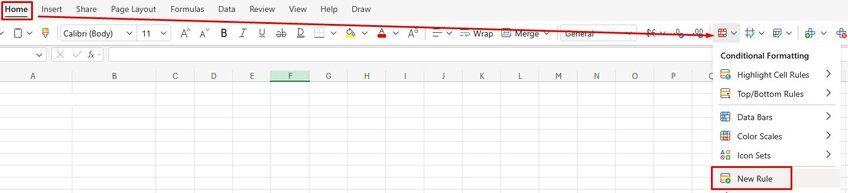
Conditional formatting is the fastest way I know to turn a spreadsheet into something that tells you what needs attention. No more combing through it yourself to find the problem.
4. The Macro Recorder: automate without writing VBA
If you've got a task you do the exact same way every single time, like reformatting a raw export into your house style, this is your "do it again" button.
Go to View > Macros > Record Macro, do the task the normal way once, then stop recording. Excel writes the code behind the scenes so you don't have to.
I'll be honest with you though: these recordings are brittle. Shift the layout of your file even slightly, and the macro breaks. Handing one off to a coworker gets fiddly too. Keep this one for tasks that stay entirely on your machine and don't change much month to month.
💡Note: This one needs desktop Excel, since Excel for the web doesn't have the engine that runs macros. If you need something similar for the web version, Office Scripts is the alternative (we cover it below).
5. Power Query: clean and combine once, refresh forever
If you clean the same messy export every period, Power Query is the next thing to learn after tables.
With Power Query, you can set up your cleanup steps once, and it remembers every single one. Next month, when the same messy export lands in your inbox, you don't need to redo any of that work. You drop in the new file, click Refresh, and Power Query reapplies every step automatically.
To try it, go to the Data tab and click Get Data, or select your existing table and choose From Table/Range. Either one opens the Power Query editor, where you build out your cleanup steps.
💡 Note: Power Query now works in Excel for the web too. All Microsoft 365 subscribers can view and refresh queries in the browser, but building or editing queries in the full Power Query Editor needs a Business or Enterprise plan.
6. Office Scripts: the modern, shareable macro
Office Scripts records your actions, saves them as a script, and lets you trigger that script automatically. It's what the Macro Recorder became once it needed to work in the cloud and travel between people.
Open the Automate tab in Excel for the web and record one. It also plugs straight into Power Automate, so if you want a macro that doesn't fall apart the moment you share it, this is where you start.
💡 Note: Office Scripts needs a Microsoft 365 work or school account. It's available in both Excel for the web and desktop Excel, but only on qualifying plans.
7. Power Automate: connect Excel to everything else
Power Automate is where things stop staying inside Excel. Everything before this works within your workbook, but Power Automate connects your workbook to whatever else you use, like your inbox, a form, or another app.
I've set it up to save an email attachment straight to a folder, turn a form response into a new row, and send myself a report every Friday morning before I'm even at my desk.
Build a flow in Power Automate or use the desktop app, and Excel starts talking to your other tools too. If you’re not sure where to start, Microsoft's Excel automation training module is a good place to begin.
8. AI inside Excel: Copilot, Python, and AI chatbots
This is the newest layer of Excel automation, and it works differently than everything else on this list. Instead of you setting up the rule or the steps, you describe what you want, and AI figures out how to do it. Here's how the three options break down:
| 🔧 Tool | 📍 Where it works | ✅ Best for |
|---|---|---|
| Copilot | Inside Excel | Writing a formula from a plain-English description, or cleaning up a messy dataset in agent mode |
| Python in Excel | Inside Excel, with Copilot writing the Python for you | Statistical summaries and calculations a normal formula can't handle |
| An AI chatbot (ChatGPT, Claude, and similar tools) | In a separate browser tab | Getting a second opinion on a formula that isn't working |
Whatever AI hands you back, give it a look before you use it anywhere that matters, like a report going to your boss. AI can misread what you're asking for or get a calculation wrong, and a quick check catches that before anyone else sees it.
💡 Note: Copilot and Python in Excel both require a Microsoft 365 plan that includes them. Check with your IT team or your account settings first.
Which automation method should you use?
Knowing all these methods only helps if you know which one fits the job in front of you. Here's a quick reference that maps common tasks to the right tool:
| 🗂️ The job | ⚡ Reach for | 💡 Why |
|---|---|---|
| One-off cleanup of a messy file | Inside Excel | Writing a formula from a plain-English description, or cleaning up a messy dataset in agent mode |
| The same report every week | Tables + Power Query + Office Scripts | Set it up once, then refresh and run |
| Flag or highlight rows automatically | Conditional formatting | The sheet flags problems without you scanning |
| Repeat a fixed click sequence | Macro Recorder or Office Scripts | Records the steps and replays them on a button |
| Move data between apps or schedule it | Power Automate | Built for cross-app, time-triggered workflows |
| Write or fix a formula | Copilot, an AI chatbot, or a dedicated Excel AI tool | Faster than hunting through function docs |
| Analysis on big or connected data | An AI data analyst like Julius | Excel's ceiling is close, and that's next |
One rule of thumb ties it all together: automate the smallest repeatable step first. Only look for something outside Excel, like Power Automate or a dedicated automation tool, once the work leaves the file entirely and starts touching other systems.
When Excel automation isn't enough, try Julius
Excel automation is brilliant right up until it isn't. Large datasets slow formulas to a crawl. Macros break the moment a layout shifts. And manual-plus-macro pipelines drift, so this month's numbers don't quite match last month's method.
The work that matters is the analysis, and that's usually where Excel starts to strain. If you're rebuilding the same report every month, joining sources by hand, or waiting on the data team for a number you needed yesterday, you've outgrown what Excel automation can give you. It's time for something built for that job.
Julius is an AI-powered data analysis tool, the pocket data scientist that takes your question and runs the analysis Excel was struggling with.
Here’s how Julius can help:
Data search: Ask a question, and Julius can pull public data from the web into a dataset, or grab structured financials for 17,000+ companies through its Financial Datasets integration.
Direct connections: Connect Postgres, Snowflake, or BigQuery, or upload the same CSV or Excel file you already have.
Gets faster the more your team uses it: Julius's Learning Sub Agent picks up on your database's structure and the relationships between tables as you go, so it finds the right data faster with each question, and the whole team benefits once it's connected.
Built-in visualization: Get the analysis and the charts back from one plain-English question, no range-selecting required.
Repeatable Notebooks: Schedule the same analysis so the results stay consistent month to month.
Ready to skip the spreadsheet and go straight to the insight? Try Julius for free today.
Frequently asked questions
Can you automate Excel without coding?
Yes, you can automate most Excel tasks without writing code. Tables, formulas, and conditional formatting handle updates automatically, the Macro Recorder and Office Scripts record your actions for you, and Power Automate connects Excel to other apps, all without VBA.
Is learning VBA or macros still worth it in 2026?
Not for most people. The Macro Recorder covers the same need without writing any VBA. Learning VBA still helps for complex, custom logic, but Office Scripts is the more shareable, cloud-friendly path for new automation, so start there unless you have a specific reason to code.
What's the easiest Excel task to automate first?
The easiest first step is formatting your data as a table with Ctrl + T, which keeps charts, formulas, and pivots current on their own. After that, set up a Power Query for one recurring cleanup task you dread. Both take minutes and start paying off right away.
Can AI automate Excel?
Yes, AI can automate parts of Excel. Copilot writes formulas and cleans data in agent mode, Python in Excel summarizes datasets in a single line, and AI chatbots like ChatGPT and Claude help draft and fix formulas. Most AI features require a qualifying Microsoft 365 license and still need a human to check the output.
What's the difference between Excel automation and Power Automate?
Excel automation happens inside the workbook using tables, formulas, macros, and scripts. Power Automate is a separate Microsoft tool that connects Excel to other apps and runs workflows across systems, like saving attachments or emailing a report on a schedule. You'll often use both together.