

Google Sheets add-ons take over the tasks you'd otherwise handle by hand, like pulling data from other apps, cleaning up messy columns, and sending outreach one row at a time.
I installed and tested dozens of them from the Google Workspace Marketplace for reporting, cleanup, and outreach work. Here are the 18 worth installing in 2026.
Top 18 Google Sheets add-ons: TL;DR
Supermetrics: Best for pulling marketing and sales data from other platforms straight into a sheet.
Coupler.io: Best for scheduled imports that refresh a report on their own.
Power Tools: Best for cleaning up messy columns without writing a single formula.
AppSheet: Best for turning a sheet into a working app, no coding needed.
Yet Another Mail Merge: Best for sending personalized emails from Gmail with open and click tracking.
Awesome Table: Best for turning rows into a browsable table, card, or map view.
Lucidchart: Best for flowcharts and diagrams that go beyond Sheets' native charts.
Form Publisher: Best for generating a Doc, Slide, or PDF from every row in a sheet.
Sheetgo: Best for automating a pipeline between multiple sheets or departments.
Hunter for Sheets: Best for finding and verifying email addresses from a domain.
ChangeCase: Best for fixing inconsistent text case in one click.
Crop Sheet: Best for trimming a sheet down to only the data that matters.
Geocode by Awesome Table: Best for turning addresses into map-ready coordinates.
Copy Down: Best for applying a formula automatically as new form responses arrive.
Form Mule: Best for sending conditional emails based on rules you set.
Autocrat: Best for merging spreadsheet rows into personalized PDFs or Docs.
Data Connector for Salesforce: Best for pulling and updating Salesforce records from inside a sheet.
Analytics Canvas: Best for pulling and rebuilding GA4 reports without touching SQL.
What is a Google Sheets add-on
A Google Sheets add-on is a third-party app you install from the Google Workspace Marketplace that runs inside your spreadsheet. Most show up as a sidebar or a new menu item, and some add new functions you can type straight into a cell.
Under the hood, they’re built on Google Apps Script, which is how they read, format, and act on your data.
💡 Note: Add-ons and extensions are not the same thing, even though Google files add-ons under the Extensions menu. Add-ons install from the Marketplace and run inside Sheets. Browser extensions install in your browser from a browser store. This article is only about add-ons.
How I researched and tested these Google Sheets add-ons
I installed each add-on from the Google Workspace Marketplace and ran it against real reporting, cleanup, and outreach tasks I already had on my plate.
Here's what I considered:
Job it solves: Whether the add-on handles a spreadsheet problem Sheets can't already solve on its own.
Setup time: How long it took to go from install to a working result.
Permissions requested: Whether the access it asked for matched the job it does.
Maintenance and reviews: How recently it was updated and how it handles bugs users report.
Testing these side by side taught me something simple: an add-on that solves one job well beats one that tries to do five jobs at once.
Google Sheets add-ons: quick comparison
| 💻 Tool | 🎯 Best for | 🏷️Free trial or plan | 🔥 Starting price (billed annually) | ⚡ Strengths |
|---|---|---|---|---|
| Supermetrics | Pulling marketing and sales data into a sheet | Trial | $44/month | Wide connector list, scheduled refreshes, and prebuilt report templates |
| Coupler.io | Scheduled imports that refresh on their own | Plan | $24/month | No-code setup, multi-app support, and combined source imports |
| Power Tools | Cleaning and reformatting messy sheets | Trial | $49.99/year | Bulk cleanup utilities, cell splitting and merging, and template formatting |
| AppSheet | Building a no-code app on your sheet | Plan | $5/user/month | Mobile data capture, prebuilt app templates, and native Google support |
| Yet Another Mail Merge | Sending personalized email from a sheet | Plan | $72/year | Gmail-based sending, open and click tracking, and column-based personalization |
| Awesome Table | Turning rows into a browsable interface | Plan | $16/month | Table, card, and map views, along with built-in filters |
| Lucidchart | Adding diagrams and flowcharts to a sheet | Plan | $9/month | Advanced diagram library, two-way linking, and team collaboration |
| Form Publisher | Turning rows into Docs, Slides, or PDFs | Plan | $99/year | Template-driven output, multiple file formats, and linked results |
| Sheetgo | Automating workflows between sheets | Plan | $35/month | Connected pipelines, multi-sheet consolidation, and scheduled syncs |
| Hunter for Sheets | Finding and verifying email addresses | Plan | $408/year | Domain-based lookup, deliverability scoring, and in-sheet workflow |
| ChangeCase | Fixing inconsistent text case | Free | One-click reformatting and multiple case options | |
| Crop Sheet | Trimming a sheet to only its used data | Free | Fast cleanup and a simple, single-purpose function | |
| Geocode by Awesome Table | Turning addresses into map coordinates | Free | Multi-column address support and map plotting | |
| Copy Down | Applying formulas to new form responses | Free | Automatic formula copying and hands-off maintenance | |
| Form Mule | Sending conditional emails from a shee | Free | Rule-based triggers, scheduled sends, and HTML table generation | |
| Autocrat | Merging rows into personalized documents | Free | Bulk document generation and support for PDF, Docs, and Word | |
| Data Connector for Salesforce | Pulling and updating Salesforce records | Free | Bi-directional sync, SOQL queries, and scheduled refreshes | |
| Analytics Canvas | Pulling and rebuilding GA4 reports | Free (limited features) | Multi-account queries, dashboard refresh, and org-wide sharing |
*Pricing correct as of August 2026. Verify with vendor.
1. Supermetrics: Best for pulling marketing and sales data into a sheet

What it does: Supermetrics is a marketing data connector that pulls campaign and analytics data from over 150 platforms directly into a spreadsheet.
Best for: Marketers and agencies reporting across several ad platforms who want the numbers in one sheet without a manual export.
Rating: 4.4/5, ~958 reviews
Downloads: 1M+
Supermetrics is built around direct connections to marketing and sales platforms, so I connected a Google Ads account and pulled a month of campaign spend into a blank sheet to see how much manual exporting it removed.
I picked a data source, chose my metrics and date range, and watched the numbers populate within a few minutes. The setup took longer than expected once I added a second platform, since each connector needs its own separate login and permissions.
Key features
Wide connector library: Supermetrics connects to over 150 marketing, sales, and analytics platforms, including Google Analytics, Google Ads, and major social channels.
Scheduled refreshes: Reports update on a schedule you set, without a manual re-export.
Prebuilt report templates: Premade templates give you a starting layout for common reports.
Pros and cons
| ✅ Pros | ❌ Cons |
|---|---|
| Removes manual exports across many data sources | Priced per connector, so costs add up with multiple platforms |
| Scheduled refreshes keep a report current without manual work | Each new connector needs its own separate login and setup |
| Premade templates cut setup time for common reports |
Pricing
Supermetrics offers a free trial of its add-on, then starts at $44 per month.
Bottom line
Supermetrics carries the deepest connector library of any add-on on this list, which matters most once your reporting spans more than one or two ad platforms. If you only need to sync a single app on a schedule, Coupler.io is worth checking instead.
2. Coupler.io: Best for scheduled imports that refresh on their own

What it does: Coupler.io is a data import tool that pulls records from apps like Airtable, Shopify, and HubSpot into a spreadsheet on a set schedule.
Best for: Finance, ecommerce, and ops teams who need a report that stays current without anyone remembering to refresh it.
Rating: 4.8/5, ~279 reviews
Downloads: 427K+
To see how Coupler.io handled a recurring report, I set up an import from a sample sales source and ran it on the free plan first. Refreshes are manual, so I had to click refresh myself each time to get the updates.
Moving to the Starter plan is what unlocks daily auto-refresh, and that's the tier where the set-and-forget value actually kicks in.
Key features
Scheduled imports: Refresh data hourly, daily, or on specific days of the week.
Multi-app support: Connect popular business apps without writing scripts.
Combined sources: Pull data from more than one account into a single sheet.
Pros and cons
| ✅ Pros | ❌ Cons |
|---|---|
| Set-and-forget data syncing once configured | Advanced scheduling frequencies sit behind paid plans |
| No code or scripts required to connect an app | Source list is smaller than Supermetrics for marketing platforms |
| Works across more than one account in a single import |
Pricing
Coupler.io offers a free plan, then starts at $24 per month.
Bottom line
Coupler.io covers a broader mix of business apps than marketing-only connectors, which matters if your reporting pulls from finance or ecommerce tools. For syncing data between several sheets and departments, consider Sheetgo.
3. Power Tools: Best for cleaning and reformatting messy sheets
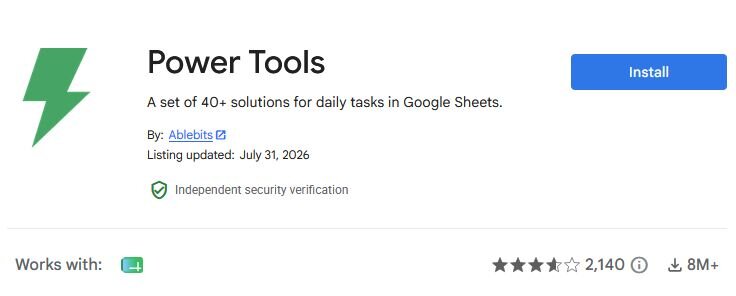
What it does: Power Tools is a spreadsheet cleanup add-on that bundles dozens of formatting and data utilities into one sidebar.
Best for: Anyone who inherits a messy spreadsheet and needs to fix inconsistent formatting fast, without writing a formula for each fix.
Rating: 3.6/5, ~2,140 reviews
Downloads: 8M+
I tested Power Tools on a sheet full of inconsistent capitalization and stray whitespace, since it bundles dozens of cleanup utilities into one sidebar.
Jobs that would normally mean digging through menus or writing a formula took fewer clicks. If your usual fix is manually cleaning columns and trying to remove duplicate rows in Google Sheets, this puts it all in one place.
The interface took me a few minutes to get used to, since the sidebar packs in a lot of options.
Key features
Cleanup toolkit: Remove duplicates, trim spaces, and fix casing in a click.
Split and merge: Break names into columns or combine cells without formulas.
Bulk formatting: Apply repetitive formatting across templated workbooks.
Pros and cons
| ✅ Pros | ❌ Cons |
|---|---|
| Replaces a stack of one-off cleanup formulas | Full toolkit sits behind a paid plan after the trial |
| Broad set of utilities in a single sidebar | Interface takes some time to learn given how many options it packs in |
| Handles bulk formatting across templated sheets |
Pricing
Power Tools offers a free trial, then starts at $49.99 per year.
Bottom line
Power Tools packs more cleanup utilities into a single sidebar than any other tool on this list, so it earns its keep if cleaning data is a regular part of your week. If your bigger problem is connecting outside data sources, Supermetrics or Coupler.io are worth a look instead.
4. AppSheet: Best for building a no-code app on your sheet

What it does: AppSheet is a no-code app builder that turns spreadsheet data into a working mobile or web app.
Best for: Field teams and small businesses that want a lightweight app layered on top of data they already track in a sheet.
Rating: 4.4/5, ~1,322 reviews
Downloads: 28M+
AppSheet lets you turn a spreadsheet into a working app without any coding, so I connected a sample inventory sheet and let it generate a basic app around the existing columns. The result came with working forms and views out of the box, and I could customize fields to add image capture for each inventory item.
Adjusting the app's layout took some trial and error, since the builder has more settings than a typical add-on and I had to hunt for the ones that mattered.
Key features
No-code app building: Turn spreadsheet rows into a usable app automatically.
Mobile data capture: Collect text, images, and signatures in the field.
Templates: Start from prebuilt app patterns and adjust them to fit your workflow.
Pros and cons
| ✅ Pros | ❌ Cons |
|---|---|
| Real app functionality built without writing code | Learning curve is steeper than a typical add-on |
| Backed and maintained directly by Google | Publishing to more users moves you onto a paid plan |
| Mobile forms support image and signature capture in the field |
Pricing
AppSheet is free to build and share with a small group, then starts at $5 per user per month to publish to more users.
Bottom line
AppSheet is the only tool on this list that turns a sheet into a working app. If you just need to visualize existing rows in a browsable format, Awesome Table is a lighter option to reach for.
5. Yet Another Mail Merge: Best for sending personalized email from a sheet

What it does: Yet Another Mail Merge is a Gmail mail merge tool that sends personalized emails using contacts and templates stored in a sheet.
Best for: Recruiters, founders, and outreach teams sending a list-driven email campaign straight from their own Gmail account.
Rating: 4.7/5, ~18,152 reviews
Downloads: 16M+
I tested Yet Another Mail Merge by building a short contact list and Gmail template, then running a test merge to check the personalization and tracking. Each email arrived with the correct name pulled from its row, and the sheet showed me open and click data within minutes.
Setting up the template took some patience, since mapping each column meant checking the draft closely before sending. The free plan capped me at a small number of daily sends, so a bigger list means a paid tier.
Key features
Gmail sending: Send from your own Gmail address instead of a third-party platform.
Personalization: Map any column into the message body.
Tracking: See opens and clicks reported back in the sheet.
Pros and cons
| ✅ Pros | ❌ Cons |
|---|---|
| Sends stay inside Gmail and Sheets, no separate platform needed | Daily send limits apply, especially on the free plan |
| Open and click tracking built directly into the sheet | Initial template setup takes some trial and error |
| Personalization pulls straight from existing spreadsheet columns |
Pricing
Yet Another Mail Merge offers a free plan, then starts at $72 per year.
Bottom line
Yet Another Mail Merge keeps outreach tracking inside the same sheet you're already sending from. For a larger contact list that needs conditional logic on when each email goes out, Form Mule is worth a look instead.
6. Awesome Table: Best for turning rows into a browsable interface
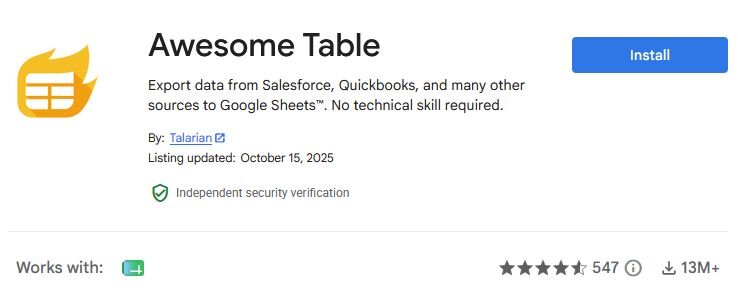
What it does: Awesome Table is a data visualization add-on that turns a range of spreadsheet rows into a filterable table, card, or map view.
Best for: Teams that want to share spreadsheet data with people who don't want to dig through a raw grid.
Rating: 4.6/5, ~547 reviews
Downloads: 13M+
To test Awesome Table's data visualization chops, I pointed it at a spreadsheet of contact entries and switched between table, card, and map views. I got dropdown filters and a search bar without writing a single formula, and the map view plotted every entry by address on its own.
Some settings sit in a separate panel from the main preview, and the free tier capped how many rows I could import before truncating results.
Key features
Multiple views: Display data as tables, cards, maps, or Gantt-style layouts.
Built-in filtering: Give viewers dropdowns and sliders to explore the data.
Shareable interface: Publish a browsable view instead of the raw sheet.
Pros and cons
| ✅ Pros | ❌ Cons |
|---|---|
| Makes spreadsheet data approachable for non-technical viewers | Free tier caps how many rows you can import |
| Multiple view types beyond a plain grid | You may need to dig around for some settings |
| Filtering and search work without writing formulas |
Pricing
Awesome Table offers a free plan, then starts at $16 per month.
Bottom line
Awesome Table turns a spreadsheet into something a non-spreadsheet person can browse, with dropdown filters and a search bar doing the work a raw grid can't. If your goal is a diagram or flowchart, Lucidchart handles that work better.
7. Lucidchart: Best for adding diagrams and flowcharts to a sheet

What it does: Lucidchart is a diagramming add-on that brings flowcharts, org charts, and wireframes into a spreadsheet.
Best for: Teams that need process diagrams and flowcharts beyond the basic bar and line charts Sheets includes.
Rating: 4.1/5, ~9,958 reviews
Downloads: 46M+
I built a simple flowchart in Lucidchart and imported it alongside a linked spreadsheet to check whether it could bring a real process diagram into a working sheet. The diagram carried over cleanly, and I could open the linked sheet from inside Lucidchart without switching tabs.
Lucidchart can auto-generate org charts directly from spreadsheet data, but flowcharts don't work the same way, so I had to build mine from scratch. If you're mapping a process, plan on starting from a blank canvas.
Key features
Advanced diagrams: Flowcharts, wireframes, and organizational charts.
Two-way linking: Access linked spreadsheets from inside Lucidchart.
Collaboration: Share and co-edit diagrams with your team.
Pros and cons
| ✅ Pros | ❌ Cons |
|---|---|
| Far more diagram options than Sheets' built-in charts | Doesn't auto-generate flowcharts from spreadsheet data, only org charts |
| Two-way linking keeps the diagram and the sheet connected | Free plan caps documents and shapes |
| Useful for process and structure visuals a chart can't show |
Pricing
Lucidchart offers a free plan, then starts at $9 per month.
Bottom line
Lucidchart handles process and structure diagrams that Sheets' native charts can't touch. If you want a browsable view of your data instead, Awesome Table is worth checking out.
8. Form Publisher: Best for turning rows into Docs, Slides, or PDFs
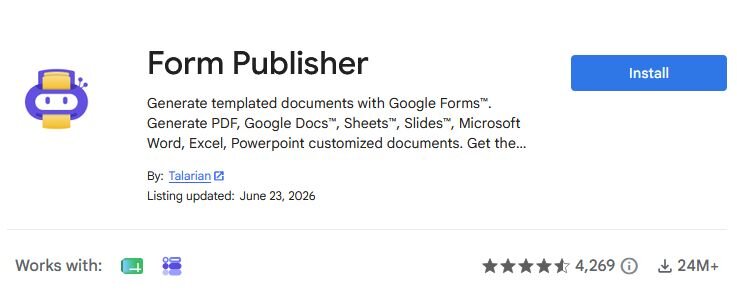
What it does: Form Publisher is a document automation add-on that generates Google Docs, Slides, PDFs, or Word files from spreadsheet rows using a template you set up once.
Best for: HR, education, and operations teams producing many similar documents from the same data source.
Rating: 4.6/5, ~4,269 reviews
Downloads: 24M+
I built a template with a few marker fields, then generated a document for each row in a test sheet to see if Form Publisher could turn repetitive paperwork into a time saver. Every document I opened had the correct fields filled in, and I found a link back to each finished file waiting in the sheet.
Building the template took significant effort at first, since I had to place every marker precisely and test a sample row before running the full batch. The free plan also capped how many documents I could generate monthly.
Key features
Template-driven output: Generate a formatted file for every row.
Multiple formats: Produce Docs, Slides, PDFs, or Word files.
Linked results: Drop a link to each generated file back in the sheet.
Pros and cons
| ✅ Pros | ❌ Cons |
|---|---|
| Automates document creation for repetitive batches | Initial template setup takes real effort |
| Handles several output formats from one template | Free tier caps monthly document generation |
| Links back to every finished file inside the sheet |
Pricing
Form Publisher offers a free plan, then starts at $99 per year.
Bottom line
Form Publisher turns a template and a row of data into a finished document without any manual copy-paste. If you need to merge rows into a document that also updates other apps on a schedule, Sheetgo is worth checking out.
9. Sheetgo: Best for automating workflows between sheets
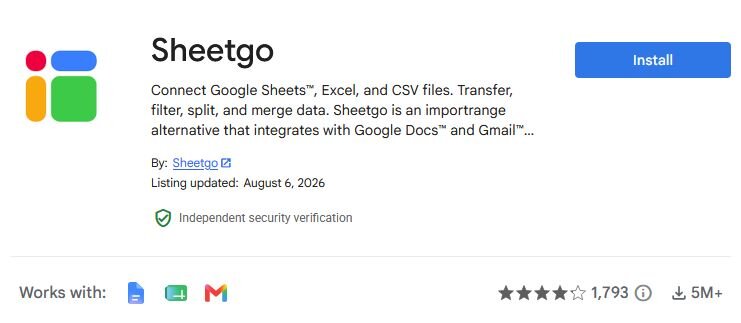
What it does: Sheetgo is a workflow automation add-on that connects multiple spreadsheets into a pipeline so data flows between them automatically.
Best for: Organizations where different teams each own a sheet that needs to roll up into one master file.
Rating: 4.2/5, ~1,793 reviews
Downloads: 5M+
I linked two department sheets to see if Sheetgo could handle a rollup without any manual copy-paste. The connection merged both sheets into a single master file on the schedule I set, and I watched a new row from one source sheet show up in the master file within minutes.
Setting up the first connection took some trial and error, since I had to match column headers exactly across both sheets before the merge would run cleanly.
Key features
Connected pipelines: Link sheets so data flows automatically between them.
Consolidation: Merge multiple sheets into a single master file.
Scheduling: Refresh connections on a set schedule.
Pros and cons
| ✅ Pros | ❌ Cons |
|---|---|
| Solves the multi-sheet rollup problem without scripts | Free plan caps how many connections you can run |
| Scheduled syncs keep a master file current on their own | Column headers need to match exactly across sheets before merging |
| Works across sheets owned by different teams |
Pricing
Sheetgo offers a free plan, then starts at $35 per month.
Bottom line
Sheetgo solves the specific problem of pulling scattered, team-owned sheets into one place on a schedule. If your bottleneck is building a contact list, Hunter for Sheets is worth checking out.
10. Hunter for Sheets: Best for finding and verifying email addresses

What it does: Hunter for Sheets is an email lookup add-on that finds and verifies professional email addresses directly inside a spreadsheet.
Best for: Sales and recruiting teams building or cleaning up an outreach list.
Rating: 4.4/5, ~163 reviews
Downloads: 57K+
I fed Hunter a short list of company domains to see how usable the results would be for a real outreach list. The add-on returned likely email addresses for each domain within a few minutes, and I ran a separate column of existing addresses through its verification check to see a deliverability score for each one.
Connecting Hunter meant creating a separate account and signing in before the sidebar would run any lookups. The free plan capped me at a small number of monthly searches, so a bigger list means moving to a paid tier.
Key features
Email lookup: Find addresses from a company domain.
Verification: Score existing addresses for how likely they are to be valid.
In-sheet workflow: Work from the spreadsheet you already use.
Pros and cons
| ✅ Pros | ❌ Cons |
|---|---|
| Combines finding and verifying addresses in one sidebar | Requires connecting a separate Hunter account |
| Keeps list building inside the sheet you already use | Free tier has a low monthly search cap |
| Verification scores flag risky addresses before you send |
Pricing
Hunter for Sheets offers a free plan, then starts at $408 per year.
Bottom line
Hunter for Sheets combines finding and verifying addresses in one sidebar, a pairing none of the other outreach tools on this list handle together. For sending the actual campaign once you've built your list, Yet Another Mail Merge picks up where this leaves off.
Special mentions
A few more add-ons came up during research that didn't earn a full section but are worth a quick look. Each one solves a narrower job than the add-ons above:
ChangeCase: ChangeCase is a text-formatting add-on, and I ran it on a column of inconsistently capitalized entries to fix the case in one pass. It offers sentence case and invert case beyond the usual upper, lower, and title case options, but it only touches text case, so anything messier still needs a separate cleanup pass.
Crop Sheet: Crop Sheet takes a narrow approach to cleanup, and I used it to trim a sheet down to just its used data so stray rows and columns stopped cluttering the view. One limitation is it only crops, so duplicates or formatting still need another tool.
Geocode by Awesome Table: I fed this add-on a short list of addresses, and it returned latitude and longitude coordinates plotted on a map inside its companion app within a minute. One poorly formatted address in my test came back with the wrong coordinates, so parsing is where it falls short.
Copy Down: Copy Down solves a specific Google Forms headache. I linked it to a form, and an existing formula copied itself into every new response with no dragging or autofill involved. A sheet with no linked form gets no benefit from installing it.
Form Mule: Form Mule sends different emails based on conditions you set. I set a rule that fired a welcome note to a test subscriber automatically, while a second contact sat waiting for a scheduled batch. Matching each condition to its template meant checking a sample row before the emails ran on their own.
Autocrat: Autocrat needs a template built once to turn spreadsheet rows into personalized PDFs, and mine took a few tries to get every marker field lined up correctly. That template setup is where the learning curve sits.
Data Connector for Salesforce: Google Cloud builds and maintains this CRM sync add-on. I used it to pull a sample report into a sheet, then pushed a test edit back to Salesforce. Refresh scheduling only covers basic intervals, with nothing at the per-field or per-object level.
Analytics Canvas: Analytics Canvas pulls Google Analytics data into a sheet, and I was able to refresh a two-account dashboard in one click at no cost. That changes once your reporting needs several accounts blended together or a scheduled refresh, since that's when the paid desktop version comes into play.
Which Google Sheets add-on should you choose?
You don't need a dozen add-ons. You need the ones that match the job in front of you:
| 🎯 What you're trying to do | 🧩 Add-on to start with |
|---|---|
| Pull campaign data into a report | Supermetrics or Coupler.io |
| Clean up messy data | Power Tools |
| Roll up sheets from multiple teams | Sheetgo |
| Find and verify leads | Hunter for Sheets |
| Send outreach at scale | Yet Another Mail Merge |
| Generate documents from spreadsheet rows | Form Publisher |
| Build an app on a sheet | AppSheet |
| Turn rows into a browsable view | Awesome Table |
| Add a diagram or flowchart | Lucidchart |
💡 Tip: Install what you need, and review permissions on each one before you connect it to real data.
Which tools actually get text right?
If your image needs readable words, only a few tools do it reliably:
Reliable: Ideogram, Gemini Nano Banana, and ChatGPT Images..
Unreliable: Midjourney and most open-source models still garble anything longer than a word or two.
The practical rule: For posters, ads, and thumbnails with copy, start with Ideogram or Gemini and save yourself a dozen rerolls.
How to pick the right AI image generator for your job
The job in front of you decides which tool makes sense, since no single generator wins across every use case. Match your task to the row below and start there:
| 🎯 Your job | 🥇 Top pick | ✳️ Runner-up |
|---|---|---|
| Artistic or cinematic art | Midjourney | Leonardo AI |
| Fast everyday images | ChatGPT Images | Google Gemini |
| Editing an existing image | Google Gemini (Nano Banana) | ChatGPT Images |
| Text inside the image | Ideogram | Google Gemini |
| Client-safe commercial work | Adobe Firefly | ChatGPT Images |
| Logos and vector art | Recraft | Ideogram |
| Free experimentation | Leonardo AI | Google Gemini |
| Full control or self-hosting | FLUX | Leonardo AI |
| Precise prompt adherence | Reve | Ideogram |
Pay for a plan if you generate images regularly or need commercial rights in writing. If you only make a handful of images a month, the free tiers on Gemini, Leonardo, and Ideogram will probably cover you.
How to install and manage add-ons
Installing an add-on takes about a minute on desktop. Here's the process I follow every time:
Open a spreadsheet and click Extensions > Add-ons > Get add-ons.
Search for the add-on in the Google Workspace Marketplace window and click it.
Click Install, review the permissions it requests, and click Allow.
Go to Extensions, pick the add-on, and click Launch or open its sidebar to run it.
To remove an add-on, go to Extensions > Add-ons > Manage add-ons, click the three-dot menu next to it, and choose Uninstall.
Add-ons don't run on the native mobile apps for Sheets. Neither Android nor iPhone/iPad support the add-on sidebar, so full access requires a desktop browser, or a mobile browser forced into desktop view.
If the Extensions menu looks missing or greyed out, you're likely in a view-only file, your Google Workspace admin has restricted add-ons, or you're on a mobile app that doesn't support them. Opening a sheet you own on desktop should bring the menu back.
💡 Tip: Before you click Allow, take a minute to read what permissions the add-on wants. If it's asking for far more access than the job in front of it needs, pause before you connect it to your data.
When Google Sheets add-ons hit their ceiling
Google Sheets add-ons extend the spreadsheet, but they inherit its limits. Once your data spans a large volume, several sources, or analysis you can't express in a formula, another add-on rarely gets you past that ceiling.
Julius is an AI-powered data analysis platform built for exactly that gap. It can search for public data or connect directly to your existing sources, then return charts, insights, and reports from a single prompt, so you get the analysis instead of another tool to configure.
Here's how Julius can help:
Data search: Ask a question and Julius searches the web to find and compile relevant public data. Julius can also pull structured data for over 17,000 companies through its Financial Datasets integration.
Direct connections: Connect Postgres, Snowflake, BigQuery, or Google Drive to bring in your own data when it's private, then ask in plain English to get back analysis, insights, and charts without writing code.
Repeatable reporting: With each query, the Learning Sub Agent gets better at finding the right data across your connected sources. Use Notebooks to save an analysis and rerun it on a schedule, so results stay consistent.
Ready to skip the spreadsheet gymnastics and go straight to the insight? Try Julius for free today.
Frequently asked questions
Are Google Sheets add-ons free?
Many Google Sheets add-ons are free, though tools like Supermetrics and Power Tools switch to a paid plan after a free trial. Check each add-on's pricing before you install, since free tiers often cap usage.
Are Google Sheets add-ons safe to install?
Yes, well-reviewed Google Sheets add-ons from the Google Workspace Marketplace are safe to install. Look for Google's verification signals, read the permissions each add-on requests before clicking Allow, and uninstall anything you stop using.
Why is the Extensions menu missing in Google Sheets?
The Extensions menu goes missing when you're in a view-only file, when a Google Workspace admin has restricted add-ons, or when you're on a mobile app that doesn't support them. Opening a sheet you own on desktop brings the menu back.
What is the difference between a Google Sheets add-on and an extension?
Google Sheets add-ons install from the Google Workspace Marketplace and run inside Sheets under the Extensions menu, while browser extensions install in a web browser and aren't specific to Sheets. The two terms get mixed up because Google files both under the same menu name.
Can you use Google Sheets add-ons on mobile?
No, not on the native mobile apps. Neither the Android nor iOS Google Sheets app supports the add-on sidebar. You’ll need to use Sheets on a desktop browser, or a mobile browser forced into desktop mode.