

When you look up how to add a calendar to Google Sheets, you'll find tutorials that don't all agree with each other. Some walk you through a pop-up date picker inside a cell. Others hand you a printable monthly grid, or a live sync with your actual Google Calendar.
They're all calendars, just built for different jobs. I set up all 4 versions in a blank sheet to see which is worth your time, and the fastest one took about 10 seconds.
Can you embed your Google Calendar directly in a sheet?
No. Google Sheets has no native way to embed a live Google Calendar inside a cell or tab, so you can't drop in a calendar the way you'd paste a chart.
There are 3 workarounds. You can keep a link to the calendar in a cell, build the formula grid (Method 3) and manage dates there, or sync events in with an add-on (Method 4).
How to add a calendar to Google Sheets: 4 methods
You can add a calendar to Google Sheets 4 ways: an in-cell date picker, a Template Gallery calendar, a formula-built monthly grid, or a two-way sync with Google Calendar through an add-on.
Pick a method based on what you need:
Method 1: Add an in-cell date picker with data validation
This is the version most people picture first: you click into a cell, a little calendar pops up, and you pick your date. It runs on data validation, and I've set this up enough times to show you the steps:
Select your cell or range: Click the cell where you want the picker, or select the whole column if it'll hold a run of dates, so the rule covers every cell at once.
Open data validation: Go to the Data menu, then Data validation, and a panel opens on the right.
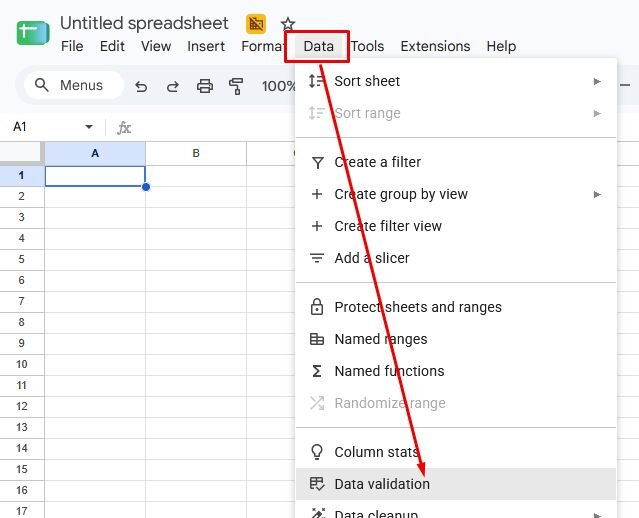
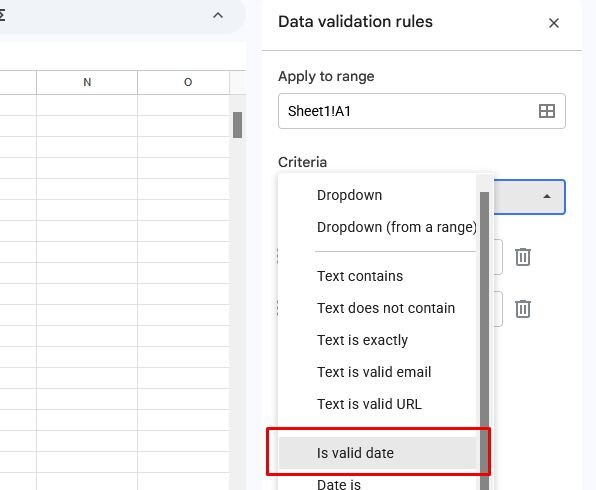
3. Add a valid date rule: Click + Add rule, choose Is valid date from the Criteria dropdown, and click Done. That's the whole rule.
4. Double-click the cell to pick a date: Double-click any cell in that range and the pop-up calendar appears. Click a day and it drops straight into the cell.
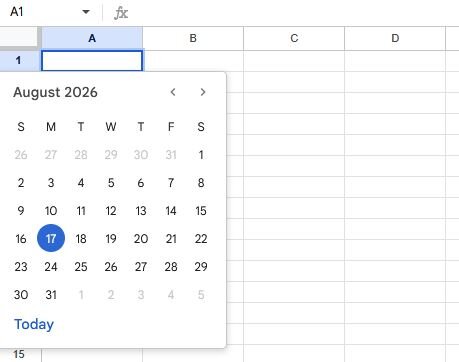
Keep in mind this method gives you a picker per cell without a full month view. If you want a full month view, I’ll discuss that in another method below.
💡 Tip: You can skip the rule entirely for a one-off. Type a date in yyyy-mm-dd format into any cell, then double-click it. The picker shows up on its own. If you're entering a run of dates, Google Sheets autofill will drag a date series down the column for you.
Method 2: Insert a ready-made calendar from the Template Gallery
If you want a full month or year laid out visually, Google already built one for you. The Template Gallery has calendars you can open and edit:
1. Open the template gallery
Many guides will tell you to start by clicking template gallery in the top right of the Google Sheets homepage. But when I tested it myself, I didn’t see any link or way to reach the template gallery from that page.
So instead, start by opening a new Google Sheet. It can be any spreadsheet, just make sure to create it in the folder you want.
Then, click on File > New > From template gallery.
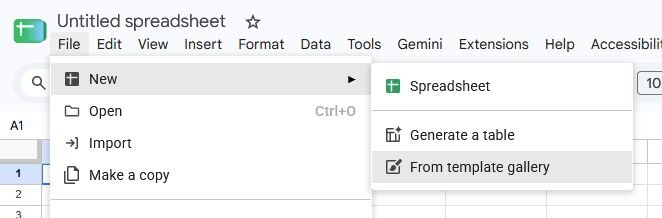
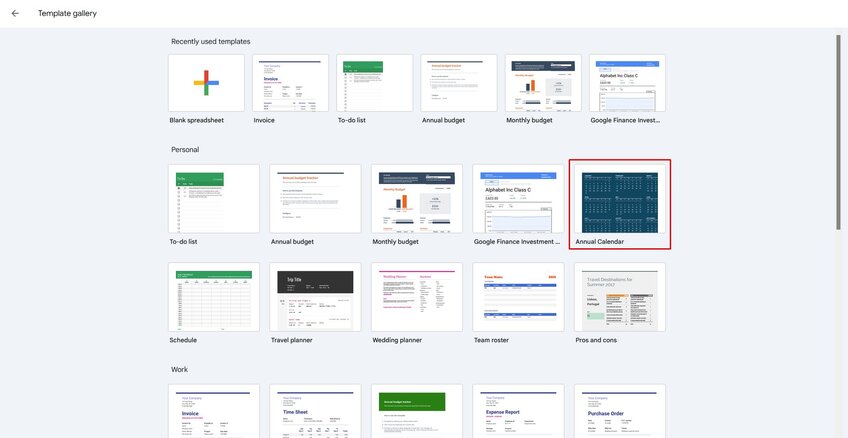
2. Choose a calendar
Scroll to the calendar options and pick Annual calendar. It opens as its own spreadsheet, already formatted, with a guide on how to use it.
It also already includes monthly layouts, so you can organize your schedule more easily.
3. Make it yours
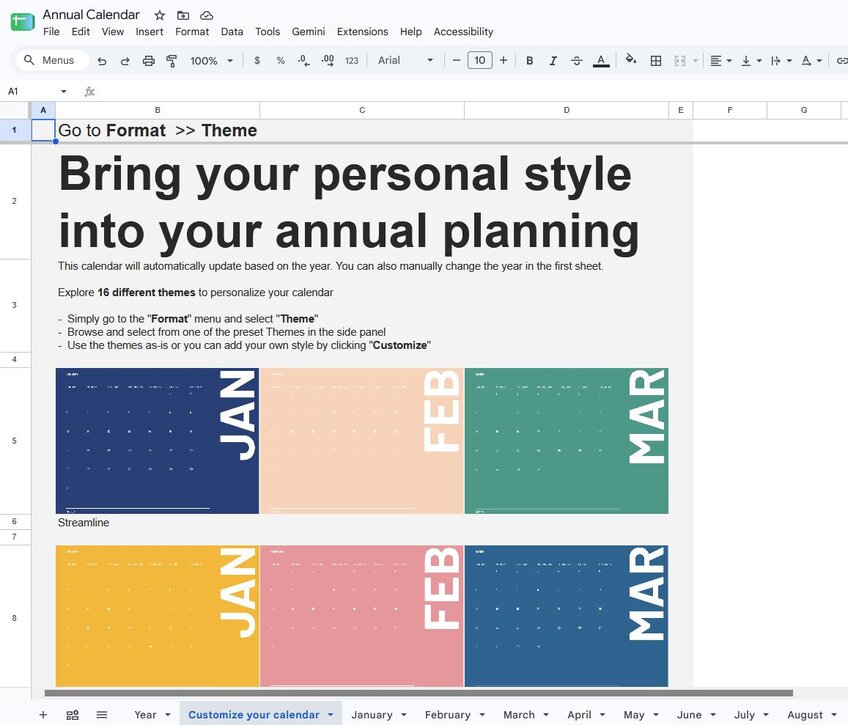
Within the Annual Calendar template, there are tabs for the year view and monthly views. There’s also a tab with instructions to help you customize the calendar.
Once you’ve made the changes you want, customize the layout to fit how you plan:
Add events: Type directly into the day cells.
Color-code: Shade priorities, deadlines, or categories so they're easy to scan.
Conditional formatting: Auto-highlight weekends or holidays so you don't format them by hand every month.
Templates look great and cost you nothing, but the honest downside is that they're static. The dates don't move when your plans do, and nothing connects them to your real schedule.
Method 3: Build a dynamic monthly calendar with a formula
Here's the one the other tutorials skip. With a single formula, you can generate a live monthly grid that redraws itself whenever you change the month. Set it up once and reuse it forever:
1. Set an anchor date
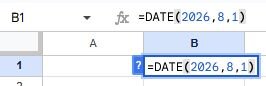
In a cell, say B1, enter the first day of the month you want: =DATE(2026,8,1). You can adjust this later on to any month you want.
2. Generate the grid
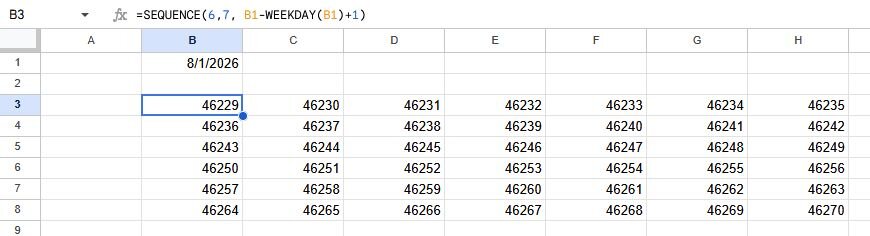
In the top-left cell of a blank 6-row by 7-column block, paste:
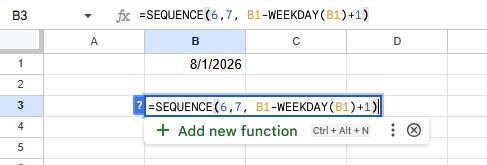
That fills 42 days starting on the Sunday of the first calendar week, which is exactly how a wall calendar lays out. WEEKDAY finds where the month starts, and SEQUENCE counts forward one day per cell.
⚠️ Don't panic if your result is a grid of 5-digit numbers. Google Sheets is showing you the raw date serial, and the next step turns those into actual day numbers.
3. Show day numbers and add headers
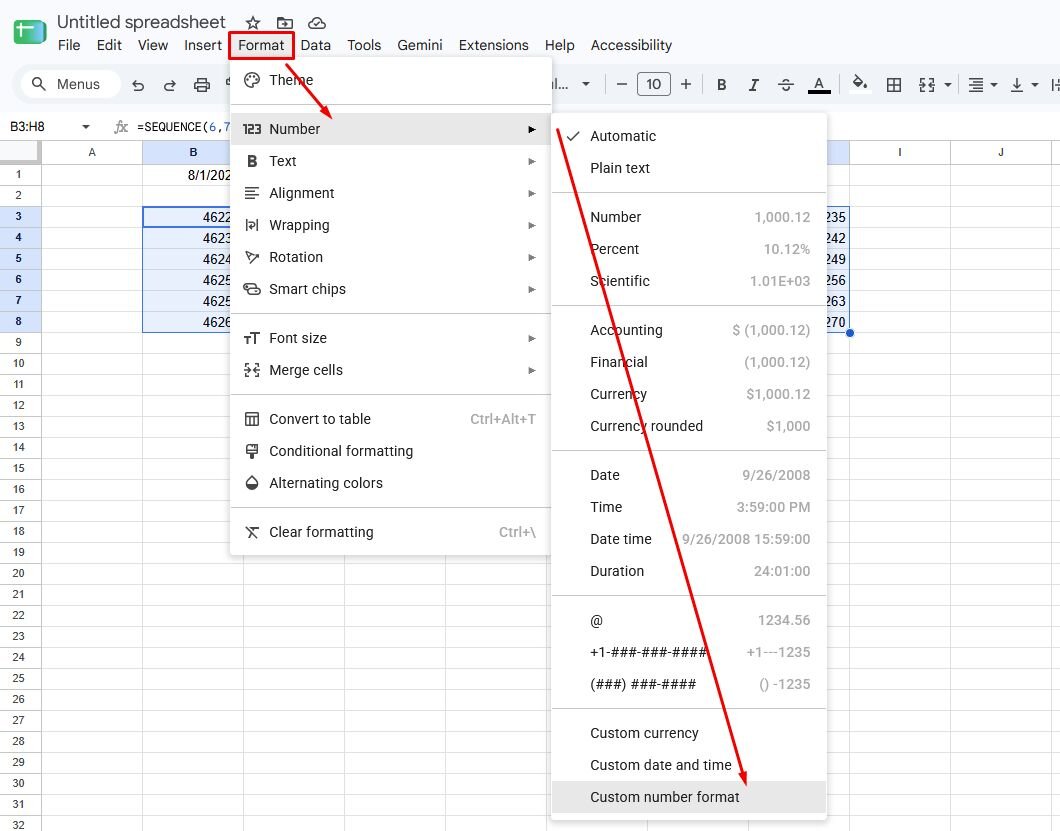
Select the grid, then Format > Number > Custom number format, and enter d to show just the day.
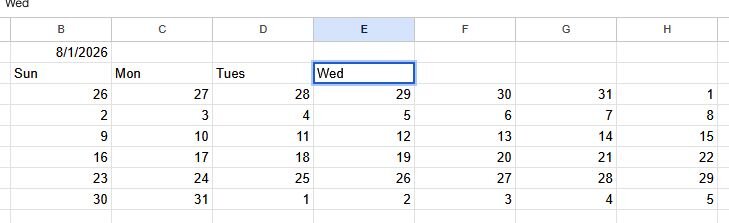
Add a header row above, starting from Sunday through Saturday.
4. Highlight the useful days
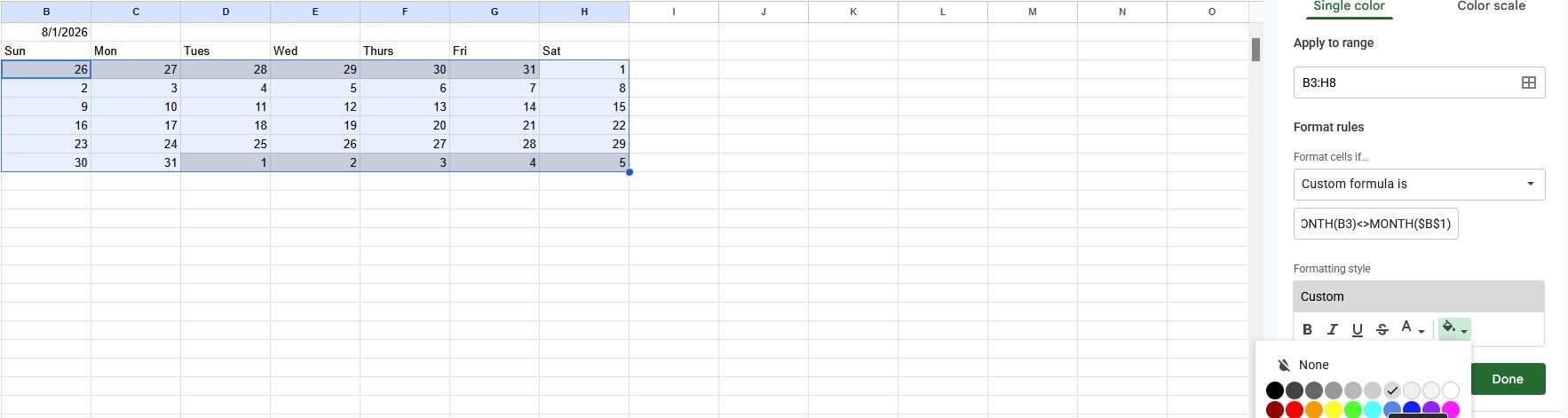
Use conditional formatting (Format > Conditional formatting) with custom formulas on the grid range.
Try these:
Highlight today: =B3=TODAY() (swap B3 for your grid's top-left cell).

Fade other-month days: =MONTH(B3)<>MONTH($B$1)(swap B3 for your grid's top-left cell) grays out days that spill in from the neighboring months.
💡 Tip: Change the date in B1 (your initial month cell) to =DATE(2026,9,1) and the whole calendar redraws for September. You can do the same for any month.
Method 4: Sync a sheet with Google Calendar using an add-on
Sometimes you want your sheet and your real Google Calendar to stay in step, each one reflecting changes in the other. That takes an add-on, since Google Sheets can't do it on its own.
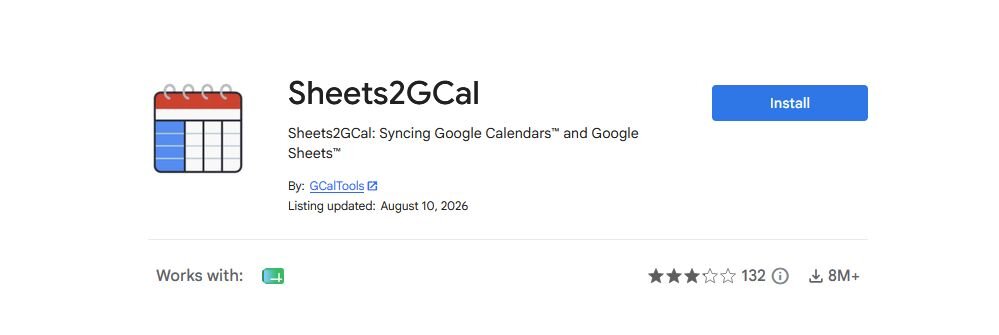
Sheets2GCal is one of the most popular options, with more than 8 million downloads and a 3.2-star rating across its reviews. It pulls calendar events into a sheet and pushes sheet rows back out as events, both directions.
To add it, go to Extensions > Add-ons > Get add-ons, search for it, and install. You can then find it under your Extensions menu.
Reviews are mixed, so go in clear-eyed:
✅ Useful: Bulk-create dozens of events from rows, import event colors, and run timesheet-style workflows straight from a sheet.
❌ Rough edges: It asks you to register a free account, gates heavy use and date-range limits behind paid tiers, and has hit occasional sign-in glitches.
If your rows arrive with repeats, clean up duplicates in Google Sheets before you export so you don't clone events in your calendar.
Which method should you use?
You don't need all 4 methods, only the one that matches what you're trying to do. Here's how I'd match each need to the right pick.
| 📅 Method | 🎯 Best for | ⚡ Setup effort |
|---|---|---|
| In-cell date picker | Entering dates cleanly in a tracker or form | Seconds |
| Template Gallery calendar | A printable monthly or annual planner | Low |
| Formula-built grid | One reusable calendar that redraws for any month | Medium |
| Google Calendar sync (add-on) | Two-way sync between a sheet and Google Calendar | Medium, needs an account |
Most people end up using 2: a date picker for entry, plus either a template or the formula grid for the visual.
Let Julius handle the schedule work
Adding a calendar to Google Sheets fills in the dates, but understanding what those dates mean takes a different kind of work.
Method 3 above works, but it takes a formula, a WEEKDAY calculation, and a few passes of conditional formatting before you get a usable grid. If that's more setup than you want for every new month or project, Julius skips it entirely.
Julius is a data analysis tool that lets you ask a plain-English question and get a breakdown back without writing a single formula.
Here’s how Julius can help:
Natural language schedule analysis: Ask which deadlines keep slipping or where your busy weeks cluster, and skip the manual formula work altogether.
Direct connections for your own data: When the analysis needs to run on private data, you can link Postgres, Snowflake, BigQuery, or your Google Drive, or upload a CSV straight from your sheet.
Built-in visualization: Get a line chart for trends over time or a Gantt-style view for your timeline, generated from your question.
Smarter with each connection: Julius's Learning Sub Agent learns the structure and relationships in your connected data as you use it, so questions get faster and more precise answers over time.
Ready to see what your dates are telling you? Try Julius for free today.
Frequently asked questions
How do I add a date picker to a single cell in Google Sheets?
Select the cell, open Data > Data validation, click + Add rule, set the criteria to Is valid date, and click Done. Double-click the cell and the pop-up calendar appears so you can pick a date.
Is there a calendar template in Google Sheets?
Yes, the Google Sheets template gallery has an annual calendar option. Open it, and it lands in a new spreadsheet, already formatted and ready to customize with events and colors. It also comes with customization instructions and tabs for each month (and the year view).
Can Google Sheets create a calendar automatically?
Yes, with a formula. A formula like this auto-generates a monthly grid that redraws when you change the anchor date: =SEQUENCE(6,7, B1-WEEKDAY(B1)+1). It won't add events for you, and the layout is the only thing that builds itself. Once your dates are in place, you can also turn that data into a chart.
How do I sync Google Sheets with Google Calendar?
Use an add-on such as Sheets2GCal, installed from Extensions > Add-ons > Get add-ons. It imports calendar events into your sheet and exports sheet rows back to your calendar. Google Sheets has no built-in sync, so an add-on is the only route.
Why doesn't my date picker show up when I double-click the cell?
The cell needs an active data validation rule set to Is valid date. Without that rule, double-clicking does nothing. Add the rule through Data > Data validation, and the picker will open on a double-click.