

Locking rows in Excel can mean three different things. You might want rows to stay visible while you scroll, protected from edits, or fixed in place when you sort. I've helped enough coworkers sort out which one they actually needed to know the fix for all three.
This guide covers all three, plus what to do when Excel grays out the protection button on you.
Quick answer: freeze the top row in three clicks
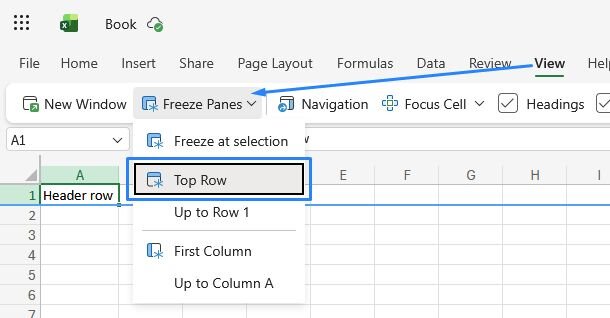
To lock your header row so it stays visible while you scroll, simply:
Open the View tab.
Select Freeze Panes.
Choose Freeze Top Row.
That's it. Row 1 now stays put while everything else scrolls.
Not the kind of locking you meant? Use this router:
| 🧭 You want | 🛠️ Use | 📍 Jump to |
|---|---|---|
| Rows visible while scrolling | Freeze Panes | Method 1 |
| Rows nobody can edit | Protect Sheet | Method 2 |
| Rows that sort together | Tables or full-range sort | Method 3 |
How to lock rows in Excel: 3 methods
⚠️Important: All the steps below are from Excel on the web (Mac and desktop app quirks are in the troubleshooting section).
None of these methods overlap, so using the wrong one is a common source of frustration. Freezing panes won't stop someone from editing a row, and protecting a sheet won't keep your data from scrambling during a sort.
Choose the method you need below:
Method 1: how to lock rows in Excel so they stay visible (freeze panes)
Freeze panes is the fix for the classic problem: you're analyzing a big dataset in Excel, you scroll past row 30, and suddenly you can't remember whether column F is revenue or refunds.
Here's how to freeze rows 3 different ways, plus how to undo it and speed things up with shortcuts:
Freeze the top row
Open the View tab.
Click Freeze Panes, then Freeze Top Row.
This one always pins row 1, no matter which cell you have selected. A thin gray line appears under the frozen row so you can tell it's locked.
Freeze multiple rows
Excel only knows one rule here, and it still trips me up sometimes. It freezes everything above the row you click but not the rows you click.
So if you want rows 1 through 3 frozen, you don't click row 3. You click row 4, the first row you want scrolling, and Excel locks everything above it.
Still confused? Let’s break it down:
Click the row number just below the last row you want to keep visible. To lock rows 1 through 3, click row 4.
Go to View, then Freeze Panes, then select Freeze at selection (Freeze Panes on the desktop app).
Scroll down to confirm rows 1 through 3 stay pinned.
Freeze rows and columns at the same time
Select the cell below and to the right of everything you want locked, then apply Freeze at selection (Freeze Panes on the desktop app). Selecting cell B2 freezes row 1 and column A together.
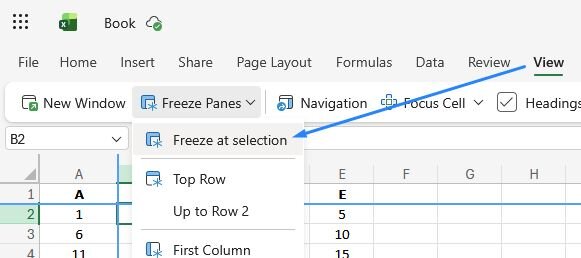
This combination is the backbone of a readable Excel dashboard: your KPI labels stay pinned on both axes while you scroll through the data.
Unfreeze rows
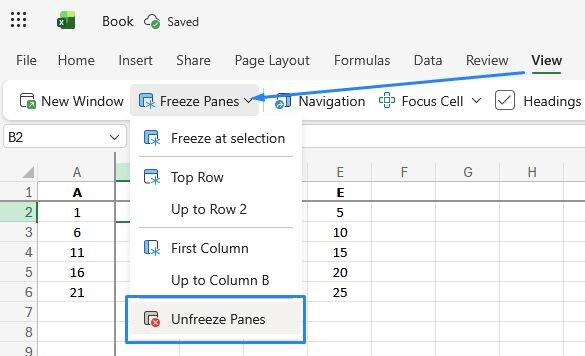
Go to View > Freeze Panes > Unfreeze Panes. The menu item renames itself once something is frozen, which is also a quick way to check whether a mystery spreadsheet has frozen panes.
Keyboard shortcuts
Press the keys in sequence (no holding):
Freeze top row: Alt, W, F, R
Freeze panes at the selection: Alt, W, F, F
Frozen rows still edit, sort, and calculate like normal cells. Freezing changes what you see, and Microsoft's own freeze panes documentation covers the visibility behavior in more depth.
Method 2: how to lock rows so they can't be edited (protect the sheet)
Sometimes you want to keep fingers off your formulas altogether. In my experience, this trips people up because it takes two features working together, and the order you use them matters.
Lock your rows to protect them:
Select the whole sheet (Ctrl+A twice, or the triangle button above row 1).
Go to Review > Protection > Manage Protection.
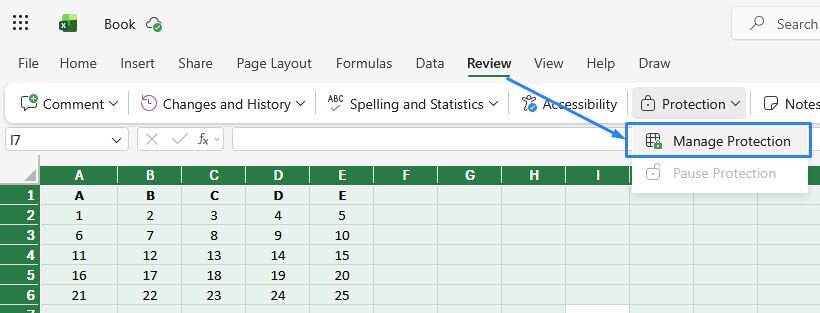
3. In the Manage Protection pane, tick Protect Sheet on. This locks the entire sheet by default.
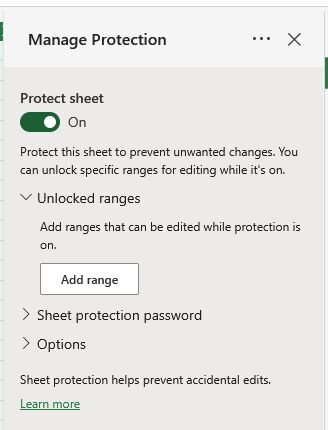
4. To leave certain rows editable, select Unlocked ranges, click on Add range, then enter a range name and the cell range you want to leave open.
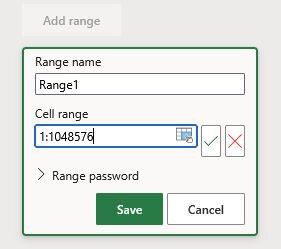
5. You can also set an optional password (for either the unprotected ranges or the entire sheet), then confirm
Two gotchas cost people the most time here, and I've hit both myself. Watch out for:
Sheet protection locking everything by default: Turning on Protect Sheet locks every cell unless you've already added it to Unlocked ranges. If teammates lose edit access to rows you meant to leave open, check your ranges first.
Locked cells blocking sorting for everyone: Any sort that touches a locked cell throws an error, even if you've allowed sorting in your protection settings. If teammates need to sort the data, put those rows in an unlocked range.
If you need different people editing different ranges, add a password to a specific range inside Manage Protection. Microsoft's worksheet protection guide walks through that setup.
Method 3: how to keep rows together when you sort
This is the fear behind a lot of "lock rows" searches. You sort one column and your careful records scramble into nonsense. Excel doesn't have a lock-rows-together button, but thankfully, it turns out you don't need one.
Rows only scramble when you select a single column and tell Excel to sort just that selection.
You can avoid that with two habits:
Sort from inside the data: Click any single cell in your range and hit Sort. Excel expands the selection to the whole contiguous range, so every row moves as one record.
Format as a Table: Click any single cell in your data, then go to Insert and click Table. Confirm the range and header settings in the dialog, then click OK. Sorting inside a Table always moves entire rows, headers get filter arrows, and when you scroll, the header names replace the column letters (a free freeze-panes effect).
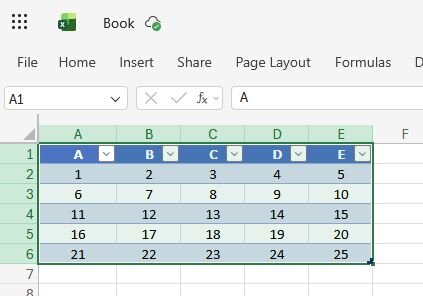
I default to Tables for anything I plan to sort more than once. You get the row integrity, the filters, and cleaner Excel data analysis habits in one keystroke.
If a sort does go sideways, press Ctrl+Z immediately. Hitting save right after a bad sort is how a five-second mistake becomes a permanent one.
Troubleshooting: when Excel won't let you lock rows
Even when you follow every step exactly, Excel's interface can still get in your way. Here are the fixes for the issues I’ve run into most:
Freeze Panes is grayed out: You're probably mid-edit in a cell (press Enter or Esc), or the sheet is protected (Review > Unprotect Sheet). Protection and freezing don't get along. Unprotect, freeze, then re-protect.
You froze the wrong rows: Unfreeze Panes, click the row below the set you want, and freeze again. There's no way to adjust a freeze in place.
You can't freeze rows in the middle of the sheet: Frozen rows always start at row 1. Excel won't be talked out of this. Use Split to create two scrolling regions instead.
You're on Windows desktop: The Freeze Panes dropdown includes a second option also called Freeze Panes, which freezes based on your current cell selection. It's confusingly named, but it's correct.
You're on a Mac: The path is the same, View tab, and Freeze Top Row sits directly on the ribbon. The Alt key sequences are Windows-only, so skip those shortcuts entirely.
Stop scrolling spreadsheets and start asking questions
Locking rows in Excel makes a big sheet easier for you to read. But you're still the one doing the reading, and freezing panes to eyeball 40,000 rows is a sign the spreadsheet has outgrown the scroll bar.
If you've tried ChatGPT in Excel or other Excel AI tools, you already know the appeal of asking your data a question in plain English. We built Julius as a pocket data scientist for exactly that moment.
Here's how Julius helps:
Ask in plain English: Drag in the same Excel file you've been scrolling and ask "which region drove the revenue drop in March?" Julius writes and runs the code for you.
Skip the formula wrangling: Get charts, pivots, and regressions without building them by hand.
Start from a question: Julius can search the web for public data or pull financials for 17,000+ companies, so you don't always need a file to begin.
Connect live sources: Link a database or business tool like Postgres, Snowflake, or Google Ads, and analyze current data without exporting.
Repeat it on a schedule: Save an analysis as a Notebook and have fresh results sent to email or Slack every week.
Ready to spend less time scrolling? Try Julius for free today.
Frequently asked questions
What's the difference between freezing and locking rows in Excel?
Freezing rows keeps them visible while you scroll and changes nothing about editing. Locking rows prevents editing, and it only takes effect once you protect the sheet (Review > Protect Sheet). You can freeze and lock the same rows at the same time.
How do I lock the top two rows in Excel?
To lock the top two rows, click row 3, then go to View > Freeze Panes > Freeze Panes (or freeze at selection if you’re on Excel for the web). Excel freezes everything above the selected row, so selecting row 3 pins rows 1 and 2.
Why is Freeze Panes grayed out in Excel?
Freeze Panes gets disabled when you're editing a cell or when the worksheet is protected. Press Enter or Esc to exit edit mode, or remove protection under Review > Unprotect Sheet, and the option comes back.
Do frozen rows print on every page?
No, frozen rows don't repeat on printed pages. Freezing only affects on-screen scrolling. To repeat headers when printing, switch to the Excel desktop app, then go to Page Layout, then Print Titles, and set "Rows to repeat at top." This feature isn't available in Excel for the web.
Can I freeze rows in Excel for the web?
Excel for the web supports freezing from the View tab, including Freeze Top Row and Freeze Panes. Worksheet protection is available too, under Review > Manage Protection.