

A PostgreSQL GUI tool lets you browse tables, run queries, and edit data without typing every command in a terminal. I’ve tested dozens, from full IDEs to lightweight clients and AI options, and narrowed them to these 9 for 2026.
pgAdmin is my free pick. TablePlus is the native pick on Mac, HeidiSQL’s portable version suits Windows, and Beekeeper Studio gives Linux the full feature set.
By the end, you’ll know which one fits your task, budget, and operating system.
9 best PostgreSQL GUI tools: TL;DR
- Julius: Best for business users and marketers who want charts and summaries from a connected Postgres database by asking questions in plain English
- pgAdmin: Best for database admins and developers who want the leading open source PostgreSQL management tool for managing servers, roles, and permissions
- DBeaver: Best for developers and analysts who work across PostgreSQL and other databases and want one interface for all of them
- DataGrip: Best for developers who write SQL every day and want code-aware suggestions and refactoring in a JetBrains IDE
- DbVisualizer: Best for people who switch between Windows, Mac, and Linux and want the same interface on each
- Navicat Premium: Best for teams that want data modeling, data transfer, and team sharing in one commercial client that connects to PostgreSQL and several other databases
- TablePlus: Best for developers who want a fast native client for quick row edits and local database checks
- Beekeeper Studio: Best for developers who want an open-source client with a clean, uncluttered interface
- HeidiSQL: Best for developers who want a free, open source, lightweight client for everyday PostgreSQL work
How I researched and tested these PostgreSQL GUI tools
I connected each tool on this list to PostgreSQL databases from past projects. I ran everyday tasks like tracing foreign keys, running queries, and editing rows.
Here's what I considered:
- Core PostgreSQL tasks: Each tool had to browse tables, show how they relate, and return data, through SQL or plain-English questions depending on the tool.
- Setup and ease of use: Connecting a database came first, so I timed how long each tool took to get me working.
- Data editing and review: Each tool got a row-level workout, such as filtering and inline edits where it allowed them.
- Stability and speed: I kept each tool open through long working sessions and watched for slow load times or crashes.
- Value from free and paid plans: For tools with both free and paid plans, I compared them side by side to see what the upgrade adds.
Most tools covered the core PostgreSQL tasks, so setup time and day-to-day speed carried more weight in how I judged each tool than feature count.
💡Tip: Many clients on this list show your data as rows and tables. To turn those rows into charts, follow our guide on how to visualize Postgres data using AI.
9 best PostgreSQL GUI tools: quick comparison
| 💻 Tool | 🧩 Type | 💰Starting price (billed annually) | 🆓 Free version available? | 🖥️ OS |
| Julius | Web-based AI analysis | $16/month | Yes (Postgres connector is only on paid plans) | Web (any OS) |
| pgAdmin | Full IDE | Free | Yes (open source) | Windows, Mac, Linux |
| DBeaver | Full IDE | $113/year for 1 Lite license | Yes (open source Community Edition) | Windows, Mac, Linux |
| DataGrip | Full IDE | $109/year | Free for non-commercial use | Windows, Mac, Linux |
| DbVisualizer | Full IDE | $199/user for the first year | Yes | Windows, Mac, Linux |
| Navicat Premium | Full IDE | $749.99/year | Yes | Windows, Mac, Linux |
| TablePlus | Lightweight client | $99/license with 1 year of updates | Yes, limited | Windows, Mac, Linux |
| Beekeeper Studio | Lightweight client | $9/user/month | Yes (open source Community Edition) | Windows, Mac, Linux |
| HeidiSQL | Lightweight client | Free | Yes (open source) | Windows, Linux, Mac (Apple Silicon) |
*Pricing correct as of October 2026. Confirm with vendor.
1. Julius: Best for charts and answers from PostgreSQL without writing SQL
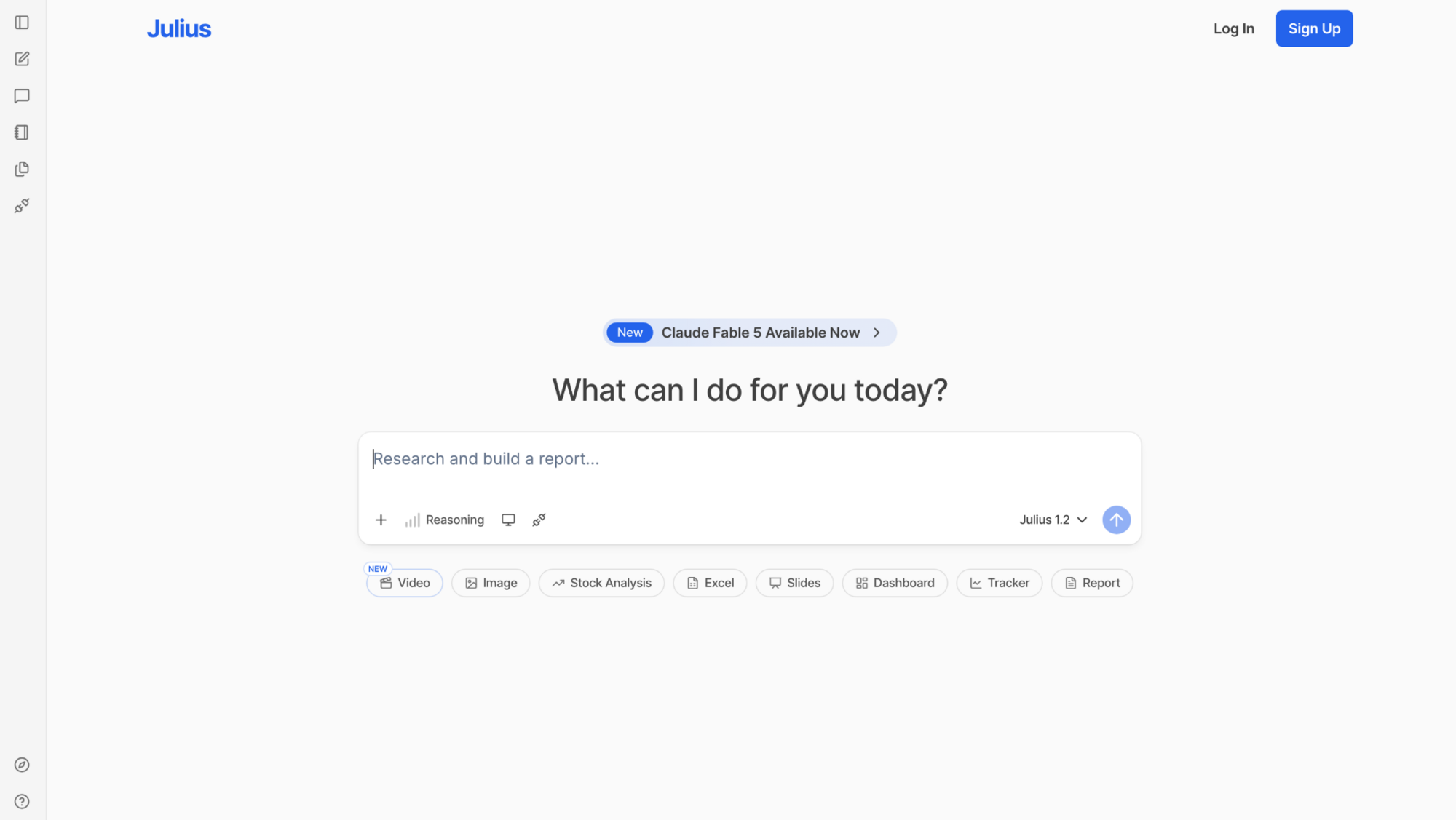
- What it does: Julius is an AI data analysis tool that answers plain-English questions about a connected PostgreSQL database with charts and summaries, and it can also pull public company financials with no database at all.
- Best for: Marketers and business analysts who pull campaign or signup numbers from PostgreSQL without waiting on a data team.
We built Julius so business users can get answers from PostgreSQL without writing SQL. You ask a question like "How many people signed up last month, by channel?" and Julius writes the query, runs it against your connected database, and returns a chart with a short summary.
The PostgreSQL connector sits on paid plans, so a free account can't connect a PostgreSQL database.
Key features
- PostgreSQL connector: Link a PostgreSQL database to Julius and run questions against its tables.
- Learning Sub Agent: Remembers your database structure and how its tables relate from one query to the next, and checks user feedback before storing it.
- Hide code mode: Hide the SQL and Python behind each answer, or show the code to check how Julius reached a result.
Pros and cons
| ✅ Pros | ❌ Cons |
| Teammates who share a connection also share what Julius learns about the database structure | Built for analysis, so it doesn't handle backups or user roles |
| Uploading a data dictionary helps Julius understand your column names and business terms | Large datasets fit better in a data warehouse tool |
| You can ask Julius to export results as a CSV or Excel file |
What users say
Pro: “If you spend more than 2 hours a week working with data, Julius AI will save you time. Start with the free plan. You’ll know within a week if it fits your workflow. For most non-technical users, it’s a no-brainer.” (Fahim Joharder, Fahim AI independent Julius review)

Con: “Not gonna lie, the first time I uploaded a messy CSV with empty values, the results were off. AI can help identify outliers and handle empty values. But you still need to clean your raw data first.” (Fahim Joharder, Fahim AI independent Julius review)
Pricing
Julius starts at $16 per month.
Bottom line
Julius handles the question-and-answer side of PostgreSQL, and you can pick which parts of your database it uses. Managing roles, backups, and server settings takes a different kind of tool, and pgAdmin might be a better fit for that.
2. pgAdmin: Best for managing PostgreSQL servers, roles, and permissions
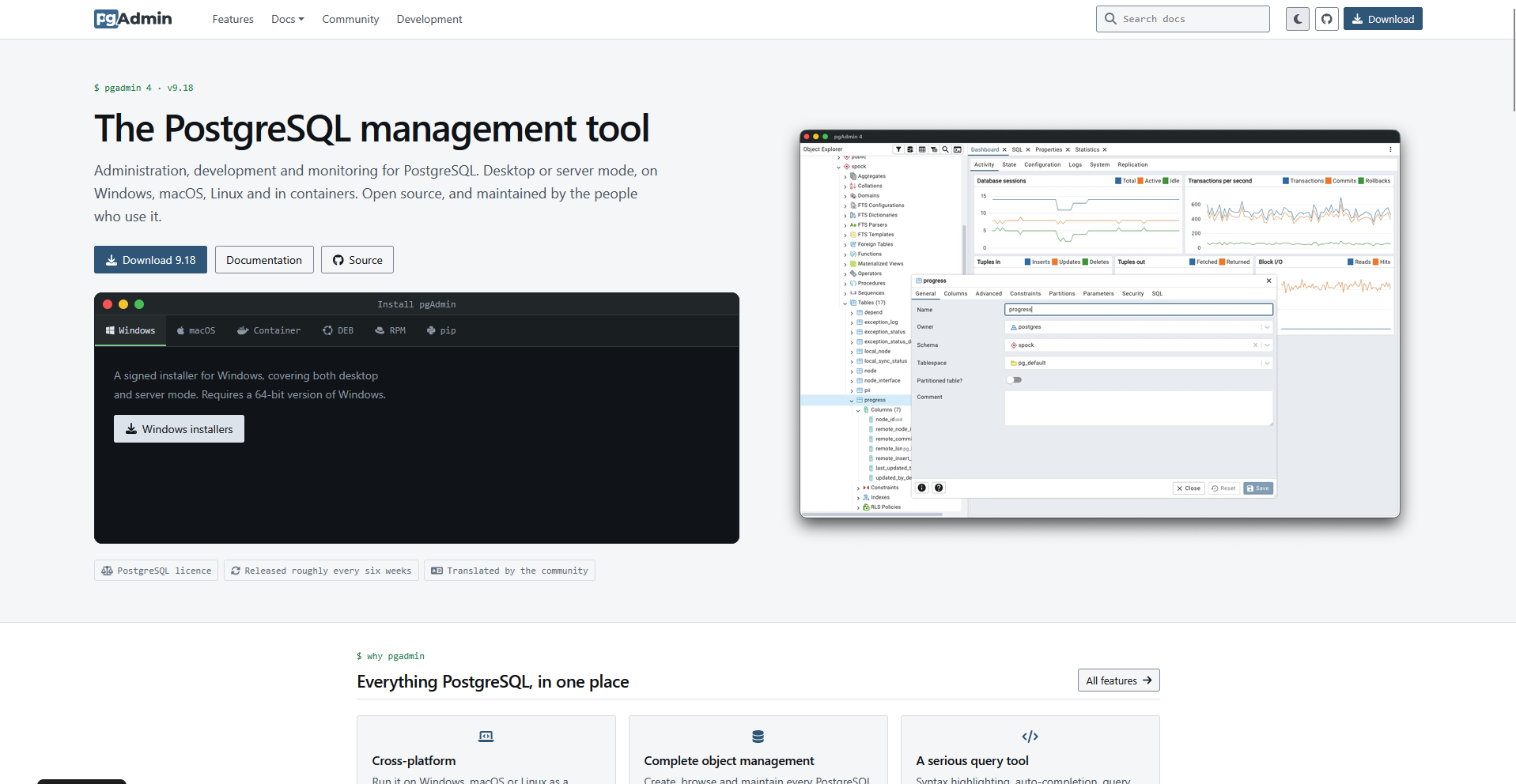
- What it does: pgAdmin is a free, open source PostgreSQL management tool that lets you browse databases, write queries, and manage servers from one interface.
- Best for: Database admins who create login roles, run backups, and check server activity from one dashboard.
To see how pgAdmin handles everyday admin work, I connected it to a PostgreSQL database, created a login role, ran a backup, and drew an entity relationship diagram (ERD) of a few linked tables. The ERD showed the foreign keys between my tables, so I didn't have to trace them by hand.
It took me a few sessions to learn the layout and where the server tree keeps roles, schemas, and tools.
Key features
- Query Tool: Write and run SQL with syntax highlighting, view results in a grid, and download the result set.
- ERD Tool: Draw entity relationship diagrams from existing tables, and search for tables to bring them into view.
- Backup and restore: Back up and restore databases and objects through guided dialogs.
Pros and cons
| ✅ Pros | ❌ Cons |
| Roles and permissions have their own dialogs, so you can set access without typing GRANT statements | Large result sets can slow the interface |
| Version 9.13 added an AI chat panel to the Query Tool, available once you connect an LLM provider | Support comes mostly from community forums |
| Server mode lets a team reach one pgAdmin install through a browser |
What users say
Pro: "pgAdmin's intuitive query editor with syntax highlighting and auto-completion makes database management very efficient. The visual table designer and ERD tool save a lot of time when working with complex schemas. Being open-source and cross-platform is a major advantage for development teams." (Verified User in Computer Software, G2)
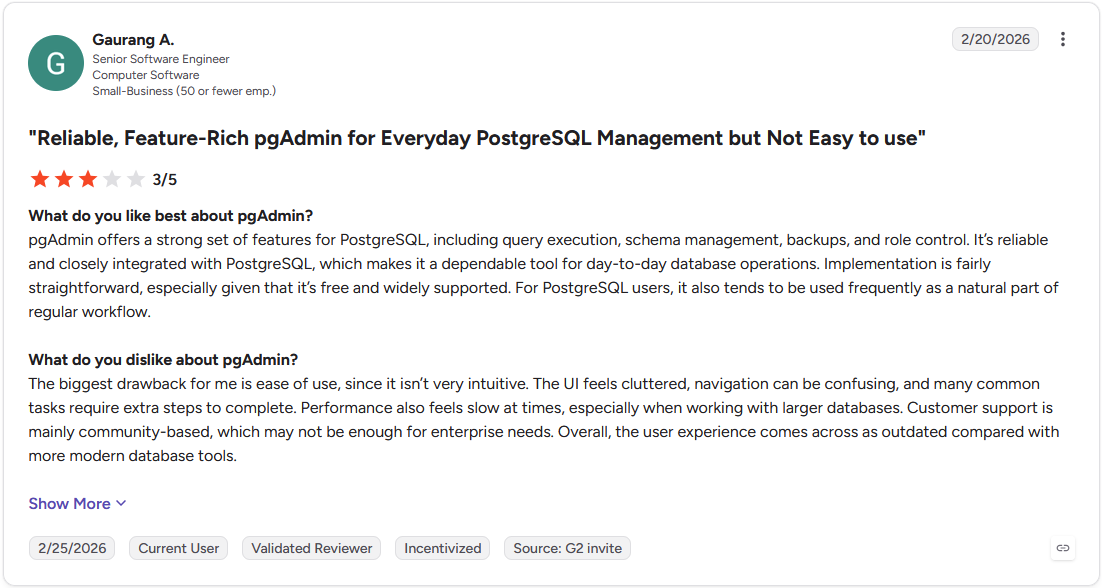
Con: "The biggest drawback for me is ease of use, since it isn't very intuitive. ... many common tasks require extra steps to complete." (Gaurang A., G2)
Pricing
pgAdmin is free.
Bottom line
pgAdmin gives PostgreSQL admins one free tool for roles, backups, and database comparisons. If your work spans several database types, DBeaver could be worth a look.
3. DBeaver: Best for working across PostgreSQL and other databases
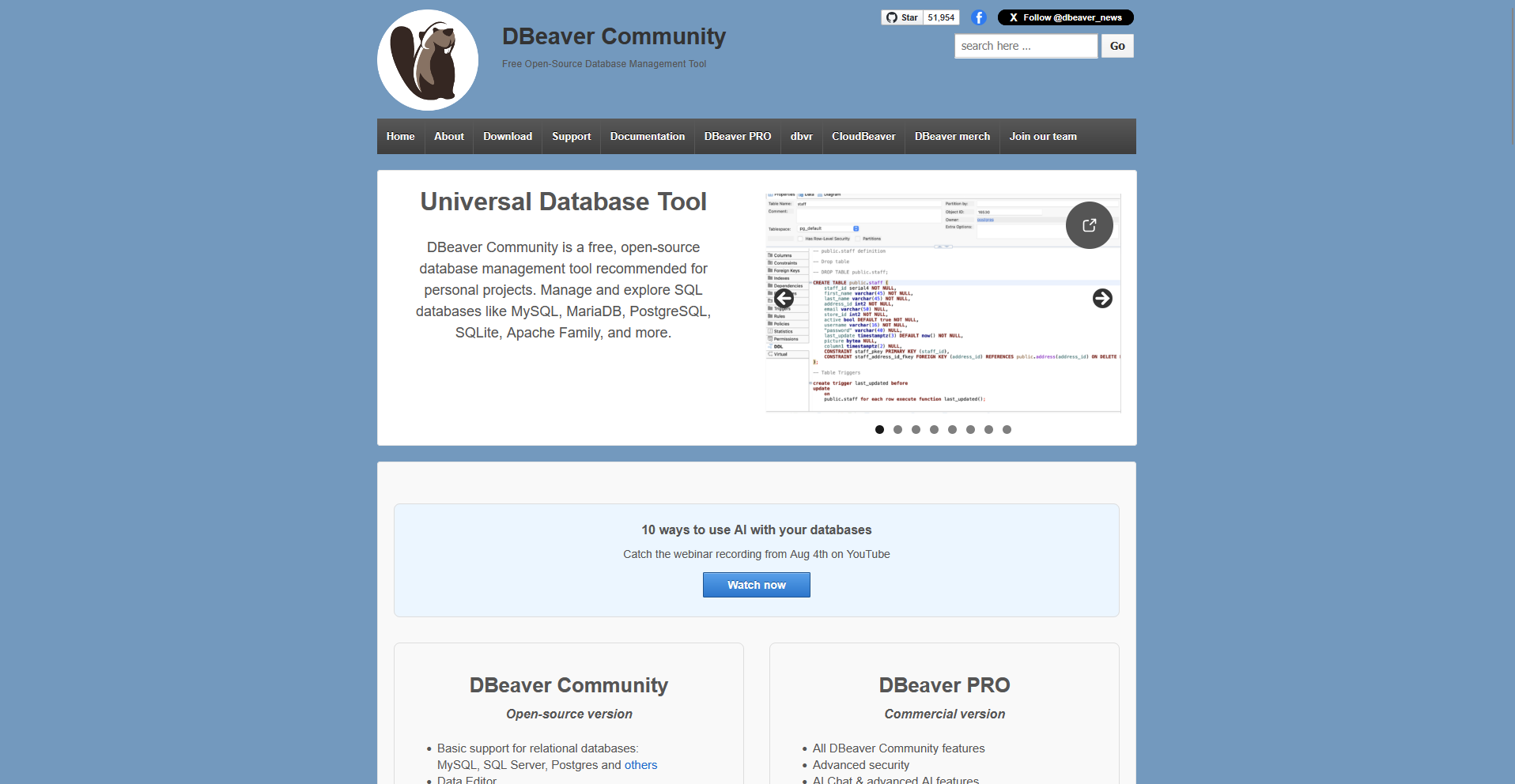
- What it does: DBeaver is a multi-database SQL client that lets you browse tables, write queries, and edit data across many database types, with a free open source Community Edition.
- Best for: Developers and analysts who move between PostgreSQL, MySQL, and SQL Server and want one editor for all of them.
DBeaver is built to work with many database types through one interface, so I tested it by connecting a PostgreSQL database and a MySQL database side by side. The same SQL editor and data grid handled both, and the ER diagram drew my PostgreSQL tables with their foreign keys.
Keep an eye out for the crowded interface. Panels and settings pile up and I had to hunt for the right menu more than once.
Key features
- SQL Editor: Write queries with syntax highlighting and autocompletion, and run them against any connected database.
- Data Editor: View, filter, and edit table rows in a grid, and export or import data in multiple formats.
- ER diagrams: Generate entity relationship diagrams from your tables and view how they connect.
Pros and cons
| ✅ Pros | ❌ Cons |
| The paid editions add an AI chat that writes SQL from plain English, and the free Community Edition has only limited AI support | Connections can drop after a session sits idle |
| SSH and proxy connections work in the free edition, so remote PostgreSQL servers are within reach | Large datasets and heavy queries can slow the app |
| DBeaver shows a table's structure as SQL and can write the SQL for you when you change it |
What users say
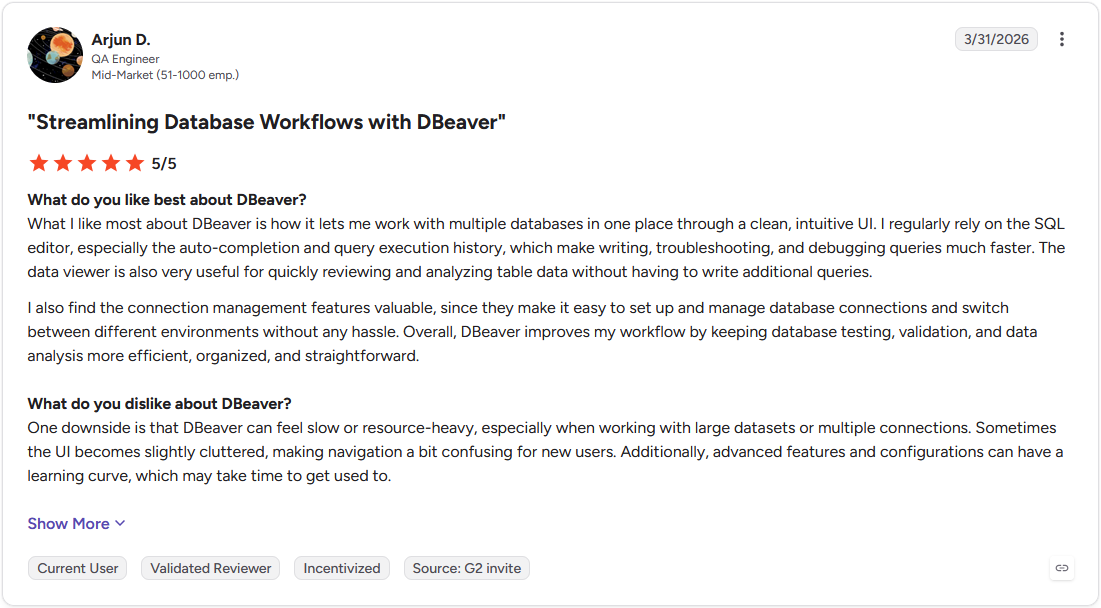
Pro: "What I like most about DBeaver is how it lets me work with multiple databases in one place through a clean, intuitive UI. I regularly rely on the SQL editor, especially the auto-completion and query execution history, which make writing, troubleshooting, and debugging queries much faster." (Arjun D., G2)
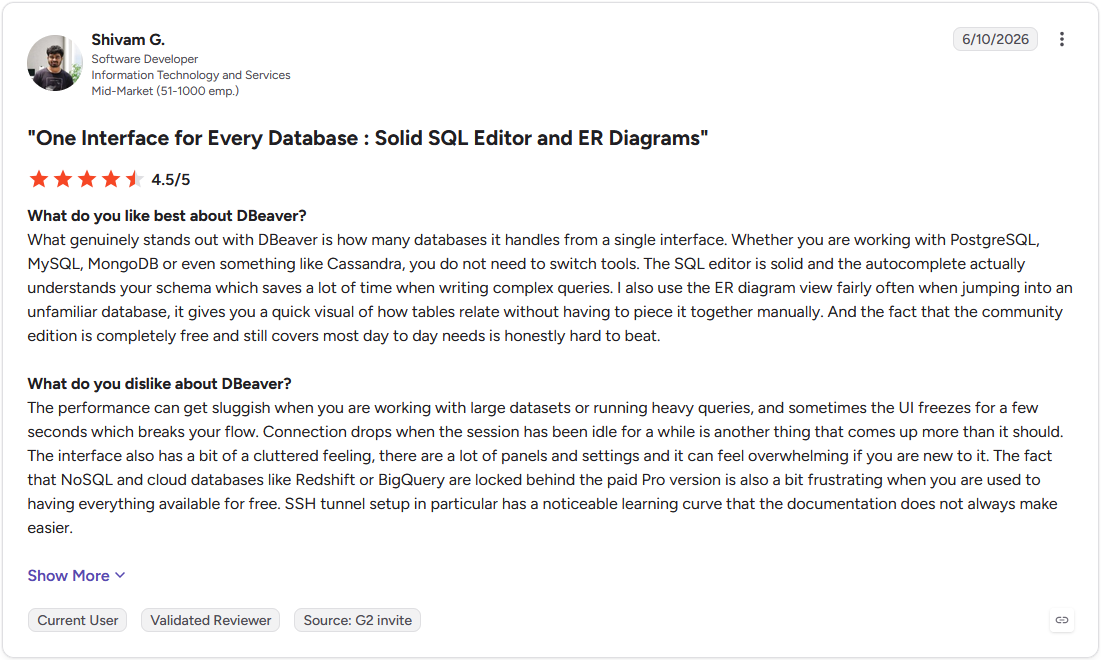
Con: "The performance can get sluggish when you are working with large datasets or running heavy queries, and sometimes the UI freezes for a few seconds which breaks your flow. Connection drops when the session has been idle for a while is another thing that comes up more than it should." (Shivam G., G2)
Pricing
DBeaver starts at $113 per year for one Lite license.
Bottom line
DBeaver suits anyone who works across several databases, and the free Community Edition covers everyday SQL work. If you write SQL all day, DataGrip may be the better pick.
4. DataGrip: Best for writing SQL every day with editor help
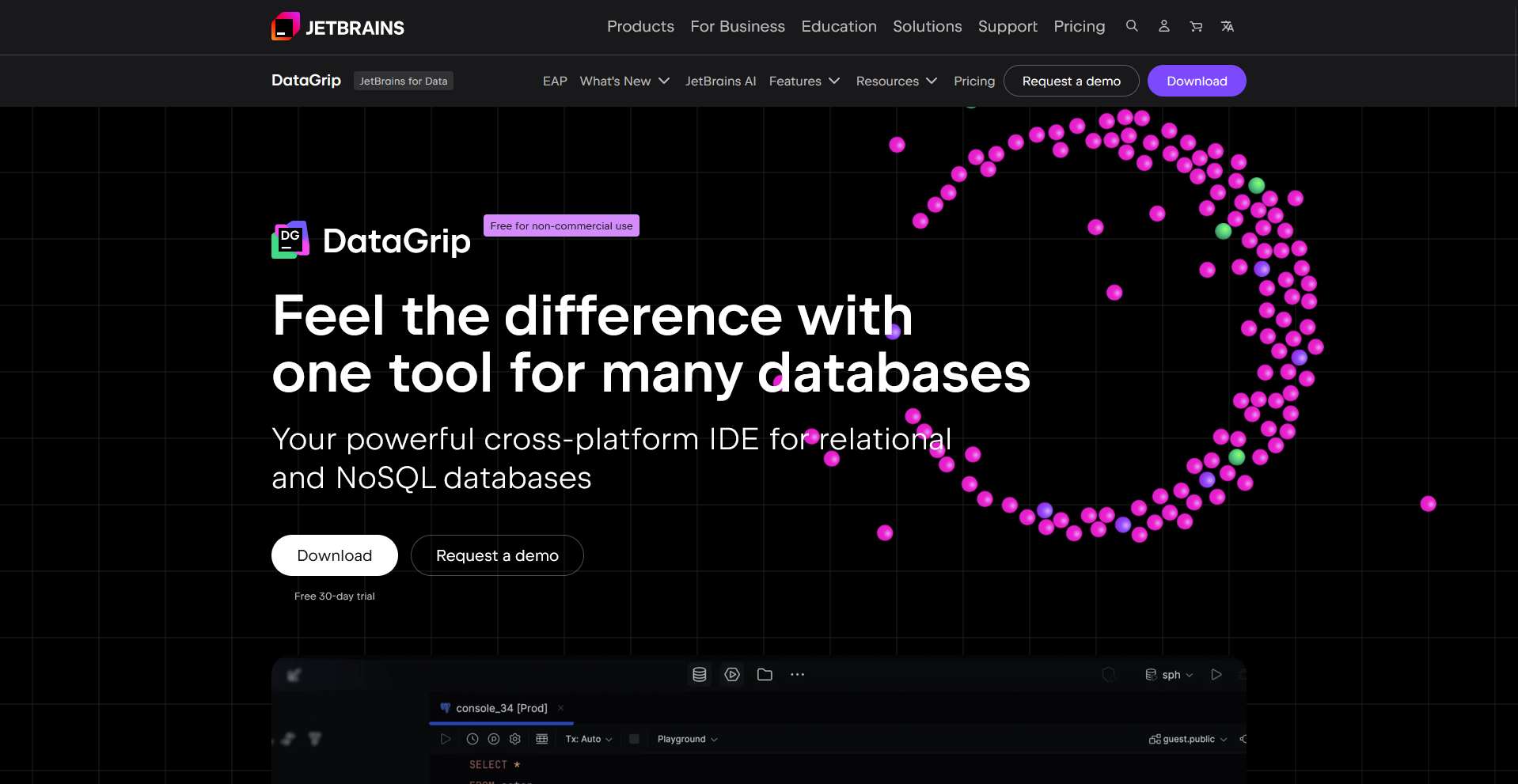
- What it does: DataGrip is a database IDE from JetBrains that lets you write SQL, browse schemas, and edit data across PostgreSQL and other database engines.
- Best for: Developers who write and revise PostgreSQL queries all day and want help from the editor as they type.
DataGrip works by reading your database schema before you type, so I put that to the test by connecting a PostgreSQL database and writing a join across three tables. I picked table and column names from the suggestions as I typed, and the editor showed each query's run time beside it.
The downside is the first connection, because the schema took a while to load on a large database before the editor was ready.
Key features
- Code editor: Write SQL with auto-completion, code analysis, and navigation between database objects.
- Query console: Run and profile queries, with each query's run time shown beside it in the editor.
- Data editor: View and edit table rows in a grid, with a SQL Expression mode added in version 2026.2.
Pros and cons
| ✅ Pros | ❌ Cons |
| Version 2026.2 added AI agent skills that turn plain-English requests into SQL in the AI chat, using your live database schema | Uses a lot of memory, so it needs a capable machine |
| A free license covers non-commercial use | No built-in data visualization, so charts mean exporting results elsewhere |
| Demo PostgreSQL databases and an interactive tour help first-time users get started |
What users say
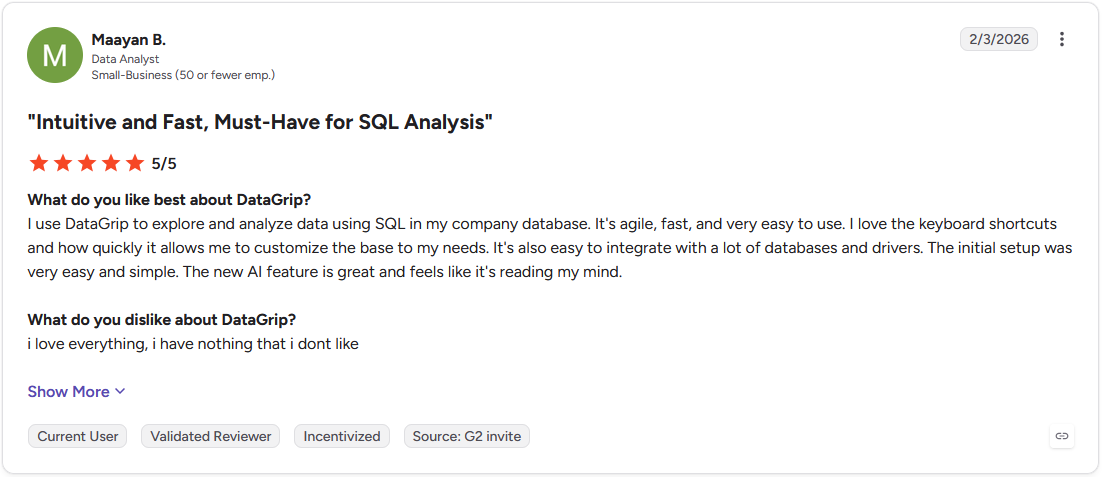
Pro: "It's agile, fast, and very easy to use. I love the keyboard shortcuts and how quickly it allows me to customize the base to my needs. It's also easy to integrate with a lot of databases and drivers." (Maayan B., G2)
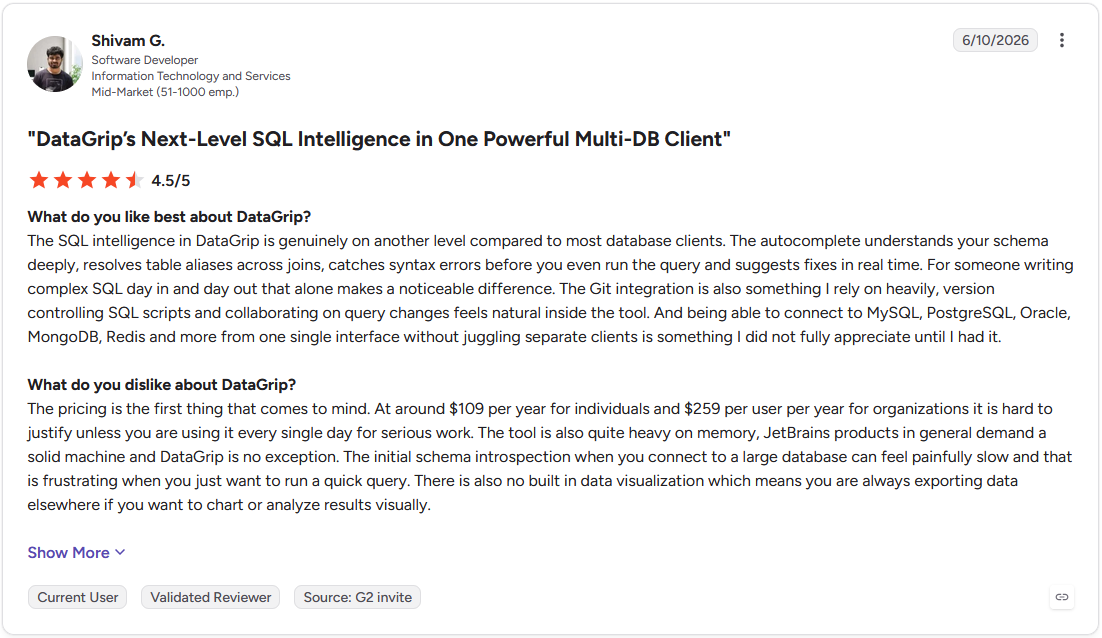
Con: "The tool is also quite heavy on memory, JetBrains products in general demand a solid machine and DataGrip is no exception. ... There is also no built in data visualization which means you are always exporting data elsewhere if you want to chart or analyze results visually." (Shivam G., G2)
Pricing
DataGrip starts at $109 per year. To learn more, check out our DataGrip pricing guide.
Bottom line
DataGrip suits developers who write SQL all day and want the editor to do part of the typing. If you want charts from your PostgreSQL data, Julius might be a closer fit.
5. DbVisualizer: Best for the same interface on Windows, Mac, and Linux
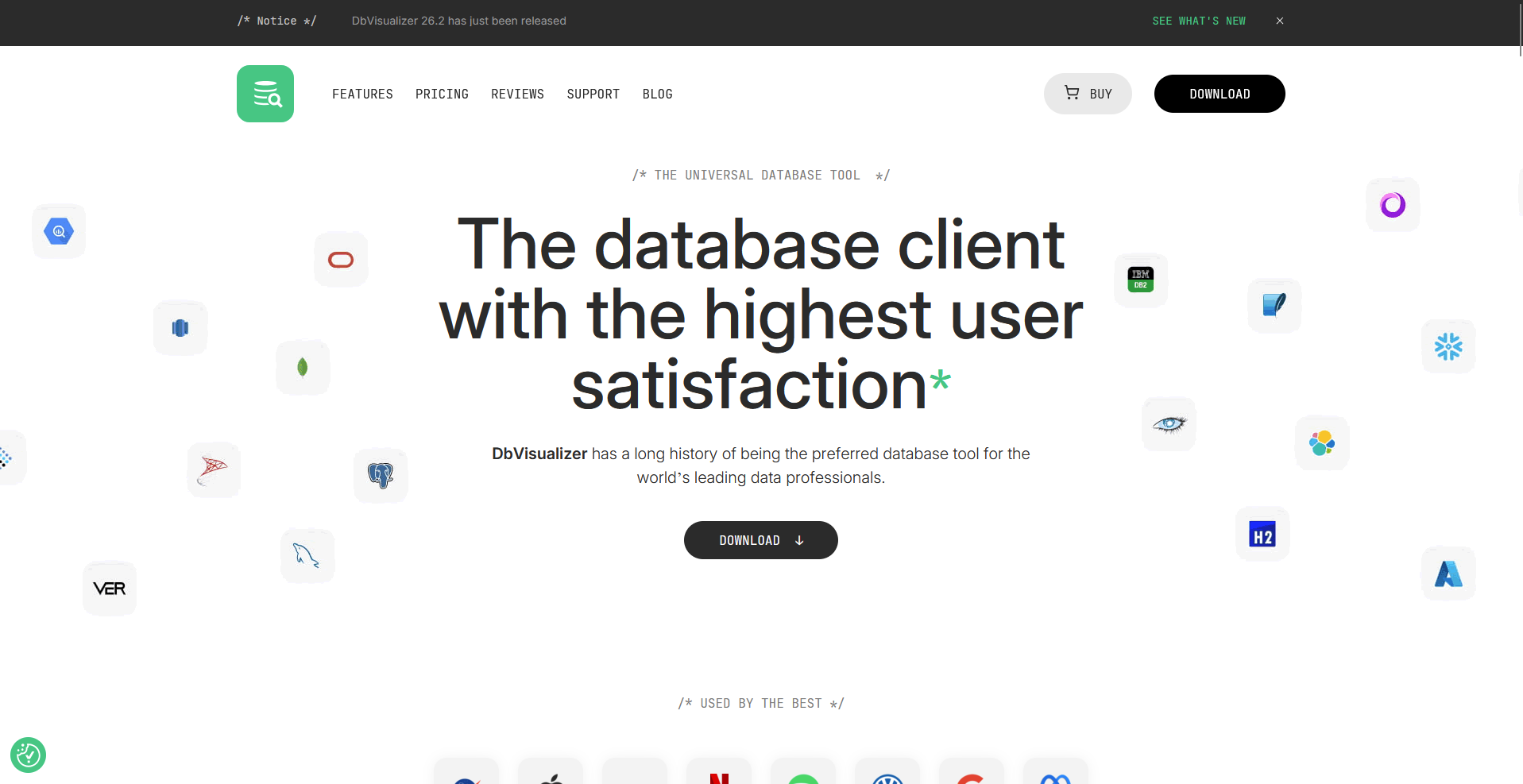
- What it does: DbVisualizer is a database client that lets you browse tables, run SQL, and manage connections to PostgreSQL and other databases through JDBC drivers, with a free edition and a Pro edition.
- Best for: Developers who use the same PostgreSQL tool at work and at home, since one license covers both.
I installed DbVisualizer on a Mac and a Windows laptop, then connected both to the same PostgreSQL database to compare how it ran on each. I ran the same query on both laptops and found the same menus, connection settings, and SQL history, so switching machines took no relearning.
The free edition has no table data editor, query builder, or explain plan. Those need a Pro license.
Key features
- Connection management: Save connections to PostgreSQL and other databases through JDBC drivers, with SSH tunnel support.
- Table data editor: View and edit table rows, and import or export data, in the Pro edition.
- Explain plan: Read how PostgreSQL runs a query, in the Pro edition.
Pros and cons
| ✅ Pros | ❌ Cons |
| Pro includes an AI Assistant chat that helps write and tune queries, using credits from an AI balance | Can freeze when you run queries in several SQL Commander windows |
| Pro licenses are perpetual, so you can keep using the version you bought after the subscription ends | Autocomplete can be pushy while you type |
| The free edition includes SSH connections, SQL history, and references graphs |
What users say
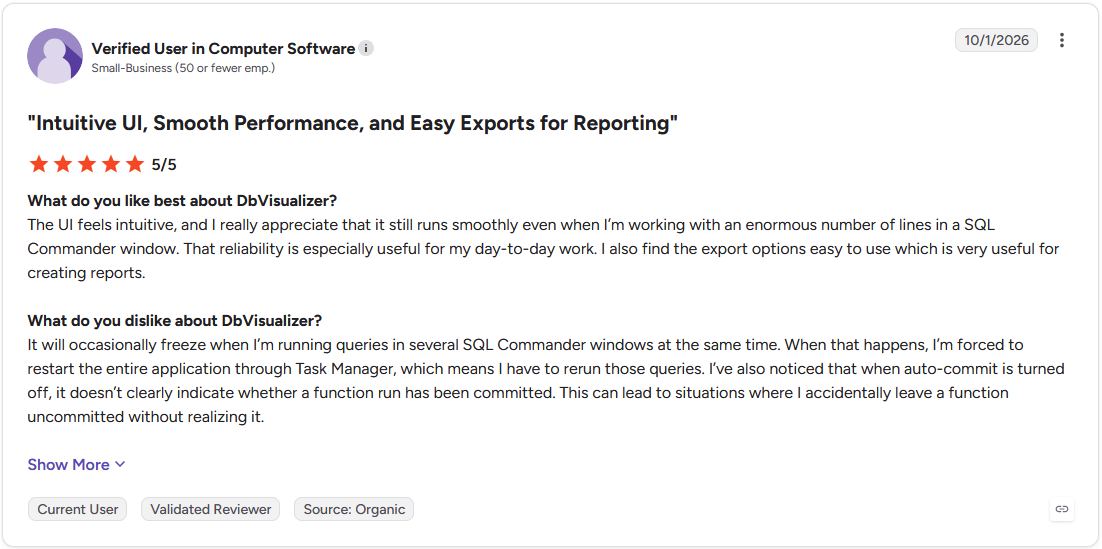
Pro: "I really appreciate that it still runs smoothly even when I'm working with an enormous number of lines in a SQL Commander window. ... I also find the export options easy to use which is very useful for creating reports." (Verified User in Computer Software, G2)
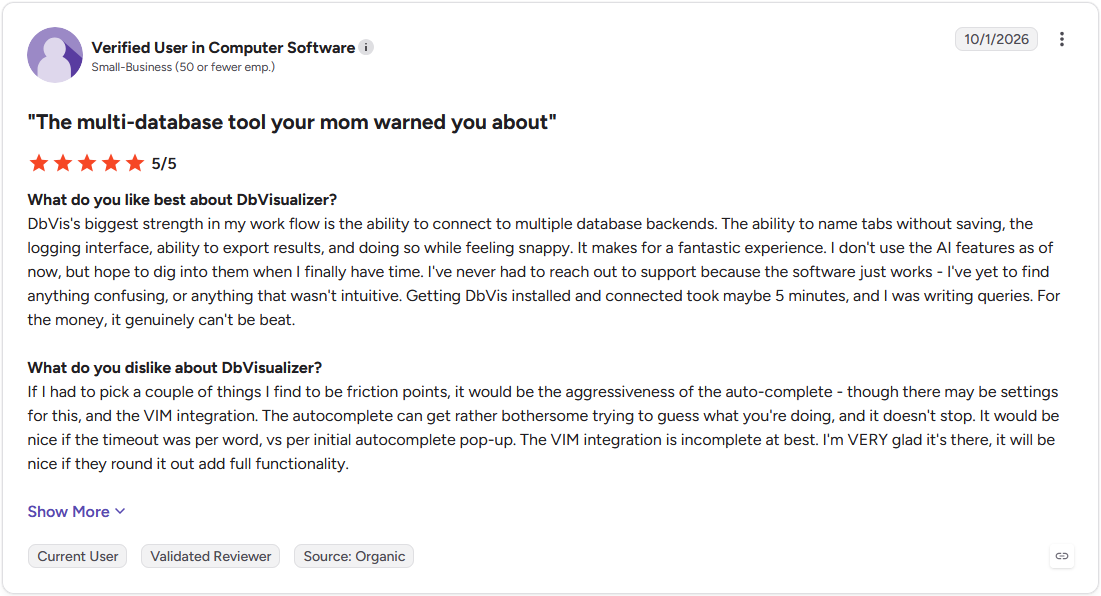
Con: "The autocomplete can get rather bothersome ... and it doesn't stop. It would be nice if the timeout was per word, vs per initial autocomplete pop-up." (Verified User in Computer Software, G2)
Pricing
DbVisualizer starts at $199 per user for the first year.
Bottom line
DbVisualizer suits developers who want one PostgreSQL client on every machine, with a free edition for the basics. If you want a lighter tool for quick row edits, TablePlus is worth checking.
6. Navicat Premium: Best for data modeling and moving data between databases
- What it does: Navicat Premium is a multi-database development tool that lets you manage PostgreSQL, MySQL, MongoDB, SQL Server, and other databases from one application.
- Best for: Teams that design PostgreSQL schemas visually and sync or transfer data between PostgreSQL, MySQL, and other databases.
To see how Navicat Premium handles moving data between databases, I copied a PostgreSQL table into a MySQL database with its data transfer tool. The row count matched on both sides, and the column types I mapped carried over as expected.
The transfer wizard has several steps, including field mapping, so even a one-table copy takes some setup.
Key features
- Data transfer and sync: Copy data and structure between databases, and keep two databases in line with data and structure synchronization.
- Model workspace: Design tables and relationships in a visual model, and align the model with a database.
- AI Assistant: Ask questions in a chat that uses your database or schema as context, and compare answers from different AI models.
Pros and cons
| ✅ Pros | ❌ Cons |
| Data Generator creates test data that follows your tables' rules and keys | Sends AI requests to outside AI providers, so teams with strict data rules need to review that |
| Data profiling charts show your data visually so you can spot patterns | There can be slower results on large queries |
| Navicat Collaboration lets a team share connections and queries |
What users say
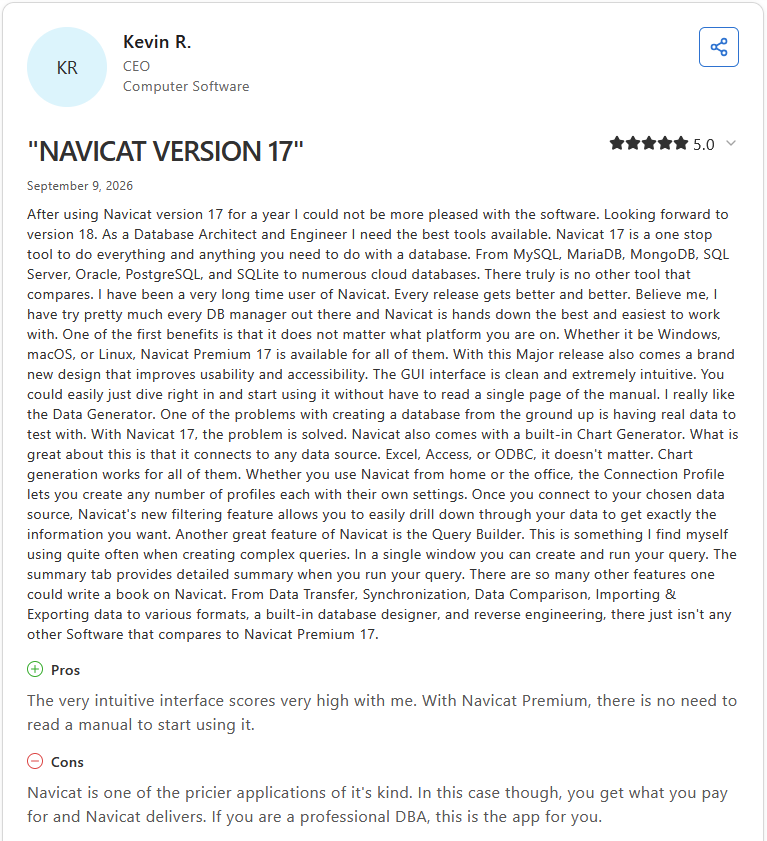
Pro: "The very intuitive interface scores very high with me. With Navicat Premium, there is no need to read a manual to start using it." (Kevin R., Capterra)
Con: "Navicat is one of the pricier applications of its kind. In this case though, you get what you pay for and Navicat delivers." (Kevin R., Capterra)
Pricing
Navicat Premium starts at $749.99 per year.
Bottom line
Navicat Premium suits teams that move and sync data between databases and design their tables in a visual model. If you want a simpler client with a free edition, Beekeeper Studio might suit you better.
7. TablePlus: Best for quick row edits and local database checks
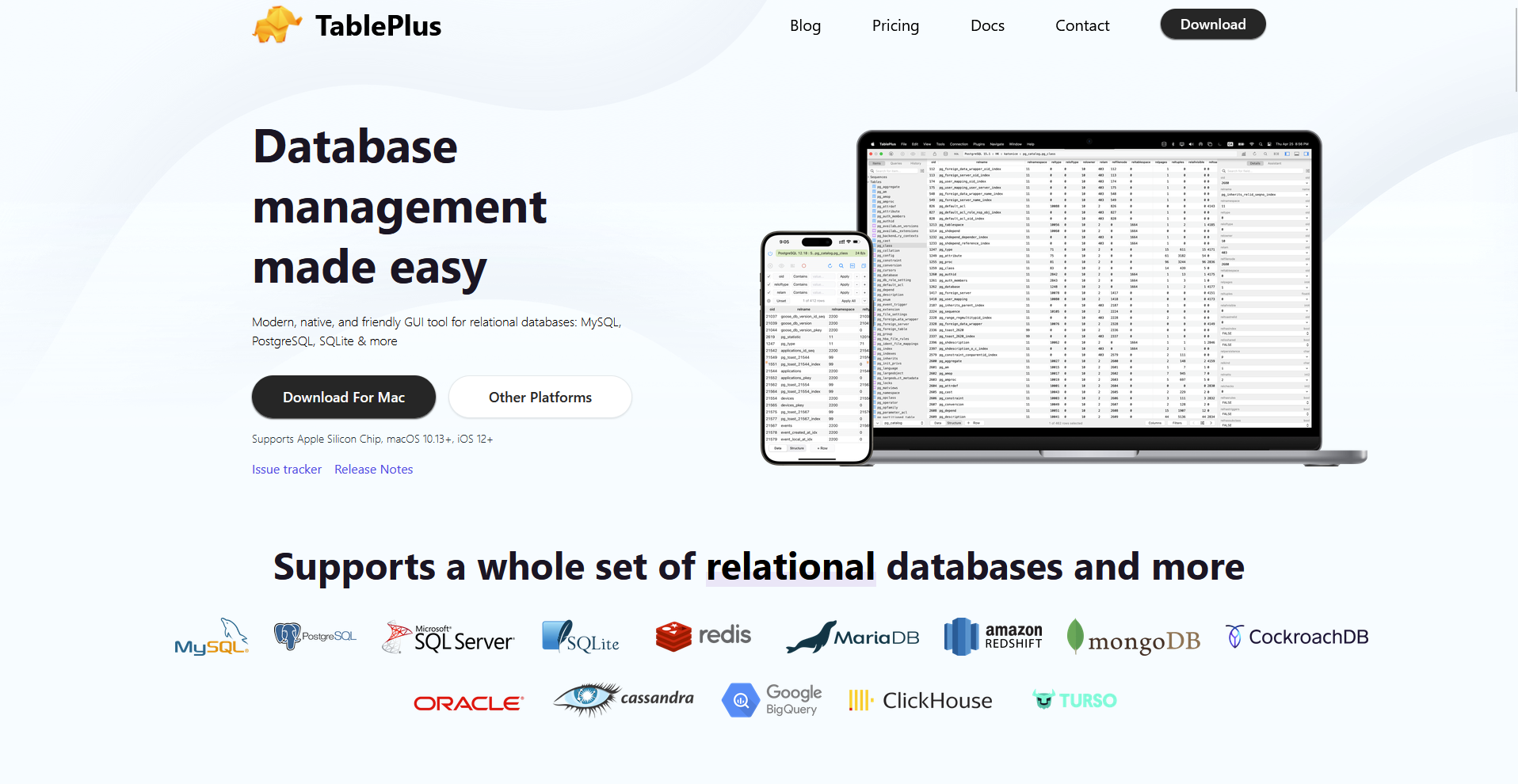
- What it does: TablePlus is a native database client that lets you view, query, and edit PostgreSQL, MySQL, SQLite, and other databases in a tabbed interface.
- Best for: Developers who open a database for a few minutes at a time to check data and fix a row.
TablePlus is built as a native app for quick edits, so I tested it by opening a PostgreSQL table and changing a few values in the grid. I reviewed the pending changes and saved them in one step, and the updated values showed in the grid with no query for me to write.
The free version allows only two open tabs, so a third table had to wait until I closed one.
Key features
- Data grid: View and edit table rows inline, and narrow them with advanced filters.
- Multi-database support: Connect to PostgreSQL, MySQL, SQLite, SQL Server, Redshift, MariaDB, CockroachDB, Vertica, Cassandra, and Redis.
- iOS app: Open databases from an iPhone or iPad, with two iOS devices included in the Basic license.
Pros and cons
| ✅ Pros | ❌ Cons |
| A license is perpetual, so you keep using the version you have after the first year of updates | Dashboards can be clunky to build |
| Licenses are transferable, so you can move one to a new device through the license manager | The free Windows version has no filters |
| Saved queries live in folders you can share with your team |
What users say
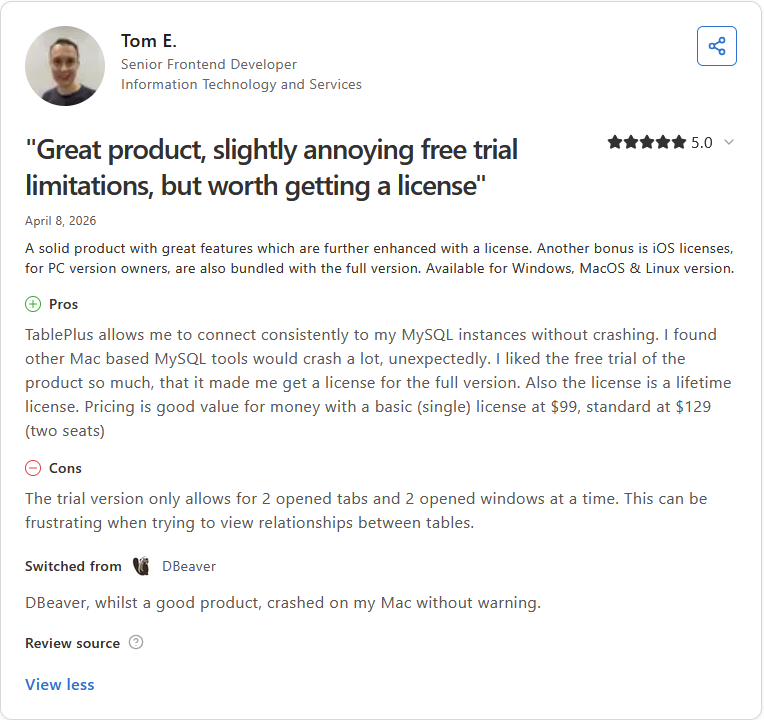
Pro: "I liked the free trial of the product so much, that it made me get a license for the full version. Also the license is a lifetime license." (Tom E., Capterra)
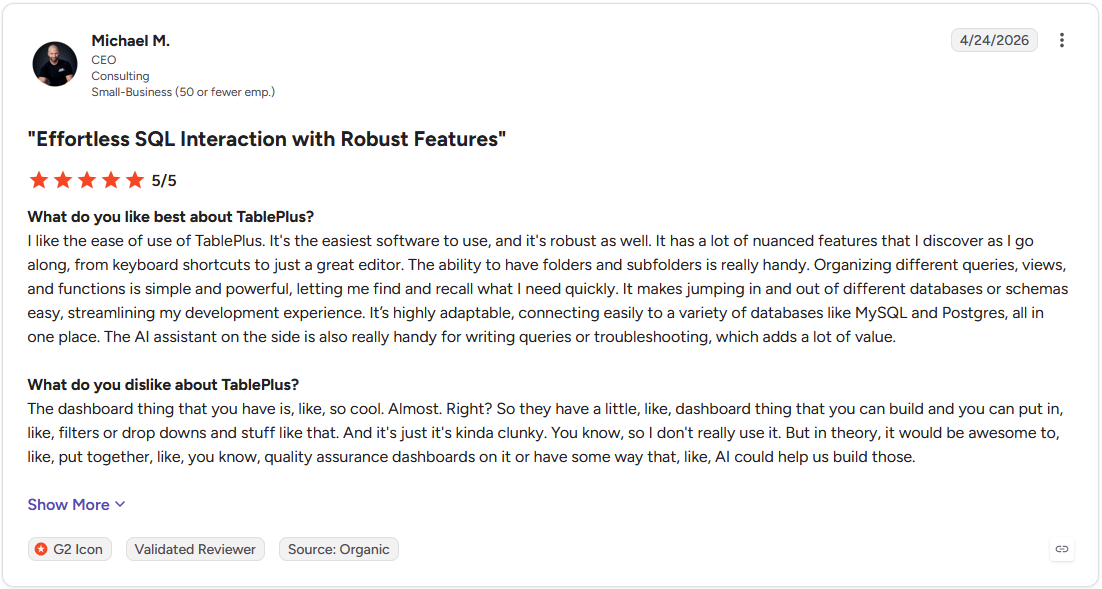
Con: "So they have a little dashboard thing that you can build and you can put in filters or drop downs and stuff like that. ... And it's just it's kinda clunky. You know, so I don't really use it." (Michael M., G2)
Pricing
TablePlus starts at $99 per license with 1 year of updates.
Bottom line
TablePlus suits developers who want fast row edits in a native app and a one-time license. If you want a free client for everyday work, HeidiSQL could be worth a look.
8. Beekeeper Studio: Best for an open source client with a clean interface
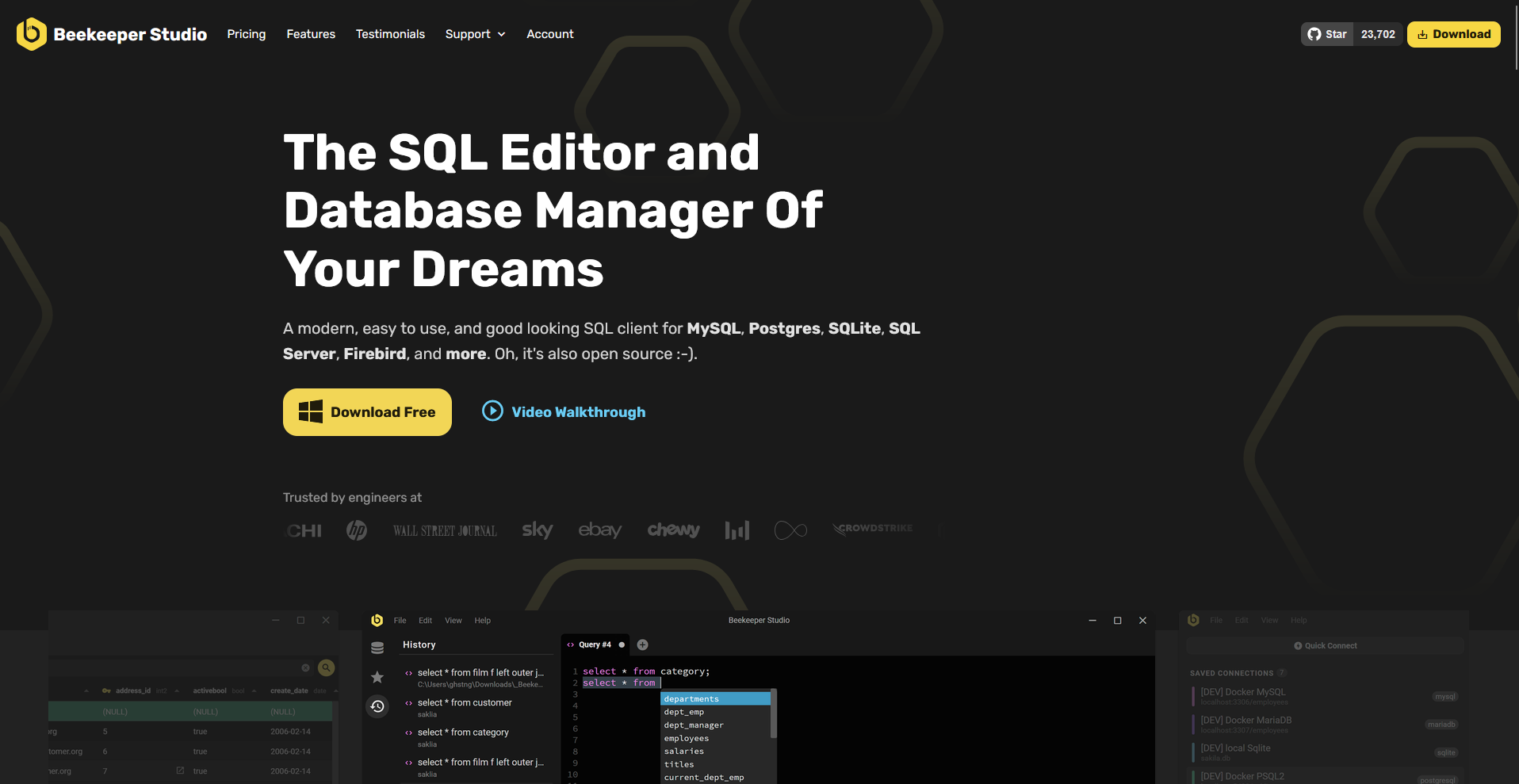
- What it does: Beekeeper Studio is an open source SQL client that lets you connect to PostgreSQL and other databases, run queries, and edit table data in a spreadsheet-style grid.
- Best for: Developers at small companies who want a free PostgreSQL client with folders for queries and connections.
I set up Beekeeper Studio's Community Edition with a PostgreSQL database and saved three queries in folders to see how it handled everyday work. I edited a row in the spreadsheet-style grid, and autocomplete suggested column names while I wrote a query. Importing a CSV requires a paid license.
Key features
- Spreadsheet-style table editor: Edit table data in a grid that works like a spreadsheet.
- Query and connection folders: Group saved queries and connections into folders.
- Transaction management: Manage transactions with fine-grained controls.
Pros and cons
| ✅ Pros | ❌ Cons |
| The app has full feature parity across macOS, Windows, and Linux | The free Community Edition is meant for individuals and companies with fewer than 10 employees or under $1 million in revenue |
| A lifetime usage license keeps paid features working for the versions released during your subscription | Shared team workspaces stop working if the subscription ends |
| SSH tunnels are included in the Community Edition, so remote PostgreSQL servers are within reach |
What users say
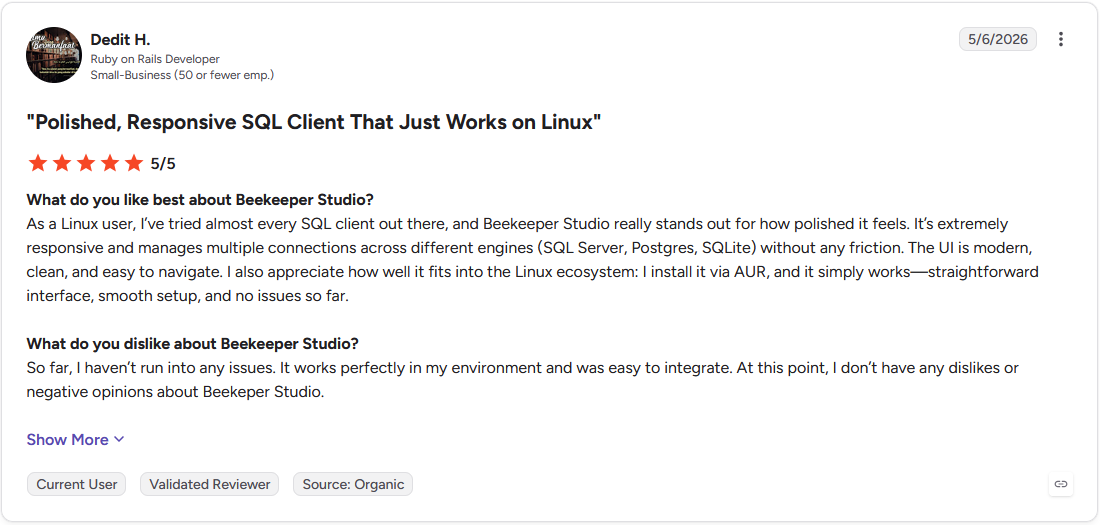
Pro: "It's extremely responsive and manages multiple connections across different engines (SQL Server, Postgres, SQLite) ... straightforward interface, smooth setup, and no issues so far." (Dedit H., G2)
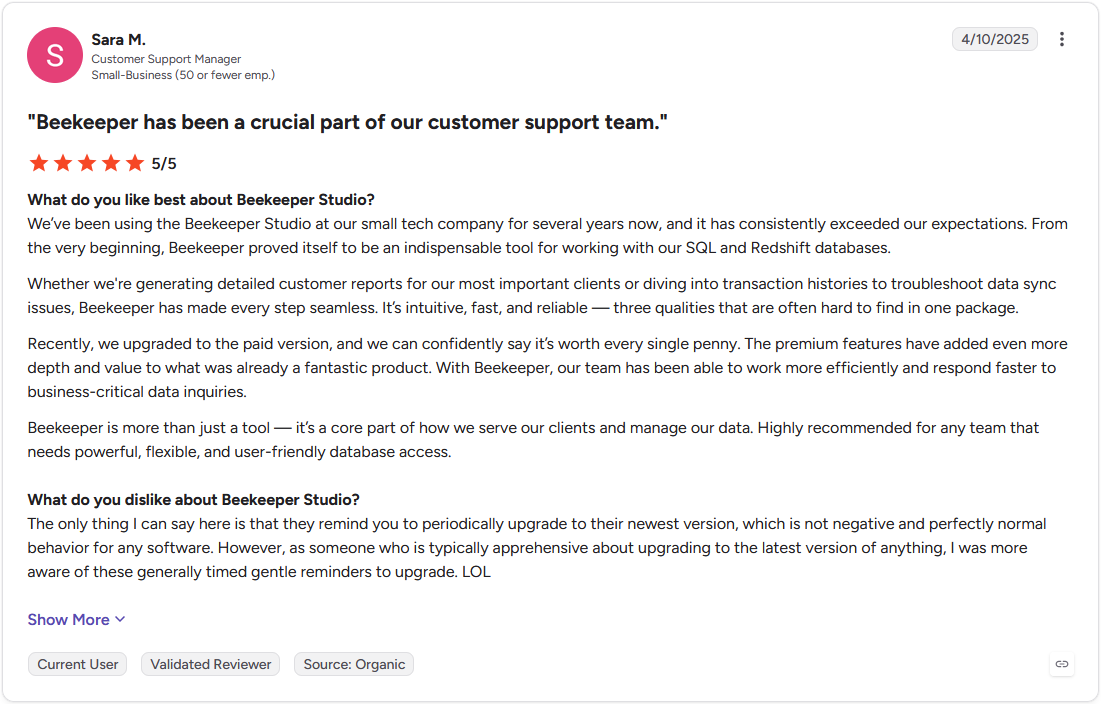
Con: "The only thing I can say here is that they remind you to periodically upgrade to their newest version." (Sara M., G2)
Pricing
Beekeeper Studio starts at $9 per user per month.
Bottom line
Beekeeper Studio suits developers who want a free, open source PostgreSQL client with a clean interface. If you want CSV import in a free edition, DBeaver may fit better.
9. HeidiSQL: Best for everyday PostgreSQL work in a free, open source client
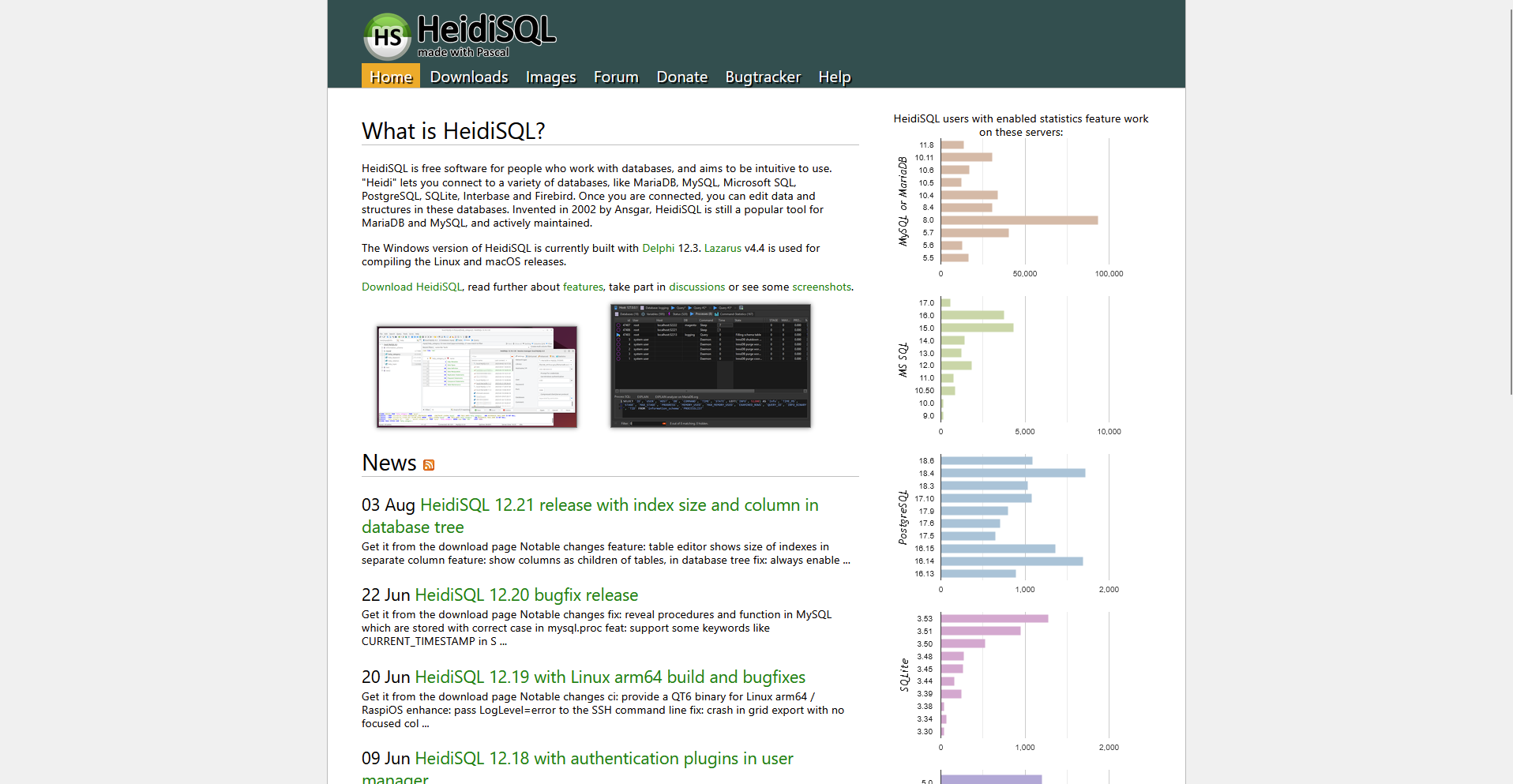
- What it does: HeidiSQL is a free, open source database client that lets you browse tables, run SQL, and edit data in MariaDB, MySQL, PostgreSQL, SQL Server, and SQLite.
- Best for: Developers who work in PostgreSQL and MySQL and want one free client with a user manager.
To see how HeidiSQL handles PostgreSQL, I connected it to a PostgreSQL database, opened a table, and edited a row in the data grid. I saved the change without writing a query, so a one-value fix took a few clicks and no SQL.
The downside was the grid's column search, since it didn't return the rows I expected.
Key features
- Data grid: Browse, filter, and edit table data in a grid, with PostgreSQL ENUM columns supported since version 12.17.
- Table designer: Create and change tables, including column types, in a visual designer.
- User manager: Create and manage database users from one window.
Pros and cons
| ✅ Pros | ❌ Cons |
| A portable Windows version runs without an install | Occasional bugs and glitches turn up as the Linux and macOS builds mature |
| Linux packages cover Debian, RPM, Flatpak, Arch, and Raspberry Pi OS | The Windows version uses a different codebase from the Linux and macOS builds, so features can differ by platform |
| SSH tunnels reach remote servers, using the system's ssh command on Linux |
What users say
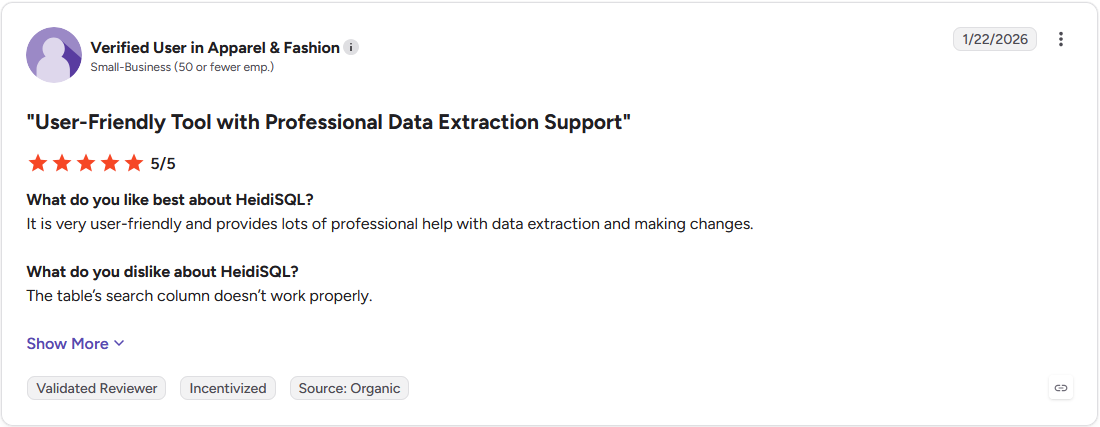
Pro: "It is very user-friendly and provides lots of professional help with data extraction and making changes." (Verified User in Apparel & Fashion, G2)
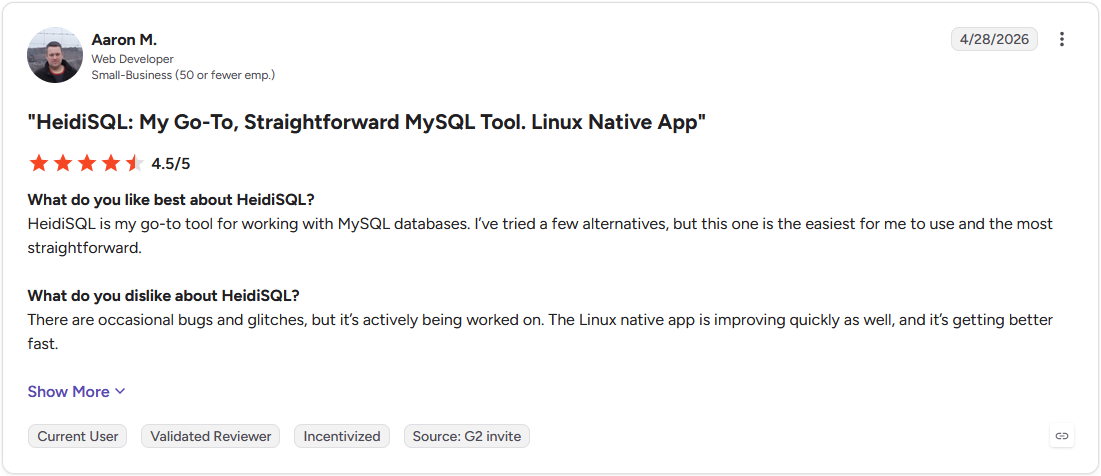
Con: "There are occasional bugs and glitches, but it's actively being worked on." (Aaron M., G2)
Pricing
HeidiSQL is free.
Bottom line
HeidiSQL suits developers who want a free, open source client for everyday PostgreSQL and MySQL work. If you want the same features on Windows, Mac, and Linux, DbVisualizer might be a better pick.
Which PostgreSQL GUI tool should you choose?
The right pick depends on the work you do most, whether that's asking questions without SQL, running a server, writing SQL all day, or fixing a row between meetings. Your operating system and the other databases you use narrow it further.
Choose Julius if you:
- Wait on a data team for signup or campaign numbers from PostgreSQL.
- Prefer asking a question in plain English and getting a chart back with no SQL.
- Want a plain-English tool your whole team can use on the same PostgreSQL connection.
Choose pgAdmin if you:
- Create login roles, set permissions, and run backups through dialogs.
- Need a team to reach one shared install through a browser.
- Plan to connect your own LLM provider to an AI chat panel in the Query Tool.
Choose DBeaver if you:
- Split your day between PostgreSQL, MySQL, and SQL Server and want one editor for all three.
- Read a table's structure as SQL and get the SQL written for you when you change it.
- Export and import data in several formats while you work.
Choose DataGrip if you:
- Spend most of the day writing long PostgreSQL queries and want completion and code analysis as you type.
- Check each query's run time beside it in the editor.
- Use AI agents and want them to build SQL from your live database schema.
Choose DbVisualizer if you:
- Switch between a work PC and a personal machine and want one setup on both.
- Want an explain plan, a query builder, and a table data editor in one client (with a Pro license).
- Check how tables reference each other in a graph before you change a column.
Choose Navicat Premium if you:
- Copy a PostgreSQL table into MySQL or another database and keep the two in sync.
- Design tables and relationships in a visual model before you build them.
- Need test data that follows your tables' keys and rules.
Choose TablePlus if you:
- Open a database for a few minutes to check data and fix a row.
- Like to review pending edits before they save.
- Want to reach your databases from an iPhone or iPad too.
Choose Beekeeper Studio if you:
- Work solo or at a small company and want an open source client.
- Keep saved queries and connections in folders.
- Edit table data in a grid that works like a spreadsheet.
Choose HeidiSQL if you:
- Move between PostgreSQL and MySQL and want a user manager in one client.
- Need a portable Windows version that runs without an install.
- Run Linux on Debian, RPM, Flatpak, Arch, or Raspberry Pi OS and want a package for your setup.
Skip this category entirely if:
- You run a query once in a while, and the psql command line already covers it.
- You work with datasets so large that a data warehouse tool fits better.
- You need only a few tables and can open an exported CSV in a spreadsheet.
Final verdict
A PostgreSQL GUI tool shows you your tables, and most still expect you to write or review the SQL for answers. If you'd rather start with a question, Julius takes that route. You describe what you want to know, and Julius finds the data, analyzes it, and returns a result you can share.
Here's what that looks like in Julius:
- Questions in plain English: Ask how many people signed up last month by channel, and Julius writes the query for your connected PostgreSQL database and returns a chart or table that you can turn into a report with the AI Report Generator (or a deck with the AI Presentation Maker).
- Public data next to your own: Ask about any publicly traded company, and Julius pulls earnings, financial statements, and stock prices that you can analyze next to the numbers in a connected database.
- Better with use: After you connect a PostgreSQL database, the Learning Sub Agent picks up your database structure, including how tables relate and what columns mean, so later answers may come back faster and more precisely.
Ready to ask your data a question? Try Julius for free today.
Frequently asked questions
Is there any GUI for PostgreSQL?
Yes, PostgreSQL has several GUI tools. pgAdmin is the leading open source option, and others include DBeaver, DataGrip, TablePlus, and Beekeeper Studio. You can browse tables, edit data, and run queries in any of them without opening the command line.
What is the best free PostgreSQL GUI tool?
Some of the best free PostgreSQL GUI tools include pgAdmin, DBeaver Community Edition, Beekeeper Studio's Community Edition, and HeidiSQL. pgAdmin is open source and handles roles, backups, and queries at no cost, and DBeaver also connects to other databases.
Is there a PostgreSQL IDE available for Windows?
Yes, pgAdmin, DBeaver, DataGrip, DbVisualizer, and Navicat Premium are full PostgreSQL IDEs that run on Windows, and each also runs on Mac and Linux. pgAdmin is free, DBeaver covers other databases, and DataGrip is built for heavy SQL editing, with a free license for non-commercial use.
What are the common PostgreSQL CLI tools?
psql is the standard PostgreSQL command-line client, and it comes with PostgreSQL itself. pg_dump and pg_restore handle backups and restores, and pg_dumpall covers a whole server. pgAdmin includes all four tools in its install, and its Backup and Restore dialogs use them, so you can use a GUI and the command line together.
What should you look for in a PostgreSQL GUI tool?
Look for schema browsing, accurate autocomplete, and stable performance on large result sets. A visual EXPLAIN plan helps you tune slow queries, and support for Windows, Mac, and Linux helps if you switch machines. Connector breadth counts too if you work across more than one database engine.