

Spreadsheet software stores your data in rows and columns and recalculates the moment those numbers change, which is why it still runs most of the world's budgets, trackers, and reports.
I ran the same messy CSV, formulas, lookups, and pivot tables through dozens of tools, from spreadsheet veterans to the newest AI-powered upstarts. Here are the 10 best tools I found for 2026.
10 best spreadsheet software tools: TL;DR
- Microsoft Excel: Best for teams that need raw processing power for large, formula-heavy data sets
- Google Sheets: Best for teams that want free, real-time collaboration built into every sheet
- Zoho Sheet: Best for budget-conscious teams that want the most features without a subscription
- LibreOffice Calc: Best for users who want a free, native desktop app with no cloud account required
- Apple Numbers: Best for Mac users who want a free, presentation-friendly spreadsheet with a simple layout
- Airtable: Best for teams that need a spreadsheet interface backed by real database structure
- Smartsheet: Best for project managers who track timelines and tasks inside a spreadsheet-style grid
- Sourcetable: Best for users who want natural language as the primary way to build formulas and charts
- Proton Sheets: Best for privacy-focused users who want zero-knowledge encryption on every sheet
- WPS Office Spreadsheets: Best for users who want a free, Excel-compatible spreadsheet bundled into a full office suite
How I researched and tested these spreadsheet tools
I imported the same messy sales CSV, complete with mismatched date formats and a few blank rows for good measure, into every tool on this list.
I ran the same formulas, built a pivot table, generated a chart, and tested real-time collaboration with a second account wherever that feature existed. Then, I checked how much cleanup each output still needed before it was ready to hand off.
Here's what I considered:
- Formulas and functions: How well each tool handles everyday calculations, lookups, and conditional logic without extra setup
- Charts and visualization: How fast raw data turns into a readable chart or graph, and how many formatting options are available
- Collaboration: How real-time editing, comments, and sharing work when more than one person touches the same sheet
- AI-assisted features: Whether AI can handle basic data analysis, build formulas, charts, or summaries from a plain request instead of manual setup
- Pricing and value: What's actually usable on a free tier versus what gets locked behind a paid plan
The tools that let me describe what I wanted in everyday words saved more setup time than any keyboard shortcut could, though a few basically shrugged the moment I asked for anything past a basic request.
10 best spreadsheet software tools: quick comparison
| 💻 Tool | 🎯 Best for | 🔥 Starting price (billed annually) | ⚡ Strengths |
| Microsoft Excel | Crunching massive, formula-heavy spreadsheets | $179.99 one-time purchase or $99.99/year | An exhaustive function library, powerful pivot tables, and support for macros and VBA automation |
| Google Sheets | Real-time collaboration at no cost | Free | Real-time multi-user editing, deep integration with other Google apps, and Gemini-powered AI formulas |
| Zoho Sheet | A feature-rich spreadsheet without a price tag | Free | Over 350 built-in functions, AI-powered chart and pivot table suggestions, and a native desktop app for offline editing |
| LibreOffice Calc | A native desktop app with no account required | Free | A familiar Excel-style interface, a full offline function library, and built-in pivot tables for summarizing external data |
| Apple Numbers | Mac users who want a simple, free spreadsheet | Free | Free pre-installed Mac access, real-time collaboration, and polished, presentation-ready charts |
| Airtable | Database structure inside a spreadsheet interface | $20/seat/month | Customizable field types, multiple views like Kanban and Gantt, and AI-powered app building through Omni |
| Smartsheet | Project timelines tracked in a spreadsheet-style grid | $9/member/month | A large library of project templates, Gantt and calendar views, and AI tools for workspace automation |
| Sourcetable | Formulas and charts built from plain-language prompts | $29/user/month, billed monthly | Hundreds of built-in data connectors, natural language formula generation, and a Deep Research tool for pulling in outside data |
| Proton Sheets | Zero-knowledge encrypted spreadsheets | Free | End-to-end encryption, real-time collaboration, and free inclusion with any Proton account |
| WPS Spreadsheet | A free, Excel-compatible office suite | Free | Full Microsoft Office file compatibility, a free core suite, and cross-device syncing |
*Pricing correct as of August 2026. Confirm with vendor.
1. Microsoft Excel: Best for crunching massive, formula-heavy spreadsheets
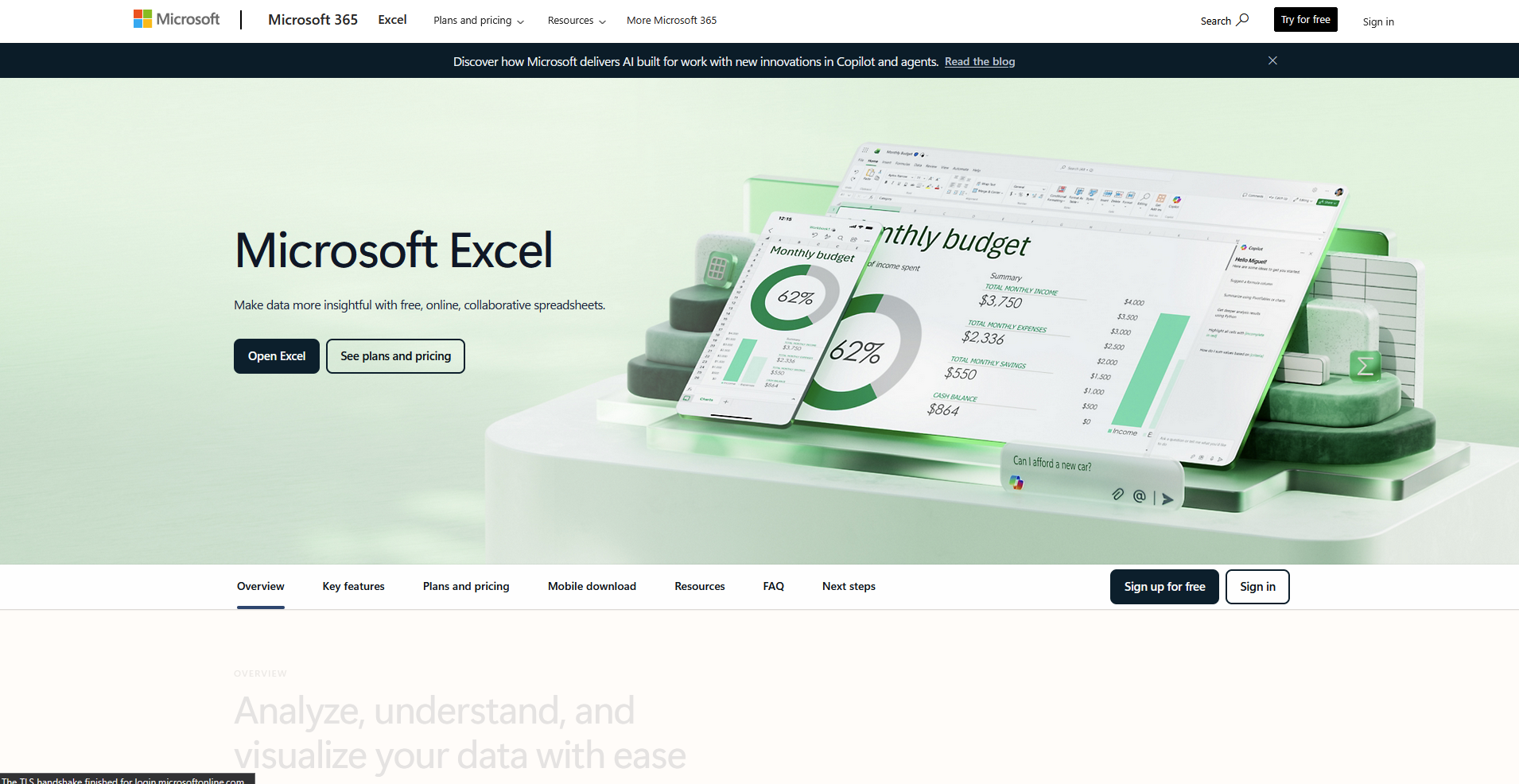
- What it does: Microsoft Excel is a spreadsheet program that organizes data into rows and columns for calculation, analysis, and reporting.
- Best for: Finance and operations teams working with large data sets and repetitive, formula-heavy tasks
Excel has been my default spreadsheet for years, so this round of testing was less about learning the tool and more about pushing it.
I imported a messy CSV, ran formulas, built a pivot table, and recorded a macro to automate a repetitive formatting step. Everything calculated correctly, and recording the macro took me under a minute.
The lookup formulas still needed exact syntax, and one small error meant starting the whole formula over with no helpful suggestion offered.
Key features
- Macro recording: Record a sequence of actions as a macro and play it back with a single click, or edit the underlying VBA code directly
- Pivot tables: Summarize large data sets by dragging fields into rows, columns, and values without writing a formula
- Function library: Access an extensive set of built-in functions covering arithmetic, statistical, financial, and logical operations
Pros and cons
| ✅ Pros | ❌ Cons |
| Handles up to about 17 billion cells per worksheet, enough room for most large data sets | Complex nested formulas can be difficult to troubleshoot when a syntax error appears |
| Macro recording automates repetitive formatting or calculation steps without writing code | The web version runs slower and has fewer shortcuts than the desktop app |
| Copilot can generate formula suggestions and build charts directly inside a spreadsheet |
What users say
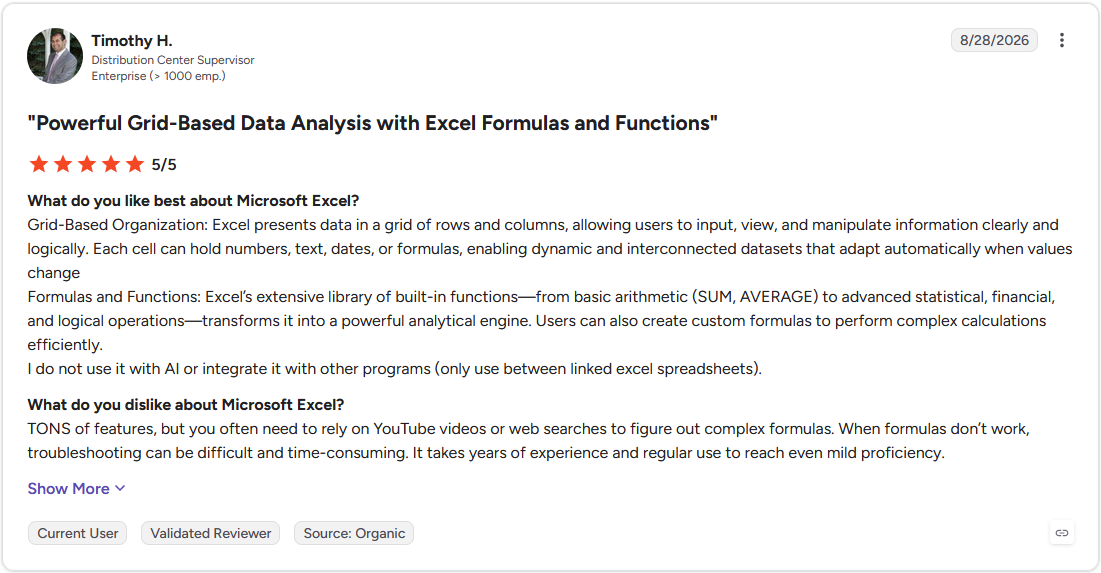
Pro: "Excel's extensive library of built-in functions—from basic arithmetic (SUM, AVERAGE) to advanced statistical, financial, and logical operations—transforms it into a powerful analytical engine. Users can also create custom formulas to perform complex calculations efficiently." (Timothy H., G2)
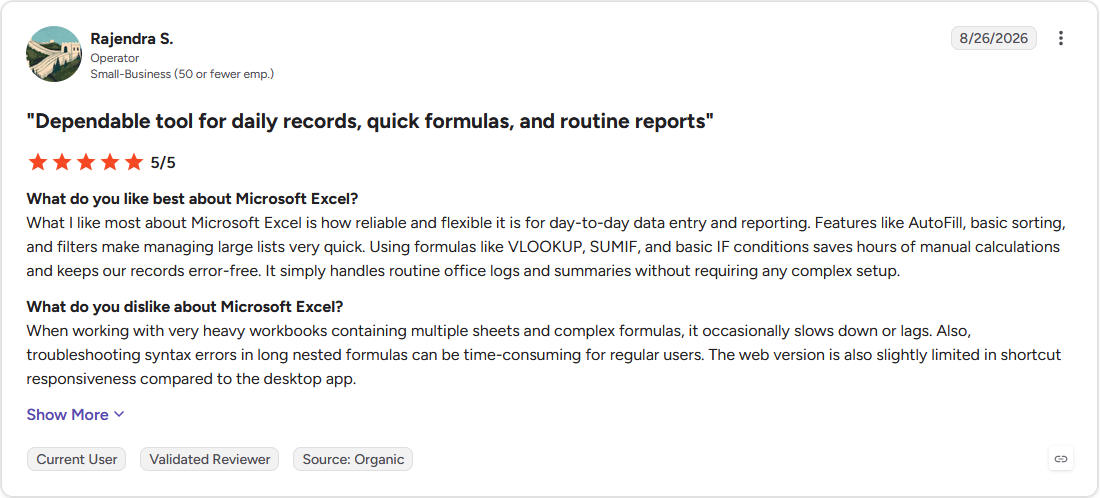
Con: "When working with very heavy workbooks containing multiple sheets and complex formulas, it occasionally slows down or lags. Also, troubleshooting syntax errors in long nested formulas can be time-consuming for regular users." (Rajendra S., G2)
Pricing
Excel starts at $179.99 one-time purchase or $99.99 per year.
Bottom line
Excel's customizable Quick Access toolbar lets you pin the functions you use most for faster access. If your team doesn't need macro automation or offline power, Google Sheets might be a better fit for real-time collaboration at no cost.
2. Google Sheets: Best for real-time collaboration at no cost
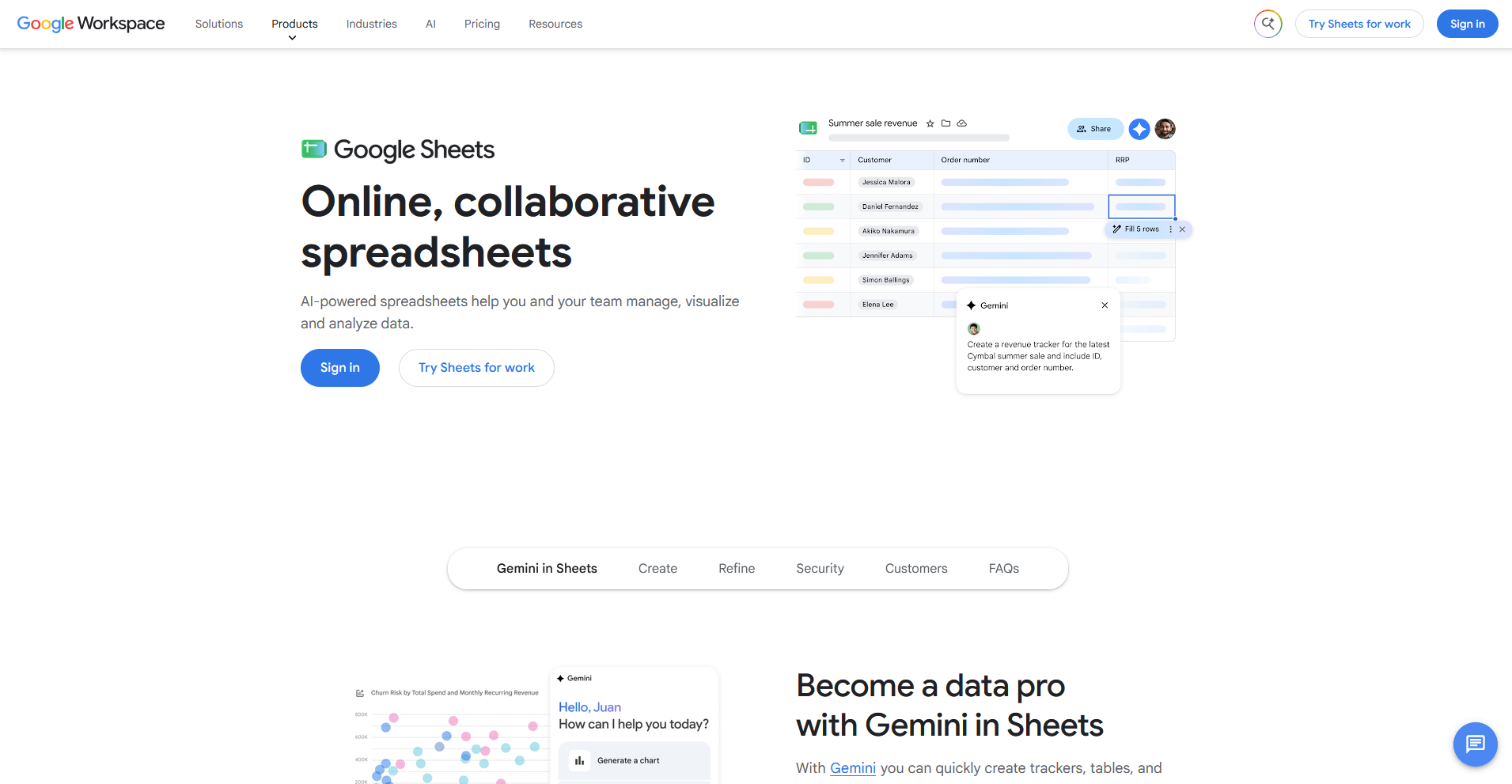
- What it does: Google Sheets is a cloud-based spreadsheet program that lets multiple people view and edit the same file at once.
- Best for: Distributed teams that need shared spreadsheets updated live without emailing files back and forth
Google Sheets has handled real-time collaboration for every team I've worked on for years, from three people editing a shared budget at once to a full department building out a tracker together.
Cursors update immediately, and version history makes it easy for us to see who changed what and roll it back if needed. When I turned a sorted list into a chart last month, I had a clean visual up in under a minute without touching a single formatting menu.
Pivot table creation still takes more clicks than Excel, and the result doesn't always land right on the first try.
Key features
- Real-time collaboration: Multiple users edit the same sheet simultaneously, with each collaborator's cursor and changes visible instantly
- Google Workspace integration: Pull data directly from Google Forms, Analytics, and other Workspace apps into a sheet
- AI-assisted formulas: Generate formulas or run prompts across a cell range using Gemini's built-in AI features
Pros and cons
| ✅ Pros | ❌ Cons |
| Real-time collaboration includes version history, so any change can be reviewed or reverted | Pivot table creation takes more steps than in Excel and offers fewer formatting options |
| Free for anyone with a Google account, with generous limits that rarely affect everyday use | Performance can lag on very large or formula-heavy spreadsheets |
| Google-specific functions like GOOGLEFINANCE pull external data directly into a sheet |
What users say
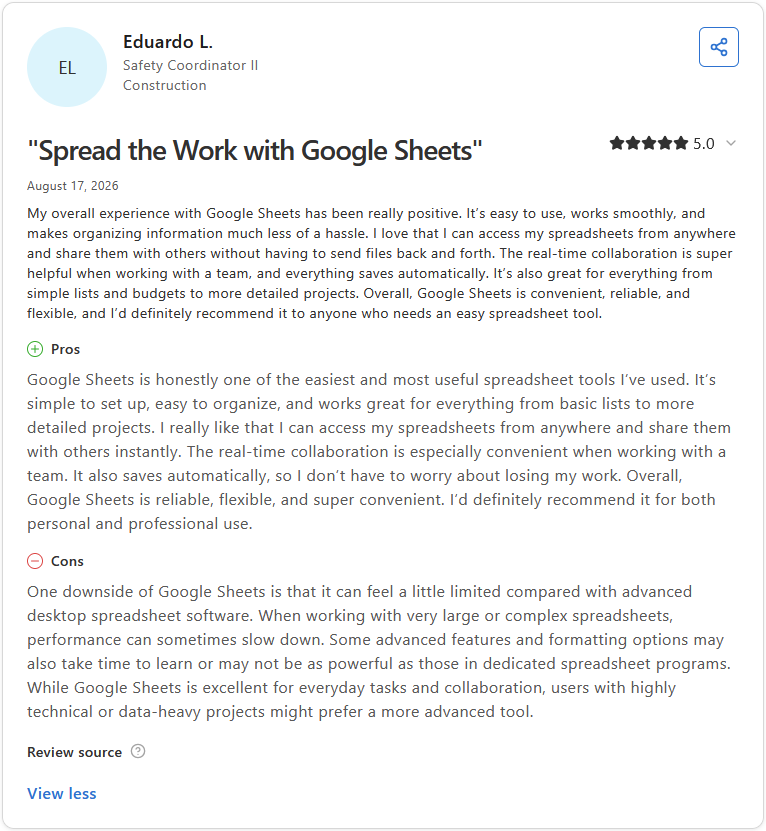
Pro: "Google Sheets is honestly one of the easiest and most useful spreadsheet tools I've used. ... The real-time collaboration is especially convenient when working with a team. It also saves automatically, so I don't have to worry about losing my work." (Eduardo L., Capterra)
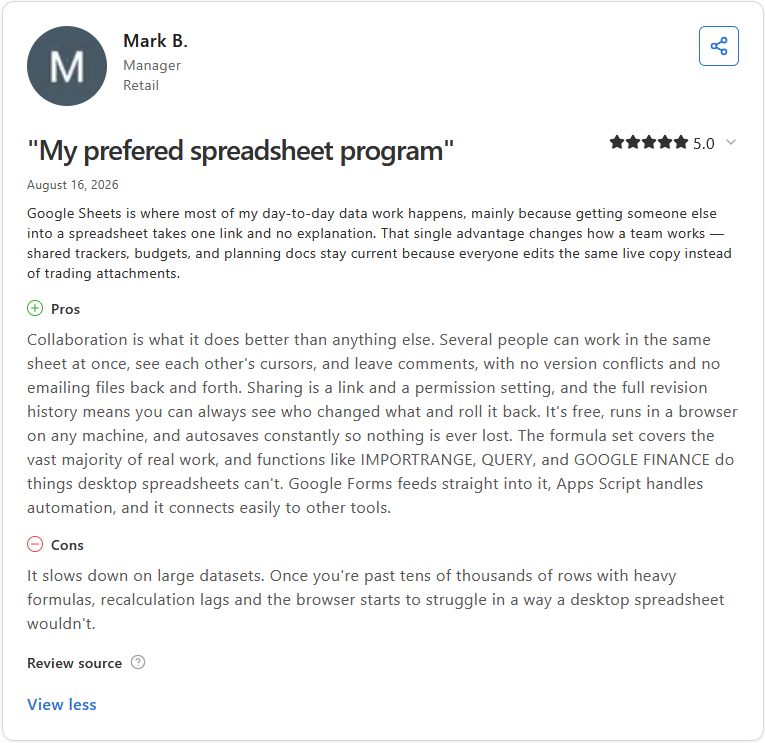
Con: "It slows down on large datasets. Once you're past tens of thousands of rows with heavy formulas, recalculation lags and the browser starts to struggle in a way a desktop spreadsheet wouldn't." (Mark B., Capterra)
Pricing
Google Sheets is free for anyone with a Google account.
Bottom line
Apps Script lets you write custom automation directly inside a sheet, built for the web instead of a desktop app. If free real-time collaboration matters less than getting the most features without paying for a subscription, Zoho Sheet might be worth a look.
3. Zoho Sheet: Best for a feature-rich spreadsheet without a price tag
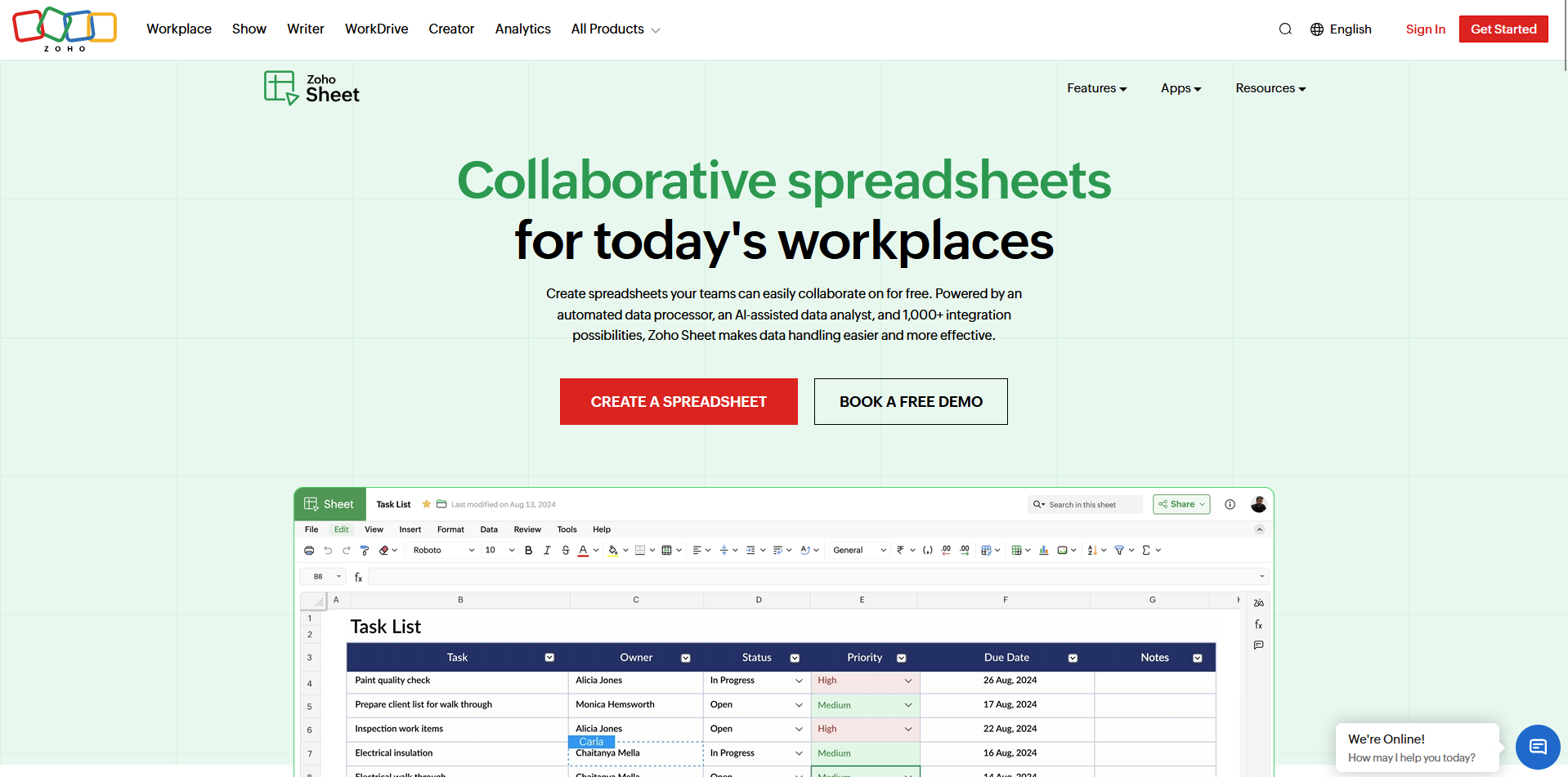
- What it does: Zoho Sheet is a cloud-based spreadsheet program that includes AI-assisted analysis alongside standard formulas and charts.
- Best for: Small businesses and independent users who want advanced spreadsheet features without a subscription
Zoho Sheet's AI assistant, Zia, is built to suggest charts and pivot tables automatically, so I tested it by importing the same messy CSV and letting Zia analyze it.
It built a quarterly pivot table without me setting one up manually, which saved a step compared to doing it by hand.
Macro recording works similarly to Excel, letting me record a sequence of actions or write my own code in the VBA editor. The server response lagged slightly a few times during testing, something I didn’t run into with Google Sheets.
Key features
- Zia AI assistant: Automatically suggests charts and pivot tables based on imported data
- External data linking: Import CSVs, RSS feeds, or web pages and set a refresh interval for updates
- User-level filters: Filter and view data without changing what collaborators see on their own screen
Pros and cons
| ✅ Pros | ❌ Cons |
| Over 350 built-in functions available at no cost | Real-time collaboration updates can lag behind changes made by other users |
| Zia automatically builds pivot tables and charts from imported data without manual setup | Getting Sheet bundled with the full Zoho Workplace suite adds per-user subscription costs |
| Native desktop app for Windows and macOS supports offline editing |
What users say
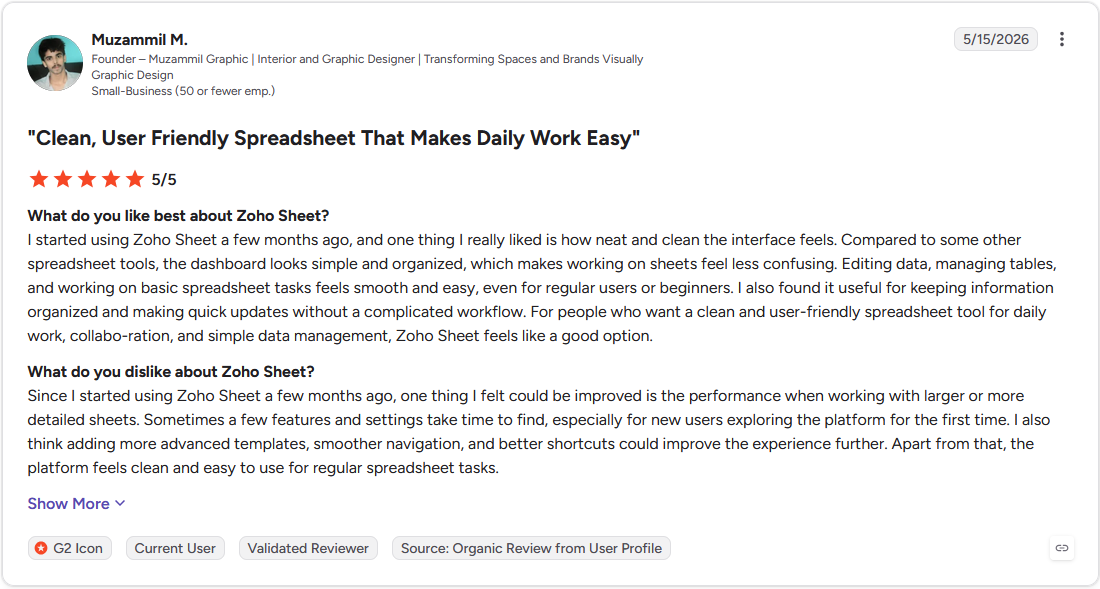
Pro: "I started using Zoho Sheet a few months ago, and one thing I really liked is how neat and clean the interface feels. ... For people who want a clean and user-friendly spreadsheet tool for daily work, collaboration, and simple data management, Zoho Sheet feels like a good option." (Muzammil M., G2)
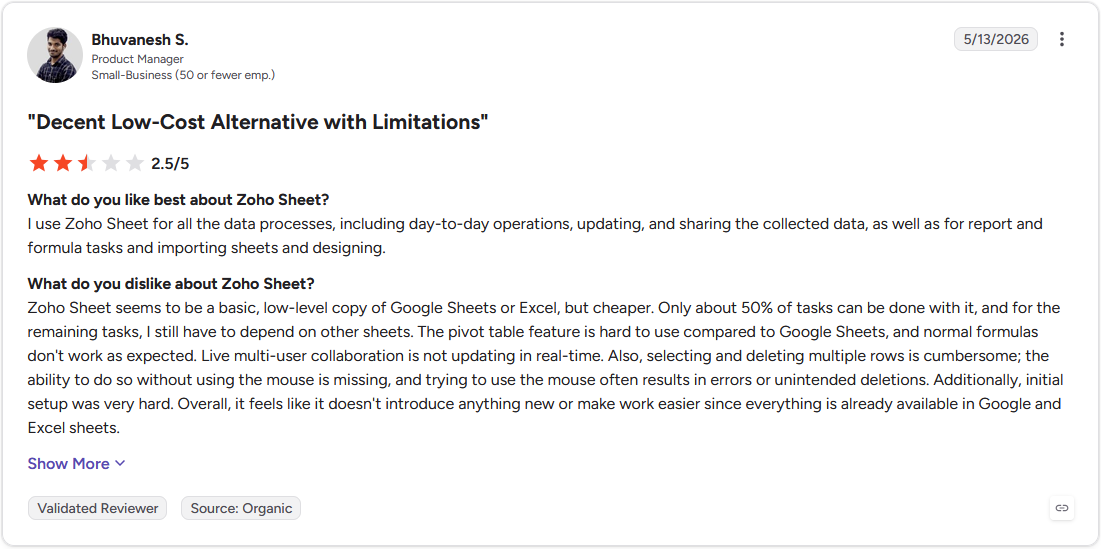
Con: "Zoho Sheet seems to be a basic, low-level copy of Google Sheets or Excel, but cheaper. ... The pivot table feature is hard to use compared to Google Sheets, and normal formulas don't work as expected. Live multi-user collaboration is not updating in real-time." (Bhuvanesh S., G2)
Pricing
As a standalone app, Zoho Sheet is free for anyone to use. If you want to use Sheet with other Zoho tools, you’ll need a subscription starting at $3/user/month billed annually.
Bottom line
Zia syncs with other Zoho apps like CRM, so Sheet can extend past a standalone spreadsheet when a team already uses Zoho's broader suite. If you'd rather work in a fully offline, native app with no account required, LibreOffice Calc might be a better fit.
4. LibreOffice Calc: Best for a native desktop app with no account required
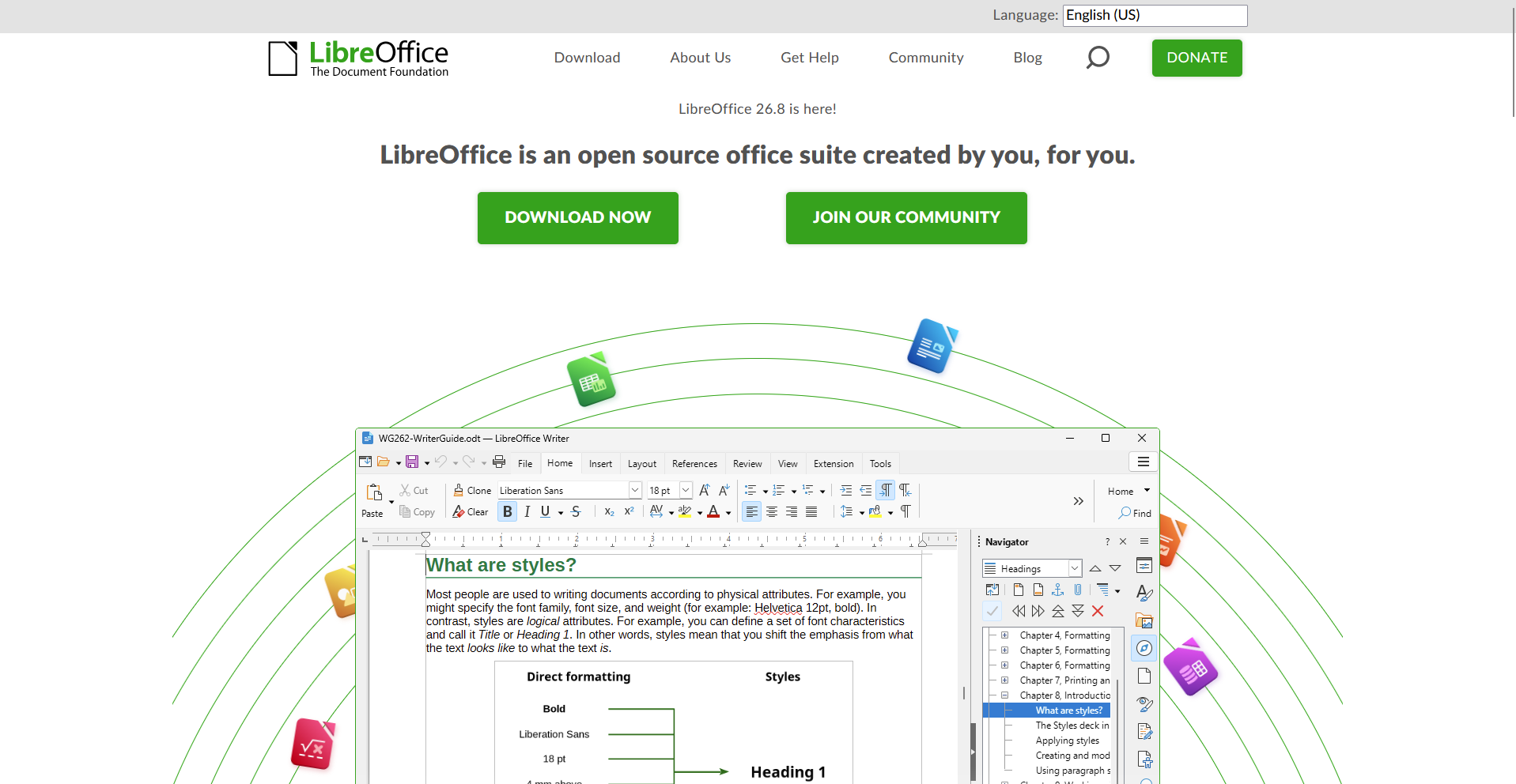
- What it does: LibreOffice Calc is a free, open source spreadsheet program that runs natively on Windows, Mac, and Linux.
- Best for: Users who want a native, offline spreadsheet app without signing into a cloud account
To see how LibreOffice Calc handled everyday spreadsheet work without a cloud account, I imported the same messy CSV and rebuilt the pivot table and chart from earlier tests.
The interface felt like an older version of Excel, right down to the toggle between ribbon and sidebar layouts. But, I found that formulas imported cleanly with no reformatting needed.
Since Calc runs as a native install, there's no live second-account collaboration to test, only file sharing through a shared server.
Key features
- Pivot Table tool: Summarize and reshape data from spreadsheets or external databases without an internet connection
- Customizable interface: Switch between a ribbon-style layout, a sidebar, or a slim toolbar depending on preference
- Native file compatibility: Open and save Excel file formats without needing a conversion step
Pros and cons
| ✅ Pros | ❌ Cons |
| Runs entirely offline with no account or cloud dependency required | No real-time collaboration or in-app chat since it's a native install |
| Handles CSV imports and formatting cleanly, with no glitches based on user reports | Some advanced Excel features and integrations aren't as strong |
| Free and open source, part of the broader LibreOffice suite |
What users say
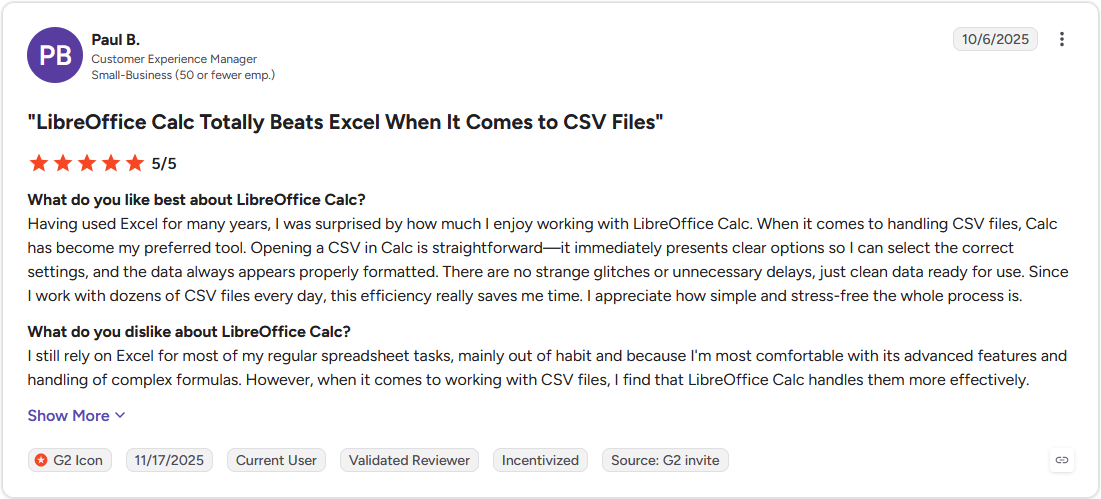
Pro: "Having used Excel for many years, I was surprised by how much I enjoy working with LibreOffice Calc. When it comes to handling CSV files, Calc has become my preferred tool. ... There are no strange glitches or unnecessary delays, just clean data ready for use." (Paul B., G2)
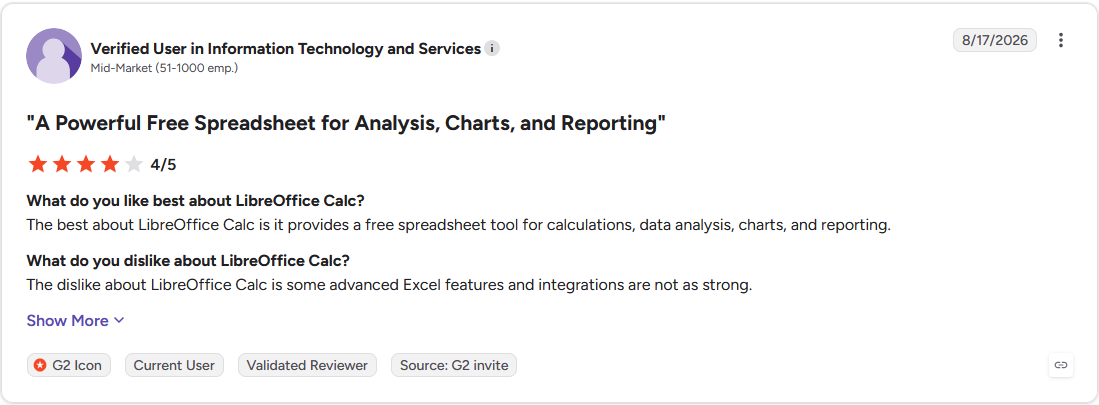
Con: "The dislike about LibreOffice Calc is some advanced Excel features and integrations are not as strong." (Verified User, G2)
Pricing
LibreOffice Calc is free.
Bottom line
LibreOffice Calc ships with a full keyboard-navigable interface, letting you move through the entire app without touching a mouse. If you want that same native, offline experience but with real-time collaboration built in, Apple Numbers might be worth a look for Mac users.
5. Apple Numbers: Best for Mac users who want a simple, free spreadsheet
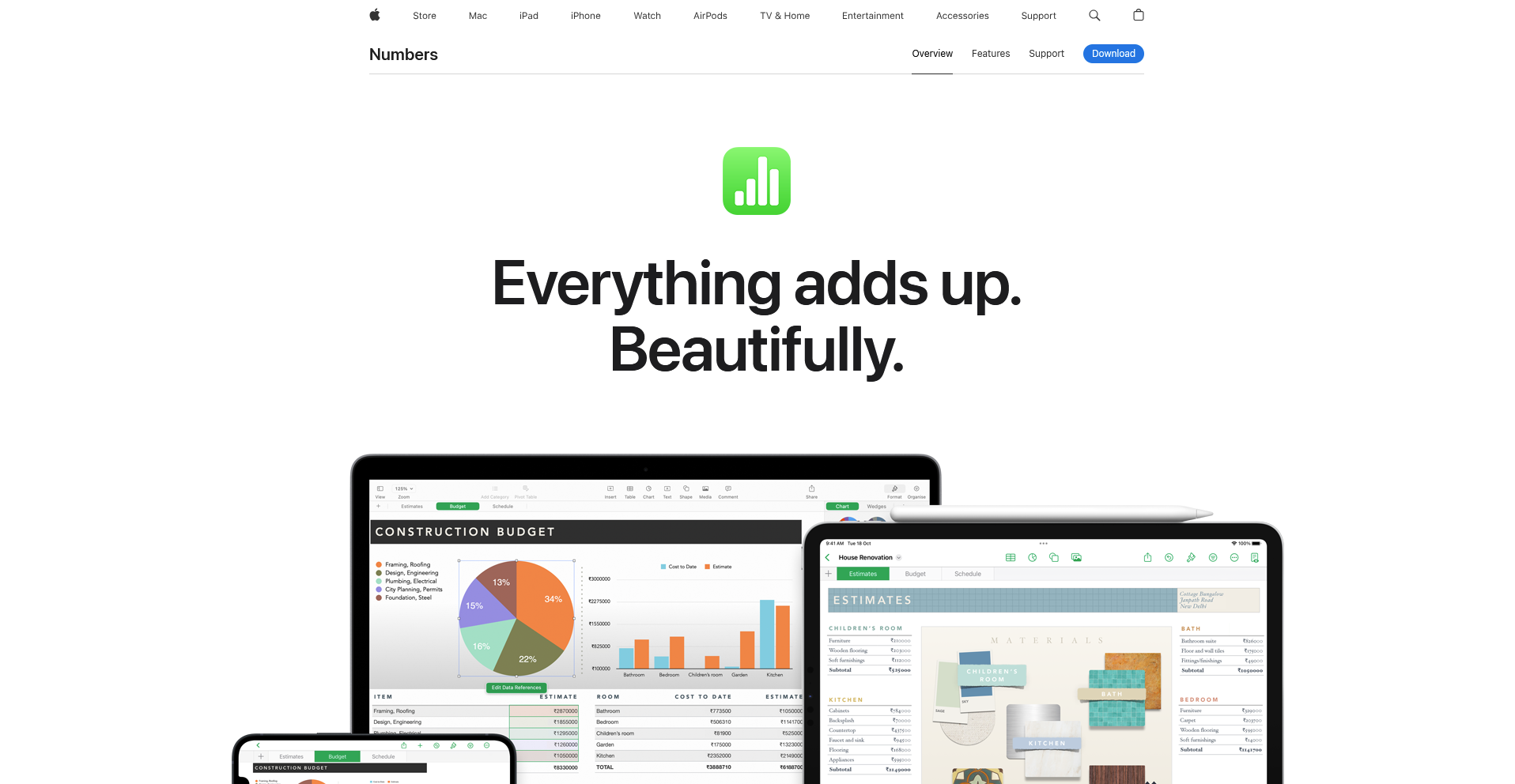
- What it does: Apple Numbers is a spreadsheet program built for Mac, iPad, and iPhone that comes free with every Apple device.
- Best for: Individuals and small teams already working inside the Apple ecosystem who want a free, visual-first spreadsheet
I set up Apple Numbers on a MacBook by importing the same messy CSV and building out the sorted chart from earlier tests.
Numbers places multiple tables on one open canvas, so comparing two data sets side by side didn’t need extra setup from me. Exporting the file back to Excel format also kept formulas intact.
Pivot tables are more limited than Excel or Google Sheets, with fewer formatting and calculation options, so complex summarizing sometimes meant switching to another tool
Key features
- Canvas-style layout: Place tables, charts, and images freely on an open sheet without a fixed grid structure
- Excel export: Convert a Numbers file into an Excel-compatible format for sharing with non-Mac users
- iCloud sync: Access and edit spreadsheets across Mac, iPad, and iPhone with automatic cloud syncing
Pros and cons
| ✅ Pros | ❌ Cons |
| Free and pre-installed on every Mac, with no license or subscription needed | No pivot table support, so summarizing large data sets requires another tool |
| Canvas layout makes it simple to place multiple tables and charts on one sheet | Handles data less efficiently than Excel once a spreadsheet grows into a large data set |
| Exporting to Excel format preserves formulas for sharing outside the Apple ecosystem |
What users say
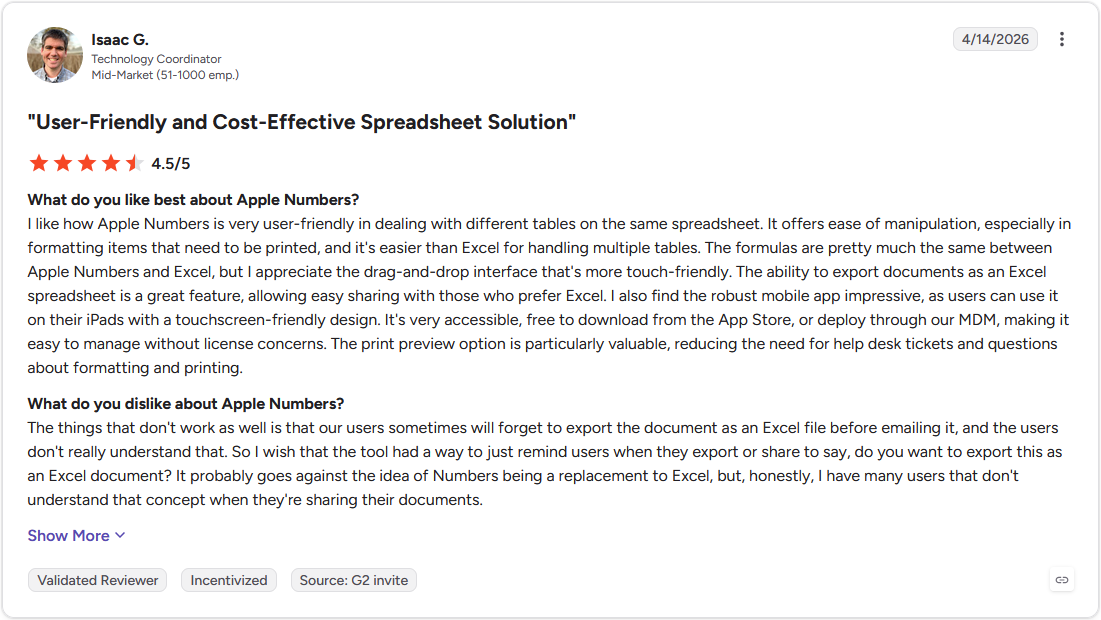
Pro: "I like how Apple Numbers is very user-friendly in dealing with different tables on the same spreadsheet. ... The ability to export documents as an Excel spreadsheet is a great feature, allowing easy sharing with those who prefer Excel." (Isaac G., G2)
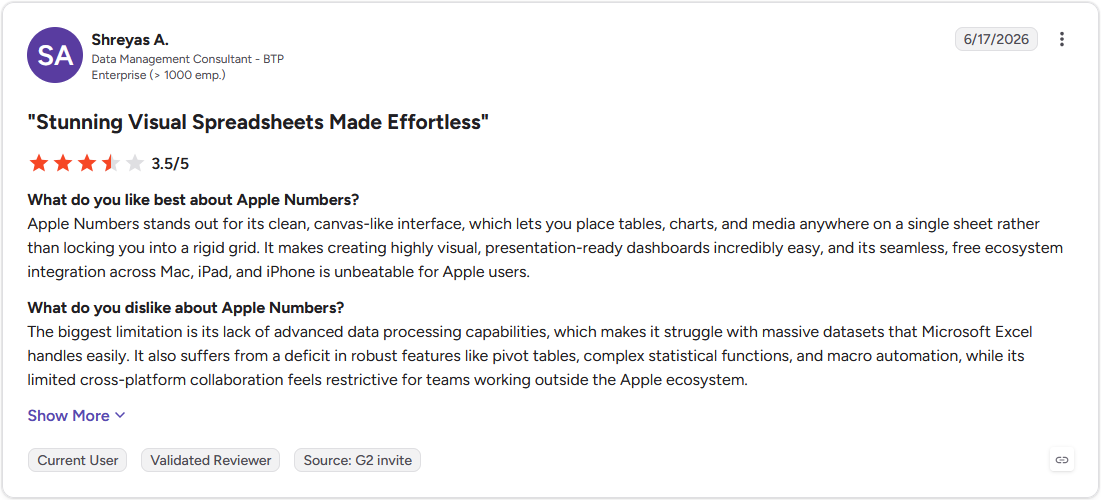
Con: "The biggest limitation is its lack of advanced data processing capabilities, which makes it struggle with massive datasets that Microsoft Excel handles easily. It also suffers from a deficit in robust features like pivot tables, complex statistical functions, and macro automation, while its limited cross-platform collaboration feels restrictive for teams working outside the Apple ecosystem." (Shreyas A., G2)
Pricing
Apple Numbers is free.
Bottom line
Numbers can be deployed across an organization's Mac devices through MDM without extra licensing steps. Excel makes more sense if your team needs pivot tables or regularly works with large, complex data sets.
Special mentions
A few more tools rounded out testing without earning a full section. Each one solves a narrower problem well, so it's worth a look if the tools above don't quite fit how you work.
- Airtable: A relational database built around spreadsheet-style grids, Airtable turns rows and columns into fields and records I can filter, link, and view as a calendar or kanban board. Building a base from the CSV import took me minutes. One catch is that Airtable doesn't support changing a field's font or size.
- Smartsheet: Smartsheet is a project management tool that uses a spreadsheet-style grid as its base view, so I built a launch plan and switched into Gantt view to track dependencies. I moved one task back a week and watched every dependent due date shift with it automatically. Pivot tables still need a separate paid add-on.
- Sourcetable: Sourcetable is an AI-native spreadsheet built around natural-language prompts, skipping the usual formula-bar routine most spreadsheet apps still use. I asked for a chart from the sorted CSV data and got one back with the formulas already built in. Performance dropped once I pushed a larger data set through it.
- Proton Sheets: Proton Sheets is a privacy-focused spreadsheet that encrypts every cell end-to-end, so I imported the same CSV to see how formulas and sorting behaved under that encryption. Everything worked without noticeable lag. Pivot tables and macros aren't available, so anything beyond basic analysis needs another tool.
- WPS Spreadsheet: A free office suite built around full Microsoft compatibility, WPS Spreadsheet turned my Excel-formatted CSV into a working sheet with no broken formulas. Built-in AI features suggested formulas quickly, though the interface still leans on Excel-era menus and toolbars.
Which spreadsheet software tool should you choose?
The right pick usually comes down to how your team works together, whether that's live collaboration, offline access, or automation, more than which tool has the most functions.
Choose Microsoft Excel if you:
- Rely on macros or VBA to automate repetitive formatting or calculation tasks
- Regularly work with data sets large enough to push past what free tools handle smoothly
- Want Copilot generating formula suggestions and charts directly inside the sheet you're already using
Choose Google Sheets if you:
- Have a team editing the same spreadsheet from different locations and need changes to appear immediately
- Want version history built in so any edit can be reviewed or reverted without a separate tool
- Already run other Google Workspace apps and want data flowing between them without exporting files
Choose Zoho Sheet if you:
- Want an AI assistant automatically building pivot tables and charts instead of setting them up by hand
- Have a budget that doesn't stretch to a subscription but still need macro recording and hundreds of built-in functions
- Can work around occasional lag in exchange for skipping licensing costs altogether
Choose LibreOffice Calc if you:
- Want a spreadsheet that runs fully offline without signing into any account
- Work somewhere that can't rely on cloud storage or a steady internet connection for daily spreadsheet work
- Would rather navigate an entire app by keyboard than depend on a mouse for every action
Choose Apple Numbers if you:
- Work primarily on a Mac, iPad, or iPhone and want a spreadsheet that's already installed
- Build spreadsheets that double as visual, presentation-style documents
- Need to deploy spreadsheet software across a fleet of Apple devices through MDM without extra licensing
Skip this category entirely if:
- You need to analyze data pulled from multiple databases or business tools
- You want to search for public data and compile it into a usable dataset automatically before any analysis starts, something none of these tools do on their own
- Your team spends more time asking someone else to run a report than actually building spreadsheets, a pattern no spreadsheet app alone fixes
Final verdict
Spreadsheet software tools still cover the basics well. Excel handles the heaviest formula work, especially once paired with the right AI tools, Google Sheets keeps a team editing together in real time, and Zoho Sheet gives away serious functionality for free.
But a spreadsheet only gets you as far as the numbers on the screen. Turning those numbers into an actual analysis is still a manual job, and that's where Julius picks up.
Julius is an AI data analysis platform built to turn raw spreadsheet data into insights, charts, and reports without the manual setup a traditional spreadsheet still demands.
Here's how Julius helps:
- Data search: Ask a question, and you can search for relevant public data or pull live financial data on over 17,000 companies through the Financial Datasets integration, so an analysis can start before a spreadsheet even exists.
- Direct connections: Connect databases like Postgres, Snowflake, and BigQuery, or link tools like Google Ads and Google Drive. CSV and Excel files upload directly too, so an existing spreadsheet becomes a starting point.
- Natural language analysis: Ask for a chart, a summary, or a report in plain English, and skip the manual formulas and pivot table setup a regular spreadsheet still requires.
For anyone who spends more time formatting a spreadsheet than reading what it says, Julius can close that gap in one step.
Frequently asked questions
What is the best free spreadsheet software?
Google Sheets is one of the best free options for collaboration, while Zoho Sheet offers the most features at no cost. If you want an offline, open-source app, LibreOffice Calc is the strongest free pick.
Is Google Sheets as good as Excel?
Yes, for most everyday tasks. Google Sheets matches Excel on everyday tasks and beats it on real-time collaboration and price. Excel still wins on large data sets, refined pivot tables, and macros or VBA automation.
What spreadsheet software is best for large data sets?
Microsoft Excel handles large data sets best because it runs calculations locally and supports millions of rows. LibreOffice Calc is the strongest free alternative for big files, though it still trails Excel.
Do spreadsheets have AI now?
Yes, many spreadsheet tools offer or integrate with AI. Excel has Copilot, Google Sheets has Gemini and the =AI() formula, Zoho Sheet has Zia, and Sourcetable is built around AI as its main interface. The depth of these features varies widely between tools.
When should I use a database or analysis tool instead of a spreadsheet?
Use a database or analysis tool when your data is large, comes from several sources, or needs repeatable analysis. Spreadsheets are best for smaller, self-contained data you calculate by hand.