

You've seen the dashboard. Sixteen charts, four shades of blue, a pie with eleven slices, and nobody in the room can say whether the quarter is on track. I've built that dashboard. Then I spent a weekend rebuilding it.
Over the years, I've designed and torn apart dashboards for marketing, finance, and ops teams, and the good ones all get the basics right before they get clever. That's the order this guide follows.
Here are 26 business intelligence dashboard design best practices for 2026, plus examples and a step-by-step build guide.
What is a business intelligence dashboard?
A business intelligence dashboard is a single screen that pulls together the metrics a team needs to make a decision, with enough context to act on them. It turns raw tables into ranked lists, small trends, and clear status, so people know where to look first.
A car's control panel works the same way. It skips the thousand things the engine does and shows you speed, fuel, and the one warning light that means pull over now.
A business intelligence dashboard is different from a report. A dashboard monitors the current state of things at a glance and updates as data changes. A report is the deeper, mostly static read you pull once and study later.
What good dashboard design does
Good dashboard design gives people a reason to keep opening the dashboard. Without it, people give up after one confusing look and start making decisions on gut feel instead of the numbers in front of them.
That gap between good and bad design carries a dollar cost. Poor data quality costs organizations an average of $12.9 million a year, and a dashboard nobody can read only compounds the problem.
I worked with a construction firm's finance team that had eleven charts crammed onto one dashboard. The actual bank balance sat in a small box at the bottom, buried below five vendor-spend breakdowns nobody opened more than once a quarter.
We moved the balance to the top-left and cut the page down to four visuals. Within two weeks, the CFO was checking it herself every morning, no longer waiting on her analyst's weekly email.
Types of BI dashboards
Dashboards have different jobs. Match the type to the decision if you want people to keep using it:
- Strategic: Built for leaders. Think board meetings and quarterly planning, just a handful of big charts checked against goals, updated once a month or so.
- Operational: The live screen everyone's glued to. Big numbers and alerts that update by the minute, the kind of thing support teams and shipping crews watch all day.
- Analytical: Your dig-in dashboard. Lots of filters so you can click down and down until you find what actually caused a number to move.
- Tactical: Your weekly check-in. Shows what's on track, who owns what, and what's stuck, perfect for campaign trackers and project reviews.
On an ops team, I reach for operational first. For the quarterly review, it's strategic every time. Picking the wrong type is usually why a dashboard gets built, then ignored.
26 business intelligence dashboard design best practices
Knowing how to design a dashboard that improves decision-making means connecting layout, data, and user behavior so people can act with more confidence.
Here are those 26 tips and best practices in 2026:
1. Start with your audience
Before you place a single chart, know who opens the page and what they decide with it. A CFO checking cash runway needs a different screen than an analyst hunting a churn spike.
Ask what decisions they make, how often they check, and whether they're on a laptop or a phone.
2. Define the dashboard's goal
Give each dashboard one job. Write down the two or three questions it has to answer in plain English, like "Are sign-ups on pace for Q3?" If a widget can't be tied to one of those questions, it doesn't earn a spot.
3. Choose a few relevant KPIs
Pick 5-10 core metrics that reflect the goal, plus a couple of helper metrics for context. Add more than that and people may struggle to tell what matters anymore.
💡 Tip: Want help narrowing down your metrics? Our guide to KPI dashboards covers how to pick the ones that actually drive decisions.
4. Put your most important number in the top-left (the 5-second rule)
People's eyes tend to land in the top-left corner first, so that's where your most important number belongs. Eye-tracking research on dashboards backs this up. Put the number that answers "are we okay?" top left, big enough to read across the room.
I test this by checking whether someone can tell within five seconds if things are fine. If not, the layout needs work.
5. Pick the right chart for each metric
Match the chart to the question each metric answers, a core data visualization best practice. Bar charts compare categories, line charts show change over time, and a single big number beats a gauge for a headline figure. Skip 3D and keep pie charts under six slices. Both Power BI and Tableau nudge you toward these same choices.
6. Give every number context with benchmarks and targets
A number on its own answers nothing. Pair each KPI with a target, last period, or a benchmark line so a reader knows whether "42" is good or a problem. I cut reporting confusion in half on one team just by keeping last quarter's figure next to the current one.
7. Use color as a signal and limit your palette
Assign color a job and stick to it. Red for risk, green for on-track, one accent for "look here." 8-12 hues is plenty, and a consistent scheme lets people scan without decoding.
8. Keep it simple and prune what nobody uses
Every chart on the page costs attention, so cut the ones that don't earn it. Hide visuals when their data is missing, and review usage every so often to retire charts no one opens. I've trimmed campaign dashboards down by a third and watched load times and clarity both improve.
9. Organize visuals into clear functional zones
Group visuals by department, workflow, or topic so the layout mirrors how people think. On a cross-functional dashboard, I kept campaign performance, budget, and engagement in distinct blocks, and team leads found their numbers without a tour.
10. Pace visuals to reduce cognitive load
People interpret dashboards better when visuals load in a logical order. Start with big-picture KPIs, then reveal detailed breakdowns to match how people process information.
A logistics company I worked with put on-time delivery rate and open shipments at the top, then pushed carrier-level detail below. Dispatchers stopped scrolling to find the one number they checked first every morning.
11. Show time comparisons next to current metrics
Comparing performance across time makes trends easier to understand. Display last week, last month, or last year beside current metrics so users can spot growth or decline right away.
12. Customize layouts by user role
Executives need summaries, while analysts need filters and tables. Build tailored layouts for executives, analysts, and operators while connecting to the same underlying data.
That logistics company I worked with split its dashboard by role too. The VP of ops got one on-time delivery number for the whole network, while regional dispatchers pulled carrier-level detail from the same feed. Neither one had to dig through the other's view to find what mattered to them.
13. Show clear refresh indicators during data updates
Show a small "refreshing" icon or timestamp while data syncs, so people know to wait a moment before trusting what they see. Without one, a dashboard can look wrong even when it isn't. Some charts update first, others lag behind, so you might see a new total on one chart while a related chart below it still shows the old number.
14. Offer snapshot and live views in one place
Teams often need real-time data to act fast and historical views to confirm accuracy later. Combining both in one dashboard lets users monitor live activity while still reviewing past results for audits or planning.
15. Use time sliders or animated trends
Static charts flatten time-based insight. Adding a time slider lets users move through weeks or months to see how metrics evolve.
A nonprofit I worked with added a slider to their donor dashboard so the development team could scrub through a full year of giving and spot which campaign months drove donations.
16. Let users undo filter and drill actions
Adding an undo or "previous view" button lets people try filters, drill-downs, or queries without worrying about losing their place. Exploration should feel safe so users aren't afraid to interact with data.
17. Add hover previews for linked dashboards
Users lose focus when jumping between dashboards. Add hover previews or summaries for linked pages to show what's inside before they click.
Without a preview, finding the dashboard that needs attention means opening every linked page just to check. A hover shows enough at a glance to skip straight to the right page.
18. Make data lineage visible and clickable
Users trust dashboards more when they can see where data comes from. Include links or pop-ups showing source systems, transformation steps, and refresh times. Without that trail, a strange number is easy to dismiss as a mistake. With it, anyone can trace the number back to its source and settle a dispute in seconds.
19. Connect related metrics for traceability
Dashboards shouldn't isolate numbers. Build relationships between KPIs that share dependencies so users can explore cause and effect without leaving the dashboard.
20. Group anomalies by shared cause
Listing every anomaly separately overwhelms users. I group them by shared factors like geography, department, or issue type before I ever look at what to fix first.
A wall of 40 separate alerts turns into 3 or 4 problems once you sort them by what's causing them, and that's the difference between spending your morning triaging noise and spending it on the two things that matter.
21. Flag contradictions between related KPIs
Set up a rule that flags contradictions between connected metrics, and you catch the problem while it's still small.
Rising sales paired with falling profit margins is the pairing I trust this rule to catch, since that combination usually points to discounts that went too far or costs that crept up unnoticed. When connected metrics move in opposite directions like that, something deeper has usually shifted.
22. Show prediction ranges with confidence shading
A forecast usually shows up as a single line, like sales will hit $50,000 next month. That one line looks certain, but it's really just an estimate. I add a shaded band around that line, wider at the far end, so people can see the forecast might land anywhere in that range instead of landing exactly on the number shown.
A staffing agency I worked with did this for their monthly placement forecasts. Once the shaded range was on screen, account managers stopped telling clients "we'll place 12 people this month" and started saying "we're expecting somewhere around 10 to 14," which turned out to match reality a lot more often.
23. Delay secondary queries until users engage
Dashboards often slow down because they try to load every chart and dataset at once, even if most users never open them. A better approach is to load only the essential visuals first, then trigger deeper queries when someone clicks or expands a section.
24. Adjust alert frequency based on engagement
I've watched teams drown in alerts until they stop reading any of them, even the ones that matter. Track how often an alert gets opened, dismissed, or acted on, then adjust how often it fires based on that.
My team went through this with daily uptime pings that nobody opened anymore. We switched to weekly summaries and kept only incidents as instant alerts, and people started reading them again.
25. Build adaptive drill-down dashboards
Build a dashboard that changes how much detail it shows based on who's looking and what they click. Keep the top layer simple with the main KPIs, but let every number open into what's behind it.
A manager can stop at the summary. An analyst can click the same numbers and keep going, down to category or transaction-level detail, without you building a second dashboard just for them.
26. Use versioned, model-driven layouts
Treat your dashboard as a model with reusable pieces, so updates in one place show up everywhere it's used. Versioned models define visuals, filters, and rules as templates that stay in sync across every dashboard built from them.
Common mistakes in BI dashboard design
I've made every mistake on this list, usually back when I cared more about how a dashboard looked than whether it actually worked. Here are the ones I still see often:
- Too many KPIs: I used to cram in every metric I could pull, thinking that made the dashboard thorough. It buried the two or three numbers people actually needed under a dozen nobody asked for.
- Irrelevant data: Old or unrelated metrics don't help anyone. They just add noise and bury the numbers that matter.
- Poor visualization choices: The wrong chart type or a confusing color scale slows people down and makes them work to find an answer that should've been obvious at a glance.
- Lack of hierarchy: When every chart fights for the same amount of attention, none of them wins, and people don't know where to look first.
- Ignoring user context: I built a dashboard once that made total sense to me and confused the team using it every day. They needed a different layout and a different level of detail than I gave them.
- No refresh indicators: People trust whatever number is on screen. If it's stale and nothing tells them so, they'll make a call based on data that's already changed.
- Inconsistent formatting: A color or label that doesn't match from one chart to the next makes people question whether any of the data is right.
The fix for most of these comes down to the same two things: keep it simple, and keep it consistent. A dashboard's job is to point people toward the one decision they need to make right now.
💡 Tip: If you're weighing which platform handles these well, our roundup of the best dashboard software compares the options.
BI dashboard design examples by use case
Principles land better with a picture. Here are three dashboards I keep coming back to, each labeled by the job it does and the practices behind it:
Sales dashboard
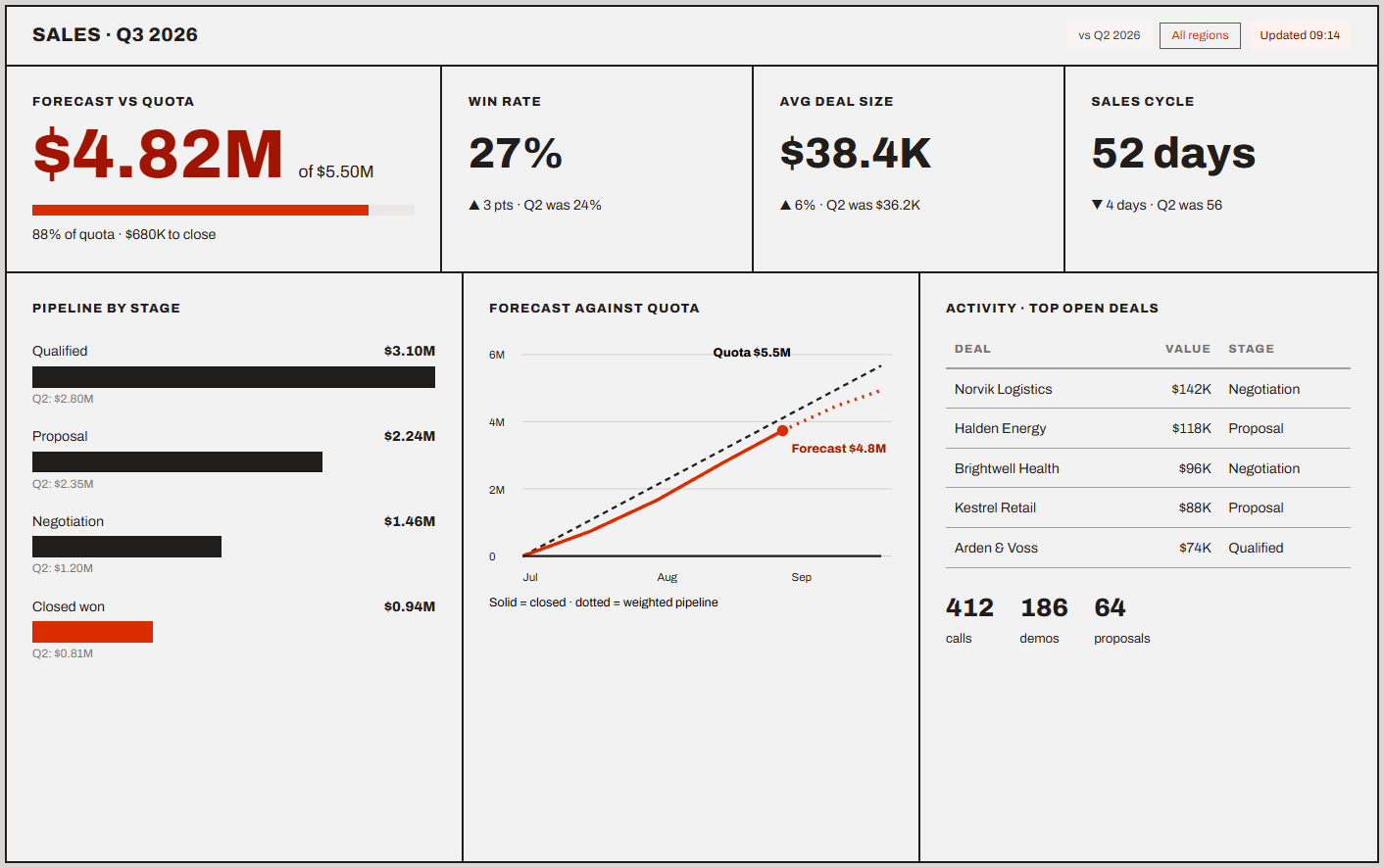
This one's built to answer one question fast: are we going to hit quota? The forecast number sits top-left so a sales lead can glance and know. Below that, everything's grouped into its own zone, pipeline here, activity there, forecast off to the side, with this quarter sitting right next to last quarter so growth or decline jumps out immediately.
Finance dashboard
This is the one the CFO actually opens every morning. It shows cash flow and profit and loss against plan, plus a toggle that switches between live numbers and month-end totals. Every figure sits right next to its target, so $340,000 either matches the plan, or it doesn't; there’s no need for a second dashboard to verify.
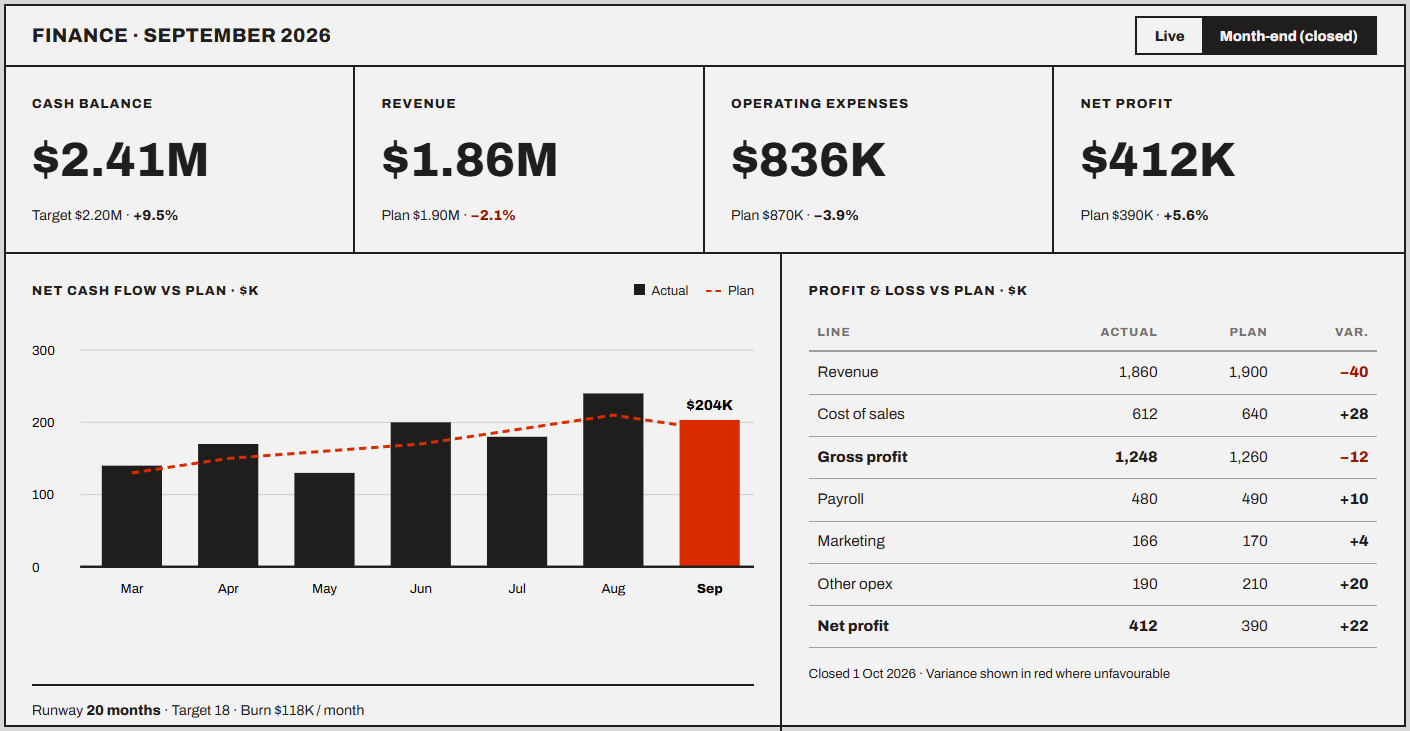
The color palette stays deliberately boring, just a few shades, because finance dashboards are the last place you want a rainbow of distractions.
Marketing dashboard
This one groups campaign performance, cost per lead, and the funnel from click to customer, all by channel. Click on any number and it traces straight back to the ad platform it came from, so nobody's asking where a stat originated.
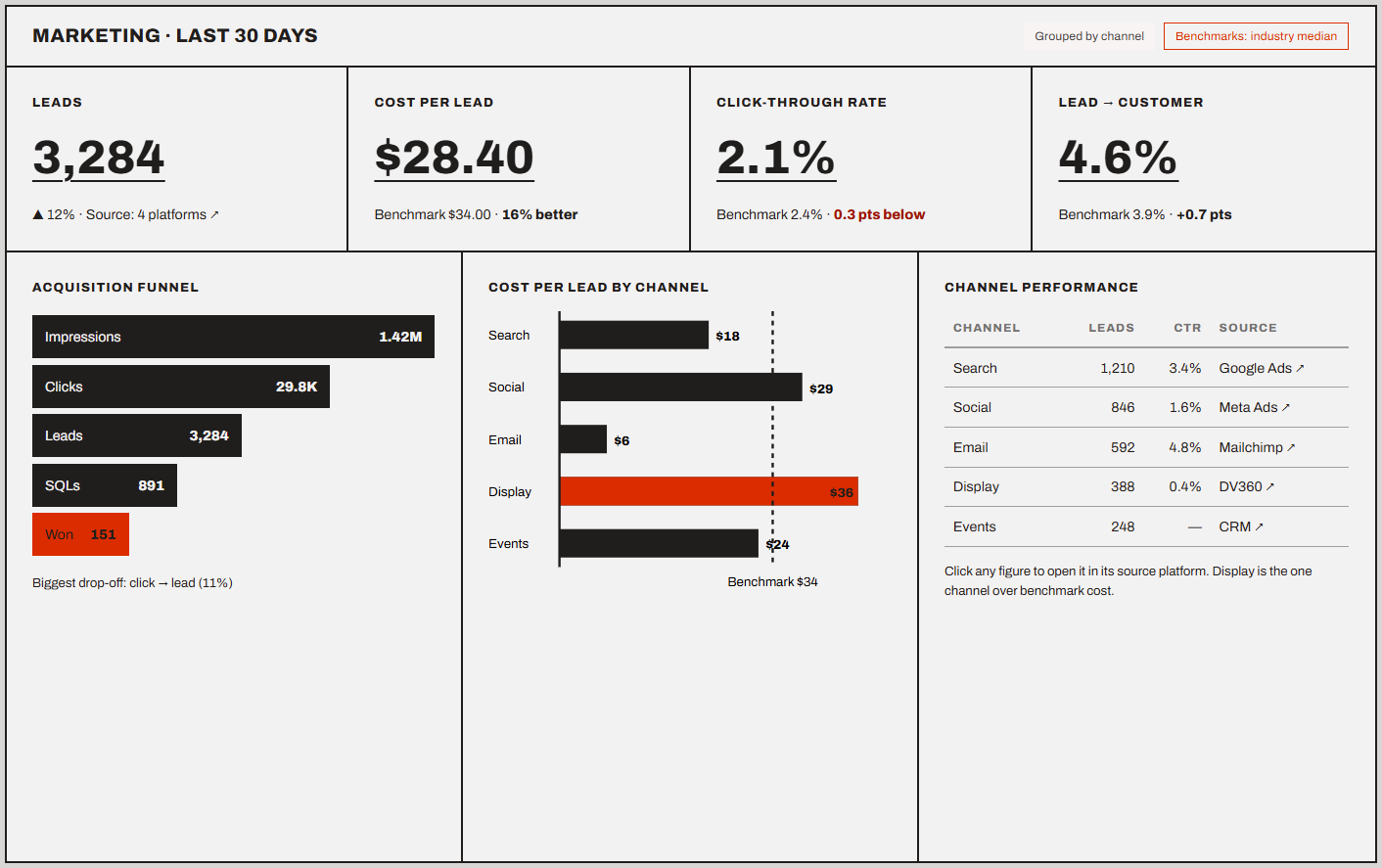
Every rate sits next to a benchmark, and each metric gets a chart built for what it's actually measuring, a funnel for the funnel, a bar chart for channel comparisons, nothing forced into a shape it doesn't fit.
How to design a BI dashboard, step by step
When I build a dashboard from scratch, I start with the people who'll use it and end by watching them try it. Skip either end, and you get a dashboard that looks finished but doesn't answer anyone's real question. Here are the 6 steps I follow, in order:
- Define the objective and audience: Write down the 2 or 3 questions this page has to answer, and figure out who's asking and how often. Skip this step and you'll build something pretty that doesn’t answer questions.
- Pick your metrics and data sources: Choose 5 to 10 KPIs that answer those questions, and pull every one of them from a single governed source.
- Plan the layout: Sketch the grid before you build a single chart. Put the number that matters most top-left, and group related visuals into their own zones.
- Choose the visuals: Match each metric to the chart built for it, keep your color palette small, and label everything clearly enough that nobody has to ask what a chart is showing.
- Add context and highlight the key facts: Give every number a target or a comparison to sit next to, and stamp the page with a "last updated" time so nobody mistakes old data for current.
- Review and iterate with real users: Sit someone down and watch them use it. Time how long it takes them to find last week's miss. Whatever slows them down, fix it before you call the dashboard done.
How Julius can help with business intelligence dashboard design
Applying business intelligence dashboard design best practices means creating dashboards that are clear, accurate, and easy to explore. Julius helps you do that by turning complex data into visuals and summaries you can understand quickly. You can ask questions in natural language, explore results interactively, and share findings with your team without coding or manual cleanup.
Here’s how Julius helps:
- Direct connections: Link sources like Postgres, Snowflake, or BigQuery so your dashboard pulls from live data, without a manual export every time the numbers change.
- Built-in data sourcing: No database connected yet? Julius can pull public data on its own, or tap financial statements and price history for 17,000+ companies through our Financial Datasets partnership.
- Built-in visualization: Get histograms, box plots, and bar charts on the spot, without jumping into a separate tool to build them.
- Quick single-metric checks: Ask for an average, spread, or distribution, and we'll show you the number in an easy-to-read chart, with outliers flagged so you can trust the data behind it.
- Recurring summaries: Schedule a weekly revenue check or a delivery-time report that shows how long your slowest 5% of orders are taking, and get it to your email or Slack automatically.
Ready to explore your data and create clear, shareable visuals? Try Julius for free today.
Frequently asked questions
How many KPIs should a BI dashboard have?
A BI dashboard works best with 5-10 core metrics that map directly to business goals. Too many numbers bury the point you're trying to make, and too few miss context. Choose the metrics that drive a decision, and park the rest in a drill-down.
Should BI dashboards be interactive?
Yes, interactivity lets you answer follow-up questions without pulling a second report. Filters, drill-downs, and comparison views make the same dashboard work for both an executive and an analyst. Keep the default view clean, and let people dig in only when they want more detail.
What is the difference between a BI dashboard and a report?
A BI dashboard monitors current performance in real time for ongoing decisions, while a report delivers a deeper, mostly static analysis over a set period. Dashboards drive daily decisions, and reports summarize a trend after the fact.
How do I create a BI dashboard?
You create a BI dashboard by defining the questions it must answer, choosing 5-10 KPIs, planning a layout with the key number top-left, picking the right chart for each metric, and reviewing it with real users. Build from one governed data source so the numbers stay consistent.
Which AI tool is best for designing BI dashboards?
One of the best tools for this is Julius, since it turns plain-English questions into charts without code. If your team's already deep into Power BI or Tableau, their built-in AI features might be the easier starting point instead.
How do AI tools improve BI dashboard design?
AI tools speed up dashboard design by automating analysis, spotting trends faster, and suggesting the right visual for each metric. Many also pull from multiple sources automatically, so dashboards stay current without manual refreshes.