

Clean a workbook, verify the numbers, and turn the findings into a report with the Julius Excel & Data Analysis plugin.
You can use ChatGPT for Excel analysis by connecting Julius, adding a workbook, and describing the question you need answered. The Julius: Excel & Data Analysis plugin works with Excel and CSV files, uses Python for analysis, and saves outputs such as updated workbooks, charts, and reports.
The most useful starting point is a decision: Which products explain the change in revenue? Where did costs increase? Which campaigns deserve a closer look? A specific question helps determine which sheets, calculations, and charts belong in the analysis.
This guide follows a monthly sales review from an uploaded workbook to a report you can check and share. The prompts are examples you can adapt to your own files.
What you need before starting
Start with a Julius account, the matching plugin, and an Excel workbook or CSV containing the data you want to review. You can import a ChatGPT attachment or use a file already saved in your Julius library.
Write down the reporting period, the meaning of each important metric, and the audience for the result. If “revenue” means sales after refunds, say so. If your reporting month follows a different calendar, include that too.
For a monthly sales review, a useful brief might contain:
| Input | Example |
| Source | The Sales and Product_Costs sheets in the supplied workbook |
| Period | Compare the latest complete month with the previous month |
| Definitions | Net revenue excludes refunds; gross profit is net revenue minus product cost |
| Audience | The sales and operations leads |
| Deliverable | A comparison table, two charts, and a short written report |
Those details make AI for data analysis easier to direct. They also give you a clear basis for reviewing the answer.
1. Connect Julius and inspect the workbook
Open the Julius Excel & Data Analysis listing, install the plugin, and connect your Julius account when prompted. Start a chat with Julius selected, then add the source file.
Before asking for conclusions, ask what is in the workbook:
Julius, inspect this workbook. List its sheets, describe what each row represents, identify the date and currency fields, and flag missing values or duplicate records. Use the Sales sheet for transactions. Show any assumptions before starting the analysis.
Read that summary. A workbook may contain a transaction sheet, a pivot table, and a copied monthly summary. Combining all three could count the same sales more than once. Confirm which sheet contains the underlying records and which sheets are references.
2. Clean a copy and document the changes
Ask Julius to prepare a separate analysis copy so you can compare it with the original. Give explicit instructions for ambiguous values.
Standardize the date and product fields in a new analysis copy. Identify duplicate order-line IDs, but explain how you would handle them before removing records. Keep blank costs separate from zero costs. Show the row count and net revenue total before and after each change.
A repeated order ID is not automatically a duplicate: one order may have several line items. Likewise, a blank cost does not establish that an item was free. Decide how those cases should be handled before they affect the totals.
This is also a useful point to review formulas. Julius's Excel AI workflow supports formula work alongside analysis. When requesting an edit, specify the sheet, target cells, and intended calculation. Open the returned workbook to check the formulas and formatting your team relies on.
3. Calculate the comparison before writing the summary
Ask for a small results table first. It is easier to inspect the figures before they are spread across paragraphs and charts.
Compare net revenue, product cost, gross profit, and gross margin for the two complete months. Show the overall results and a breakdown by product. Define each calculation and reconcile the product totals to the overall totals.
Check both the amounts and the denominators. Overall gross margin should come from total gross profit divided by total net revenue. Averaging individual product margins gives each product equal weight, even when their revenue differs.
In the fictional dataset shown here, net revenue rises from $60,000 in August to $72,000 in September, a 20% increase. Gross profit grows from $24,000 to $25,200, or 5%, while gross margin falls from 40% to 35%. The example has one row per product and month. These are illustrative figures, not a recorded Julius result.
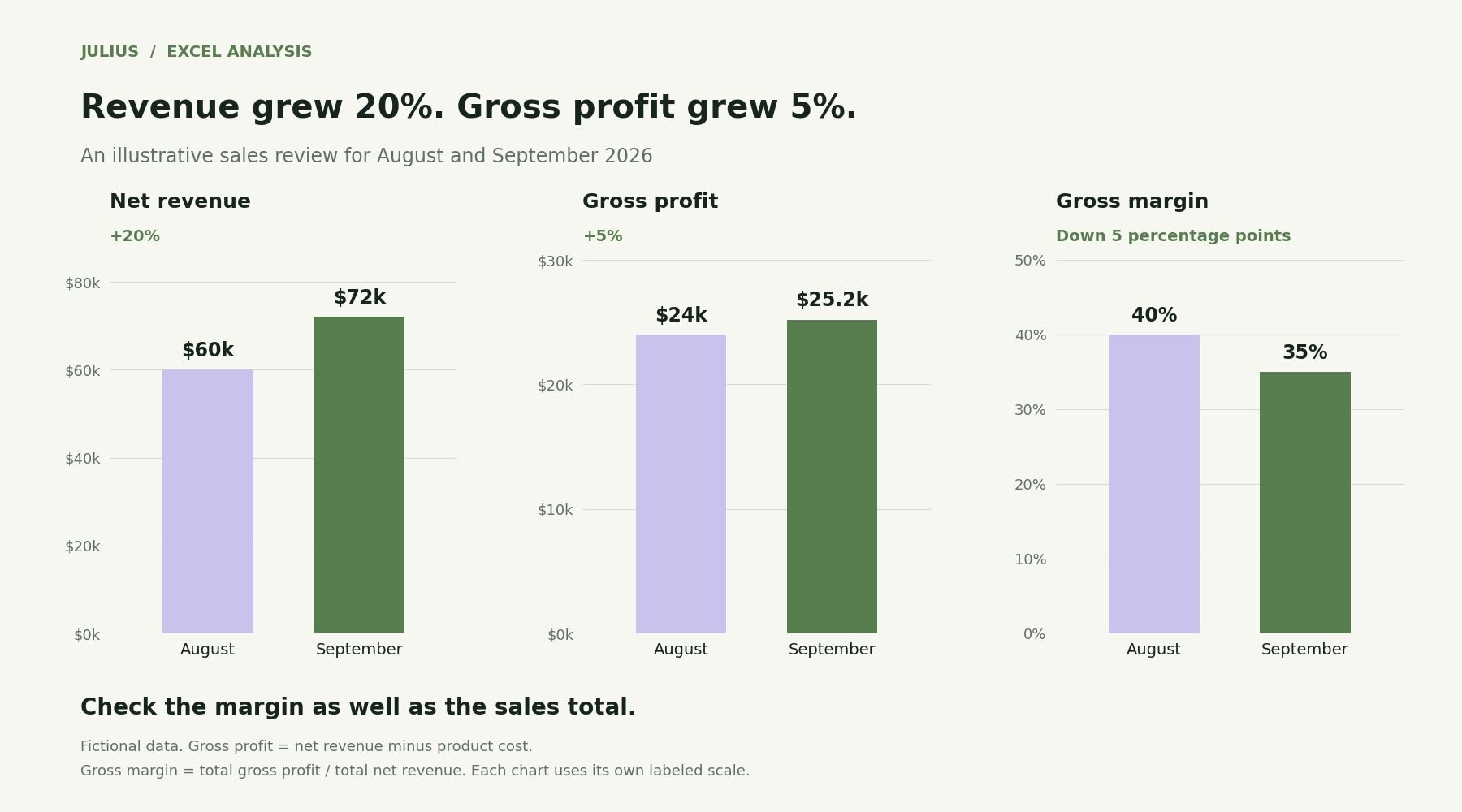
Illustrative sales data: net revenue rises from $60,000 to $72,000, while gross profit rises from $24,000 to $25,200. Gross margin falls by 5 percentage points. This is not a recorded Julius output.
Pick a few comparable calculations from your own workbook and verify them independently.
If the previous period is zero, ask Julius to label the percentage change as undefined and show the absolute change. A precise-looking percentage is not useful when its denominator does not support the calculation.
4. Investigate what changed
Once the totals reconcile, move from “what happened?” to “where did it happen?” Ask for the largest contributions to the overall movement.
Rank products by their contribution to the change in net revenue. Show the absolute change as well as the percentage change. Separate changes supported by the data from possible explanations that need more evidence.
That distinction matters. A workbook may show that one product sold less during a promotion. It may not show whether the promotion, a stockout, or a change in customer demand caused the decline.
Useful follow-up questions include:
- Does the change remain after excluding incomplete periods?
- Is the movement concentrated in a few large orders?
- Do refunds, missing costs, or a changed product mix affect the conclusion?
Ask for charts that answer those questions. A time-series chart can show the monthly pattern; a sorted bar chart can show which products contributed most to the change. Keep the chart's dates, units, and filters consistent with the results table.
5. Build the report from the reviewed results
Now specify the report's audience and purpose. Give Julius the structure you want and ask it to use the results you have already checked.
Create a concise monthly sales report for our sales and operations leads. Include an executive summary, the comparison table, two supporting charts, and three follow-up questions. Use the reviewed results above. State the source workbook, sheets, date range, definitions, and unresolved data issues. Save the report and the analysis copy.
The Julius AI report generator is built around analysis followed by a written explanation. Keep the same discipline here: every important sentence should have a corresponding figure, calculation, or source observation.
Read the headline and closing recommendations especially closely. “Revenue fell” and “we should reduce spending” are different claims. The second needs a business judgment that a sales export alone may not establish.
6. Save the work in the format your team needs
Keep the source, analysis copy, and report clearly named so the next review starts from the right version. Include the reporting period in each filename.
For a meeting, you can take the checked findings through an Excel-to-PowerPoint workflow. Specify the audience and slide count, then review the exported slides against the report.
The plugin also supports public sharing of saved files when you request it. Choose that deliberately; saving work and publishing a public link are separate actions.
Frequently asked questions
Is the Julius plugin an Excel add-in?
This workflow uses Julius inside ChatGPT to work with supplied files and files saved in Julius. For methods that work within the Excel application, see our guide to using ChatGPT in Excel.
Can Julius update Excel formulas?
Yes. The plugin's listing includes formula updates and workbook revisions using Python. Describe the intended calculation and check the returned file. A saved formula should be inspected alongside its displayed result.
Can I analyze several workbook sheets together?
Yes. Specify which sheets to combine and how their records match. Ask Julius to report unmatched records and row counts before and after a join. A repeated match can inflate a total even when each source sheet looks reasonable.
Can ChatGPT analyze a CSV instead?
The Julius plugin supports CSV files too. Supply column definitions and a date range just as you would for a workbook. A CSV contains tabular values rather than multiple worksheets or a workbook's formatting.
Will this report update itself next month?
The file-based workflow described here uses the inputs you provide. To repeat it, supply the next period's data and reuse the reviewed instructions, then inspect the new results. This guide does not assume a live connection or scheduled run through the plugin.
Start with the workbook and one useful question
Choose one decision your spreadsheet should support, make the definitions explicit, and work through the totals before requesting the report. You will have a clearer explanation and a set of calculations you can revisit.
Open Julius: Excel & Data Analysis in ChatGPT and start with the workbook you already use.