

You can copy conditional formatting in Google Sheets so a rule like green for pass and red for fail doesn’t need rebuilding on a new tab.
I've moved conditional formatting across dozens of tabs, and the Paint format tool and Paste special cover most of that in about three clicks.
Moving a rule to a completely different file takes one extra step, which I'll cover below, plus the fix for when a copied rule points at the wrong cell.
The two fastest ways to copy a conditional formatting rule
If you just want the rule on nearby cells right now, reach for one of these:
- Paint format tool: Copies every bit of formatting, colors, borders, number format, and the conditional rule, from one range to another. It's fastest when you're staying on the same tab.
- Copy and Paste special: Copies only the conditional formatting rule, leaving the destination's values and other formatting alone.
💡 Note: The difference matters. Paint format brings the whole look with it. Paste special (conditional formatting only) brings just the rule. If your destination cells already have formatting you want to keep, use Paste special.
Method 1: use the Paint format tool
The Paint format tool (the little paint roller in the toolbar) is the quickest route when you want an exact copy of a cell's formatting somewhere else.
Here's the sequence:
- Select the cell or range that already has the conditional formatting rule.
- Click the Paint format roller icon in the toolbar, just right of the printer and undo icons.
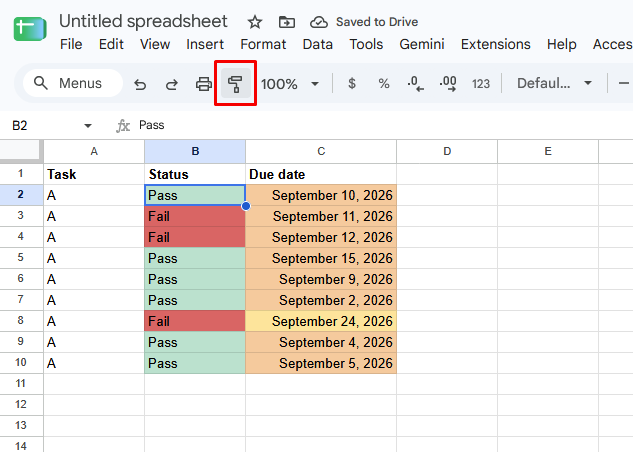
- Click and drag across the destination cells. Google Sheets paints the formatting, and the conditional rule comes with it.
It works within a sheet and across tabs in the same file. Select the source, click the roller, then click over to another tab and drag across your target range.
To paint the same rule onto several separate ranges, try double-clicking the roller instead of single-clicking. In most cases this locks it on until you press Escape, so you can drop the formatting in multiple places without reselecting the source each time.
If double-clicking doesn't lock it on your version of Sheets, you can just reselect the source and click the roller again for each new range.
💡 Tip: For heavier formatting work across a big or messy sheet, try a few Google Sheets add-ons to handle bulk cleanup and reformatting the roller can't.
Method 2: copy and paste special (conditional formatting only)
This is the method I default to, because it's surgical. It copies the rule and nothing else.
- Click the cell that has the rule you want, then press Ctrl+C (Windows) or Cmd+C (Mac).
- Select the destination range.
- Right-click the selection, hover over Paste special, and choose Conditional formatting only. You can also go through the Edit menu by clicking Edit, then Paste special, then Conditional formatting only.
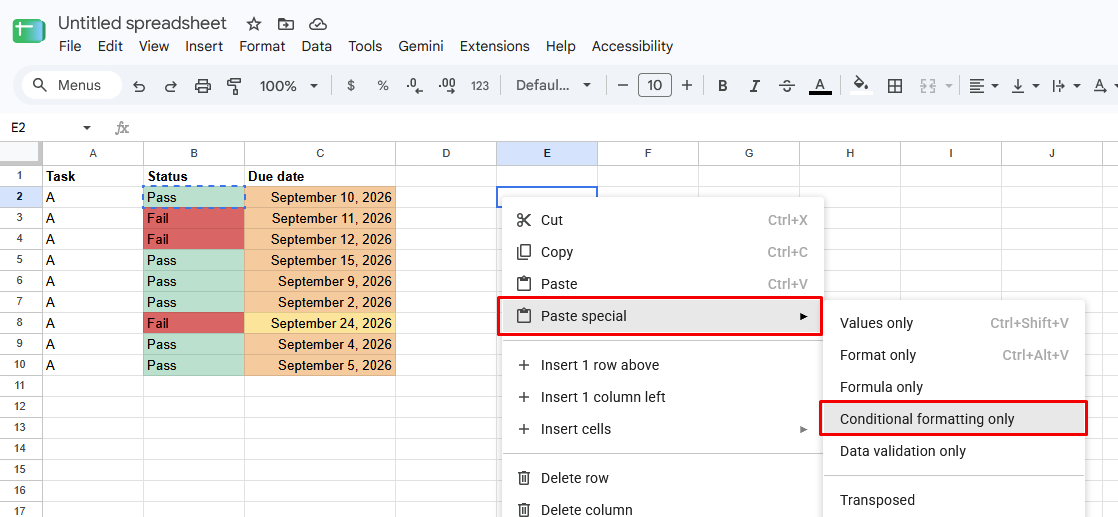
Because you're pasting conditional formatting only, the destination keeps its own values, fonts, and fills. Only the rule comes across. That's the whole advantage over a plain Ctrl+V, which would drop the source cell's values and formatting on top of whatever was already there.
💡 Note: If a copied rule ever "overwrites" your data, you likely used a full paste instead of the conditional-formatting-only option. Undo, then paste special again. Google's conditional formatting documentation walks through where these rules live if you want to confirm what got copied.
Method 3: duplicate or edit the rule in the sidebar
Sometimes you want the same style on a new range, and other times you might want the same colors with a slightly higher threshold. Either way, you don't need an exact copy of the original rule. The conditional formatting sidebar handles both cases:
- Open the sidebar with Format, then Conditional formatting.
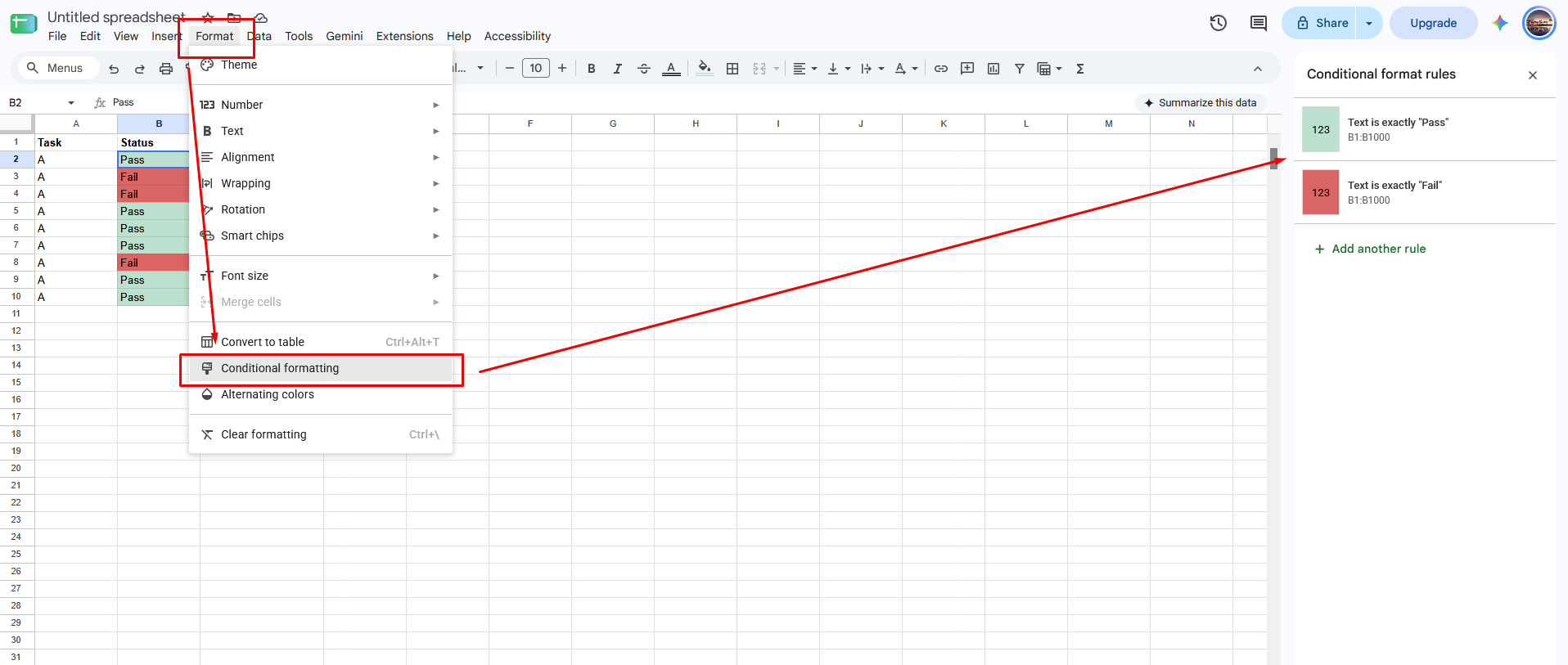
- Click the existing rule to open it, then copy its condition and style details you want to keep.
- Click Add another rule to start a new rule card, and rebuild the red fill using the same style settings. Set the new rule's Apply to range and change the condition, for example from Fail to At risk.
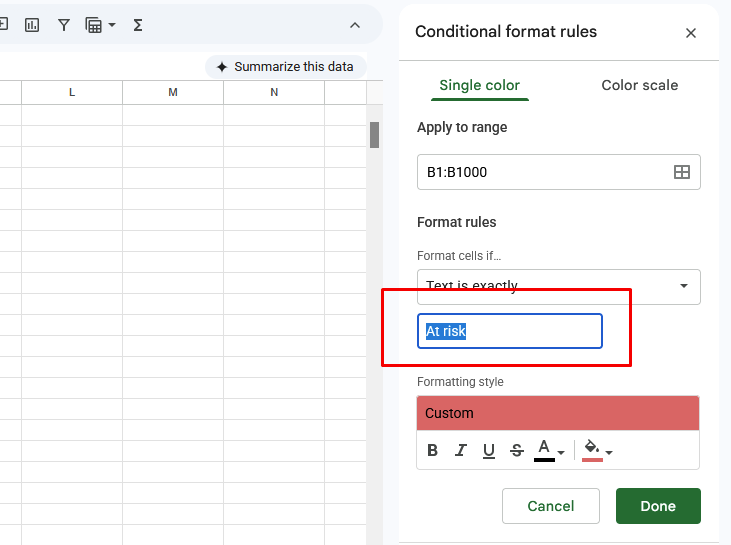
This is the route to take when the rule itself needs to change as you copy it. It's a few more clicks than the roller, but you get more control over exactly what changes.
💡 Tip: If you build rules on a custom formula, our guide to the Google Sheets AI formula walks through how that works.
How to copy a rule to another tab or another file
Moving a rule within the same sheet is simple, but copying it to a different tab or a separate spreadsheet is where people get stuck. Here's how each case works:
To another tab in the same file
Both methods above already work across tabs, so use Paint format and drag onto the other tab, or copy the source cell and paste special (conditional formatting only) onto the target range in the new tab.
After you paste, check the rule's Apply to range in the sidebar, since it sometimes needs a quick fix to cover the right cells on the new tab.
To a different spreadsheet (another file)
This is the step where a lot of people get stuck, because a plain paste special doesn't reliably carry a rule between two separate files. The rule often just doesn't show up in the new one.
The reliable route is to copy the whole sheet:
- Right-click the sheet tab at the bottom of your source file.
- Choose Copy to, then Existing spreadsheet, and pick the destination file.
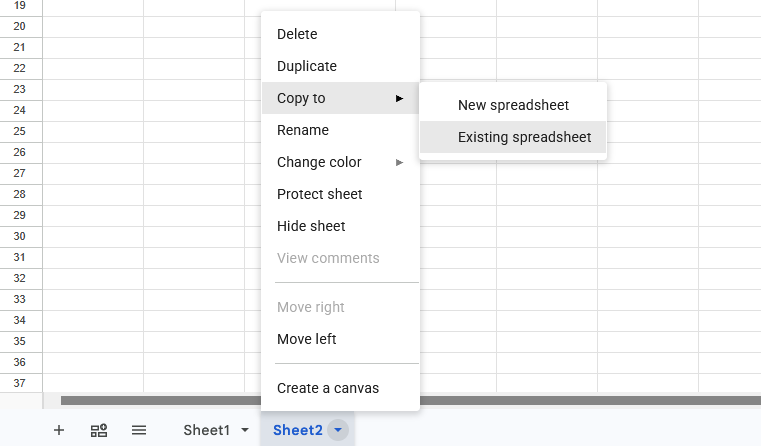
- Open the destination file. The copied sheet arrives with its conditional formatting rules intact.
- From there, use paste special (conditional formatting only) to move the rule onto the exact cells you want, then delete the extra copied sheet if you don't need it.
💡 Note: "Copy to" works because it moves the sheet and its rules together, so the formatting travels with the data instead of trying to cross files on its own. It's the fix spreadsheet users have leaned on for years, and it beats fighting with paste special between documents.
What happens to cell references when you copy a rule
A copied conditional formatting rule can end up pointing at the wrong cell. Here's why that happens, and how to fix it:
Know what the dollar sign does
The dollar sign locks a reference in place. Without it, a reference shifts when you copy the rule to a new row:
- B4: No dollar sign. Both the column and the row can shift when you copy the rule.
- $B4: The dollar sign locks column B. The row number stays relative and moves as the rule applies down the sheet.
- $B$4: Both are locked. The rule always points at cell B4.
See how a rule breaks
Say your rule uses the formula =$B4="DONE", applied to A4:C4. Row 4 turns green because B4 says DONE.
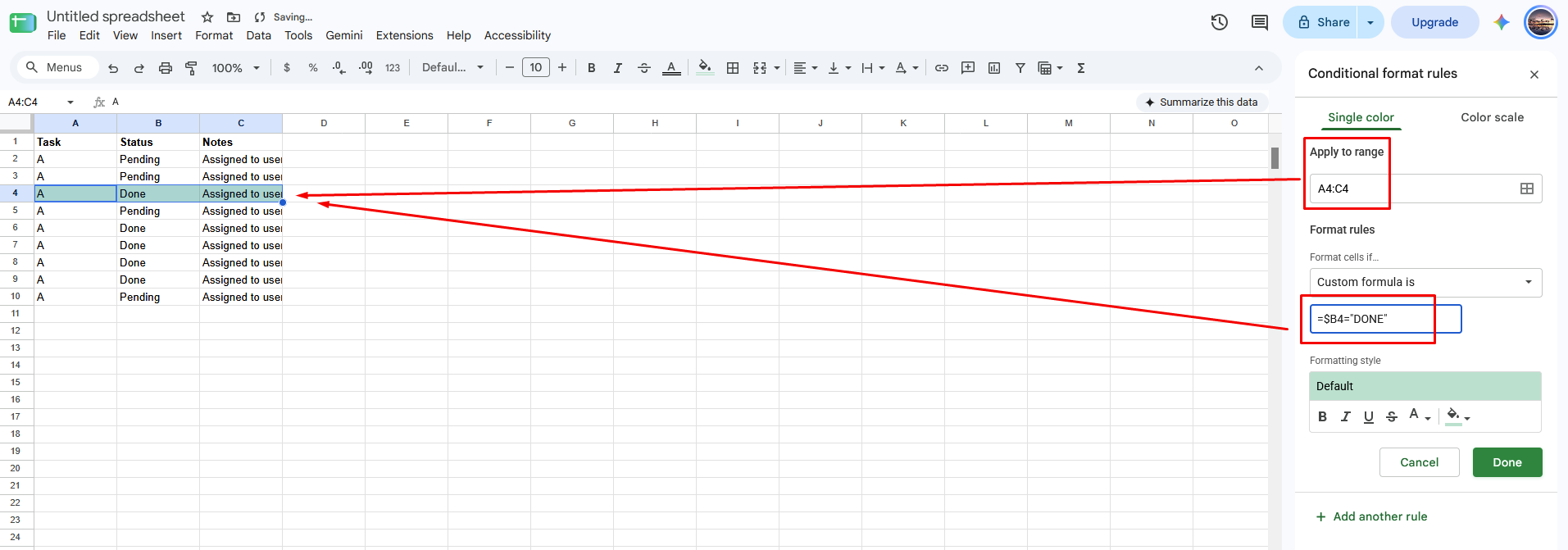
Now copy that rule to row 5, and add DONE to B5. Row 5 stays uncolored. The rule still points at B4, so it never checks B5.
Fix it with an open-ended range
Open the rule in the sidebar and change the Apply to range from A4:C4 to A4:C.
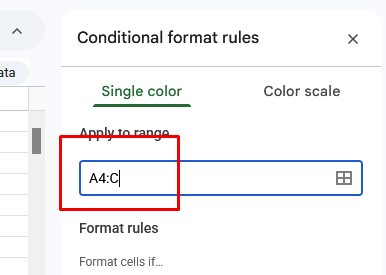
This single rule now covers every row below row 4, and the relative row reference in $B4 does its job as the rule moves down the sheet.
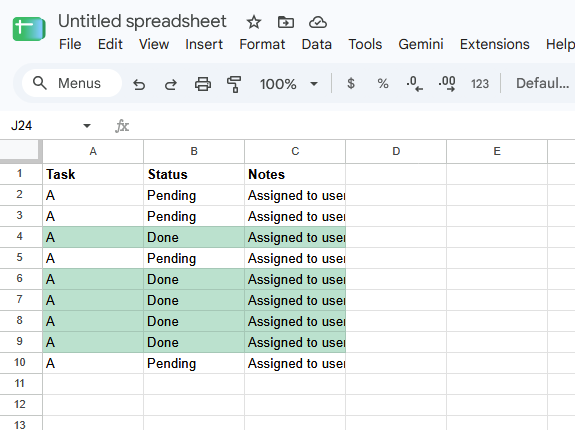
If your rule needs to reach down as you fill new data into the sheet, the open-ended range is what keeps it working.
💡 Tip: Decide what should stay fixed before you copy a rule. Usually that's the column you're testing. Lock the column with a dollar sign, and leave the row relative.
Troubleshooting: when a copied rule breaks
Chances are a rule already broke, and that's what brought you here. These are the failures I run into most when copying conditional formatting, and the fix for each:
| ❌ What went wrong | 🔍 Why | ✅ Fix |
| The rule highlights the wrong column or cell | A reference that should have been anchored was left relative, so it shifted on copy | Open the rule and add a dollar sign to lock the column (or row) that should stay put |
| Pasting overwrote my values and formatting | You used a plain paste, which brings the source's values and formatting with it | Undo, then right-click, Paste special, Conditional formatting only |
| Duplicate rules are stacking up | Each paste adds another rule to the range, and they pile on top of each other | Open Format, Conditional formatting, and delete the redundant rules. The top rule wins on any cell it matches |
| The rule "disappeared" after pasting | The Apply to range doesn't include the cells you pasted into | Open the sidebar and widen the range to cover your target cells |
| Formatting looks right but doesn't trigger | The condition points at a value or range that shifted when the rule moved | Check the Apply to range and the formula reference, then re-anchor as needed |
If your sheet is generally messy before you start copying rules around, it's worth doing a quick cleanup first. Sorting out duplicate rows first means your rules apply to clean data, so you're not fighting stray entries at the same time.
Spend less time formatting and more time on the answer
Conditional formatting is a workaround. You're coloring cells by hand so patterns in the data become easy to see, but the real goal is understanding what the numbers are telling you.
You've spent this guide learning to copy conditional formatting in Google Sheets by hand. Julius gets you to the answer underneath it faster.
Julius is an AI workspace for turning questions into charts, reports, and dashboards, so the answer is a few clicks away instead of a rule you have to build and maintain.
Here's how Julius helps:
- Data search: Search the web for public data and compile it into a dataset, or pull structured financials for 17,000+ companies through the Financial Datasets integration, so a question is enough to get started, no upload needed.
- Direct connections: Connect your own databases and tools so your analysis reflects live data instead of a static export.
- Built-in visualization: Ask what's happening in your data and get the analysis back with charts already drawn, so patterns show up without any manual highlighting.
- One-click sharing: Turn an analysis into a report you can hand off without reformatting anything.
Ready to skip the formatting busywork and go straight to what your data is telling you? Try Julius for free today.
Frequently asked questions
How do I copy conditional formatting to another sheet in Google Sheets?
You can copy conditional formatting to another tab with the Paint format tool, or with Copy, then Paste special, then conditional formatting only. To copy it to a different file, right-click the sheet tab, choose Copy to, and send the whole sheet along so the rules travel with it.
Why does my copied conditional formatting rule reference the wrong cell?
Your rule references the wrong cell because a relative reference shifted when you copied it. Add a dollar sign to lock the column or row that should stay fixed, such as $B4 to lock column B. The reference then holds its place every time you copy the rule.
How do I copy a rule without the range extending?
Check the rule's Apply to range in the Format > Conditional formatting sidebar, and set it to exactly the cells you want covered. Google Sheets can expand that range on its own when you paste near an existing rule, so trim it back if it's grabbed extra rows or columns you didn't intend.
Does copying conditional formatting also copy the cell values?
No, copying conditional formatting doesn’t copy the cell values when you use Paste special, then conditional formatting only. That option moves just the rule. A plain paste copies values and other formatting too, so choose the conditional formatting only option when you want the rule by itself.
Can I copy multiple conditional formatting rules at once?
Yes, one paste can carry every rule on a range to its destination. Both the Paint format tool and Paste special, conditional formatting only, move all the rules together. Afterward, open the conditional formatting sidebar to confirm the rules landed and remove any duplicates.