

The comparison between Keynote vs PowerPoint usually comes down to two things: how polished you want your slides to look, and how many devices they need to open on.
I've built quick pitches and data-heavy reports in both over the years, and each app pulls ahead in different spots.
Here's how they stack up, and how to pick without regretting it later.
Keynote vs PowerPoint: what's the difference?
Apple Keynote comes free on every Apple device, and it's also available through iCloud on the web. It's built to get a finished-looking deck done fast, with clean templates and animations like Magic Move already included.
Microsoft PowerPoint is available through Microsoft 365 or as a one-time purchase, and it opens on Windows, Mac, the web, and mobile. It backs that up with a deep template library, tighter Excel integration, and built-in Copilot AI (on certain plans).
Choose Keynote if you work entirely on Apple hardware and want a polished deck without much manual design work.
Choose PowerPoint if you need your file to open on any device, want deeper data tools, or want AI drafting built into the app.
Meet Keynote: features and highlights
Past that first impression, a handful of features carry most of the weight:
- Magic Move: Animates matching objects between slides automatically, so transitions look intentional without manual keyframing.
- iCloud sync across devices: Start a deck on a Mac, adjust it on an iPad with Apple Pencil, and present straight from an iPhone.
- 3D and USDZ support: Drop in 3D objects and play their embedded animations, or animate them across slides with Magic Move.
- Dynamic themes and live video layouts: Add motion to a deck through built-in themes without building custom animations from scratch.
- Flexible export: Keynote saves natively as .key, but exports to .pptx, PDF, and QuickTime video when a deck needs to leave the Apple ecosystem.
- Outline-to-slide AI: Write a text outline, and with a paid Apple Creator Studio subscription, you can turn it into structured slides, clean up the layout, and generate presenter notes.
Meet PowerPoint: features and highlights
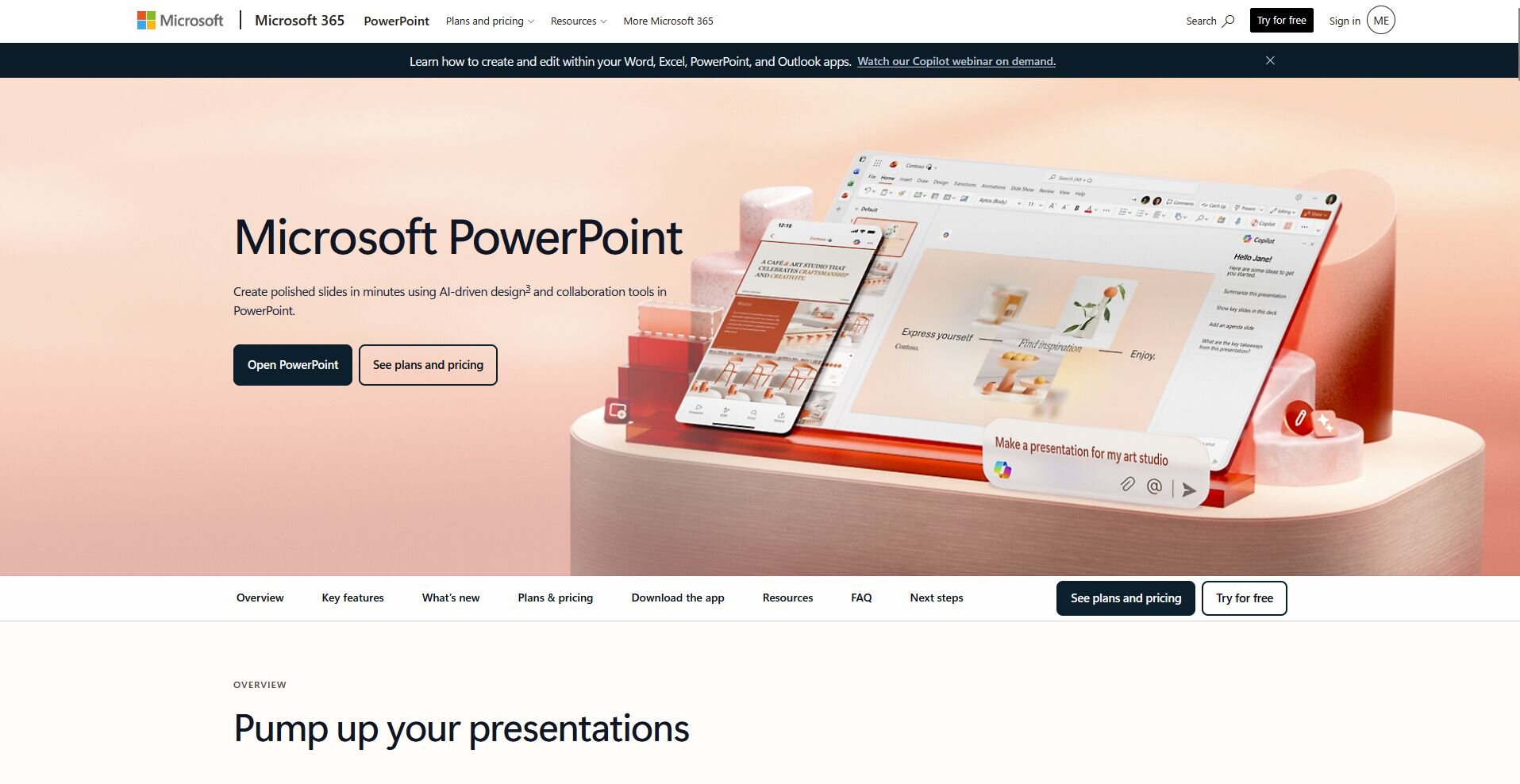
Once you get past setup, six features do much of the work:
- Copilot AI drafting: Generates a full draft deck from a prompt, including slide structure and speaker notes, though it requires a separate Microsoft 365 Copilot license.
- Designer: Suggests layout and formatting options as you build a slide, without needing a full AI conversation to get there.
- Tighter Excel integration: Pull charts and tables straight from Excel into a deck, and keep them linked so updates carry over.
- Speaker Coach: Reviews a rehearsal for pacing, filler words, and reading directly off slides, then gives feedback before the real presentation.
- Cross-platform reach: Opens on Windows, Mac, the web, and mobile, so a file built on one device opens the same way on another.
- Real-time co-editing: Multiple people can edit the same deck at once through Microsoft 365, with changes syncing across Teams and SharePoint.
Keynote vs PowerPoint: at a glance
| Feature Apple Keynote Microsoft PowerPoint | ||
| 🎯 Best for | Apple users who want a polished deck with less manual work | Cross-platform teams and data-heavy decks |
| 💰 Starting price (billed annually) | Free, Apple Creator Studio for AI $129/year | $99.99/year (personal), or a one-time purchase of $179.99 |
| 💻 Works on | Mac, iPad, iPhone, iCloud web | Windows, Mac, web, iOS, Android |
| 🎨 Design | Cleaner out of the box | More templates, more manual work |
| 🤝 Collaboration | Real-time, but smooth only inside Apple | Real-time across platforms via Microsoft 365 |
| 🧠 Built-in AI | Outline-to-slide AI with a paid Creator Studio subscription | Copilot and Designer |
| ❄️ Main weakness | Limited reach once a file leaves the Apple ecosystem | A denser interface that takes longer to learn |
Keynote vs PowerPoint: side-by-side comparison
I built the same two decks in Keynote and PowerPoint this month, a chart-heavy quarterly report and a 10-slide pitch, to see where each one holds up.
Here's how they compare:
1. Compatibility and file formats
Keynote: Saves natively as .key, a format that other apps generally can't open without converting it first. Presenting through iCloud in a browser works, but sharing usually means exporting to .pptx or PDF. When I handed a .key file to a colleague on Windows, a font swapped and two text boxes drifted, a small mess you don't want minutes before a meeting.
PowerPoint: Saves as .pptx, the format most people already expect. You can open it on nearly any device and send it without a second thought.
Winner: PowerPoint. Universal compatibility beats a prettier default when someone else needs to open your file.
2. Design and templates
Keynote: Wins the first impression. Default templates look finished, spacing is handled for you, and Magic Move makes object transitions look polished with little effort.
PowerPoint: Gives you far more templates, plus a Designer panel that suggests layouts as you type. Quality varies, so you'll often scroll through a few dozen options before one feels right.
Winner: Keynote. If you want a good-looking deck fast and don't want to think about alignment, it's the better starting canvas.
3. Ease of use and interface
Keynote: Stays out of your way. I built a clean 10-slide deck in about 15 minutes without hunting for anything.
PowerPoint: Rewards the time you put into learning it, but the ribbon is dense, and newcomers can feel that early on.
Winner: Keynote. A lower learning curve gets you to a finished slide faster.
4. Features, functionality, and AI
Keynote: You can't generate a deck from a single prompt. With a paid Apple Creator Studio subscription, you can turn a text outline into structured slides, clean up layout, and generate presenter notes, or you can design manually and skip the subscription entirely.
PowerPoint: Pulls ahead here. Copilot can draft a full presentation from a prompt, though the create-from-prompt feature needs a Microsoft 365 Copilot license, and Designer adds layout suggestions on top of that.
Winner: PowerPoint. Copilot drafts from a single prompt with no separate subscription required, while Keynote's outline-to-slide AI needs a paid Creator Studio add-on. PowerPoint's toolkit also runs deeper overall.
5. Collaboration
Keynote: Supports live collaboration through iCloud, and it runs smoothly until a teammate opens the file on Windows. Then you're back to exports and formatting cleanup.
PowerPoint: Handles real-time co-editing through Microsoft 365, tied into Teams, OneDrive, and SharePoint.
Winner: PowerPoint. Cross-platform, real-time, and already installed at most companies
6. Pricing
Keynote: Free if you already own Apple hardware, with no subscription or separate purchase required.
PowerPoint: Comes bundled into Microsoft 365 at $99.99/year for a personal plan, or as a one-time standalone purchase around $179.99. Business plans start close to $7/user/month but only include PowerPoint for Web and mobile. The desktop version becomes available at $23.50/user/month for business plans.
Winner: Keynote, if you already own a Mac. For everyone else, PowerPoint's price covers a full suite and cross-platform reach.
What real users are saying
I read through a stack of verified G2 reviews for both tools to see where actual users agree or push back on what I found in my own testing and use.
Here's what they're saying:
Keynote
- Pros: A creative copywriter said collaborative editing with a partner or team works well, and a reviewer in HR pointed to Keynote's pre-designed styles that adapt easily to different needs.
- Cons: The same copywriter said Keynote is missing some features that PowerPoint has, and found it harder to build in live video for effect.
PowerPoint
- Pros: A product manager pointed to the morph transition for cinematic animations without video editing skills, and an operations executive said pulling charts from Excel keeps data linked instead of manually copied.
- Cons: The same product manager said the AI design tool suggests outdated layout options, and the operations executive noted formatting sometimes breaks on a different device or an older version.
How to make your choice
Keynote comes out ahead if you're mostly on Apple hardware and want a polished deck without much manual design work.
PowerPoint is the better pick if your files need to move across devices, teams, or companies without breaking.
Your call comes down to how much cross-platform reach you actually need, and how much you value design polish over reach.
Keynote is better for:
- Apple-first users: Anyone working mainly on Mac, iPad, or iPhone who wants a deck that looks finished without extra setup.
- Design-focused presenters: People who care more about a clean, polished look than sending files to people on other platforms.
- Solo or small Apple teams: Presenters working alone or with a small group that's entirely on Apple hardware.
PowerPoint is better for:
- Mixed-device teams: Groups spread across Windows and Mac, or anyone who hands off editable files to clients and partners.
- Data-heavy decks: Presentations tied closely to Excel, where charts and tables need to stay linked and current.
- AI-assisted drafting: Anyone who wants Copilot to generate a first draft from a prompt, on top of Designer's layout suggestions.
💡 Tip: Want something AI-native instead? Check out our guide to the best AI presentation makers.
My verdict
I've built more decks in these two apps over the years than I can count, and my honest take hasn't changed much: PowerPoint is the one I reach for by default.
It opens on any device, it plugs into Excel without extra steps, and now it has Copilot sitting right there when I need a first draft fast. That reach matters more than a slightly cleaner interface once other people need to open the file too.
Keynote still earns its spot, though. When I'm building something for myself or presenting on a small, all-Apple team, I'll pick Keynote almost every time. It gets me to a good-looking deck faster, and I don't have to fight the software to make something feel polished.
So here's how I'd put it: if you're mostly on Apple hardware and design speed matters more than reach, Keynote is worth using. If your deck needs to travel across devices, teams, or clients, PowerPoint is the safer bet, and its AI drafting tools are only widening that gap in 2026.
Create an editable presentation with Julius
For an AI-generated starting point, Julius can turn your topic, document, or dataset into a slide deck. Ask it to research supporting material, analyze figures, or create charts, then refine the presentation through prompts.
Export to PowerPoint when you need an editable file for further work. This gives you another way to create the deck while keeping the final handoff in PowerPoint format. Review the content and formatting before presenting.
Want to build your slides starting from a question instead of a spreadsheet? Try Julius for free today.
Frequently asked questions
Can you open a Keynote file in PowerPoint?
Not directly. You export the .key file to .pptx or PDF from Keynote first, then open it in PowerPoint. Expect to fix a little formatting, since fonts and layouts can shift in the handoff.
Is Keynote better than PowerPoint?
It depends on your setup: Keynote wins on design polish, ease of use, and price for Apple users, while PowerPoint wins on compatibility, features, and collaboration for cross-platform teams.
Is Keynote free?
Yes. Keynote is free and preinstalled on Apple devices, so the only real cost is the Apple hardware you run it on.
Does Keynote have AI like PowerPoint?
Somewhat. Keynote's free version has no AI generation, but an optional Apple Creator Studio subscription adds AI features like turning a text outline into a full slide deck, generating presenter notes, and creating or editing images. PowerPoint's Copilot works similarly, drafting slides from a prompt on eligible Microsoft 365 plans, plus its Designer layout tool.
Which is better for business presentations?
PowerPoint, in most cases. Its .pptx compatibility, deeper feature set, and Microsoft 365 collaboration make it the more reliable choice for cross-platform and data-heavy business decks.