

I spent a week testing Claude in PowerPoint on projects like investor updates and internal reports, to see where it earns its spot in your workflow and where it still needs your input.
This guide covers setup, the full step-by-step process, key features worth knowing, and the limits I ran into along the way.
What is Claude for PowerPoint?
Claude for PowerPoint is an add-in that puts Claude's AI directly inside Microsoft PowerPoint. It allows you to open a sidebar in your existing deck and describe what you want in plain English without switching to a separate app.
The add-in reads your slide master, layouts, fonts, and color scheme before generating or editing anything, so new content aligns with your template. Output comes as native, editable PowerPoint elements, including charts and diagrams you can adjust by hand afterward. Nothing gets flattened into a static image.
💡 Note: Claude for PowerPoint works on PowerPoint for web, Windows, and Mac. It's included with paid Claude plans (Pro, Max, Team, and Enterprise), and it doesn't require a Microsoft Copilot subscription to use.
How to set up Claude in PowerPoint
Setup took me under ten minutes the first time, and most of that was just remembering my Claude login. Here's the rundown so you're not fumbling around like I was:
Check your Claude plan first: This one tripped me up initially. The add-in is only available on paid plans (Pro, Max, Team, and Enterprise). The good news is you don't need a separate Microsoft Copilot subscription on top of it.
Make sure your version actually supports it: This is the step I'd flag hardest. It works on PowerPoint web, and on Windows and Mac desktop builds built for Microsoft 365. If you're still running PowerPoint 2016 or 2019 on a perpetual license, or trying this on iPad or Android, it won't show up.
Install the add-in: If you’ve confirmed your version is supported, open PowerPoint. Head to Home, then Add-ins, search Claude, then click Add. You can also grab it straight from the Claude by Anthropic listing on Microsoft Marketplace if you'd rather go that route.
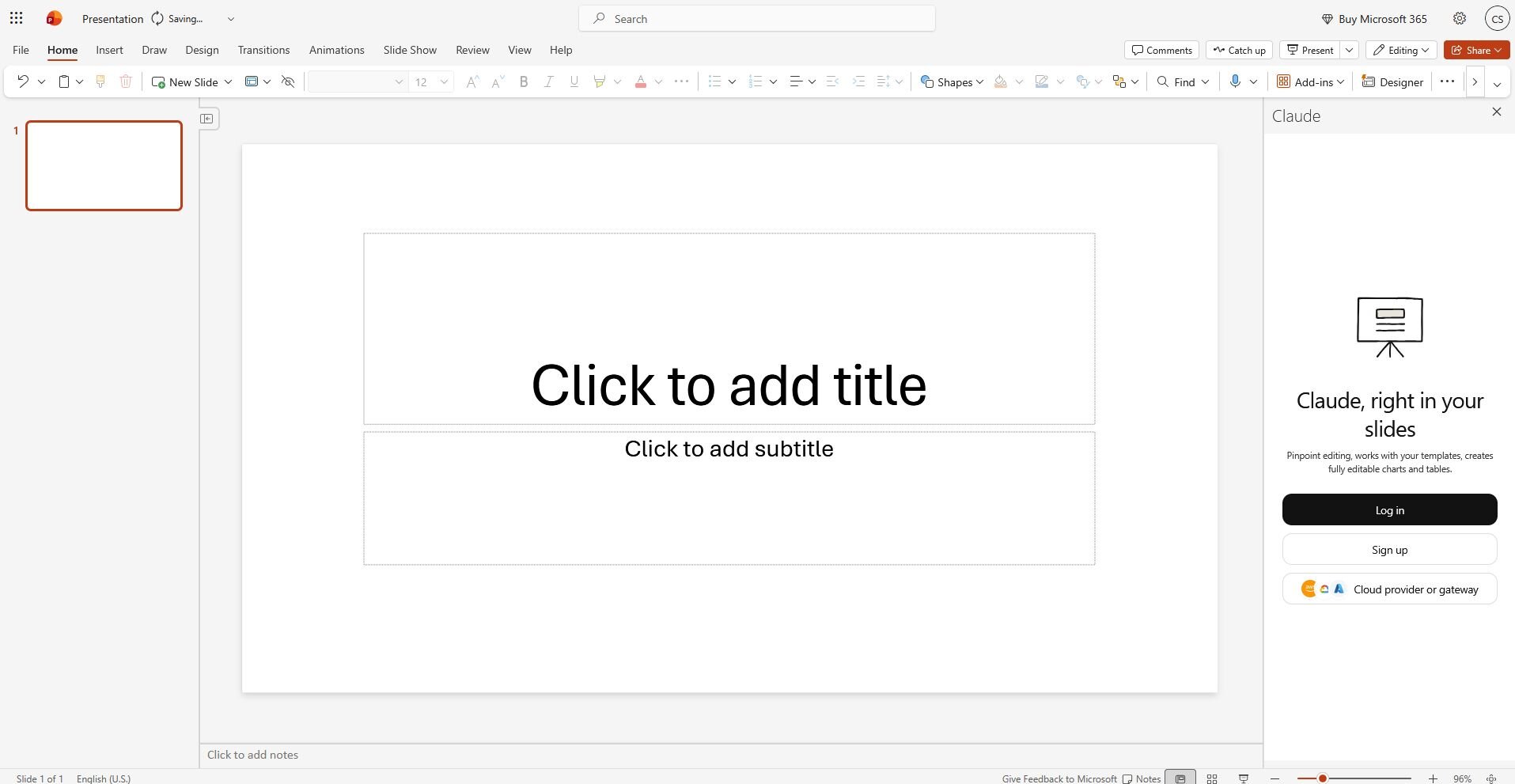
4. Sign in with your Claude account: Use the same Claude login you use everywhere else. Your chat history here stays separate from Claude for Excel or Claude for Word. I forgot this at first and went hunting for a conversation I'd had in Excel, only to realize PowerPoint keeps its own memory.
💡 On a team plan? Loop in your admin: If your company's on Team or Enterprise, your admin might roll this out centrally through the Microsoft 365 Admin Center, so it’s not up to everyone to install individually. Worth a quick Slack message before you assume it's on you.
How to use Claude for PowerPoint
Once you've got the add-in installed, building a presentation comes down to five steps. Here's what to expect at each one:
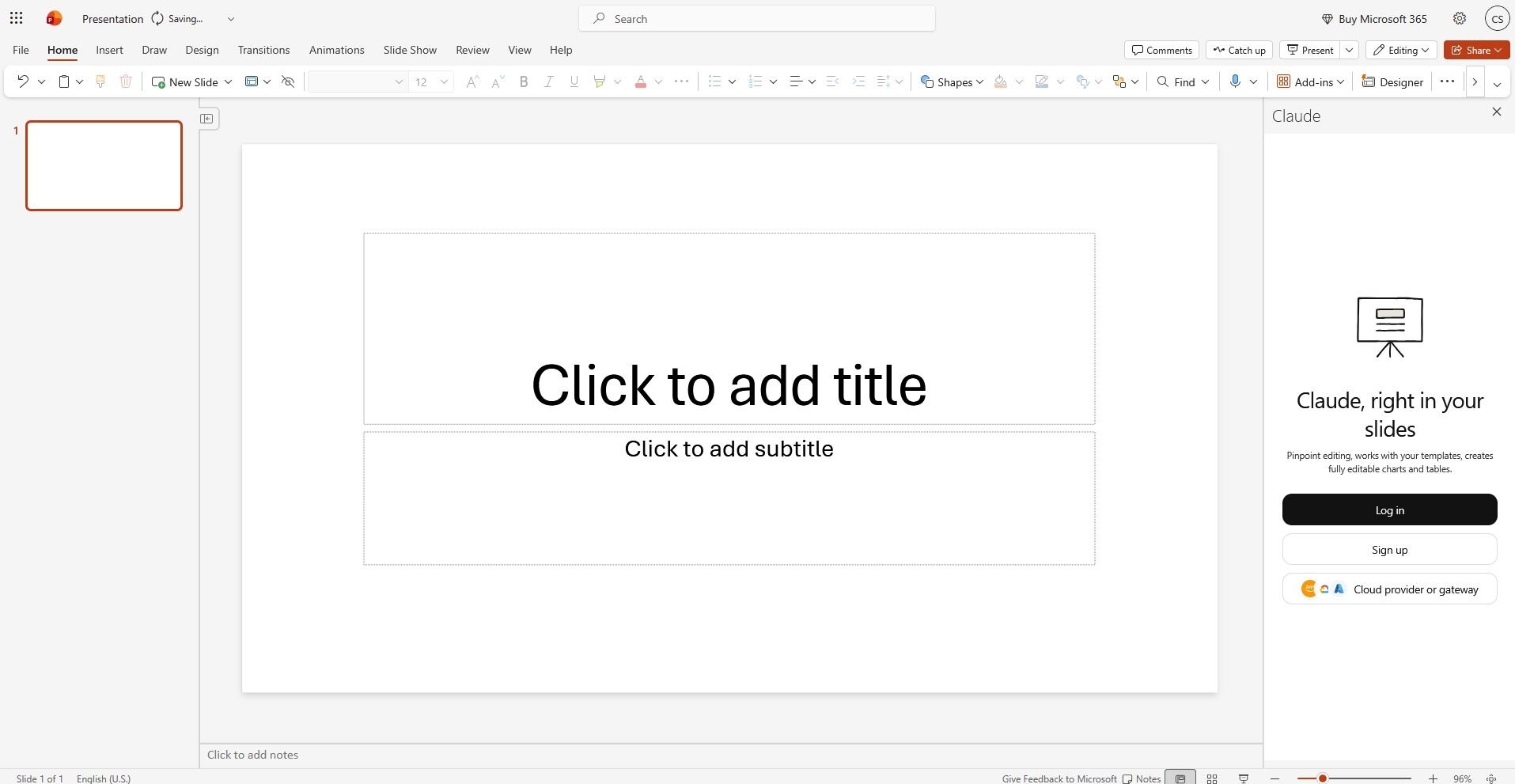
Load or apply your template first: Open the deck you want to build in, whether that's a blank file or one with your company's brand template already loaded. I made the mistake of starting from a blank deck on my first try, and since Claude had nothing to match, the output looked generic.
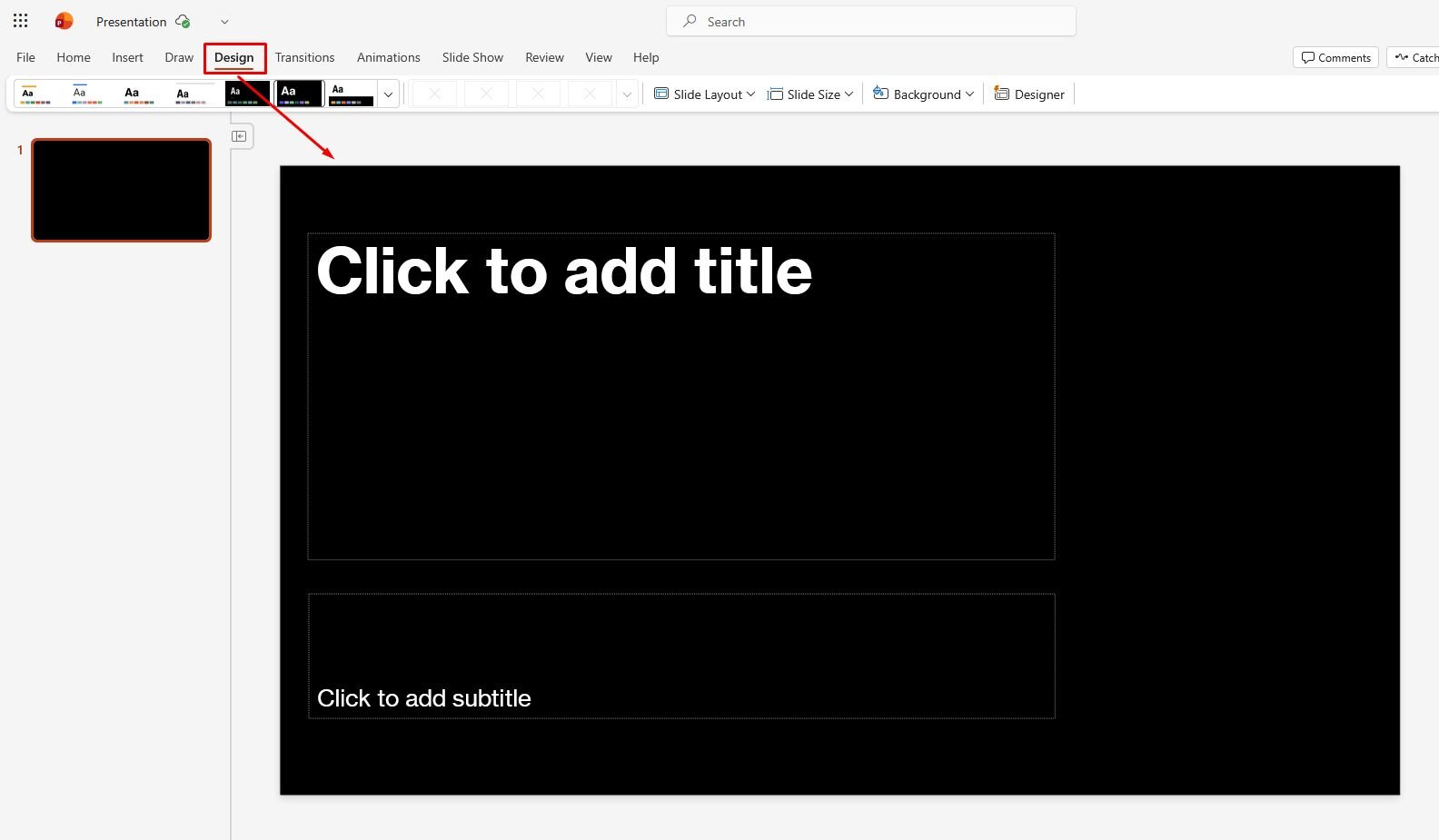
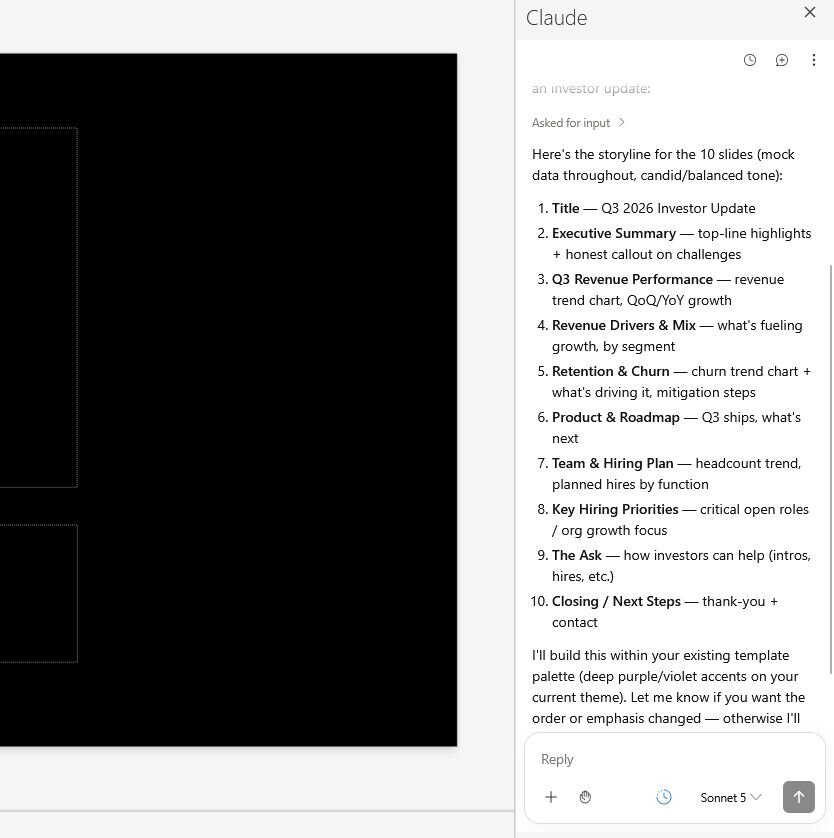
2. Describe your deck or goal in plain English: Open the sidebar and just type what you need. My best results came from being specific with my prompts. "Build a 10-slide investor update covering Q3 revenue, churn, and hiring plans" worked far better than a vague ask like "make me a deck about the business."
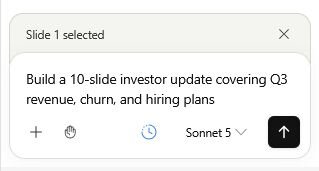
3. Review the proposed outline before it generates: Claude usually lays out a slide-by-slide plan first and asks you to confirm it. I'll be honest, I skimmed this step the first time and regretted it. It misread which quarter I meant, and I didn't catch it until four slides had already been built. Read this part slowly.
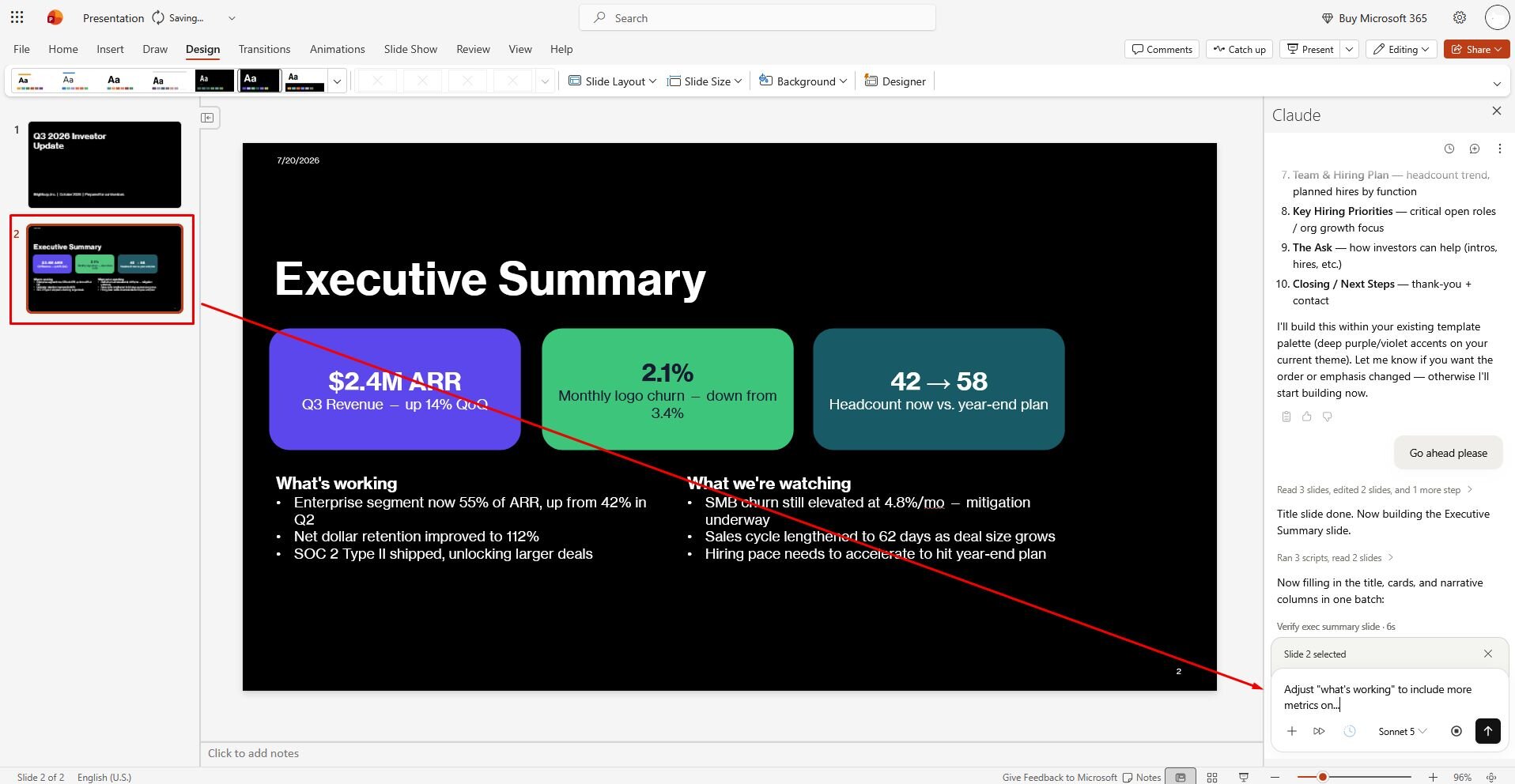
4. Refine slide by slide with chat-based edits: Once the deck exists, target individual slides with follow-up prompts like "Match the timeline on slide 7 to the Q2 milestones I gave you." This is where the tool earns its keep. Editing one slide at a time beat my old habit of scrapping the whole deck and starting over.
5. Turn data into native charts: Paste in numbers or upload a spreadsheet and ask for a chart, something like "Create a bar chart from this revenue table, grouped by region." I threw a messy internal spreadsheet at it and got back a clean, editable chart in under a minute without having to copy-paste into Excel first. 💡Tip: Want to use Claude in PowerPoint fast? Use the keyboard shortcut Ctrl + Alt + C on Windows, or Ctrl + Option + C on Mac.
Claude for PowerPoint pricing
Claude for PowerPoint doesn't have its own separate price tag. It's bundled with whichever Claude plan you're already on, so the real question is which plan gives you access:
| ❓Plan | 🏷️Price | ✅ PowerPoint add-in included? |
|---|---|---|
| Free | $0 per month | No |
| Pro | $17 per month (paid yearly) or $20 per month (paid monthly) | Yes |
| Max | Starts at $100 per month | Yes, with 5 or 20 times more usage than Pro |
| Team, standard seat | $20 per seat per month (paid yearly) or $25 per seat per month (paid monthly) | Yes |
| Team, premium seat | $100 per seat per month (paid yearly) or $125 per seat per month (paid monthly) | Yes |
| Enterprise | Custom pricing | Yes, plus audit logs, SCIM, and admin spend controls |
💡Note: The Free plan doesn't include Claude for PowerPoint at all, so you'll need at least a Pro subscription before the add-in shows up in your ribbon.
Key features of Claude in PowerPoint
I tested every feature that Claude offers for PowerPoint by building a mock product presentation. Connectors and Skills did the most to change my workflow, but let’s talk about all the features below:
Template awareness: Claude reads your slide master, layouts, fonts, and colors before building or editing anything. I loaded our own branded template and asked for a new slide, and the fonts and color scheme matched without me typing a single hex code.
Model switching: You can pick Opus for heavier work, like building a full deck from scratch, or Sonnet for quick edits. I stuck with Sonnet for small fixes and only reached for Opus when I handed it a messy 20-page PDF and asked for a full deck.
Native charts and diagrams: Ask for a chart and you get an editable PowerPoint chart. I pasted in a revenue table and got a bar chart I could still tweak by hand afterward, colors, labels, and all.
Connectors: You can link other tools, so Claude has more to work with than what's sitting in your current deck. This one's easy to miss since it's tucked behind a small icon in the sidebar, but it's worth exploring if your data lives outside PowerPoint.
Skills support: These are reusable style and format instructions you attach to specific content types, so you don't have to re-explain your formatting preferences every time you open a new deck. I set one up for our standard client deck format once, and it carried over when I started fresh the next time.
Persistent instructions: Similar idea, but broader. You can set standing preferences (a color scheme to avoid, a tone to stick to) that apply across your work in Claude for PowerPoint, so you don't repeat yourself in every prompt.
Where Claude in PowerPoint falls short
Nothing I tried was a dealbreaker on its own, but a few things slowed me down enough that they're worth flagging before you build your first real deck with this. Watch out for:
No image generation: Claude can build charts, diagrams, and layouts, but it won't generate original images or icons for you. If your deck needs custom visuals beyond what your template already provides, you'll still need to source them yourself.
Shared usage limits: Claude for PowerPoint pulls from the same usage pool as your other Claude tools. I burned through a noticeable chunk of my daily limit building one deck, which left less room for anything else I wanted to do in Claude that day.
Generation speed: Building a full deck from scratch took me over twenty minutes more than once. Quick edits move fast, but a first full draft is not a quick task. Some AI presentation builders work faster.
Template inconsistency on the first pass: My first attempt at a fully templated deck came back with a couple of off-brand elements Claude introduced on its own. A second, more specific prompt fixed it, but I needed that second pass.
Local, per-app chat history: Conversations are stored locally in your browser, not on Anthropic's servers, and PowerPoint keeps its history separate from Excel or Word. It carries over between sessions on the same browser, but it won't follow you to a different device or browser, and clearing your browser data wipes it.
The one-step alternative to Claude in PowerPoint
Claude in PowerPoint handles one job well: turning a prompt into a polished, editable deck once you already know what story your data tells. Getting to that story is a separate step, typically done somewhere else, before you ever open the add-in.
Julius closes that gap by handling both steps in the same place. Ask a question, and Julius handles the data analysis and lets you create the deck in one place.
Here's what that one-step version looks like:
Go straight from analysis to slides: Julius includes its own AI presentation maker, so the deck gets built in the same place the numbers just came from.
Start from a question: Connect your own data, ask Julius to search the web for public datasets, or pull institutional-grade financial data on more than 17,000 companies through its Financial Datasets partnership. You can begin with a question and let Julius find what it needs.
Schedule the whole thing to repeat: Set up a Notebook once, and Julius can rerun the same analysis on a schedule, sending fresh results to your email or Slack without you starting from zero each time.
Gets sharper the more your team uses it: With each connected data source, Julius builds a better sense of where to find the right numbers and how your tables relate to each other, so answers come faster and stay more accurate over time.
Ready to skip the hand-off and start from your own data? Try Julius for free today.
Frequently asked questions
Does Claude for PowerPoint understand my template?
Yes, Claude for PowerPoint reads your slide master, layouts, fonts, and color scheme before generating or editing any slide. It applies those existing brand elements to new content. Loading your template before you prompt gives it something concrete to match. Enterprise plans get closer to full brand compliance with a more specific setup.
Can I use Claude in PowerPoint with Google Slides?
No, in PowerPoint, Claude doesn't generate original images or icons. It builds native, editable elements like charts, diagrams, and text layouts instead. Any custom visuals beyond what your template provides still need to come from elsewhere.
Does Claude in PowerPoint generate images?
Canva is easier to use for most people, since its slide-by-slide format matches how presentation tools traditionally work. Prezi's zooming canvas has a steeper learning curve because you're building spatial relationships between ideas. Teams already comfortable with tools like PowerPoint or Google Slides tend to adjust to Canva faster.
Is Claude in PowerPoint good for enterprise teams?
Yes, Claude in PowerPoint works well for enterprise teams, with admin deployment through the Microsoft 365 Admin Center and access on Team and Enterprise plans.