

A PowerPoint add-in is a small app that installs inside PowerPoint and adds new tools to the ribbon, from chart builders to icon libraries and AI slide generators.
I installed and tested dozens of PowerPoint add-ins across the decks I build for work: client pitches, board updates, and quarterly business reviews. A few cut minutes out of every deck, while others looked impressive in the store listing and then sat unused.
Below, I'm sharing the 15 best add-ins, along with how to install them without letting anything sketchy into PowerPoint.
15 Best PowerPoint Add-Ins: TL;DR
- SlidesAI: Best for turning a rough outline or document into a full first-draft deck fast
- Plus AI: Best for teams who want AI slide generation that keeps their exact wording and works inside their own PowerPoint template
- Beautiful.ai: Best for solo presenters who want automated layout formatting without touching a design tool
- ChatGPT for PowerPoint: Best for drafting, revising, and tightening a deck's storyline from source material you already have open
- Claude for PowerPoint: Best for editing an existing deck's slide master, template, and native charts without breaking the formatting
- Think-cell: Best for consultants and analysts who build data-heavy charts like waterfalls and Gantts on a regular basis
- Power-User: Best for anyone who needs to clean up formatting, build a table of contents, or link Excel charts across a large deck
- UpSlide: Best for finance and advisory teams who need brand-compliant, auto-updating pitchbooks and IMs
- Lucidchart Diagrams: Best for embedding flowcharts, org charts, and wireframes that refresh with a single click
- BrightSlide: Best for speeding up everyday slide polish like alignment, grids, and animation reuse
- Lucen Timeline (formerly Office Timeline): Best for mapping out project schedules and milestones as a clean visual timeline
- Pexels: Best for adding free, high-quality stock photos to a deck without worrying about licensing
- The Noun Project: Best for swapping cluttered bullet points for consistent, professional icons
- remove.bg: Best for cleaning up a product photo or headshot background before dropping it into a slide
- Mentimeter: Best for gathering live polls, quizzes, and word clouds from an audience during a presentation
How I researched and tested these PowerPoint add-ins
I gave each AI presentation drafting tool the same messy meeting transcript and a rough outline, then checked how many slides needed a rewrite before I'd show them to a client.
For the chart and data add-ins, I linked live numbers from a sample spreadsheet and tracked whether the chart updated on its own or broke the connection.
And finally, for the design and icon tools, I inserted icons and stock images into a slide that already used my company's brand colors and fonts. Then, I checked whether I had to manually recolor or resize anything to make it match.
Here's what I considered:
- Native integration: Whether the add-in works directly inside the PowerPoint ribbon or pulls you into a separate browser tab to get anything done
- Output quality: How close the result lands to something I could send along as-is, versus something that needs a full redesign
- Setup speed: How long it takes to install, sign in, and produce a first result
- Template compatibility: Whether the add-in respects an existing slide master, color scheme, and layout, or overwrites it
- Free tier value: How much you can actually get done before hitting a paywall
The add-ins that respected my existing template beat the ones that looked flashy in a screenshot and then rebuilt my slides from the ground up.
15 best PowerPoint add-ins: quick comparison
| 💻 Tool | 🎯 Best for | 🔥 Starting price (billed annually) | ⚡ Strengths |
| SlidesAI | Fast first drafts from a document or outline | $10/month | Text-to-slide conversion, cross-platform support, and a freemium plan |
| Plus AI | Branded decks that keep your original wording | $10/user/month | Keeps your exact wording, custom branded templates, and native integration |
| Beautiful.ai | Automatic layout fixes for solo presenters | $14.50/month | Automatic layout adjustment, pre-designed templates, and minimal manual design |
| ChatGPT for PowerPoint | Storyline rewrites from notes you already have | Free with limits, then $8/month, billed monthly | Builds from notes and documents, fully editable output, and broad plan access |
| Claude for PowerPoint | Template-safe edits to an existing deck | $17/month | Respects slide masters, native chart generation, and cross-app context |
| Think-cell | Waterfall and Gantt charts for consultants | $9.99/user/month | Advanced chart types, auto-updating Excel links, and agenda automation |
| Power-User | Bulk formatting cleanup across a large deck | $22.50/user/month | Templates and icon libraries, Excel-linked charts, and formatting automation |
| UpSlide | Brand-compliant pitchbooks for finance teams | Custom pricing | Excel-to-PowerPoint linking, automatic brand compliance, and finance-specific tools |
| Lucidchart Diagrams | Auto-refreshing flowcharts and org charts | Free (Lucidchart subscription may be required for some functions) | Flowcharts and org charts, real-time collaboration, and one-click refresh |
| BrightSlide | Free alignment and animation shortcuts | Free | Precision alignment tools, reusable animations, and no cost |
| Lucen Timeline (formerly Office Timeline) | Visual project timelines and milestones | Free, then $9/user/month | Fast timeline building, a free tier, and milestone dependencies on pro |
| Pexels | Royalty-free stock photos with no licensing hassle | Free | No attribution required with a large photo library |
| The Noun Project | Consistent icon sets | Free (attribution required), plans start at $3.33/month | Millions of icons, custom colors and sizes, and a free tier |
| remove.bg | Clean background removal for headshots and product photos | Free; AI credits required for high-res images ($1/credit) | Automatic background removal, a free tier, and bulk API access |
| Mentimeter | Live polls and word clouds during a talk | Free, then $14/presenter/month | Live polls and word clouds, real-time results, and a free plan |
*Pricing correct as of September 2026. Confirm with vendor.
1. SlidesAI: Best for fast first drafts from a document or outline
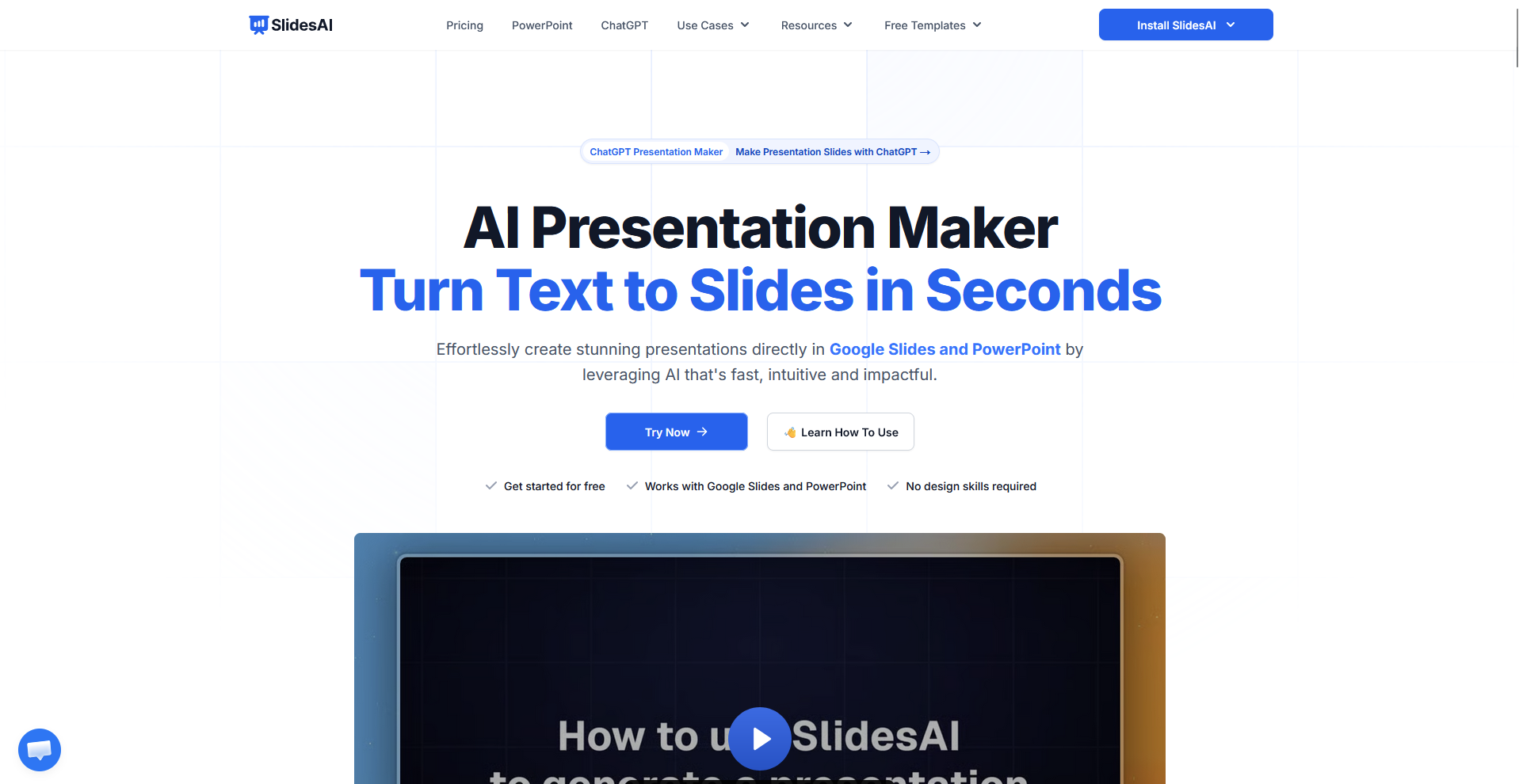
- What it does: SlidesAI is an AI presentation tool that converts a document, outline, or prompt into a full slide deck.
- Best for: Anyone who needs a working first draft out of raw notes without building slide by slide.
SlidesAI is built to turn a document or outline into a deck fast, so I tested it by pasting in a rough meeting outline from a mock client call to see how much editing the result needed. It sorted my notes into a logical slide order and picked reasonable section breaks on its own.
The design still leaned on generic stock layouts, so I spent extra time swapping in our own template before the deck was ready to send.
Key features
- Text-to-slide conversion: Turns a pasted document, outline, or prompt into a structured, multi-slide deck
- Customizable templates: Applies a design template to the generated deck, with options to swap it after generation
- Cross-platform support: Works as an add-in inside both PowerPoint and Google Slides
Pros and cons
| ✅ Pros | ❌ Cons |
| Turns a rough outline into a structured deck in one pass | Free tier limits how many decks you can generate before paying |
| Works the same way in both PowerPoint and Google Slides | Generated designs need a manual pass to match a company's own template |
| Freemium plan lets you test it on a real document before committing |
What users say
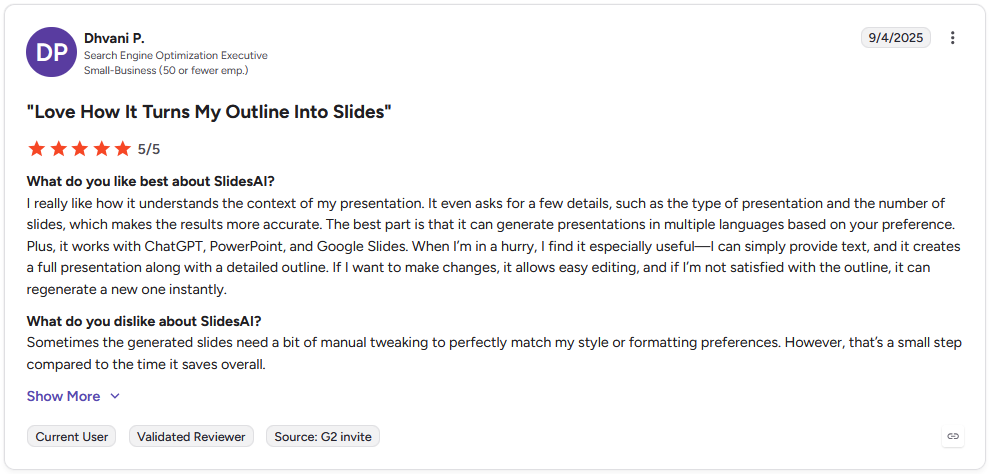
Pro: "I really like how it understands the context of my presentation. ... It can generate presentations in multiple languages based on your preference. Plus, it works with ChatGPT, PowerPoint, and Google Slides." - Dhvani P., G2
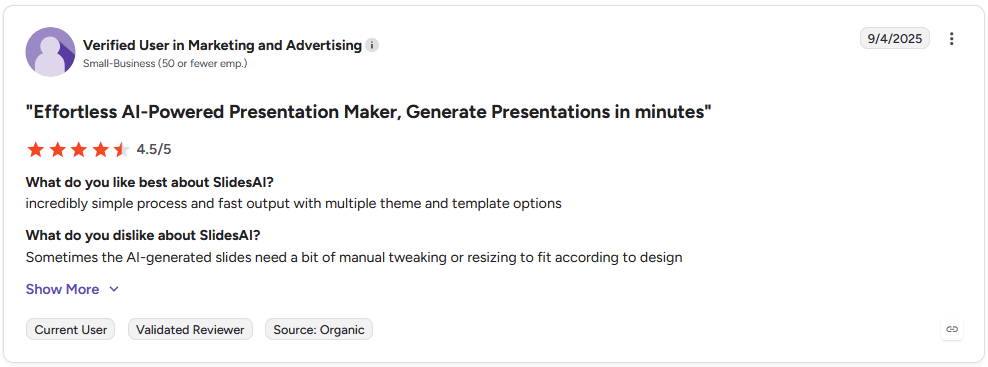
Con: "Sometimes the AI-generated slides need a bit of manual tweaking or resizing to fit according to design." - Verified User in Marketing and Advertising, G2
Pricing
SlidesAI starts at $10 per month.
Bottom line
SlidesAI works from a document or outline, which suits anyone who already has the content written and just needs it turned into slides. If keeping your exact wording intact matters more than automatic formatting, Plus AI could be worth checking instead.
2. Plus AI: Best for branded decks that keep your original wording
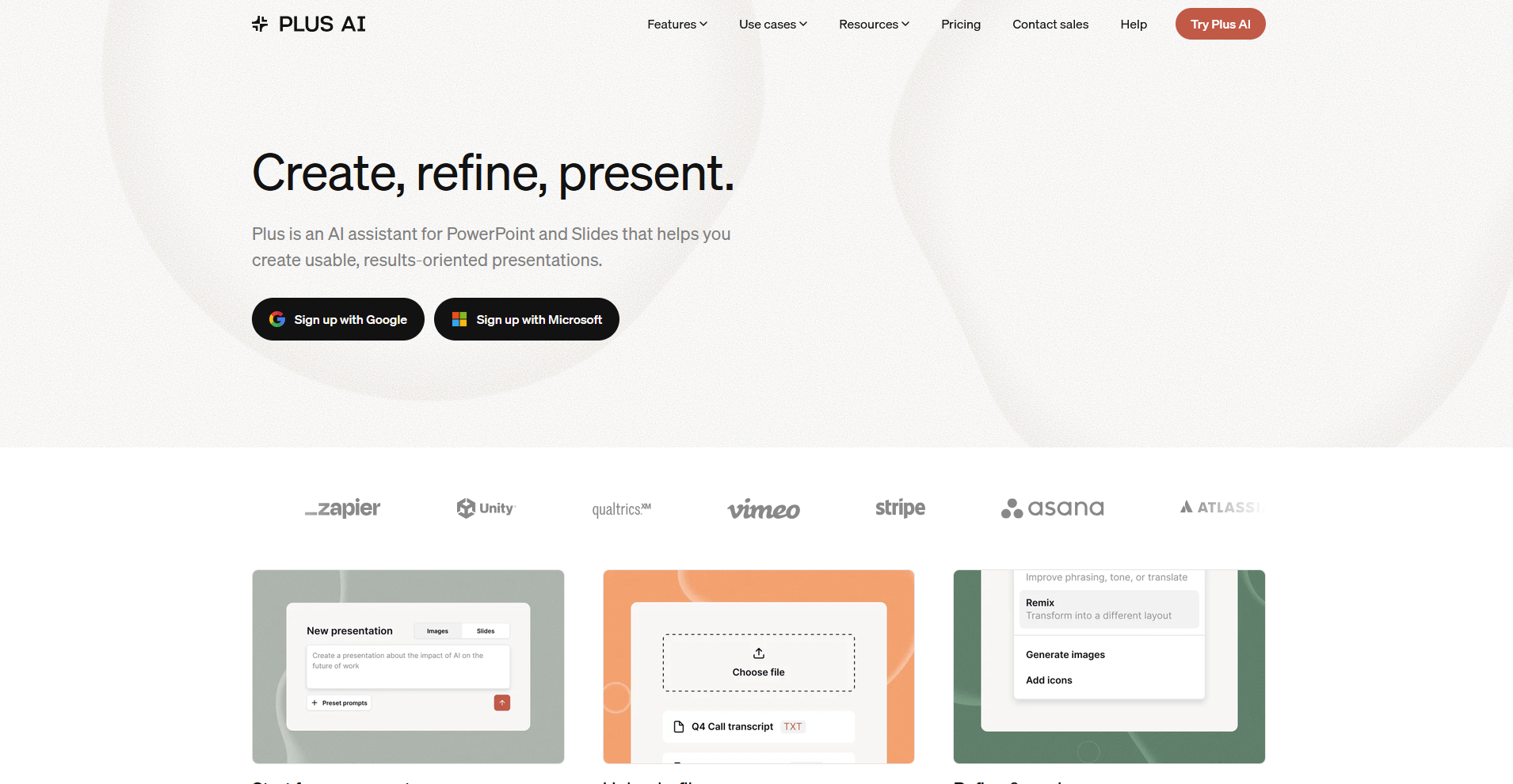
- What it does: Plus AI is an AI presentation tool that generates and edits decks natively inside PowerPoint and Google Slides.
- Best for: Teams that already have a branded template and want AI drafts to slot into it without a redesign.
To see how Plus AI handled an existing template, I loaded our company's branded PowerPoint file, then asked it to build a deck from a project update I'd already written out in full sentences. It kept my original phrasing intact and didn’t rewrite it into generic bullet copy. It also pulled in our logo and fonts automatically.
The generated slides still leaned on generic layouts underneath the branding, so I spent extra time adjusting spacing and image placement before the deck looked finished.
💡 Tip: Not sold on Plus AI? Check out our guide on the best Plus AI alternatives.
Key features
- Wording preservation: Builds slides from existing text without rewriting the original phrasing
- Custom branded templates: Applies a company's logo, fonts, and colors across every generated slide
- Native integration: Runs as an add-in directly inside PowerPoint and Google Slides, with no separate app to open
Pros and cons
| ✅ Pros | ❌ Cons |
| Keeps your exact wording | Credits-based usage caps how many decks you can generate each month |
| Applies your own branding automatically across a generated deck | Fully custom templates built from your own slide masters require an Enterprise plan |
| Works natively inside PowerPoint, so there's no export step |
What users say
Check out our in-depth Plus AI review to learn more about this tool.
Pricing
Plus AI starts at $10 per user per month.
Bottom line
Plus AI builds around text you've already written, which matters if the exact phrasing in a deck needs to survive the AI pass. For a lighter, template-free option with more automatic layout polish, Beautiful.ai might be a better fit.
3. Beautiful.ai: Best for automatic layout fixes for solo presenters
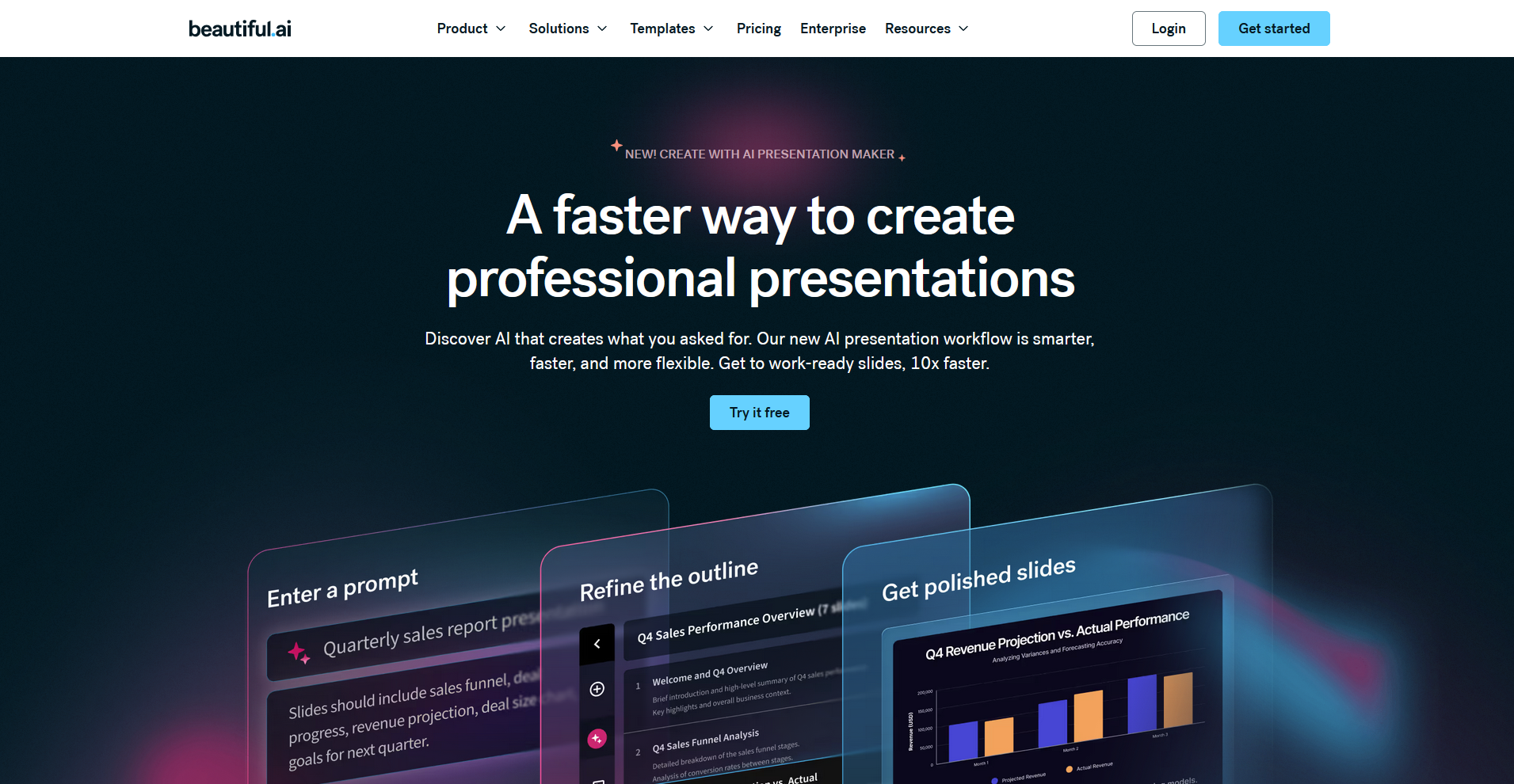
- What it does: Beautiful.ai is an AI-assisted presentation tool that adjusts slide layout and spacing automatically as content gets added.
- Best for: Someone building a deck alone who wants formatting handled without opening a separate design tool.
Beautiful.ai works by reflowing a slide's layout every time content changes, so I put that to the test by loading a quarterly review slide and swapping in a longer chart title mid-edit. The spacing and alignment adjusted on their own instead of overlapping the chart underneath.
When I pasted in a dense block of text from a report, the layout squeezed the font down so small that I had to trim the copy manually to keep it readable.
💡 Tip: Not sold on Beautiful.ai? Check out our guide on the best Beautiful.ai alternatives.
Key features
- Automatic layout adjustment: Reflows spacing, sizing, and alignment on a slide whenever content is added or edited
- Pre-designed templates: Applies a set of built-in slide templates to a new or existing deck
- Smart formatting engine: Keeps fonts, colors, and element positioning consistent across every slide in a deck
Pros and cons
| ✅ Pros | ❌ Cons |
| Adjusts layout automatically as content changes, without manual reformatting | Dense text blocks get shrunk to fit |
| Keeps formatting consistent across every slide without a style guide | Works best inside its own editor, so importing an existing PowerPoint deck loses some formatting |
| Built-in templates give a starting structure without a blank canvas |
What users say
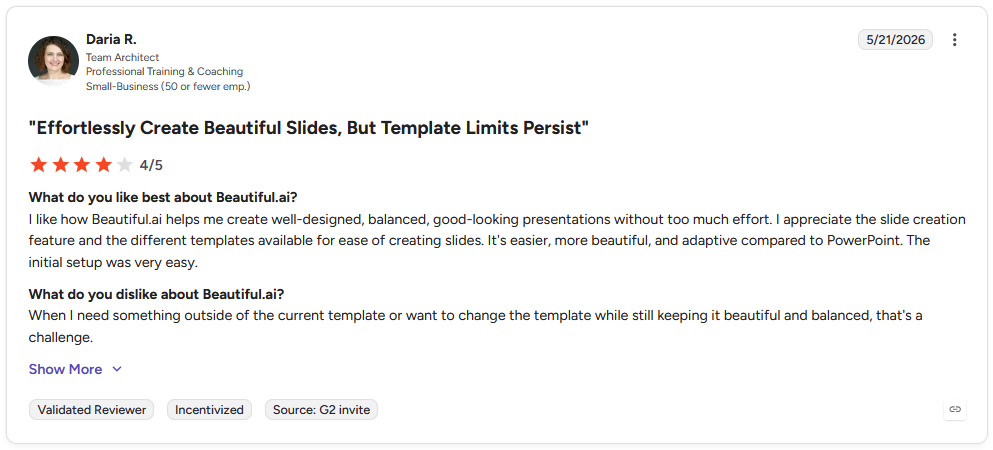
Pro: "I like how Beautiful.ai helps me create well-designed, balanced, good-looking presentations without too much effort. … It's easier, more beautiful, and adaptive compared to PowerPoint." - Daria R., G2
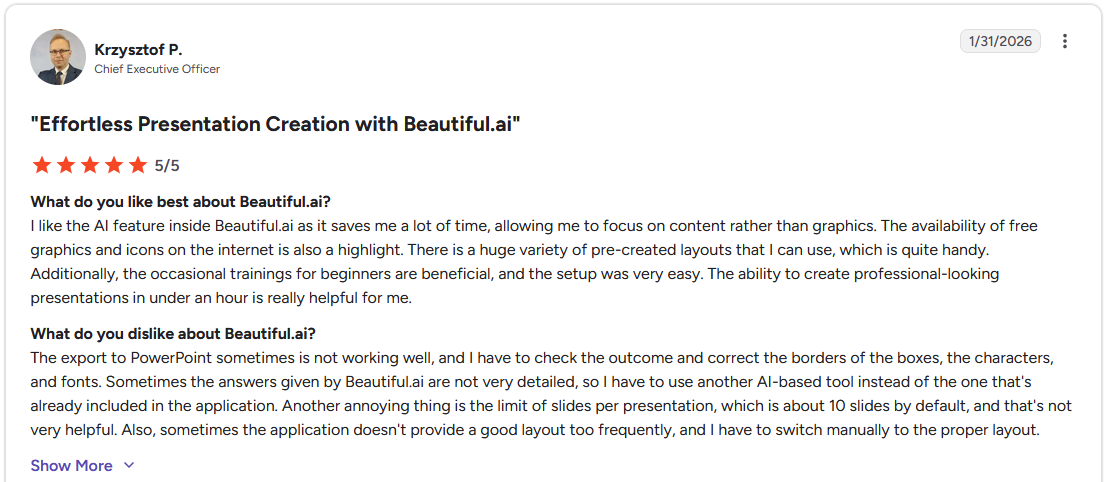
Con: "The export to PowerPoint sometimes is not working well, and I have to check the outcome and correct the borders of the boxes, the characters, and fonts. Sometimes the answers given by Beautiful.ai are not very detailed, so I have to use another AI-based tool." - Krzysztof P., G2
Pricing
Beautiful.ai starts at $14.50 per month.
Bottom line
Beautiful.ai handles layout and spacing continuously as you edit instead of only formatting a deck once at generation. If the deck needs to start from an outline you've already written, SlidesAI is worth a look instead.
Special mentions
A few more tools came up in testing that didn't earn a full section. Each one solves a narrower problem well:
AI assistants in PowerPoint
- ChatGPT for PowerPoint: A ribbon-based AI assistant, ChatGPT for PowerPoint turns notes or an existing deck into revised, editable slides. I had it rewrite a client update's titles for a shorter tone, and the edits stayed inside PowerPoint's own text boxes. It's still in beta, so some slides needed manual cleanup.
- Claude for PowerPoint: Claude for PowerPoint is an AI assistant that reads an existing deck's slide master, fonts, and colors before editing. I asked it to add a market data slide to a branded template, and it matched the formatting on the first try. It only runs on paid Claude plans.
Data, charts, and financial modeling
- Think-cell: Think-cell is a charting add-in built around live Excel links. I built a waterfall chart from a budget file and watched it update once I changed a figure in the spreadsheet. Anyone without Think-cell installed can still open and edit the file, though they lose access to Think-cell's own editing tools until they install it too.
- Power-User: A slide design add-in built around Excel-linked charts, Power-User refreshes a chart automatically once the linked sheet changes. I linked an Excel table to a slide and watched the numbers update without reopening PowerPoint. It only runs on Windows, so Mac users can't install it at all.
- UpSlide: UpSlide is a Microsoft 365 add-in built around brand compliance for finance decks. I ran its consistency check on a pitch deck with a mismatched font size on one slide and an outdated revenue figure carried over from an old template, and it caught both before I sent the file. The AI review only runs inside PowerPoint.
Diagrams and visual structure
- Lucidchart Diagrams: Lucidchart Diagrams is a diagramming add-in that inserts flowcharts, org charts, and wireframes into a slide. I built an org chart in Lucidchart and dropped it into a slide. When I later changed a job title, the slide didn't update on its own, so I had to reinsert the whole chart.
- BrightSlide: BrightSlide is a free productivity add-in built around PowerPoint shortcuts for basic alignment work, skipping the need for a paid tool. I used its Select Objects tool to change the fill color on a dozen shapes in one pass instead of clicking each one. The shortcuts only work on the Windows version.
- Lucen Timeline: Lucen Timeline is a Gantt chart and roadmap add-in for PowerPoint, previously known as Office Timeline. I built a roadmap from a milestone spreadsheet, and it laid the phases out in color-coded swimlanes I could drop straight into a client update. Multiple timelines and dependency tracking sit behind the paid tier.
Visual assets
- Pexels: Pexels is a stock photo website with an add-in that searches a free image library and drops the result onto a slide. I searched for a specific warehouse floor shot for a logistics deck and ended up choosing a more generic image. The library leans toward broad, generic photography.
- The Noun Project: An icon library add-in built around a huge catalog of styles, The Noun Project swaps cluttered bullet points and clip art for a consistent icon set. I dropped matching icons onto a services slide and recolored them to match our brand. The free tier requires attribution on every icon.
- remove.bg: remove.bg is a background removal tool built around automatic detection, skipping the manual selection work a design tool usually needs. I ran a product photo through it for a sales deck and had a clean cutout ready in a couple clicks. The free tier caps the exported resolution.
Audience engagement
- Mentimeter: Mentimeter is a live polling add-in that embeds real-time polls, quizzes, and word clouds into a slide during a presentation. I ran a live poll during a team meeting and watched the results populate on-screen as responses came in. Participants need a device and a data connection to vote.
How to install a PowerPoint add-in
PowerPoint has two kinds of add-ins.
Task pane add-ins open a panel beside your slide to bring in reference information or insert content from a service, like Pexels. Content add-ins embed dynamic content directly on a slide, like a live chart or web element.
For most add-ins, installation is quick:
- On the Home tab, select Add-ins. If you have an older version of PowerPoint, you may need to check the Insert tab.
- Choose an add-in from the list, or select More Add-ins to browse the Microsoft Store.
- Select the add-in, then select Add, and follow the prompts.
Microsoft's official guide to adding and loading add-ins walks through the same steps with screenshots. Older, classic add-ins come as .ppam files that you load under File, Options, Add-ins instead.
💡 One note on trust: Install from the Microsoft Store when you can, since those add-ins go through a review process before they're listed. Only sideload a .ppam file from a source you trust, since an add-in runs code inside PowerPoint and a bad one can carry malware.
Which PowerPoint Add-In Should You Choose?
The decision here comes down to how much structure you're already starting from and whether an existing brand template needs to survive the AI pass intact.
Choose SlidesAI if you:
- Already have a document, brief, or set of meeting notes and need them turned into a deck
- Split your work between PowerPoint and Google Slides and want one tool that behaves the same way in both
- Don't mind trading some polish for speed, since a freemium plan lets you test the output before paying for more credits
Choose Plus AI if you:
- Have already written the exact wording for a deck and can't risk an AI pass rewriting it into generic bullet copy
- Work inside a company template that needs the logo, fonts, and colors applied automatically to every new slide
- Want to stay inside PowerPoint the whole time, without exporting a draft from a separate app
Choose Beautiful.ai if you:
- Build decks alone and would rather the layout adjust itself than spend time aligning objects by hand
- Add or edit content often and want spacing to stay consistent without checking it against a style guide
- Don't need a company template to start from, since the built-in layouts give you a starting structure
Skip this category entirely if:
- Your deck's real bottleneck sits in the underlying data or analysis behind it, and no slide add-in solves that
- You only build one or two decks a year, since installing and learning any of these adds more overhead than it saves
- Your team already runs presentations through a single locked template maintained by hand, and that process works fine without an AI layer added on top
Do the analysis and build the deck in one place
Most of these PowerPoint add-ins polish a deck once the numbers are already there. The step before that, turning raw data into the numbers and charts that go on the slide, still happens somewhere else, usually a spreadsheet or a request sent over to the data team.
Julius handles both steps. It's an AI data analysis tool that turns a question into the charts and analysis a deck needs, then builds the presentation itself without handing that work off to another tool.
Here's how Julius helps:
- Start from a question: Ask Julius to pull public data or live financial data for over 17,000 companies through its Financial Datasets integration, so you can start an analysis before you've uploaded anything
- Connect your own data too: Link databases like PostgreSQL, Snowflake, and BigQuery, or upload a CSV or Excel file, so the analysis behind your deck reflects live data.
- Turn the analysis into a full deck: Move straight from your charts and visuals into Julius's AI Presentation Maker to build the rest of the presentation without switching tools
Ready to stop wrestling with data before you can even start your deck? Try Julius for free today.
Frequently asked questions
What is a PowerPoint add-in?
A PowerPoint add-in is a small program that installs inside PowerPoint and adds new features, such as chart builders, icon libraries, or AI slide generators. Add-ins appear under the Add-ins button, which you'll find on the Home tab in newer versions of PowerPoint, or the Insert tab in older versions.
Are PowerPoint add-ins free?
Yes, some are. BrightSlide and Pexels are free, while tools like think-cell and Power-user require a paid plan for full use. Many paid add-ins offer a free tier or trial so you can test them before committing.
Are PowerPoint add-ins safe to install?
Yes, add-ins installed from the Microsoft Store are safe, because Microsoft reviews them before listing. Be more cautious with classic .ppam files you download from the web, since an add-in runs code inside PowerPoint. Install from a trusted source only.
What is the best PowerPoint add-in for charts?
think-cell is the best PowerPoint add-in for charts, especially waterfall, Mekko, stacked, and Gantt charts that native PowerPoint handles poorly. It links to Excel so your charts update automatically when the source data changes.