PowerPoint Table Templates for Data Slides
A table is useful only when the audience can see the decision inside it. Compare six presentation formats for side-by-side choices, status, ownership, plans, and evidence.
Browse the collection
Explore PowerPoint Table Templates
Explore complete examples for financial tables, comparisons, KPI reviews, project plans, charters, and decision-ready business cases.
Choose by decision
Use the smallest table that makes the answer visible
Presentation tables should reduce cognitive work. They need a clear question, comparable columns, consistent units, and enough visual hierarchy to direct the audience to the exception or recommendation.
The featured collection covers common business table patterns. Use a specialist deck when the table belongs inside a larger comparison, performance review, project plan, charter, or investment decision.
- Options
- 6 decision and reporting formats
- Best for
- Comparisons, status, ownership, and plans
- Format
- Editable widescreen slides
Compare the options
Choose what the table needs to help people decide
Start with the relationship you need to show: alternatives, targets, work, authority, or investment. The right format will give that relationship a natural place in the narrative.
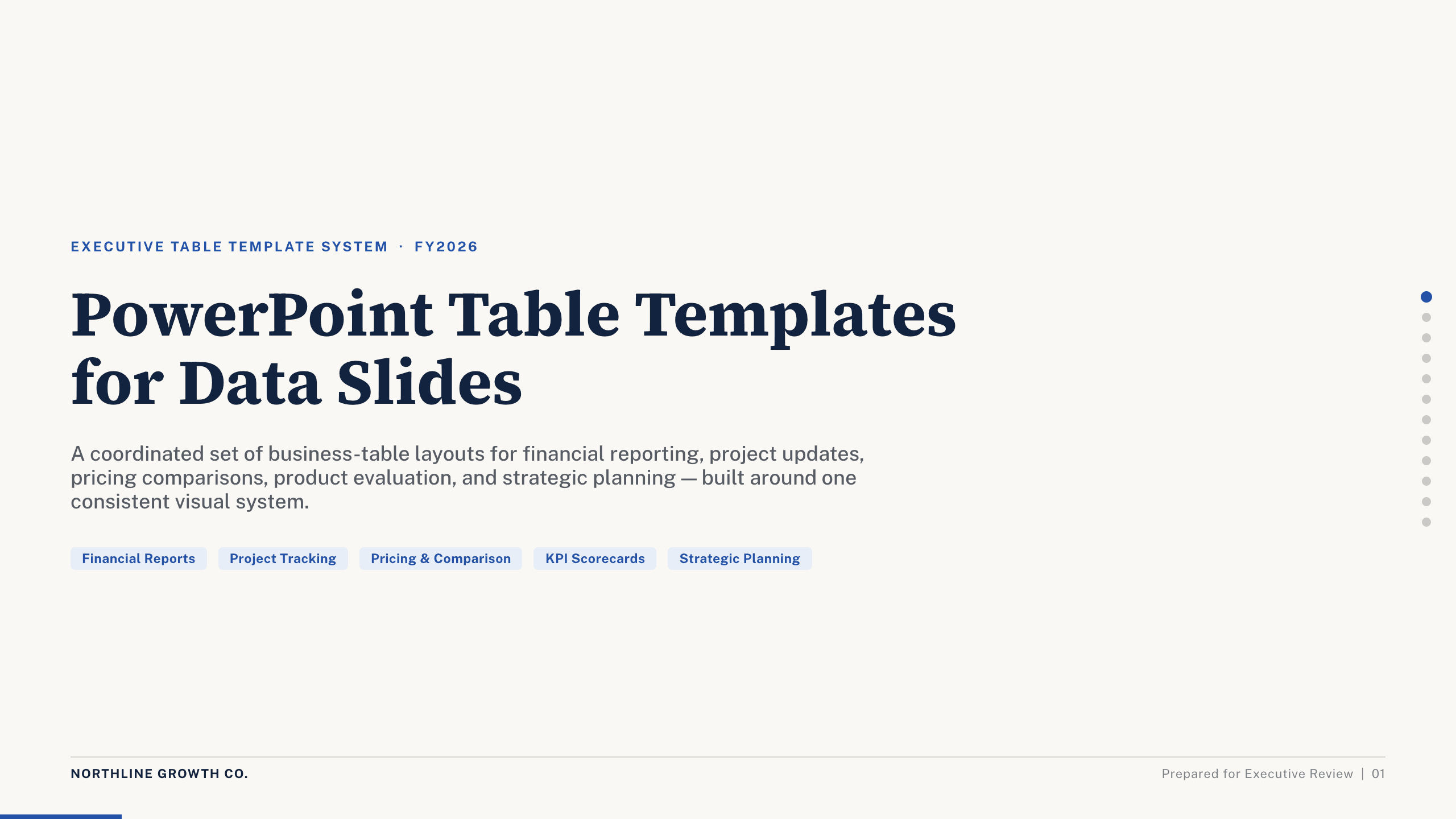
Best for
A deck with several kinds of business tables
Business table collection
Use worked layouts for revenue, features, pricing, initiatives, roadmaps, budget versus actual, KPIs, risk, RACI, and an executive summary.
Preview this collection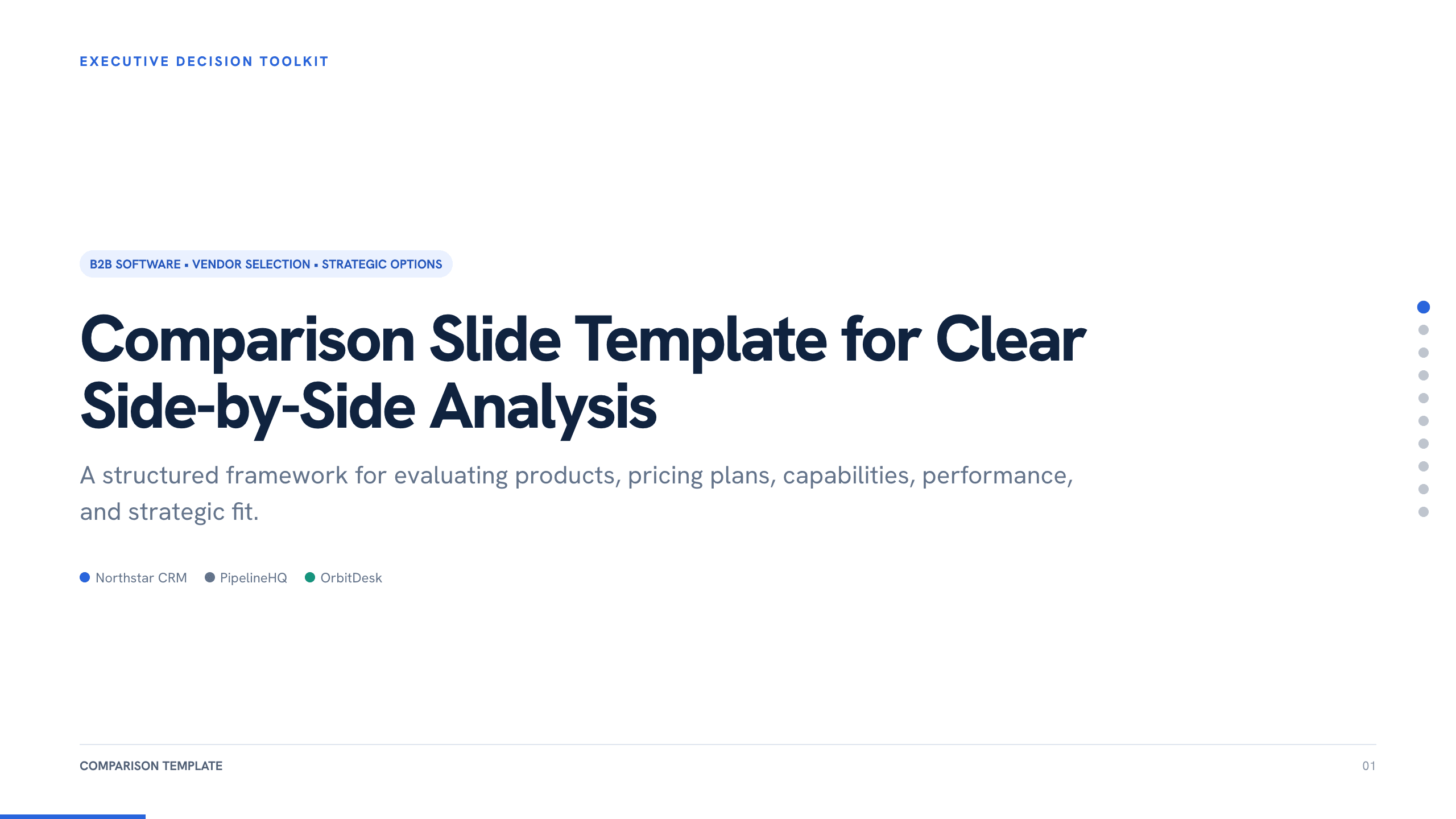
Best for
Vendors, products, plans, and options
Comparison Slide Template
Define fair criteria, place alternatives side by side, and make the meaningful differences and final recommendation easy to scan.
View template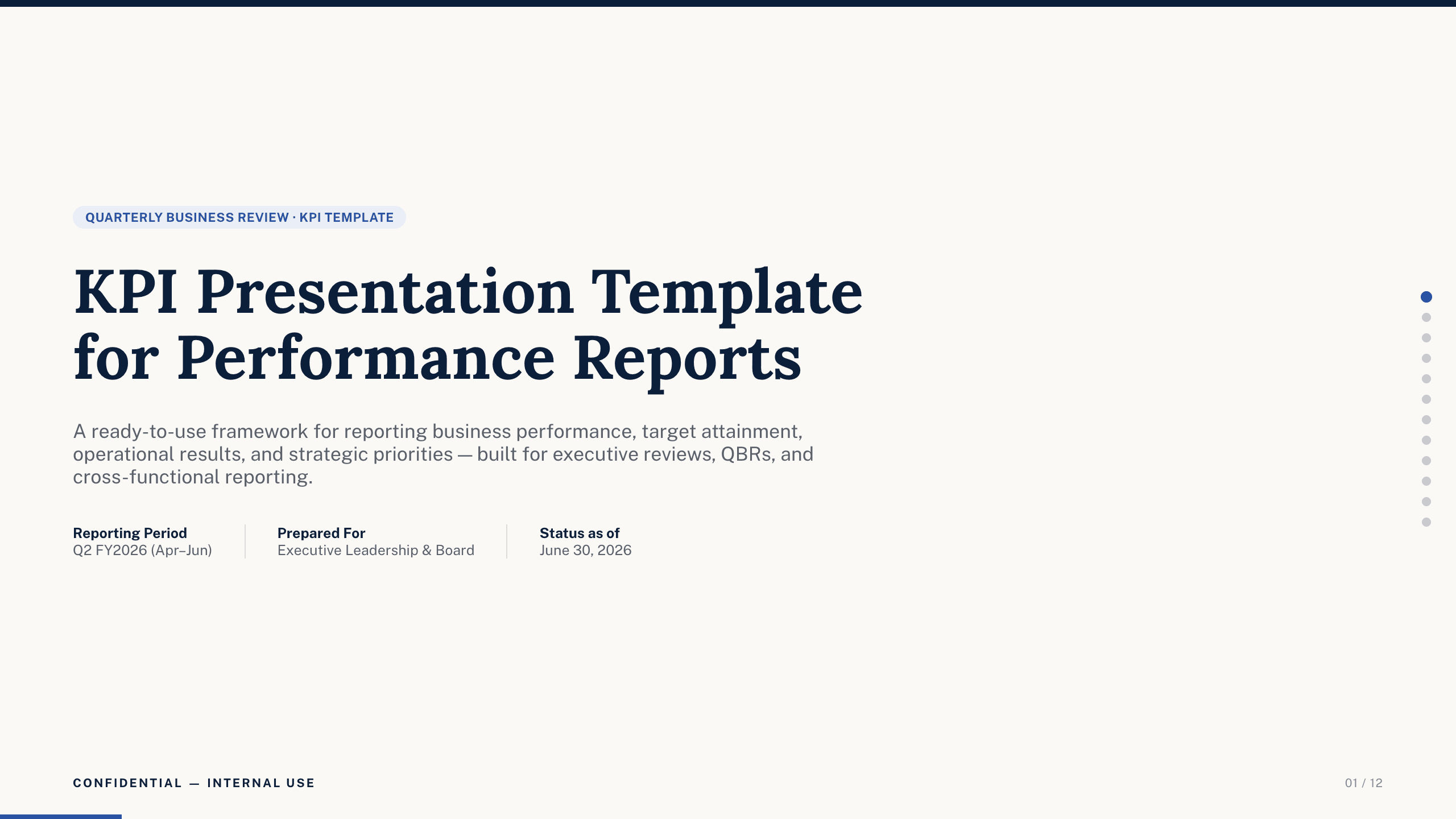
Best for
Scorecards and operating reviews
KPI Presentation Template
Organize targets, current results, trends, drivers, exceptions, owners, and corrective actions around a performance conversation.
View template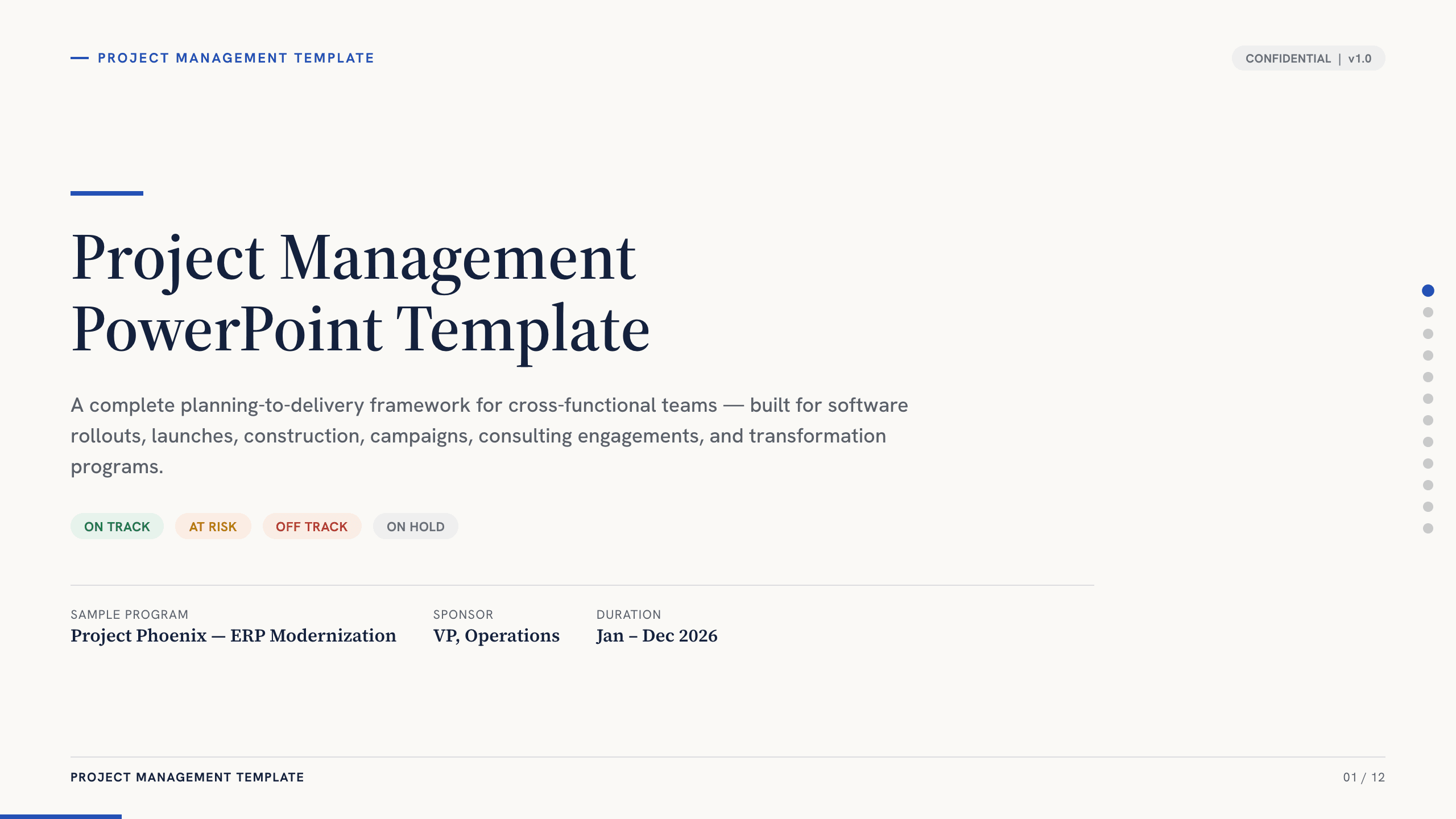
Best for
Status reviews and delivery planning
Project Management PowerPoint Template
Put scope, workstreams, owners, schedule, milestones, resources, status, dependencies, risks, and next actions into one project narrative.
View template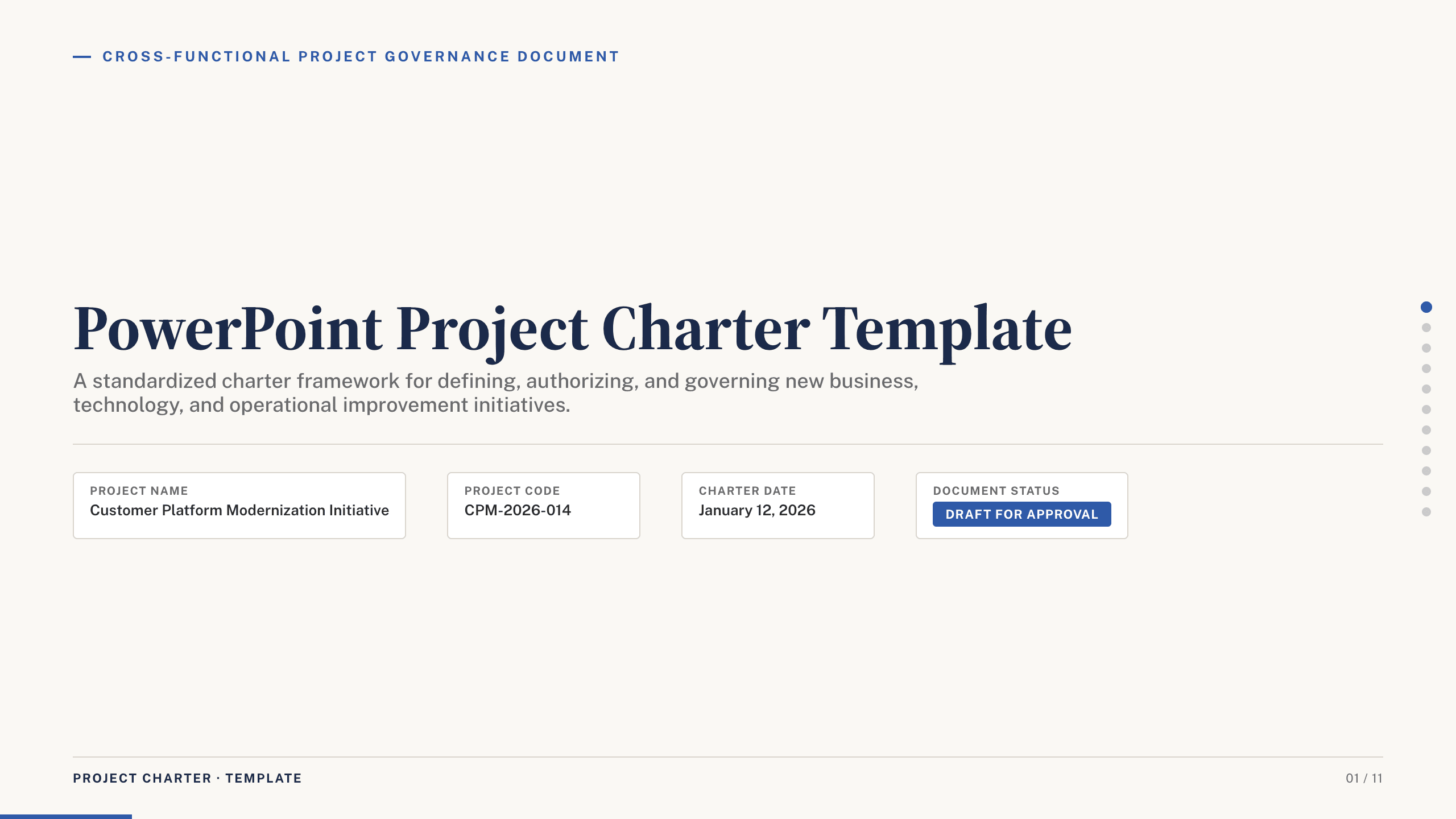
Best for
Project authorization and alignment
PowerPoint Project Charter Template
Clarify the mandate, objectives, scope, deliverables, governance, milestones, assumptions, constraints, risks, and approvals before work begins.
View template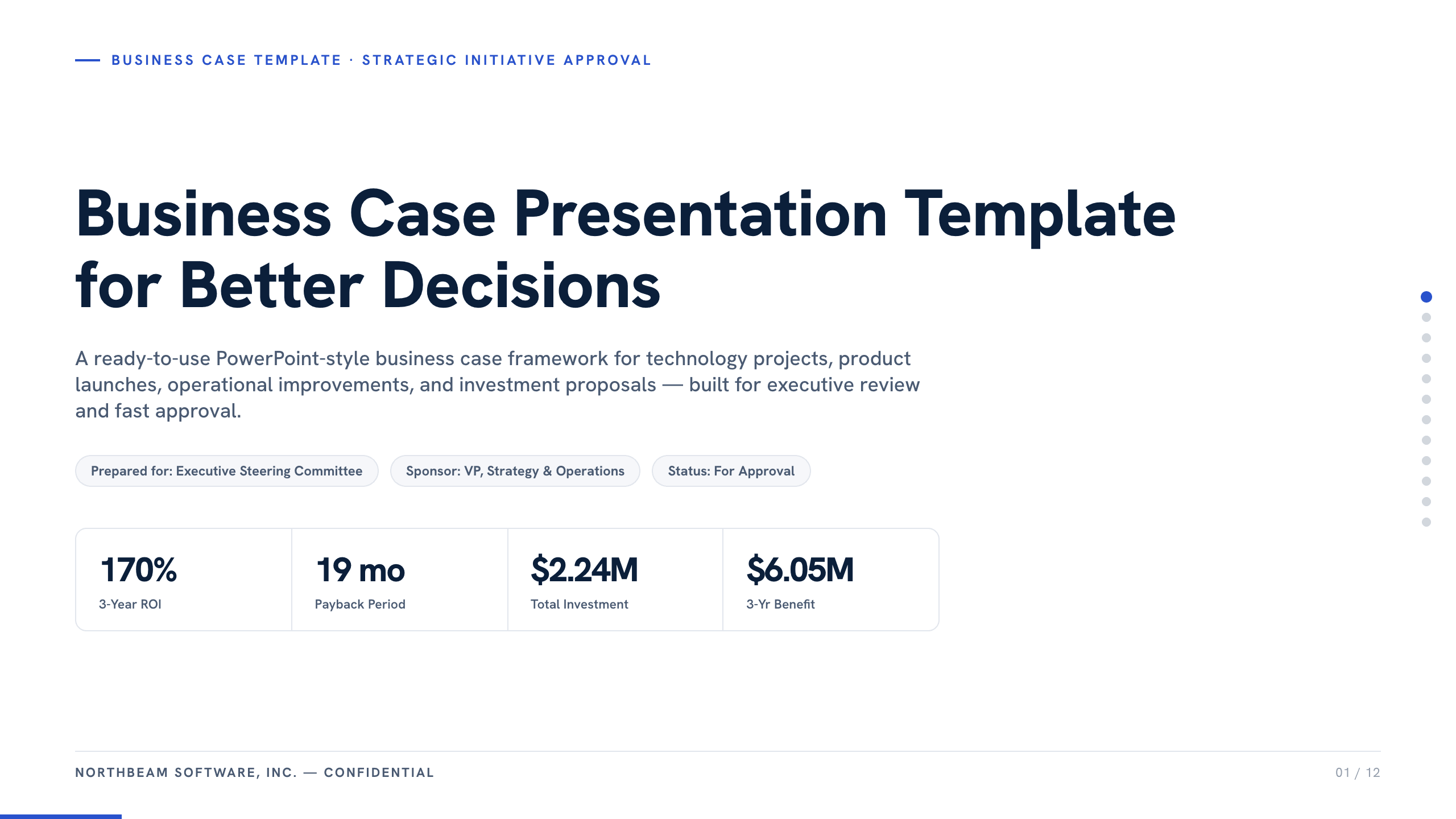
Best for
Investment and approval decisions
Business Case Presentation Template
Place cost, benefit, options, risk, timing, and implementation evidence inside a complete argument for one recommended decision.
View templateMake the choice
Choose the relationship before choosing the layout
Tables are strongest when every row and column has a job. If the audience cannot name the question the table answers, simplify it or use another visual.
- 1
For alternatives, keep criteria consistent
Use the comparison or business-case format and resist changing definitions, time periods, or units between columns.
- 2
For performance, direct attention to variance
Use the KPI or table collection and emphasize the gap, driver, owner, and next action, not every value with equal weight.
- 3
For delivery, make ownership explicit
Use the project or charter format when workstreams, milestones, dependencies, decision rights, and accountable owners matter most.
Customize a design from PowerPoint Table Templates with Julius AI
1
Compare the complete previews
Open the live 16:9 decks and choose the structure that best fits your audience and presentation goal.
2
Add your content and direction
Give Julius AI your source material, evidence, audience, constraints, and desired outcome.
3
Review and export
Check the narrative, facts, and design, then export an editable version to PowerPoint for final delivery.