PowerPoint Table of Contents Template
Choose from 12 PowerPoint table-of-contents layouts for reports, proposals, consulting decks, training, projects, and presentations that need clear navigation.
Preview the 12-slide PowerPoint Table of Contents Template
Explore all 12 navigation-ready treatments, including classic numbered, chapter, timeline, process, grid, visual, and summary-led contents layouts.
What you're getting
A table-of-contents toolkit for decks people can navigate
This 12-slide PowerPoint template provides multiple navigation patterns for different story structures: numbered chapters, processes, timelines, grouped themes, visual sections, and summary-led agendas. Each layout is designed for widescreen readability.
Choose the contents style after the storyline is stable. Rename sections with short, parallel labels, keep the order consistent with the actual deck, and use hyperlinks only after slide positions are unlikely to change.
- Included
- 12 navigation layouts
- Best for
- Longer decks and reports
- Export
- Editable PowerPoint
Built for
Consultants structuring a client deck
Teams creating a clear chapter logic that supports signposting and executive navigation.
Project teams presenting a proposal
Owners organizing context, approach, scope, plan, economics, team, and decision into visible sections.
Trainers building a learning deck
Facilitators showing modules, sequence, timing, progress, and return points for participants.
Getting started
Match the contents layout to the logic of the story
The agenda should help the audience predict the journey, not repeat every slide title in smaller type.
- 1
Finalize the chapter structure
Group the deck into a small number of distinct sections with a clear narrative order.
- 2
Choose the matching layout
Use numbered, process, timeline, grid, or visual contents only when it reflects the story logic.
- 3
Write parallel labels
Keep section names short, specific, and grammatically consistent.
- 4
Add navigation carefully
Apply section numbers, progress markers, or hyperlinks after slide order and destinations are stable.
- 5
Check presentation mode
Verify legibility, link behavior, current page indicators, and consistency across section dividers.
Explore more
Related templates worth comparing
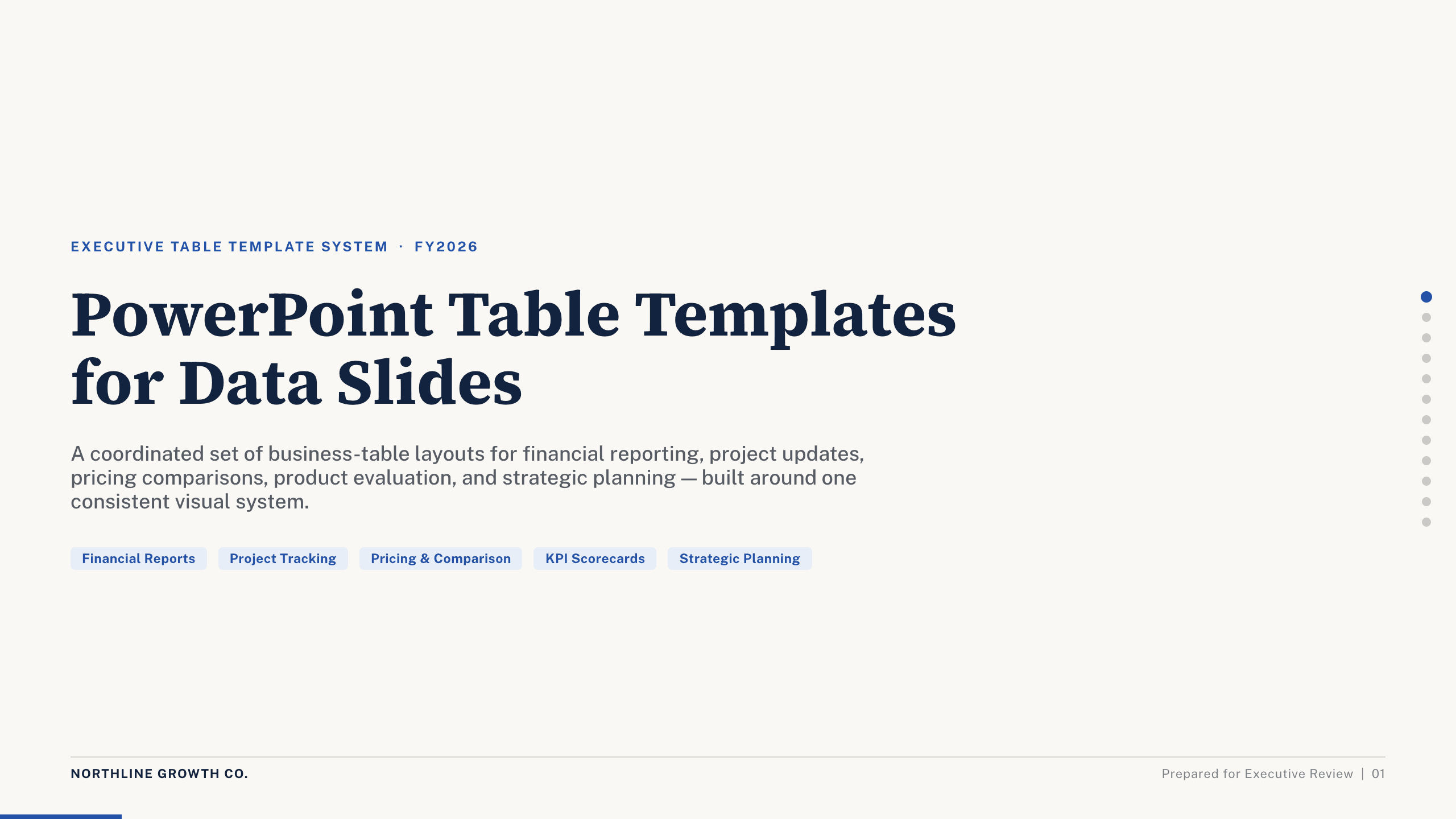
PowerPoint Table Templates
Inspect a 12-slide featured example and find a starting point for data slides.
Browse collection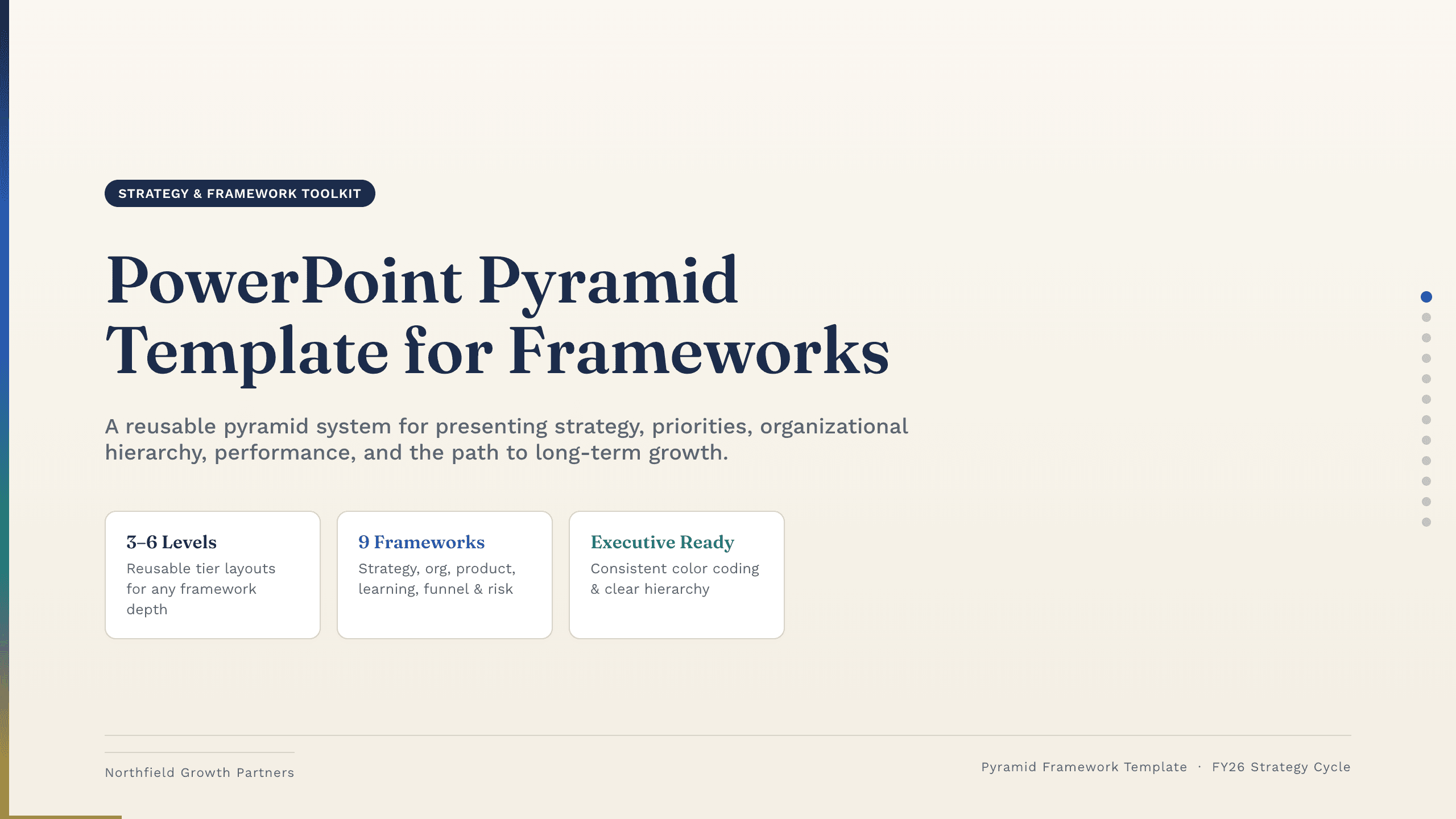
PowerPoint Pyramid Template
Use 12 PowerPoint pyramid layouts to explain strategy, priorities, capability maturity, organizational levels, performance, and staged growth.
View template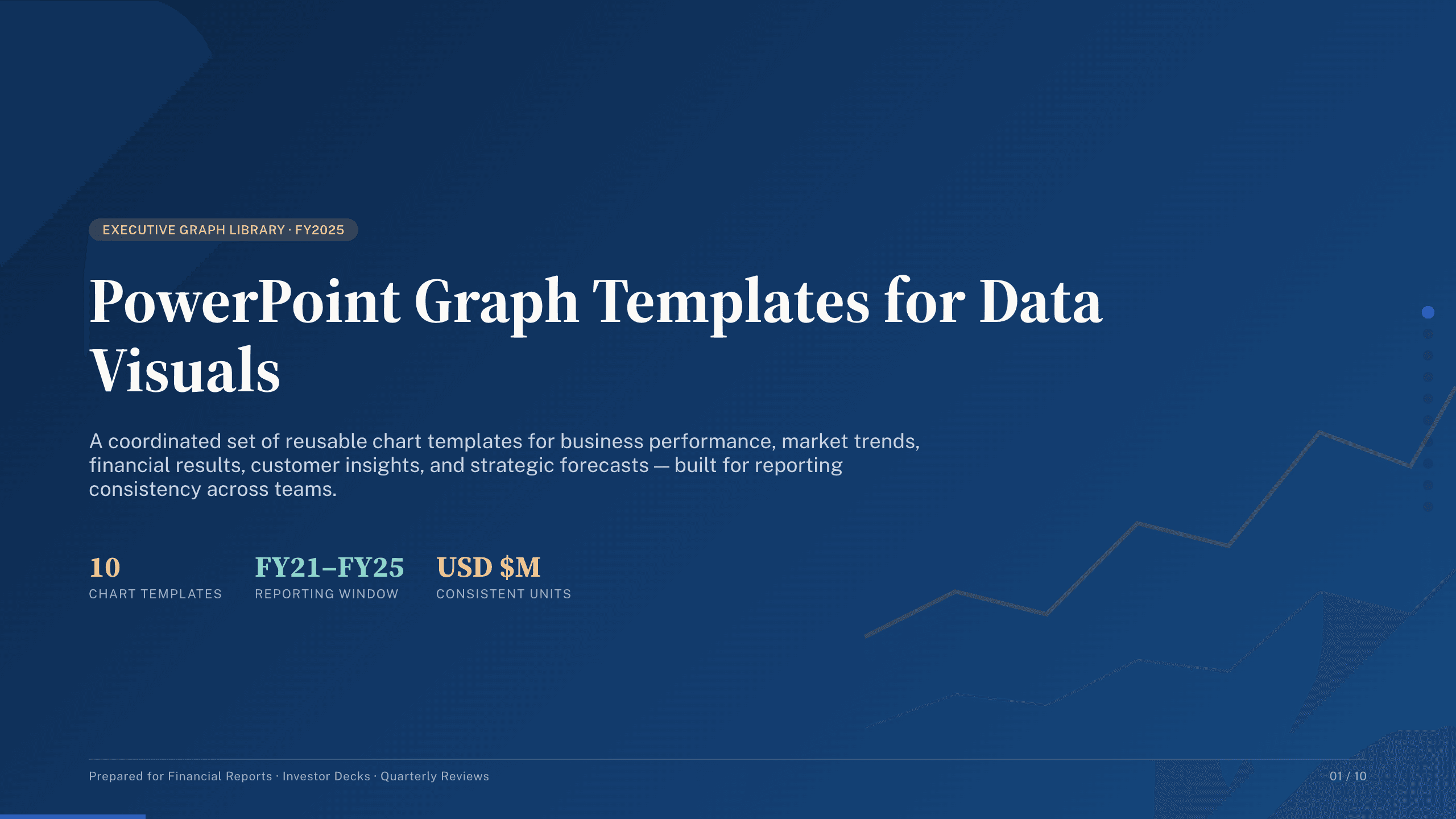
PowerPoint Graph Templates
Inspect a 10-slide featured example and find a starting point for data visuals.
Browse collection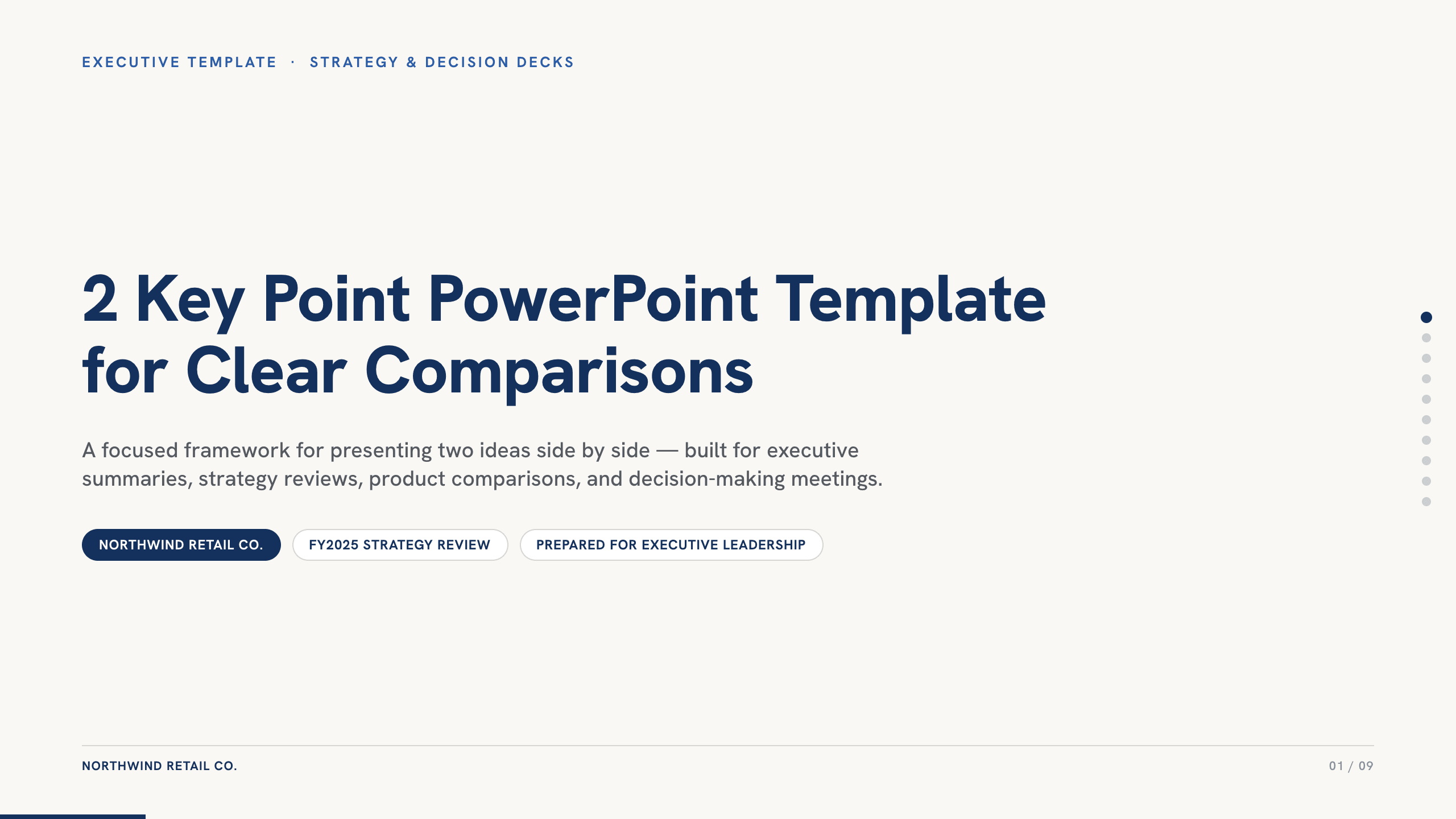
2 Key Point PowerPoint Template
Present two essential ideas with 10 PowerPoint layouts for priorities, paths, comparisons, risks, findings, scenarios, decisions, and executive recommendations.
View template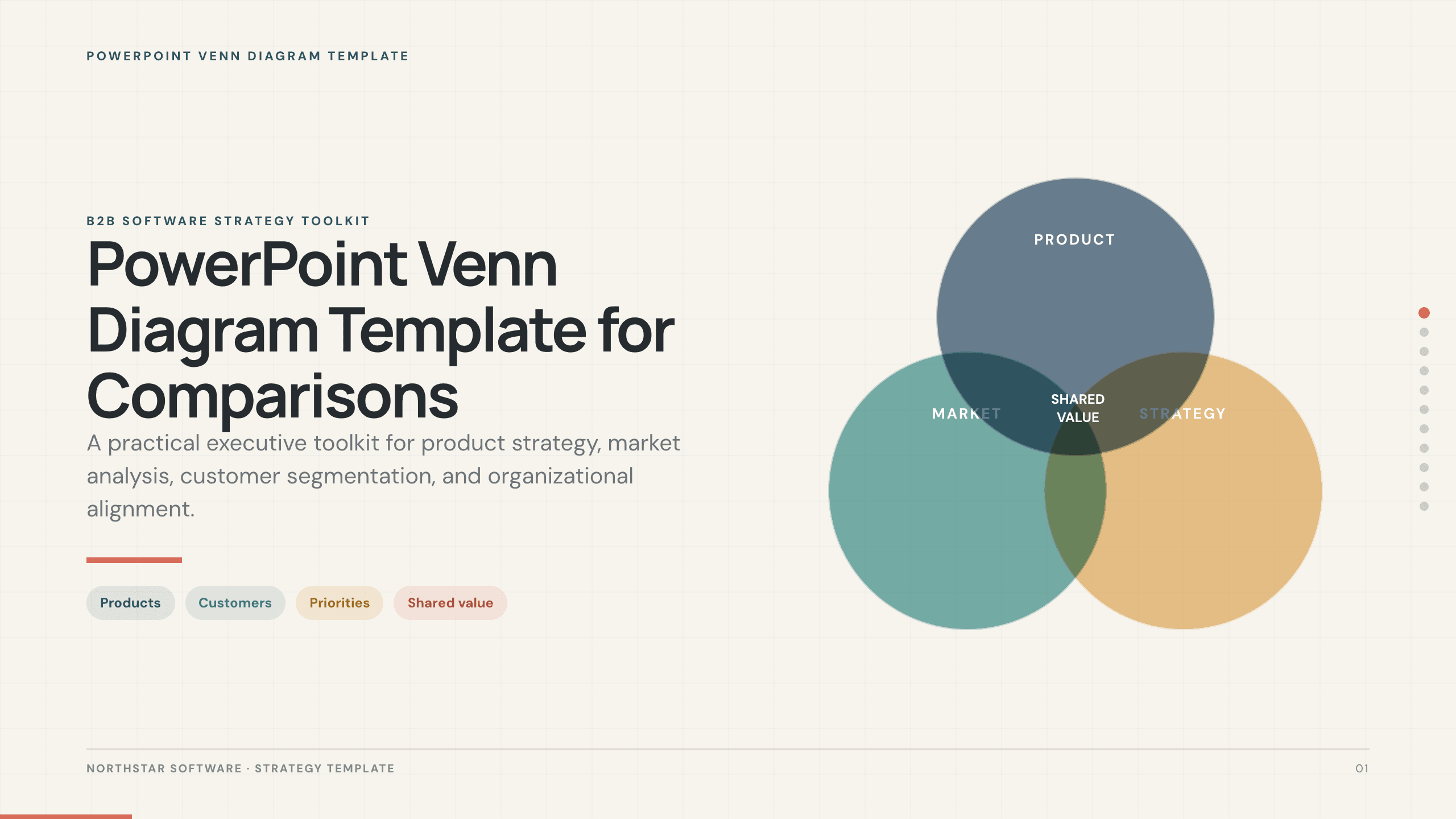
PowerPoint Venn Diagram Template
Use 11 PowerPoint Venn diagram slides to compare markets, products, audiences, capabilities, responsibilities, and strategic intersections.
View template
Quad Chart PowerPoint Template
Summarize an initiative in 10 PowerPoint quad charts covering objective, status, approach, milestones, budget, risks, recommendation, and decisions.
View templateExplore other template hubs
Customize the PowerPoint Table of Contents Template with Julius AI
1
Preview the complete example
Inspect all 12 slides to understand the narrative, layouts, and level of detail before replacing the example content.
2
Add your content and direction
Give Julius AI your source material, evidence, audience, constraints, and desired outcome.
3
Review and export
Check the narrative, facts, and design, then export an editable version to PowerPoint for final delivery.