2 Picture Slide Template for Side-by-Side Images
Use nine two-picture slide layouts for clear before-and-after, option, person, place, product, portfolio, and process comparisons with minimal supporting copy.
Preview the 9-slide 2 Picture Slide Template
Review every paired-image treatment, from opposing directions and before-and-after views through people, projects, places, process, and visual conclusions.
What you're getting
Paired-image layouts that make the relationship obvious
This nine-slide template gives two images equal or deliberately unequal roles across comparisons, portfolios, people, places, products, and sequences. Consistent framing and concise labels keep the relationship readable.
The layouts work best when the pairing has a clear reason: change over time, alternatives, cause and outcome, detail and context, or two parts of one story. Use high-resolution images with compatible crops and permission to share.
- Included
- 9 paired-image layouts
- Best for
- Visual comparisons
- Export
- PowerPoint or Google Slides
Built for
Product teams comparing options
Presenters showing concepts, states, competitors, workflows, or results with direct visual evidence.
Designers building a portfolio
Creators pairing context and detail, process and outcome, or two related projects without a crowded grid.
Teachers explaining change
Educators using two images to prompt observation, comparison, sequencing, or discussion.
Getting started
Give every image pair one clear relationship
Write the point of comparison before choosing the layout so the visual balance supports the intended conclusion.
- 1
Name the relationship
Decide whether the pair shows alternatives, time, cause, scale, context, detail, or contrast.
- 2
Choose comparable images
Use photographs or graphics with enough resolution and similar visual weight for the chosen frame.
- 3
Crop with intent
Align subjects, horizon, scale, or focal point when comparison matters; break symmetry only for emphasis.
- 4
Write concise labels
Add the minimum title, date, metric, or caption needed to understand what differs.
- 5
Check rights and accessibility
Confirm usage permission and add meaningful alternative text or spoken description where needed.
Explore more
Related templates worth comparing
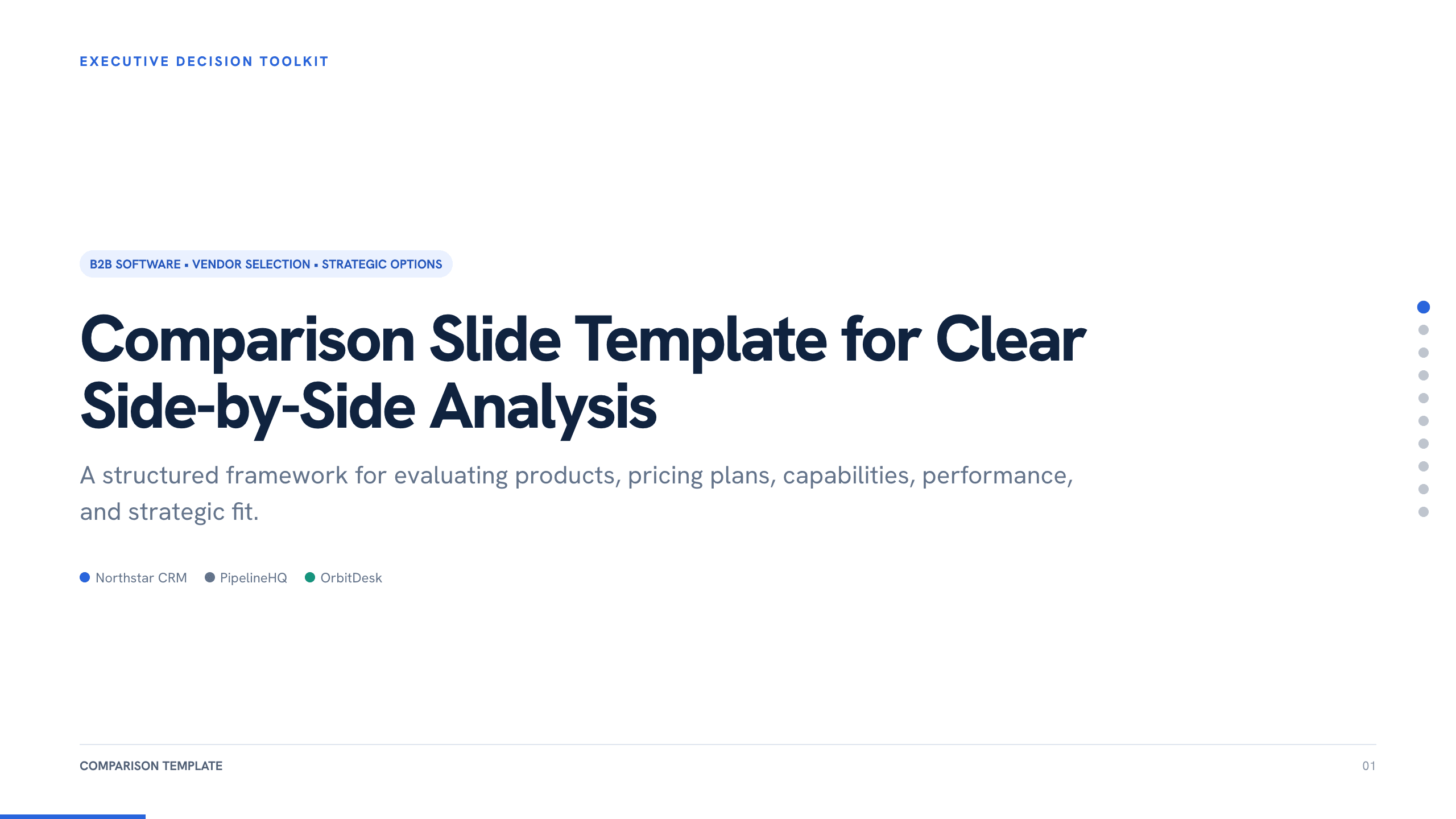
Comparison Slide Template
Make a defensible choice with 10 comparison slides for requirements, capabilities, pricing, implementation, trade-offs, scoring, and recommendation.
View template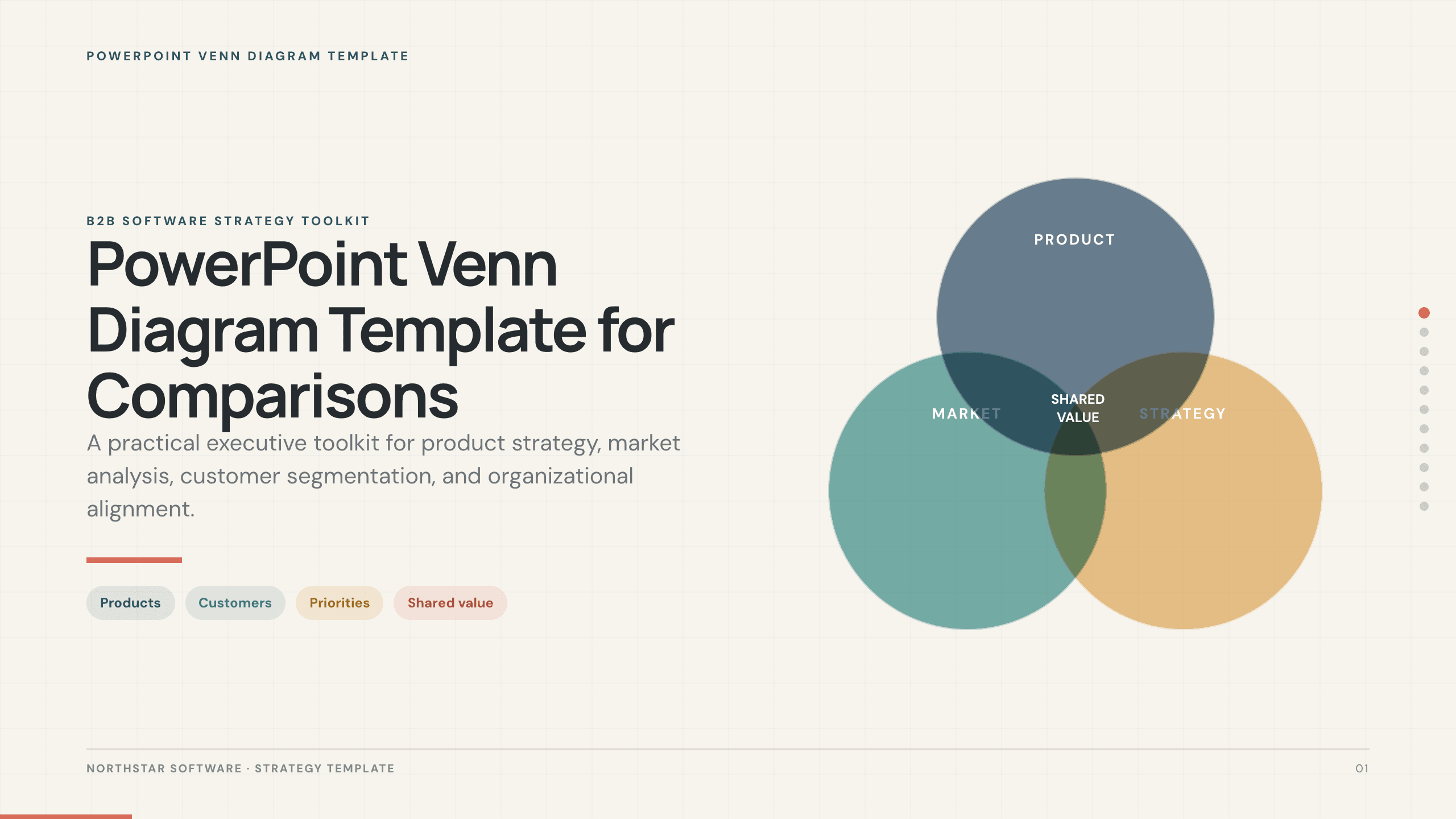
PowerPoint Venn Diagram Template
Use 11 PowerPoint Venn diagram slides to compare markets, products, audiences, capabilities, responsibilities, and strategic intersections.
View template
UX Case Study Presentation Template
Build a 12-slide UX case study covering product context, user problem, research, journey, insight, iterations, testing, outcome, and reflection.
View template
Real Estate Presentation Template
Present a property or portfolio with 12 slides for market context, neighborhood, specifications, floor plan, amenities, comparables, marketing, and next steps.
View template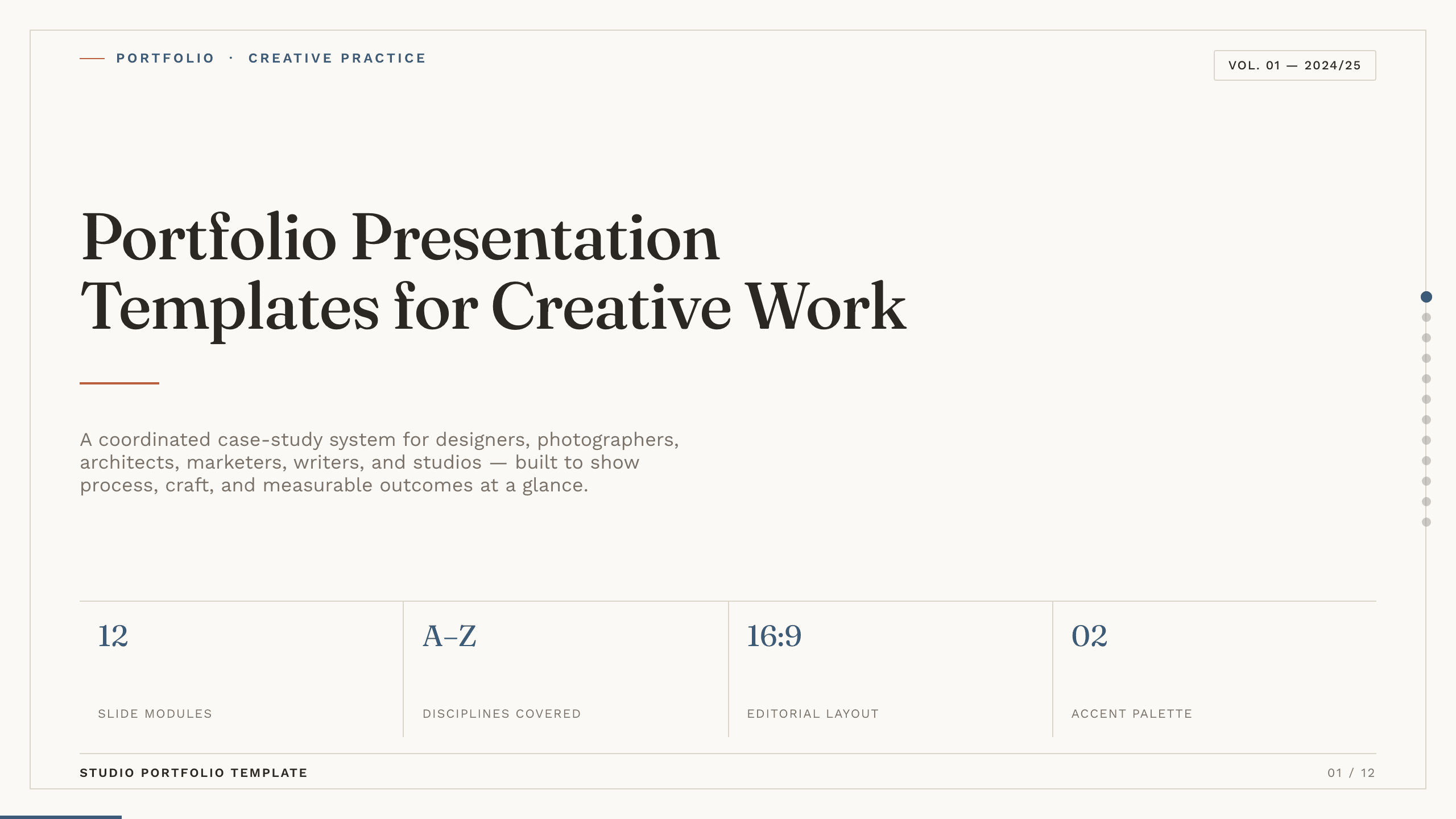
Portfolio Presentation Templates
Inspect a 10-slide featured example and find a starting point for creative work.
Browse collection
Google Slides Portfolio Template
Showcase selected work in nine editorial Google Slides layouts covering your point of view, capabilities, project context, process, outcomes, and contact.
View templateExplore other template hubs
Customize the 2 Picture Slide Template with Julius AI
1
Preview the complete example
Inspect all 9 slides to understand the narrative, layouts, and level of detail before replacing the example content.
2
Add your content and direction
Give Julius AI your source material, evidence, audience, constraints, and desired outcome.
3
Review and export
Check the narrative, facts, and design, then export an editable version to PowerPoint or Google Slides for final delivery.